
Exporting PDFs
Choose pages, name outputs, review destinations and existing-file conflicts, and understand completion or interruption.
Screenshots show the real app with sample documents. Select an image to inspect the original capture.
Prepare the output
Finish the page order, rotations and image layout before exporting. Export uses the arrangement at the start of the job; it is not a live view that keeps changing while files are written.
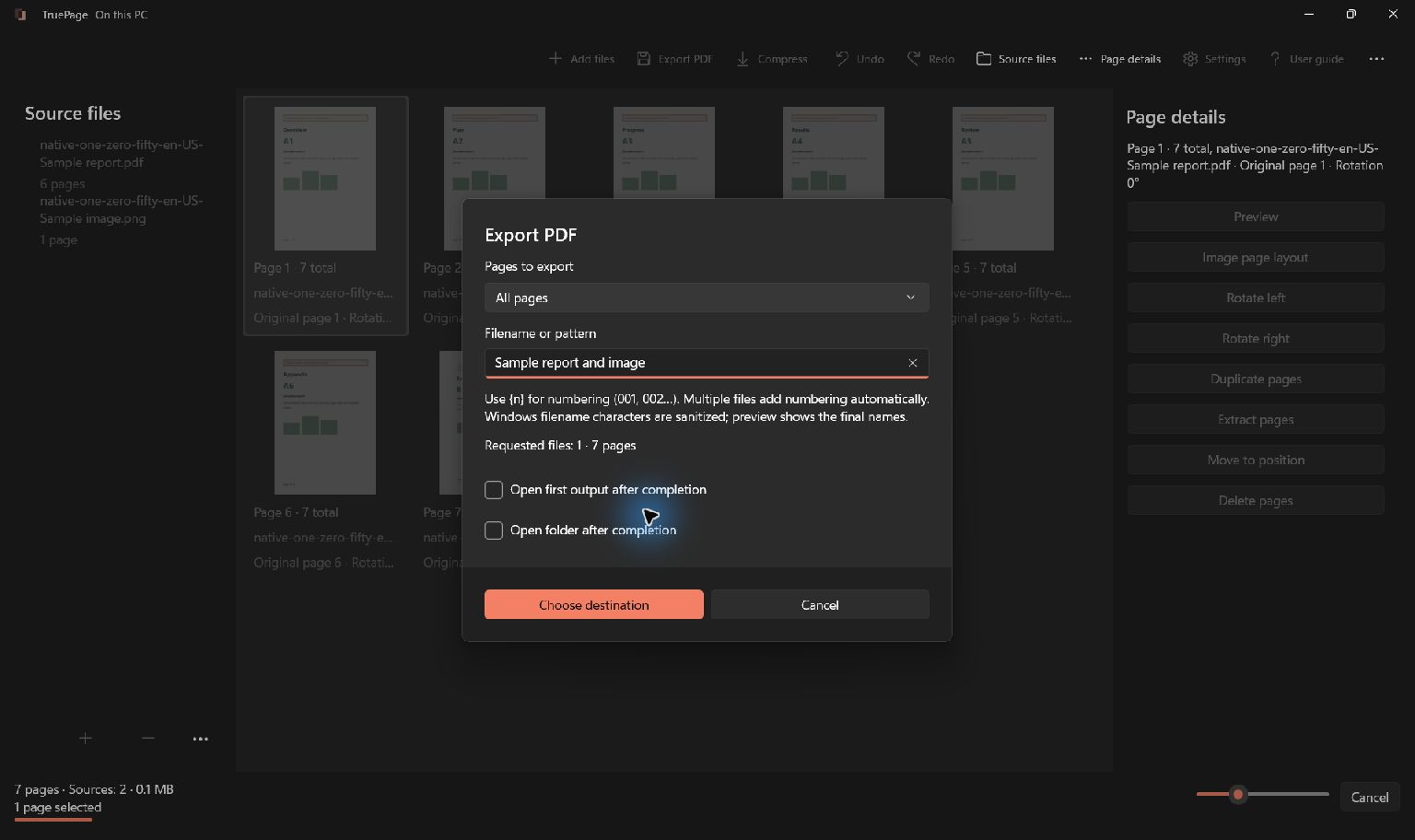
- Select Export PDF or press Ctrl+E.
- In Pages to export, choose All pages for the entire arrangement or Selected pages for the current selection. Other choices support extraction and splitting.
- Enter Filename or pattern. A simple name such as
application-packetis enough for one PDF. - Optionally select Open first output after completion or Open folder after completion.
- Check the requested file and page counts, then select Choose destination.
- Choose the output folder. Review the complete destination list before confirming the job.
Filenames and numbering
Use the literal token {n} for padded numbering: chapter-{n} produces names such as chapter-001.pdf and chapter-002.pdf. Multiple outputs receive numbering automatically when needed. Only {n} is a supported pattern token; do not substitute a translated token.
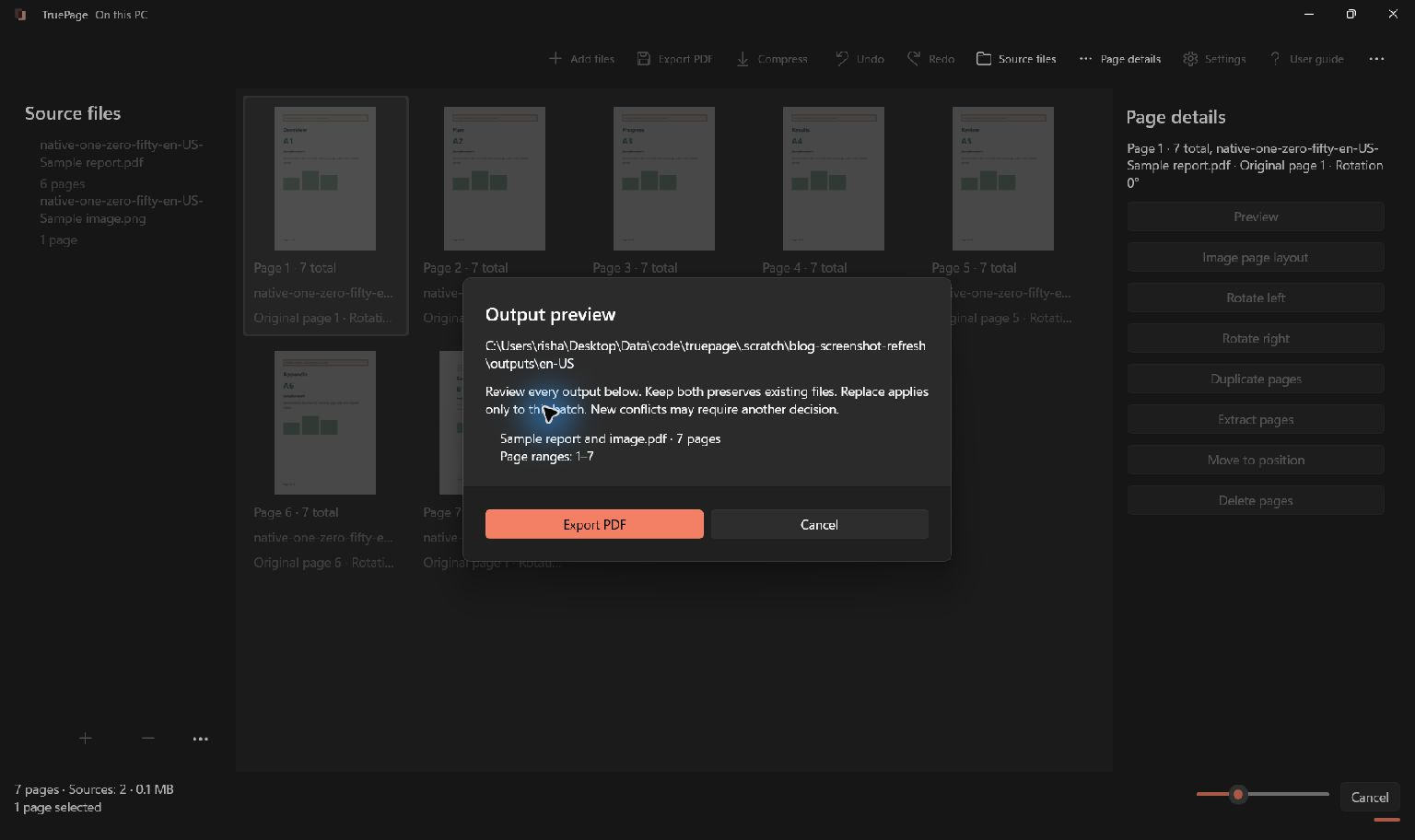
The filename field allows at most 160 characters. Windows filename characters are sanitized, so use Output preview as the authority for the final names. A valid filename does not guarantee that the destination folder is writable or has enough free space.
For extract and split operations, review every output, not just the first. Extraction and splitting explains how page ranges map to those files.
Existing files and protected originals
Keep both is the default when a destination name already exists. It preserves that file and gives the new output an available name. Replace applies only to the reviewed batch and asks for explicit confirmation.
A source document cannot be replaced by an output. Choose another filename or folder if the destination points to an original. If a destination changes after your decision, export can stop so you can review the new conflict in a fresh attempt.
Password-protected input may require authentication again. If the chosen operation creates unprotected output, read and acknowledge that warning. Opening a protected source does not automatically promise that an organized output keeps the same protection.
During and after export
The status distinguishes creating, checking and saving outputs. Wait for completion before opening files manually. Cancel requests cancellation; allow the app to finish its cancellation and cleanup instead of assuming the click instantly stops every phase.
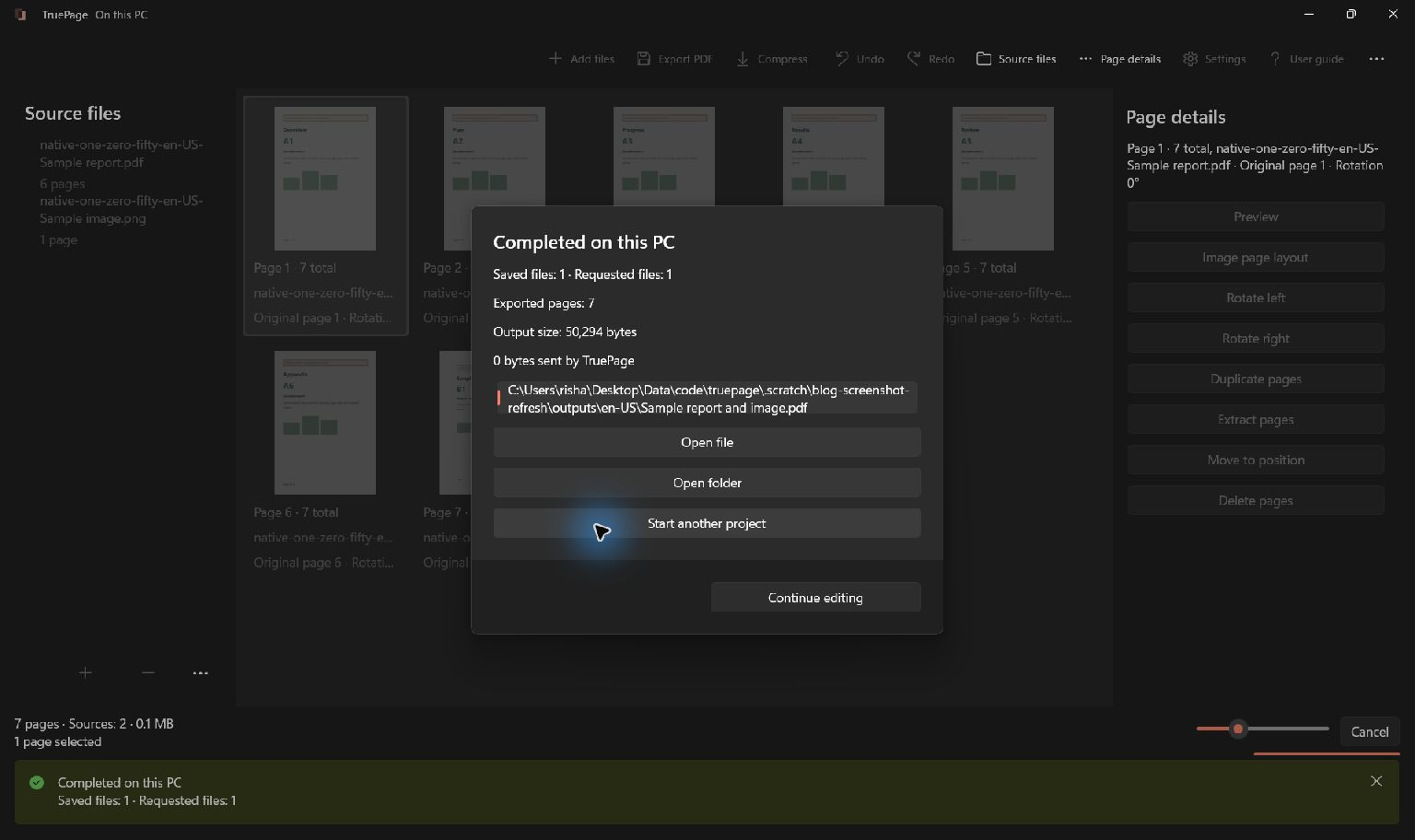
At completion, use Open file for the first output, Open folder for the destination, or Continue editing to retain the arrangement. Start another project begins a new workspace; export anything else you need first.
If a batch is interrupted, files already successfully published remain available. Cancellation is not a rollback of the whole batch. Inspect the result and saved-file count before retrying; Keep both may produce additional copies.
Check page count, order, orientation and content in the final PDF. The workspace is not a saved project, and Undo does not remove a file already exported. See troubleshooting for destination and cleanup errors.