
Password protection
Open protected PDFs, create or remove protection on new copies, and understand when exported results are unprotected.
Screenshots show the real app with sample documents. Select an image to inspect the original capture.
Open a protected PDF
Add the PDF normally. When the app requests Opening password, enter a valid user or owner password and select Continue. A wrong-password message means you must try a valid password or cancel; TruePage does not recover unknown passwords.
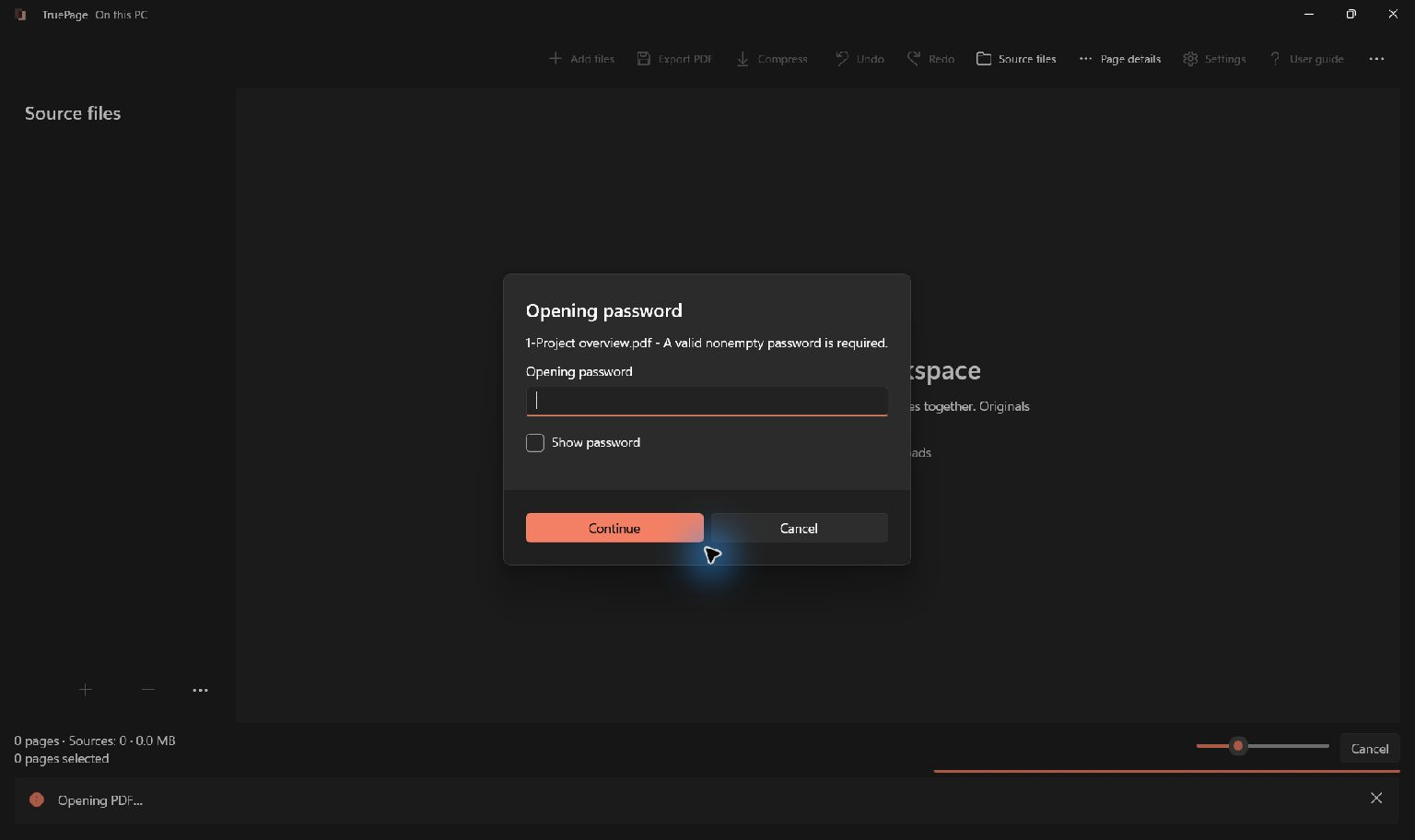
Show password reveals what you entered, so use it only when appropriate for your surroundings. Passwords can be requested again for a new preview session, an export or after a language restart. An unlocked thumbnail is not permission to skip later authentication.
Add a password to a new copy
Password actions work on a whole source PDF, not the edited page arrangement. If you want protection on a combined or rearranged document, export that result first and then protect the exported PDF.
- Choose Add password from the toolbar overflow. If there are several PDF sources, select the intended source.
- Enter the new output filename and choose its destination.
- Review the source and output path. Confirm any existing-file choice.
- If the source is already encrypted, authenticate it when asked.
- Enter the new password and enter it again in Confirm password.
- Continue to create the new encrypted copy, then test opening that copy before sharing it.
Use a long, unique passphrase and keep it somewhere safe. Confirmation must match exactly as entered. Password preparation limits the result to 127 UTF-8 bytes, which is not the same as 127 characters. Unsupported controls, emoji and some Unicode combinations are rejected; follow the displayed message and choose supported characters.
Encryption helps prevent unauthorized opening. After a recipient opens a document, their software or device may still allow copying, printing, exporting or photographing it. Password protection is not a guarantee against redistribution.
Remove protection deliberately
Choose the encrypted source and Remove password. Enter an output filename, choose the destination and review it. Confirm the explicit Unprotected copy warning, then authenticate the source as requested.
The new copy is unprotected; the encrypted original remains unchanged. Selecting an unencrypted PDF reports that there is no protection to remove. Removing protection does not discover or bypass an unknown password.
Organizing and converting encrypted input
Organized PDF exports and image/ZIP outputs from encrypted sources require an acknowledgement that the output will not be password-protected. Read that warning even if you previously opened the source successfully.
To share an organized result with a password, export the arrangement and then add protection to that new PDF. Image and ZIP output do not become password-protected merely because the input PDF was encrypted. Compression, by contrast, preserves existing source protection.
Handle errors safely
If confirmation differs, re-enter both fields. If a password is rejected for unsupported characters or preparation length, use a compatible passphrase. An accepted password can still lead to an unsupported-preview or unsupported-feature message; authentication does not make every PDF operation available.
Do not type real passwords into guide examples or filenames. Check export behavior and troubleshooting for related failures.