
Previewing pages
Inspect page content at a useful scale, navigate the arranged document and distinguish preview zoom from output settings.
Screenshots show the real app with sample documents. Select an image to inspect the original capture.
Open a readable preview
- Select or focus the page you want to inspect.
- Choose Preview from the toolbar overflow menu, page context menu or Page details.
- Wait for the page to render. Read the current page number, total and zoom percentage in the preview status.
- Use Zoom in and Zoom out to inspect details, or scroll within the page when it is larger than the available area.
- Close the preview to return to the board. The previewed page is the reference point for returning focus.
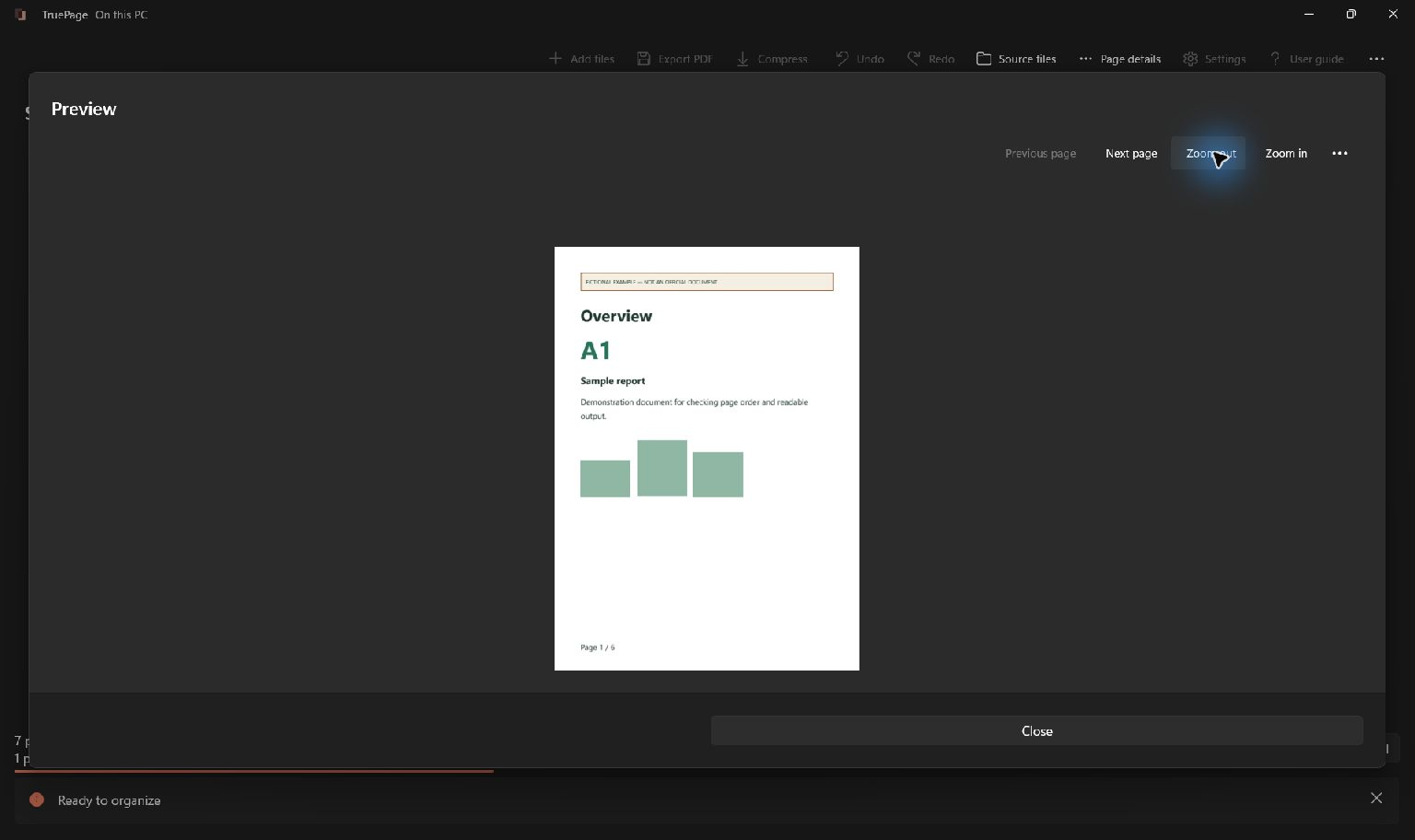
Navigate and zoom
Previous page and Next page move through the current workspace order, including pages from different source documents. With focus inside the preview viewer, Left and Right navigate, Home goes to the first page, and End to the last. The first/last navigation actions cannot move beyond the arrangement.
The preview’s … menu includes Fit to window and Actual size. Fit recalculates the view for the available space. Actual size sets the app’s 100% zoom; it is not a guarantee that a page measures its physical paper size on every monitor.
Zoom ranges from 10% to 400%. Enlarging the preview changes the displayed scale, not the document’s page dimensions or the quality of an eventual image export. Use the image export resolution setting when you need higher-resolution PNG or JPG output.
Check before exporting
Inspect the edges of forms, receipts and scanned pages. A thumbnail can look correct while a small reference number is clipped. Check that sideways pages have the intended orientation and that the page sequence follows the output you want.
Rotate left and Rotate right in the preview are real workspace edits. They affect export and can be undone after returning to the board. Do not use them merely to inspect a sideways line of text unless you intend to keep the rotation or undo it.
For image sources, inspect the dedicated image layout preview as well. It shows margins and cropping for the exported page, which a zoomed source alone cannot explain.
When a preview is unavailable
A password-protected source may need authentication again after its preview session ends or after a language restart. Enter its password in the app’s prompt; the presence of an earlier thumbnail is not proof that a current authenticated session exists.
If the file was moved, changed or locked, use source recovery. If TruePage reports an unsupported preview or unavailable page, follow that message instead of treating a blank area as an empty document. Try another supported source to distinguish a file-specific problem.
The preview is a document inspection tool. It does not add OCR, edit text or make unsupported PDF features safe to rewrite. Review the exported file too, especially when the app has shown a feature-preservation warning.