
Workspace and importing
Bring PDFs and images together, identify source and output page numbers, and find commands in wide or narrow windows.
Screenshots show the real app with sample documents. Select an image to inspect the original capture.
Understand the workspace
A source document is an original PDF, JPG or PNG. A page reference is one occurrence of a source page in the arrangement. If you duplicate a page, two occurrences refer to the same original page and can be moved or rotated independently.
The output page number is the page’s current position in the arrangement, starting at 1. It can differ from both its source page number and a number printed inside the document. Export ranges use output positions.
The center page board shows the arrangement. Source files opens the source-file list; selecting a source selects the pages it contributes. Page details shows information and actions for selected pages. Narrow windows may show these panels over the board instead of beside it.
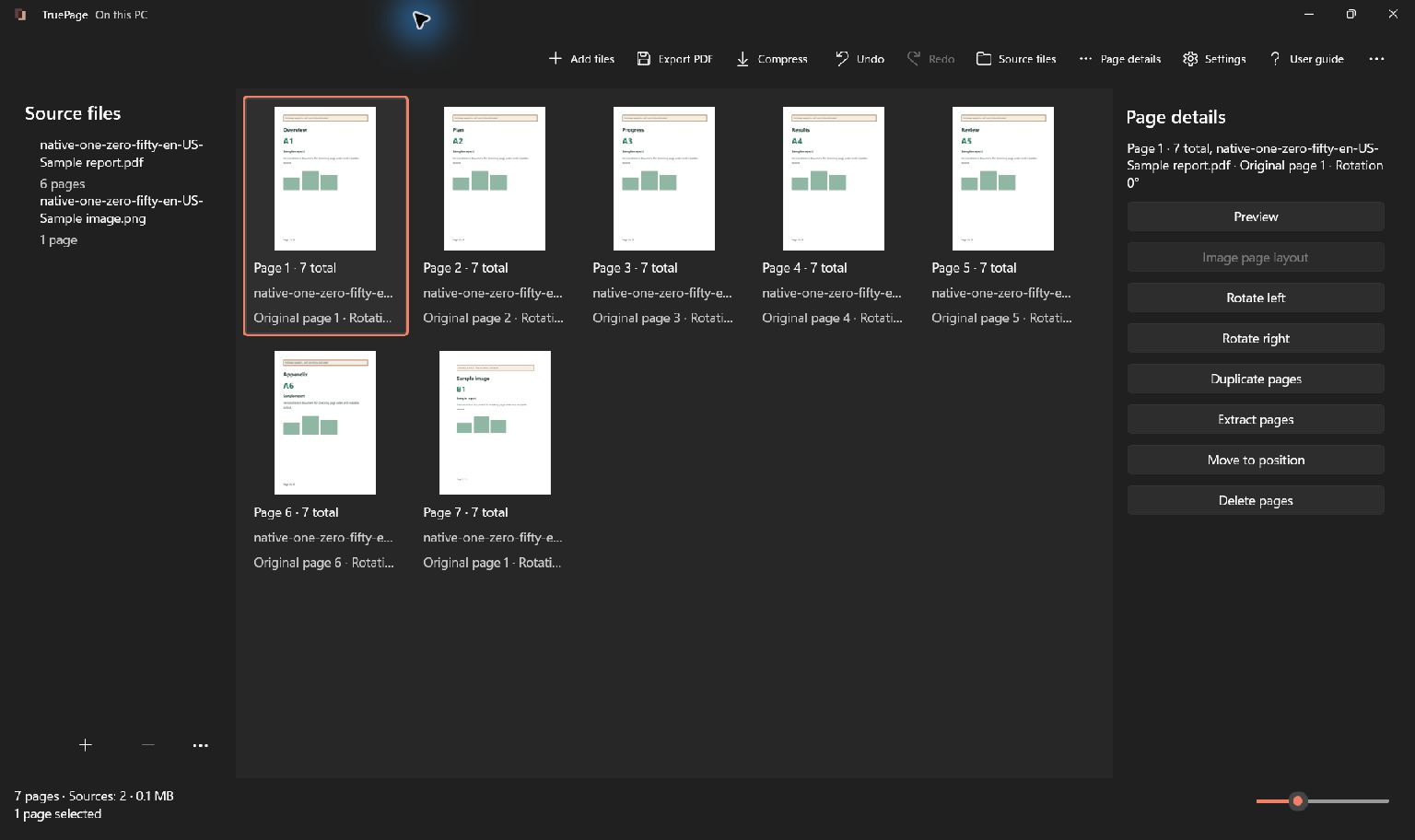
Add documents
- Select Add files or press Ctrl+O.
- Choose one or more supported PDFs or images in the file picker.
- Confirm and wait for the page board to populate. A PDF contributes its pages; each image contributes an image page.
- Check the status area and the total page count. If some files fail to import, successfully added sources and your existing edits are retained.
- Open Source files to inspect which files are present. Use Page details or Preview to check a specific page before arranging it.
You can also drop supported files onto the workspace. Dropping a PDF onto Compress instead starts the separate whole-source compression workflow, so use the page board when your intention is to add pages.
Protected PDFs may ask for a password before their previews appear. A wrong password is not an import shortcut: enter a valid password or cancel and continue with other files.
Find the action you need
The toolbar adapts to the window width. Its … menu contains additional or overflowing actions, including extraction, splitting, image layout and settings. Page context menus offer local actions; a right-click is useful when a toolbar command is not immediately visible.
Select pages before using actions that depend on them. The selected count helps confirm a multiple-page operation. Clear selection clears the set; clicking another page without a selection modifier changes the selection.
Use the thumbnail slider for a broader overview or larger page labels. This affects the board only, not the exported page size, image resolution or preview zoom.
Work with multiple sources
Add all documents, then arrange their page occurrences into the order you want. A source’s pages do not have to stay together. Add another copy imports another copy of that source’s pages; Duplicate pages copies only the selected occurrences.
Remove source removes that source and its contributed pages from the workspace after confirmation when needed. It does not delete the file from disk. Avoid moving, replacing or editing source files externally during a session. If that happens, use source recovery rather than assuming the thumbnails prove the file is unchanged.
Next, learn page selection and organization or layout for image pages.