
Compressing PDFs
Choose a compression mode for a whole source PDF, compare measured sizes and previews, and decide whether to save a new copy.
Screenshots show the real app with sample documents. Select an image to inspect the original capture.
Compression uses the whole source
Compress optimizes the complete original PDF. It does not apply page ordering, deletion, rotation or other organizer edits. To compress an arranged result, first export that arrangement to a new PDF, then choose that exported file as the compression source.
Start with a readable PDF. Compression cannot guarantee a reduction: some files are already efficiently stored, and another rewrite may produce the same size or a larger result. The comparison dialog shows what actually happened.
Choose a mode
- Select Compress from the toolbar, choose the PDF when prompted, or drop one PDF onto the compression button.
- Select Safe optimization or Smaller file.
- Enter the output filename and choose a destination folder.
- Review the proposed output path and resolve any existing-file conflict.
- Allow the app to prepare and check the result. Do not treat the proposed filename as a saved output until you finish the review.
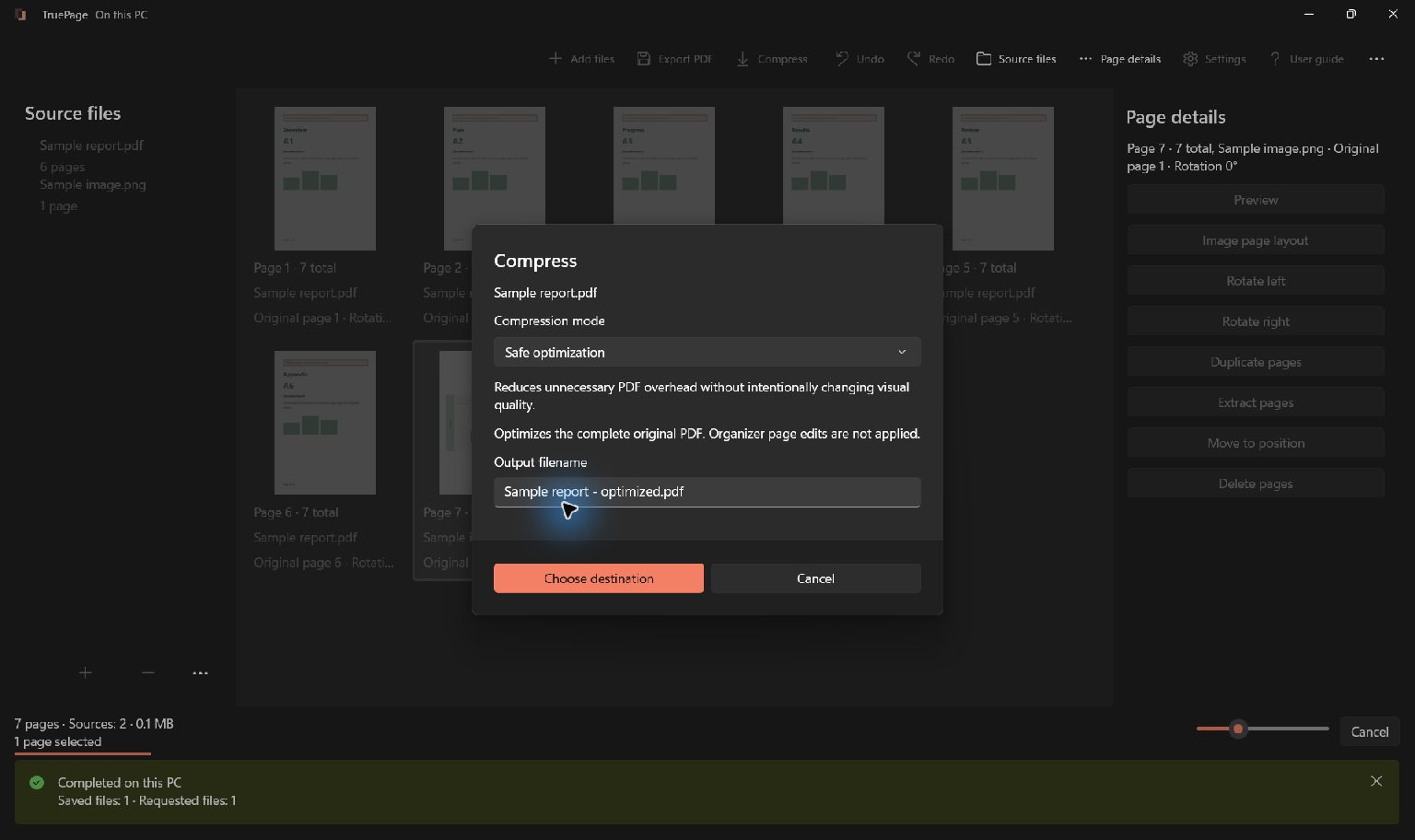
Safe optimization reduces unnecessary PDF overhead without intentionally changing visual quality. It preserves image resolution and JPEG quality. Use it when fidelity matters or as the first attempt.
Smaller file may recompress eligible images, with visible quality loss. Searchable text is preserved; the operation is not intended to turn every page into a flat picture. A document with few eligible images may show little benefit.
Review before saving
The results show original size, resulting size, bytes saved and percentage saved. Before/after previews let you inspect representative pages, including an affected image page when applicable. Compare small lettering, fine lines, signatures and scan artifacts at equivalent scale.
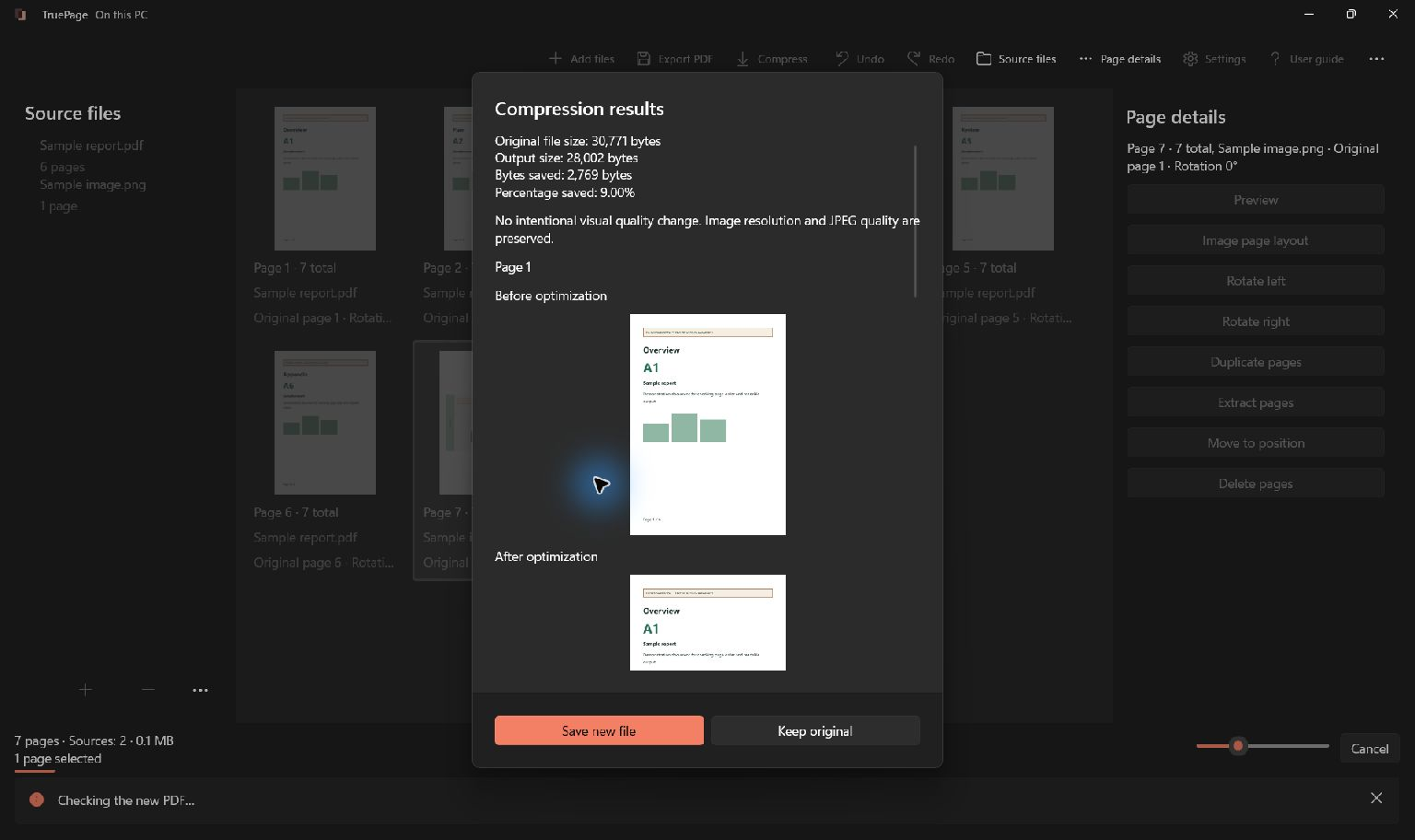
Choose Save new file only if the size and quality are suitable. When the candidate is not smaller, the app explains that and offers Save new file anyway; the safer default is Keep original. Keeping the original declines publication of the candidate. It does not remove your original source.
The representative previews are not an exhaustive comparison of every page. Open the saved PDF and check any pages that are important to your purpose. No fixed percentage saving is promised.
Protected files and file conflicts
Compression of an encrypted source requires valid authentication and preserves its existing password protection and permission settings. This differs from organizing protected pages into an unprotected output.
If the chosen output name already exists, Keep both preserves both files. Replace requires an explicit decision for that output. The original source cannot be overwritten. If another application changes a destination, start a new export to review the current state.
When the result is unexpected
If the output is larger, keep the original unless you have another reason to retain the new copy. If Smaller file loses too much detail, cancel that result and use Safe optimization. If the wrong pages are present, remember that compression acts on the whole source rather than the board arrangement.
For a combined document, follow PDF export first. For passwords, see password protection.
Judge detail as well as file size
Our synthetic compression checks compare scanned text, screenshots, diagrams and continuous-tone images separately. Existing JPEGs and images with color profiles or transparency can leave little to recompress. Savings and processing time depend on content, not just page count.
Searchable text surviving is a separate check from scan readability: a hidden text layer can remain searchable even if the visible scan loses detail. Compression adds no OCR. Inspect small digits and fine lines at matching scale; use Safe optimization when preserving those details matters more than extra savings.