
Settings and keyboard reference
Change language or theme, understand the special restart handoff, and use the app's implemented keyboard commands.
Screenshots show the real app with sample documents. Select an image to inspect the original capture.
Change language
- Finish or cancel the current activity and close any modal dialog.
- Open Settings, using the toolbar’s … menu if necessary.
- Choose Language: English, German, Spanish, French, Italian, Japanese, Korean, Brazilian Portuguese, Simplified Chinese or Traditional Chinese.
- Select Restart and apply. The app restarts to load the chosen resource set.
- After restart, verify the arrangement and selection. Re-enter passwords for encrypted sources when prompted.
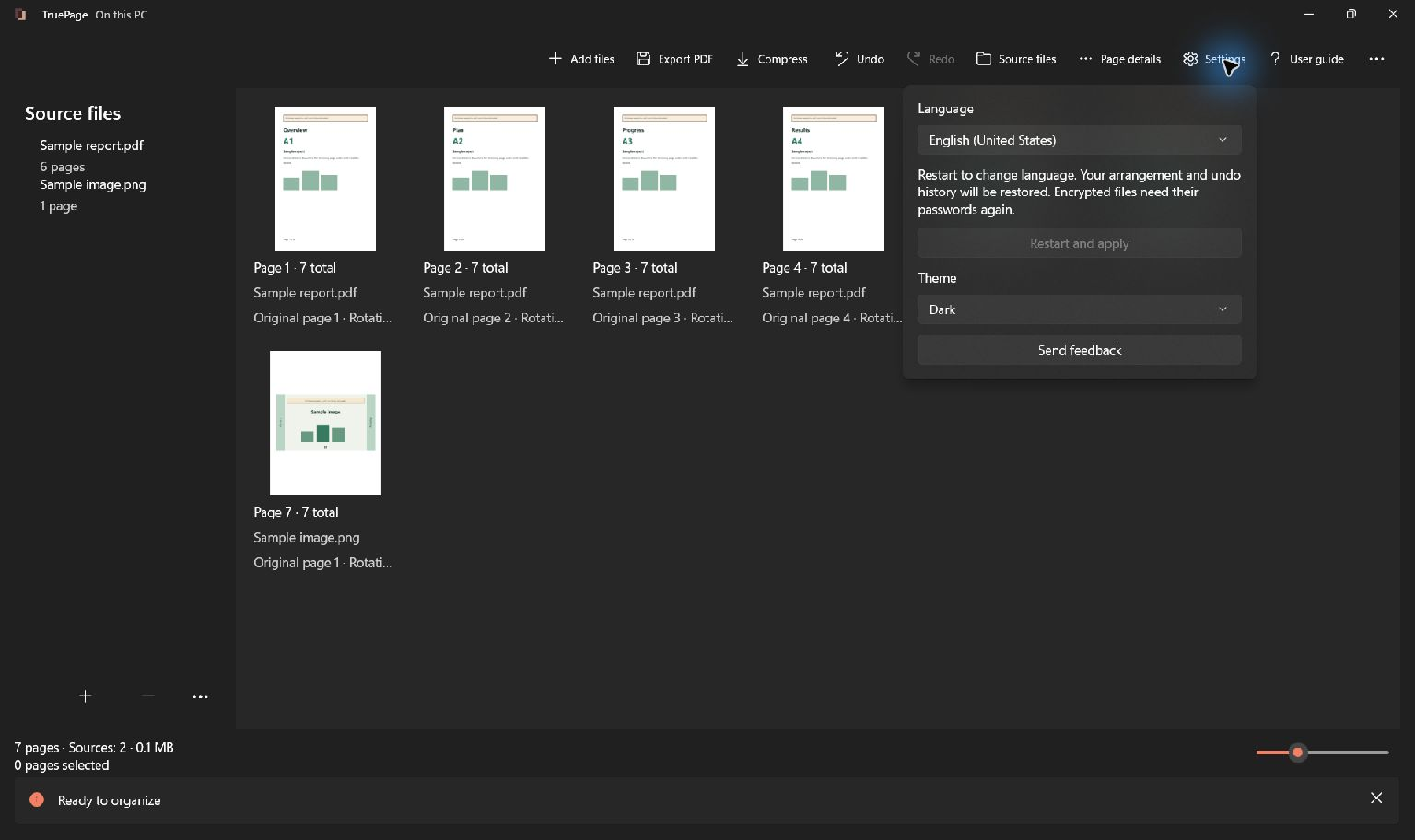
Use Windows language follows the supported language resolved from Windows preferences. Choosing the same setting again does not require a restart. Language changes are unavailable while an operation is busy.
The language restart preserves the arrangement and Undo/Redo through a special handoff. If saving or restarting fails, follow the status message; if restoration is unavailable or expired, add the source files again. This mechanism does not turn the workspace into a saved project.
Change theme
Under Theme, choose Use Windows theme, Light or Dark. The appearance changes without a language restart. The theme changes the interface, not PDF pages, exported backgrounds or image colors.
The guide captures use the dark appearance. The same operations exist in the light appearance. Window width also changes which commands are visible directly and which appear in ….
Workspace shortcuts
Use these commands when the workspace is active. Text fields and dialogs have their own focus behavior; do not assume a workspace shortcut applies while typing a filename.
| Keys | Action |
|---|---|
| Ctrl+O | Add files |
| Ctrl+E | Export PDF |
| Ctrl+Z | Undo |
| Ctrl+Y or Ctrl+Shift+Z | Redo |
| Ctrl+A | Select all pages |
| Ctrl+D | Duplicate selected pages |
| Ctrl+R | Rotate selected pages right |
| Delete | Remove selected pages from the arrangement |
| Ctrl+Alt+Up / Ctrl+Alt+Down | Move selected pages earlier / later |
| Ctrl+Plus / Ctrl+Minus | Enlarge / reduce board thumbnails |
| Escape | Cancel a board drag and close source/details overlays |
Both the numeric-keypad add/subtract keys and supported plus/minus keyboard variants are handled. Thumbnail size does not change export resolution.
Selection, preview and dialogs
Use Ctrl+click to adjust a selection and Shift+click to select a range. The touch multi-select mode lets taps toggle page selection without keyboard modifiers.
Within the preview viewer, Left/Right move to the previous/next page and Home/End go to the first/last page. Use the preview toolbar for zoom, fit, actual size and rotations.
Use Tab and Shift+Tab to move among controls, Enter to activate an appropriate focused action, and Space for controls such as checkboxes. Check focus before confirming a dialog. The app exposes names and status information to accessibility tools, but this guide does not claim independent screen-reader certification.
If a command appears missing, check toolbar overflow, selection and whether another operation is active. Read organizing pages for exact move behavior and previewing pages for zoom details.