
Organizing pages
Select, move, rotate, duplicate and remove pages, with precise output positions and reversible workspace edits.
Screenshots show the real app with sample documents. Select an image to inspect the original capture.
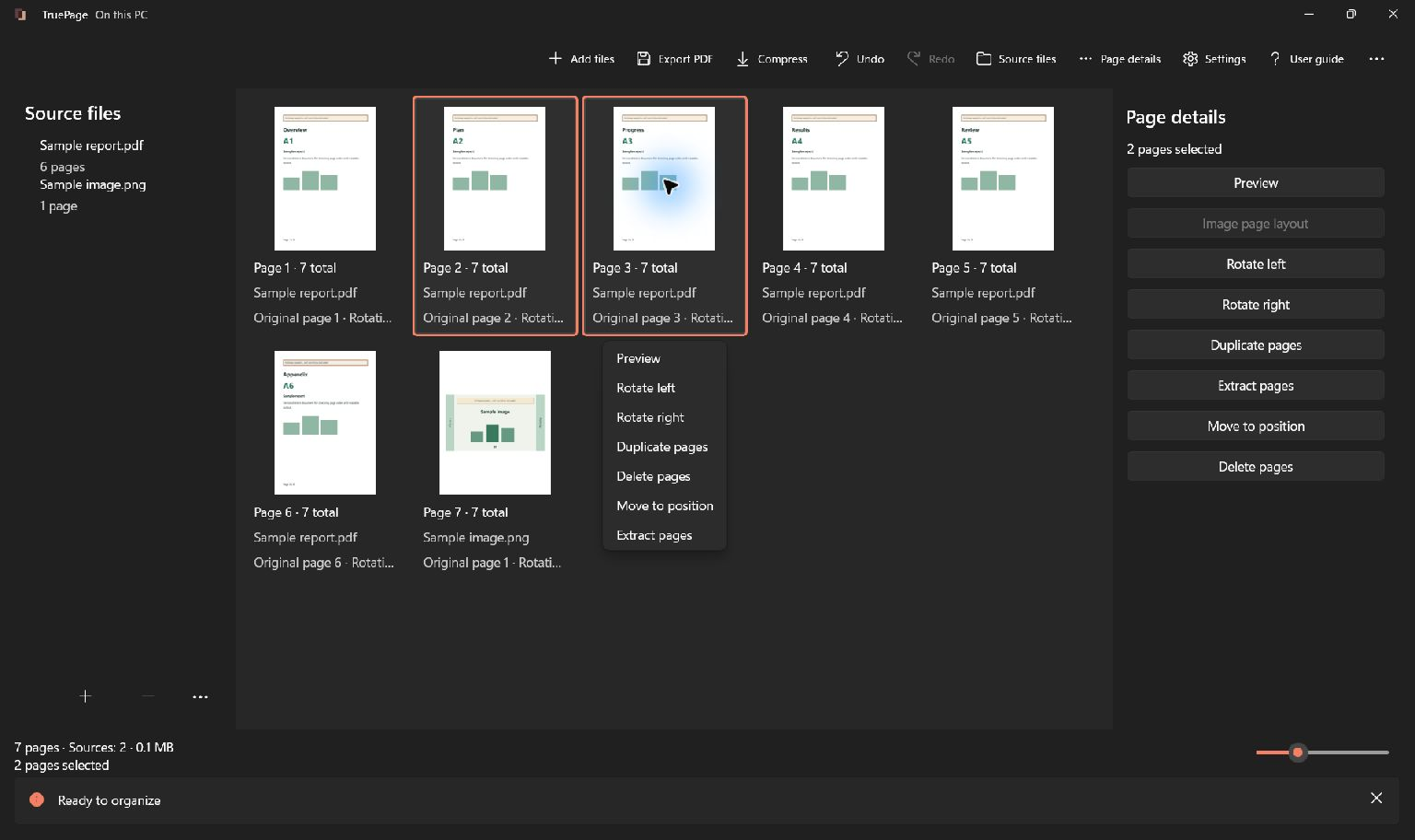
Select the intended pages
Click a page to select it. Use Ctrl+click to adjust a multiple selection and Shift+click for a range. Ctrl+A or Select all selects every page. Clear selection clears the selection. For touch-oriented selection, enable Touch multi-select and tap the pages you want.
Always check the selected count before applying an operation. Selecting a source in Source files selects the page occurrences contributed by that source. Selection and keyboard focus are related but are not interchangeable: verify the highlight before using a shortcut.
Reorder the arrangement
- Select the page or group you want to move.
- Drag it to the insertion position on the board. Watch the insertion indicator before releasing.
- For smaller adjustments, choose Move earlier or Move later. The keyboard equivalents are Ctrl+Alt+Up and Ctrl+Alt+Down.
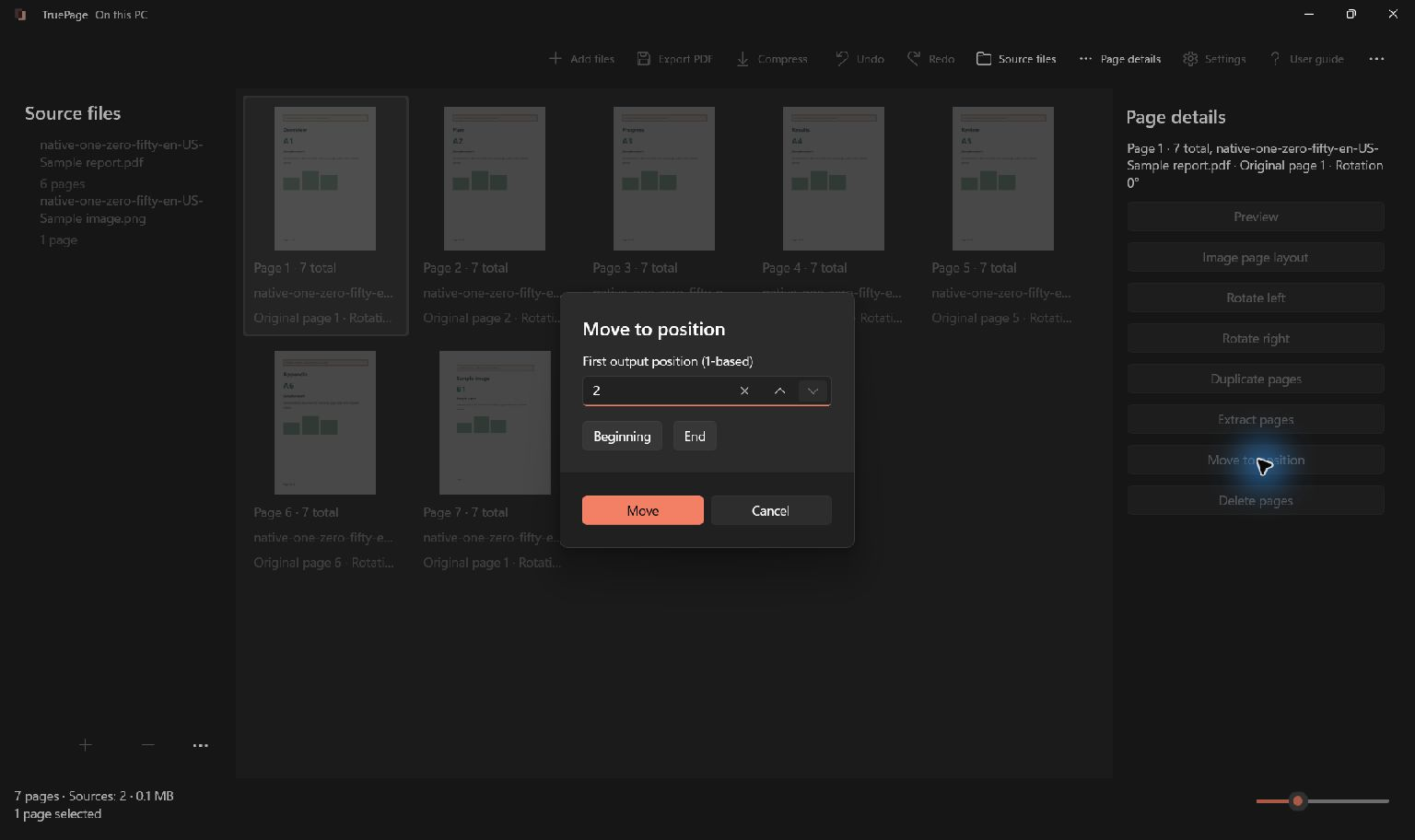
- For an exact destination, choose Move to position.
- Enter the first output position of the moved selection, beginning at 1, or use Beginning or End.
- Confirm Move and inspect the resulting sequence. Use Undo if the placement is not what you intended.
A moved group keeps its internal order. The move-position dialog limits the number according to the arrangement after the selected pages are taken out. For example, moving two selected pages in a six-page arrangement allows a first position from 1 through 5.
Rotate, duplicate or remove
- Rotate right turns selected pages clockwise; Ctrl+R performs the same action. Rotate left turns them the other way. Repeating a rotation changes the angle again.
- Duplicate pages or Ctrl+D creates new occurrences of the selected pages. These can be edited independently; it does not copy the source file on disk.
- Delete pages or Delete removes selected occurrences from the arrangement. It does not erase pages in the original document.
- Page details provides another place to find page actions. Preview rotation also changes the workspace arrangement rather than merely rotating your view.
To make a combined document, import all the sources, put their pages into the desired sequence, remove unwanted occurrences, and export the complete arrangement. There is no separate merge project to maintain.
Undo and check the result
Use Ctrl+Z for Undo. Use Ctrl+Y or Ctrl+Shift+Z for Redo. Review page count and selection after each reversal. Creating a new edit after undoing changes the redo path.
A confirmed reload of changed source contents clears Undo and Redo for the entire workspace, so it is different from an ordinary page edit. Exporting a document creates a file; Undo is not a way to retract that saved file.
Before exporting, use preview to check orientation and content, then read exporting PDFs. For only part of the arrangement, use extraction and splitting.