
Getting started
Install TruePage, understand what the workspace keeps, and create your first PDF without changing the original.
Screenshots show the real app with sample documents. Select an image to inspect the original capture.
Before you begin
TruePage runs on Windows 11 x64 PCs with build 26100 or later, on supported Windows releases. Windows 10, Windows on ARM and macOS are not supported. Get the app from its Microsoft Store listing, then open TruePage from Start. Downloading and updating the app is separate from working with documents: document operations run locally and need no TruePage account.
For a first attempt, use a short PDF you can recognize and a separate output folder. You can also add standard JPG or PNG images. Keep source files in a stable location while working; the workspace refers to those files instead of becoming a permanent archive.
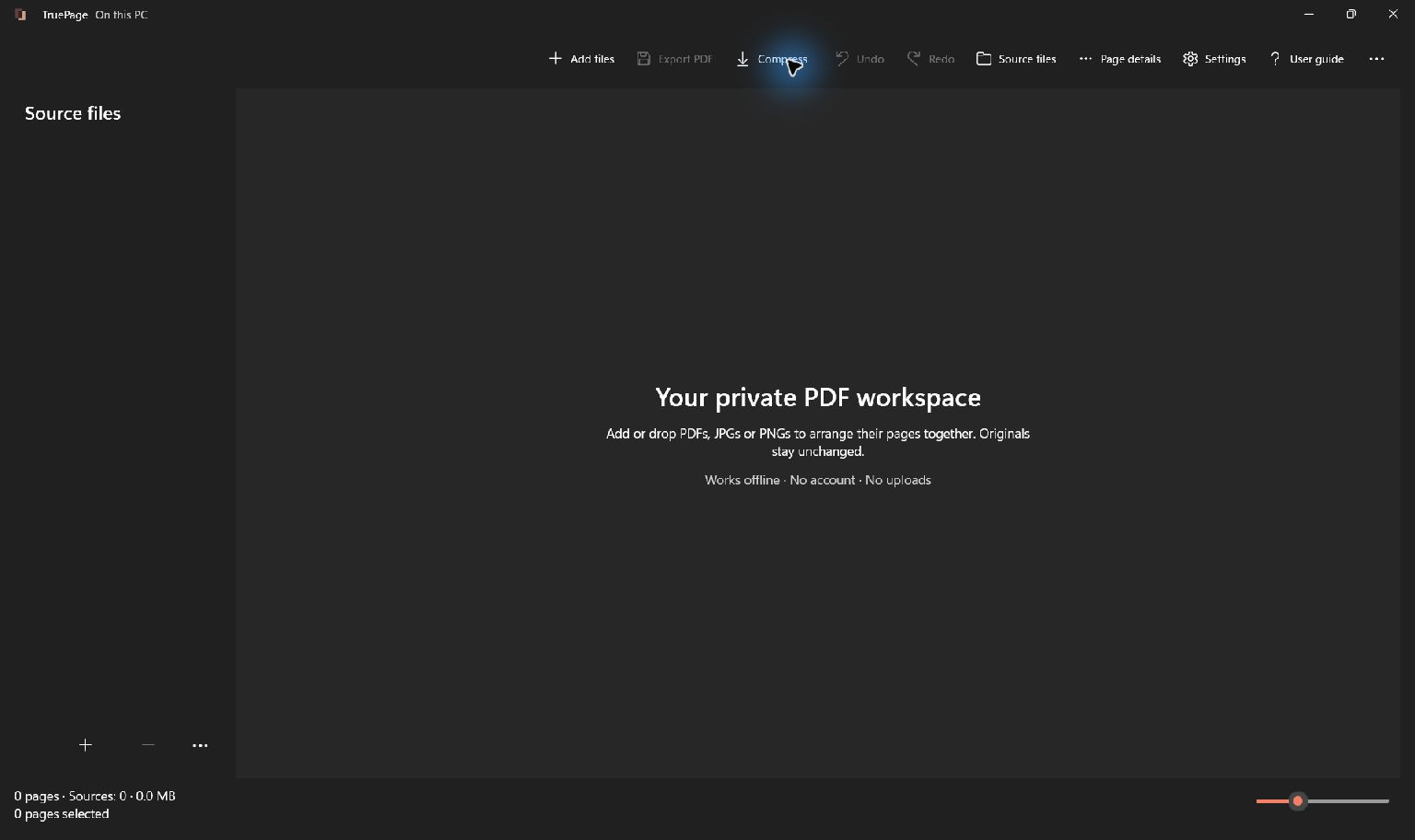
Create your first PDF
- Select Add files or press Ctrl+O. Choose your sample PDF and confirm the file picker. Wait for its pages to appear.
- Select a page. Use Page details to check which source and original page it belongs to. If a command is hidden, open the toolbar’s … menu.
- Try Rotate right on one page. Choose Undo or press Ctrl+Z to reverse the edit. The original PDF has not changed.
- Open Preview and check the page at a readable scale. Close the preview to return to the page board.
- Select Export PDF or press Ctrl+E. Leave All pages selected and enter a recognizable filename such as
first-copy. - Select Choose destination and choose your output folder. Review the filenames in Output preview. If a name already exists, use Keep both for this first exercise.
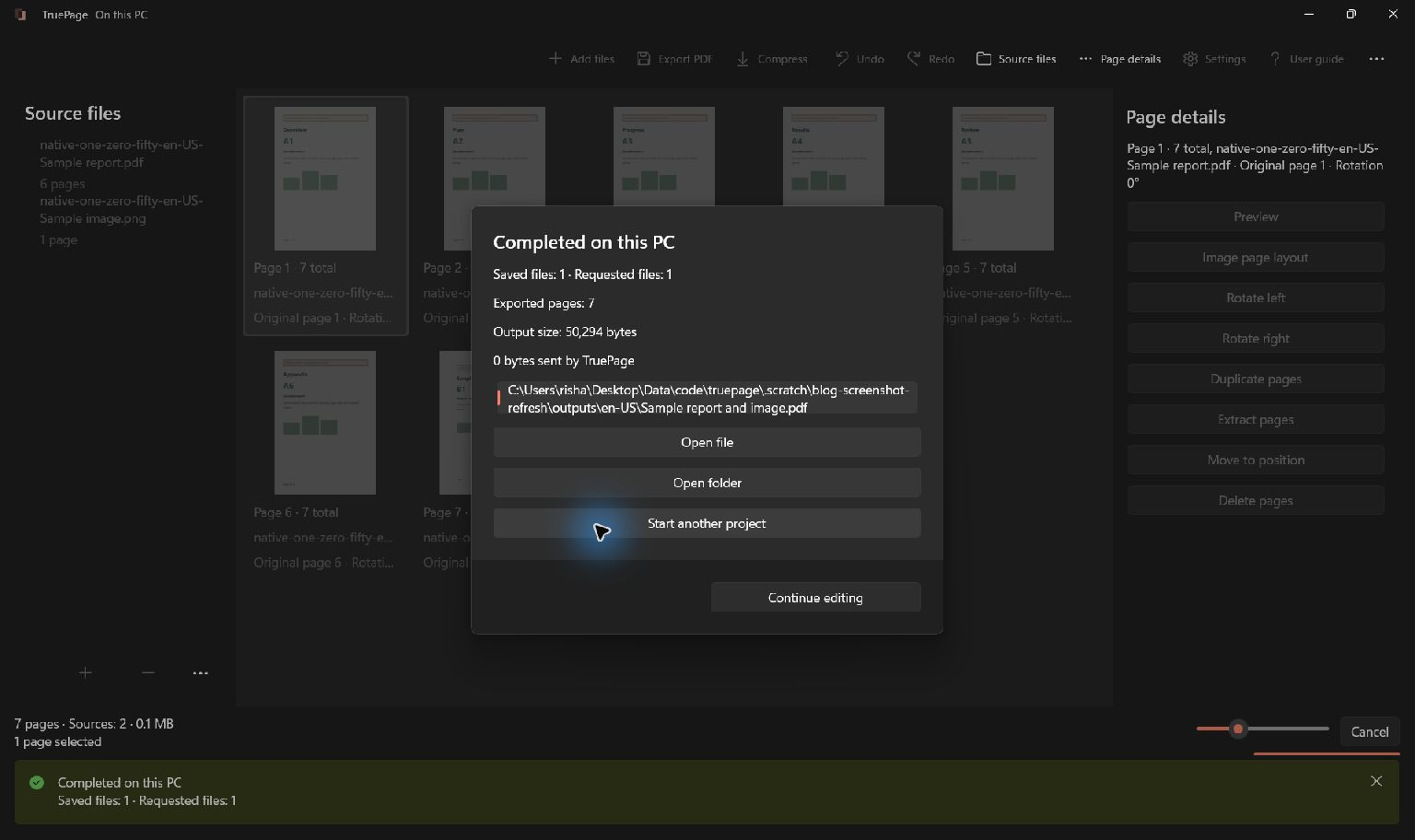
- Confirm the export and wait for the completion dialog. Select Open file to inspect the new PDF, or Open folder to find it in its destination.
- Check the exported page count, page order, orientation and image edges. Select Continue editing if you want to keep working with the arrangement.
What is saved, and what is not
An export saves a new output document. Organizing pages changes the current workspace, not your source files. Deleting a page from the arrangement therefore does not delete it from the original PDF.
The workspace is not a persistently saved project. Export the results you want to keep before closing the app or starting another project. The special language-change restart can restore an arrangement and its undo history; that is not a general project-save feature.
Make the interface comfortable
Open Settings from the toolbar or its overflow menu. You can change the theme immediately. To change language, choose one of the ten languages and select Restart and apply when the app is idle. Password-protected files may ask for authentication again.
If a command is disabled, first select suitable pages and finish or cancel the current activity. You can enlarge page thumbnails with the slider without changing output dimensions.
Continue with the workspace and importing to combine documents, or export options for filename patterns and existing-file decisions.