Put the document back into a readable sequence
Select the page or group, move it on the board or use Move to position, check its new neighbors, then export all pages. A moved group keeps its internal order.
Define the intended order before moving anything
Read the document enough to know what “correct order” means. Numerical order is appropriate for an ordinary report, but an application packet might follow the recipient’s checklist, and a client handover might group documents by deliverable. Choose the organizing rule before you start moving individual pages.
For a mixed packet, write a short outline: cover, overview, main report, supporting material. For an existing scan, note which pages precede and follow the misplaced section. A destination such as “after the overview and before the appendix” remains useful even when earlier edits change the numerical positions.
Keep the source files available in their original locations. TruePage edits the arrangement and exports a new output; it does not rewrite your source documents as you move cards. Do not move or replace the inputs externally during the session, because source recovery is a separate task from page organization.
If you are replacing an outdated page rather than simply moving it, first confirm that the corrected source is actually the right revision. The page replacement walkthrough covers the extra membership checks needed for that situation.
Import and compare content with output positions
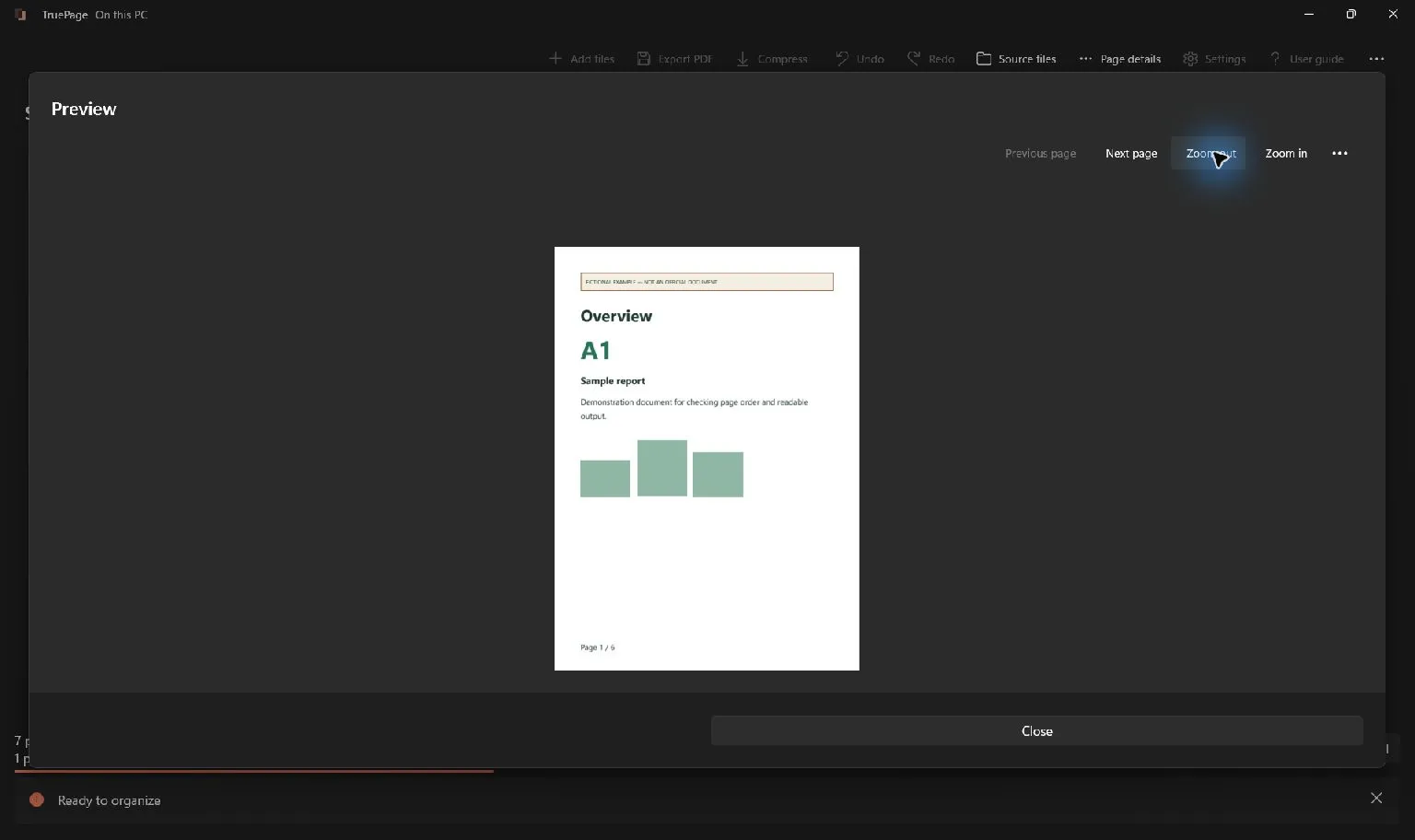
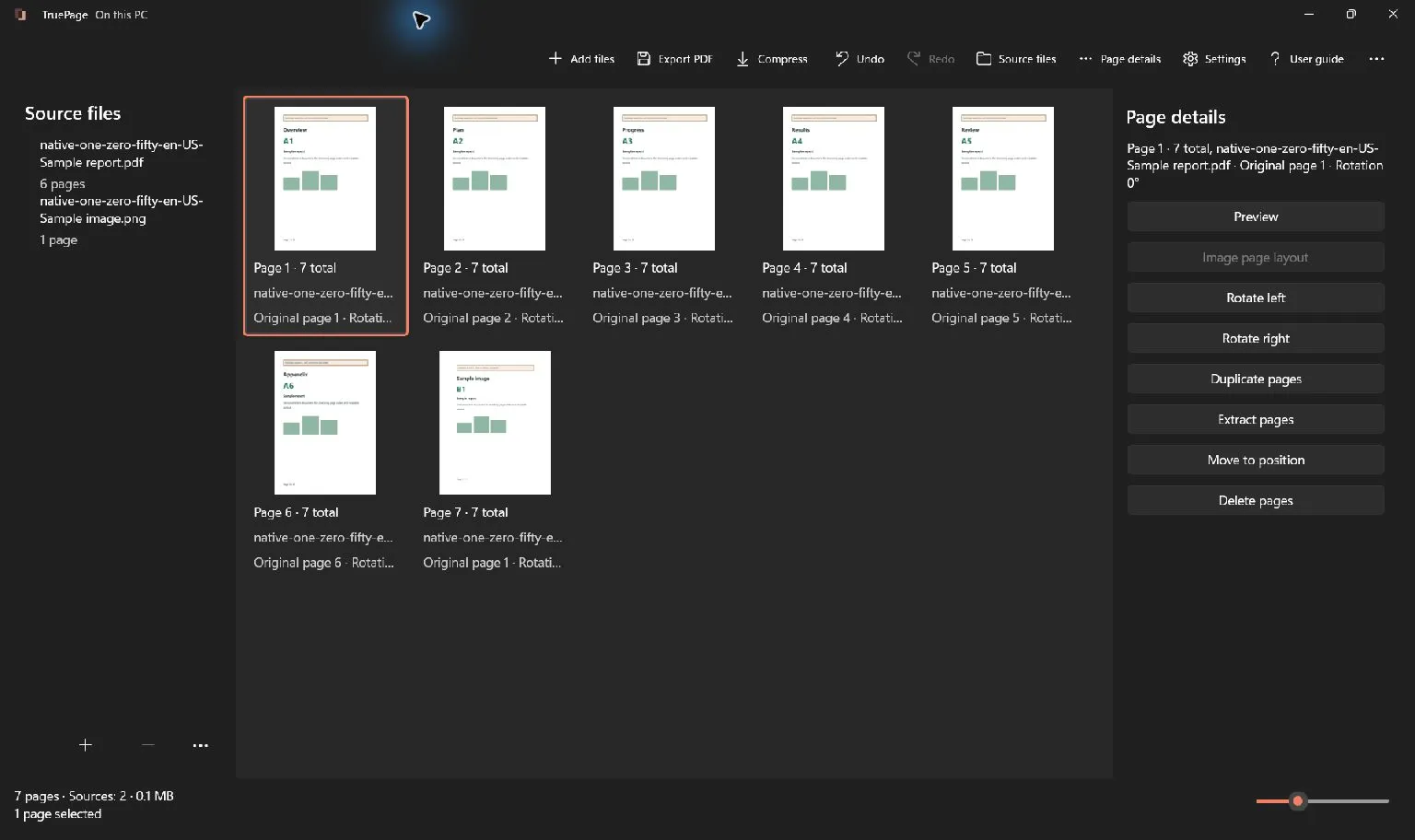
Choose Add files or Ctrl+O, select the PDF, and wait for its pages to appear. Check the page count before editing. Use Source files when several imported files have similar names, and open Preview if the page contents are too small to identify from the board.
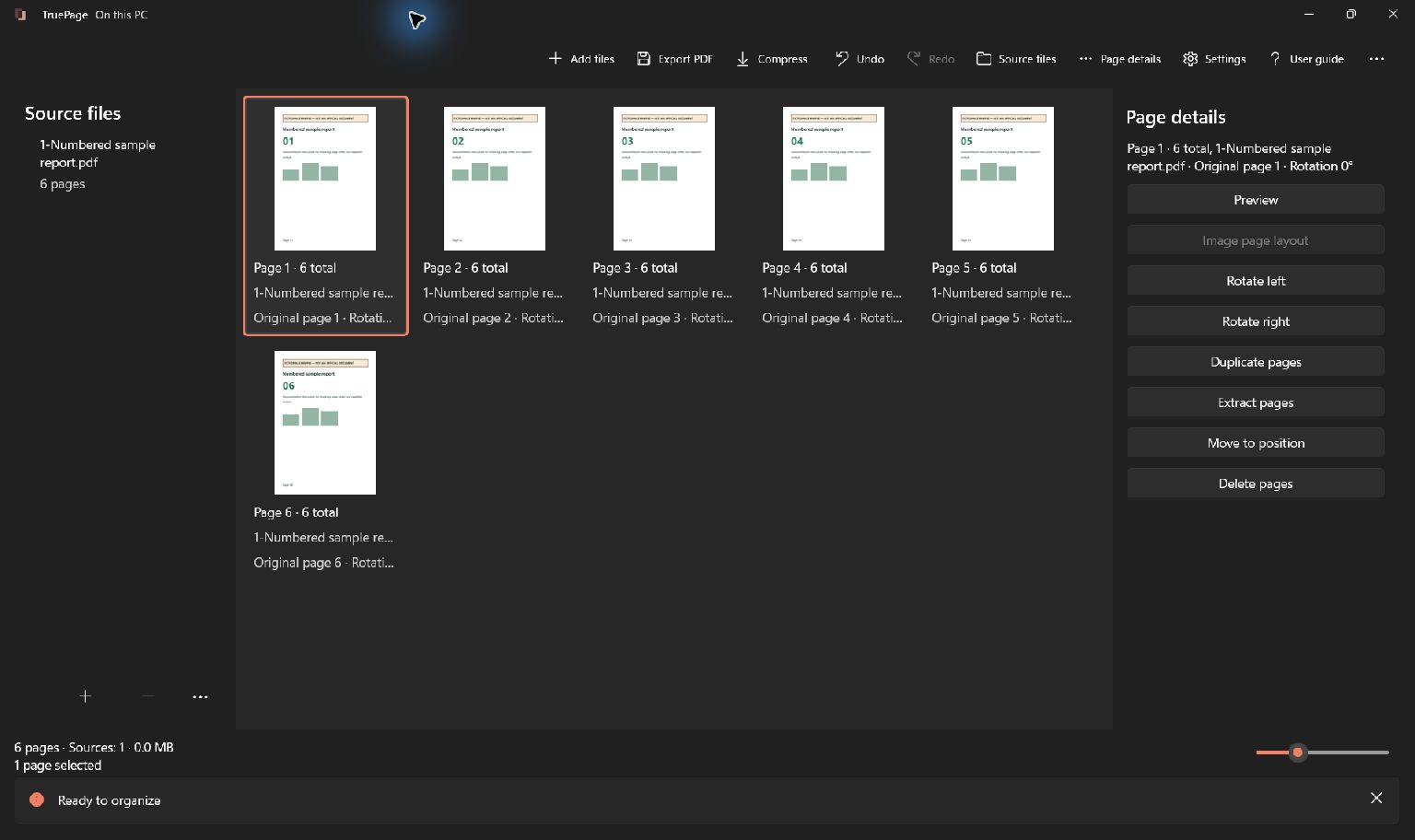
The number shown by the workspace is a page’s current output position. The number printed inside a thumbnail belongs to the source content. In our example, printed page 03 occupies output position 2, while printed page 02 occupies output position 3. That mismatch tells us what to move.
Read the board from left to right, continuing onto the next row when the layout wraps. Resizing the window or adjusting thumbnail size changes how many cards fit on a row; it does not establish a new document order. Avoid interpreting a visual column as a separate section unless your actual sequence supports that interpretation.
Select exactly the page or group to move
Click a page for a single selection. Use Ctrl+click to adjust separate selections, or Shift+click to select a continuous range. Confirm both the highlighted cards and the selected count before moving anything.
To fix the first pair in the example, select printed page 02 at output position 3. Only that occurrence needs to move. If pages 02 and 03 are both selected, moving the group preserves their internal order, so it will not repair the reversed pair inside that group.
This behavior is especially useful for an appendix. Select all pages belonging to the appendix and move them together to preserve their sequence. It is less useful when the pages inside the selected group are already scrambled; correct their internal order first or select smaller groups.
If the same source page occurs twice, inspect which occurrence is selected. Two identical thumbnails can occupy different output positions and be part of different intended sections. Moving one does not identify or move every duplicate automatically.
Use Move earlier or Move later for nearby changes
For an adjacent swap, Move earlier or Move later is straightforward. The keyboard shortcuts are Ctrl+Alt+Up and Ctrl+Alt+Down. With printed page 02 selected at output position 3, Move earlier places it before printed page 03.
Read the result after that move: 01, 02, 03, 04, 06, 05. The first pair is repaired, and the remaining error is near the end. Select printed page 05 and move it earlier once. The resulting sequence should read 01, 02, 03, 04, 05, 06.
Do not press a movement shortcut repeatedly while relying on an old position count. A held or repeated command can move a selection farther than intended. Inspect the current neighbors after a small move, especially when another page looks similar to the selected one.
The operation changes the arrangement rather than the page content. Printed numbers, dates, and headings remain as they were in the source. This is why the printed sample numbers are useful for checking the result.
Drag pages when the destination is visible
Dragging is useful when you can see the selection and the intended insertion point. Select the relevant pages, drag toward the destination, and inspect the insertion indicator before releasing. The indicator matters more than the card your pointer happens to cross.
If the target lies far away in a long document, dragging can be harder to verify. Use Move to position instead of trying to steer a large selection through several screens. The precise command also helps when the destination sits at the boundary between two rows of thumbnails.
After a drag, inspect both sides of the inserted group. A page placed just before an appendix instead of just after it can look plausible at a glance. Confirm the predecessor, the moved group’s internal sequence, and the successor.
If the wrong group moved or the insertion landed in the wrong place, use Undo. Reestablish the selection and destination before trying again rather than correcting several uncertain moves with more dragging.
Set an exact destination with Move to position
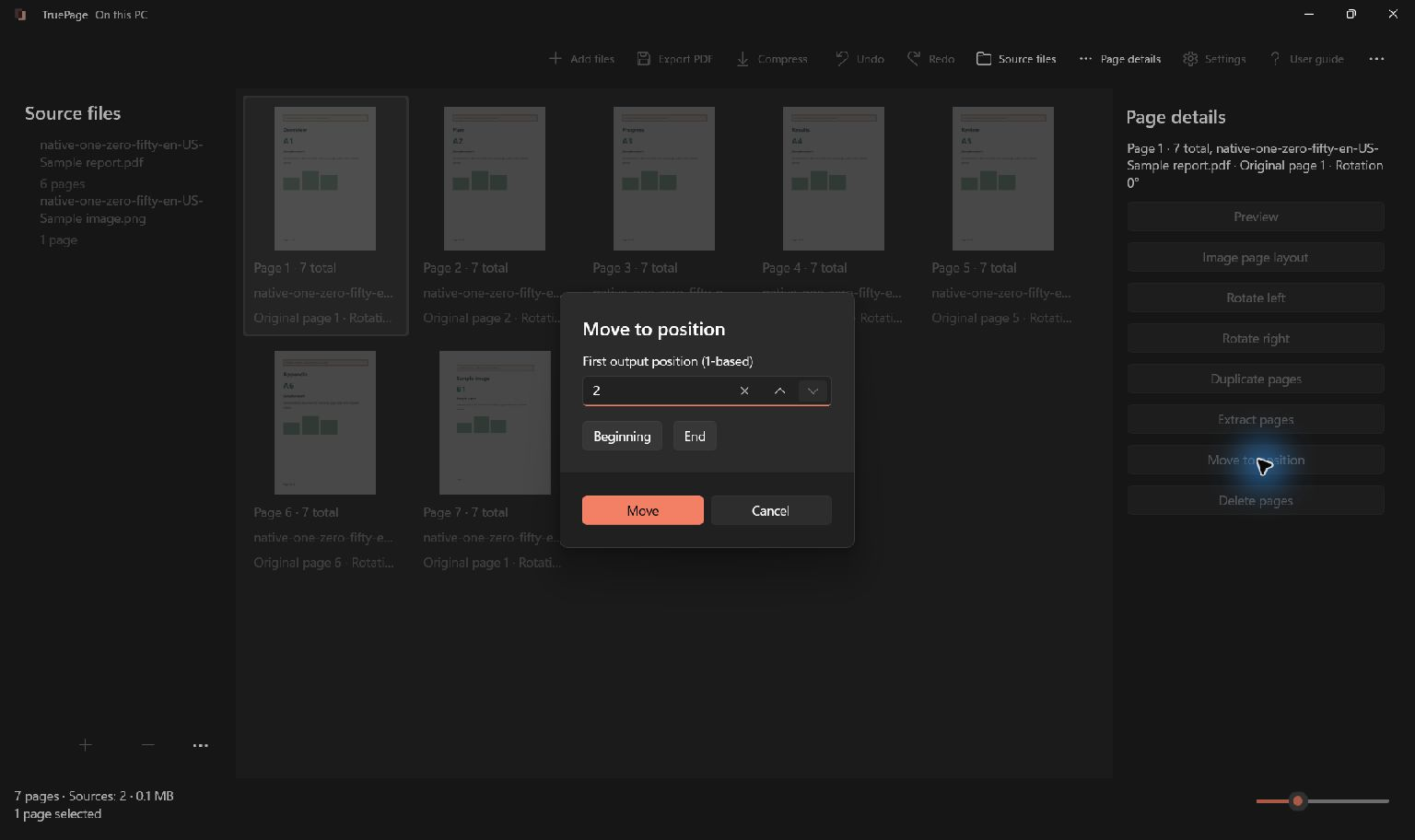
Choose Move to position for the selected page or group. Enter the first output position you want the selection to occupy, or use Beginning or End when those describe the destination. Confirm Move and inspect the updated sequence.
The valid positions account for the selected pages being removed before reinsertion. For example, moving two pages within a six-page arrangement allows the group to begin at positions 1 through 5. Enter the first position of the group, not the desired position of its last page.
For a single cover page that was appended at the end, Beginning is usually easier to interpret than calculating a position. For a three-page appendix, End expresses the intent directly. For a page that belongs between two known sections, verify the destination using the arrangement as it exists now.
If you have deleted or inserted pages since writing down a destination number, calculate it again. Output positions are current positions, not permanent page identities. The companion page-number explanation gives a cover-page example of the distinction.
Review the corrected sequence and its references
Check the complete sequence once the moves are finished. In the sample, each printed number now matches its intended order. The page count remains six because movement alone adds and removes no occurrences.
For a real document, inspect section boundaries and continuation pages. A paragraph that ends mid-sentence, a table continued on another page, or a diagram referenced on the next page can reveal an ordering mistake that a thumbnail misses. Check the first and last page of every moved group.
Review contents pages and internal references separately. Moving a section does not rewrite “see page 7,” add new page numbers, or repair a manually prepared index. If the packet needs updated references, edit those source pages in their authoring application and import the corrected versions.
Retain signed originals separately. A reorganized output is a changed document, so an existing visible signature should not be treated as proof that the new arrangement is digitally validated.
Export and inspect the actual saved PDF
Choose Export PDF and select All pages to save the complete arrangement. A moved group often remains selected; selecting Selected pages would export only that group. Check the scope before choosing the destination and filename.
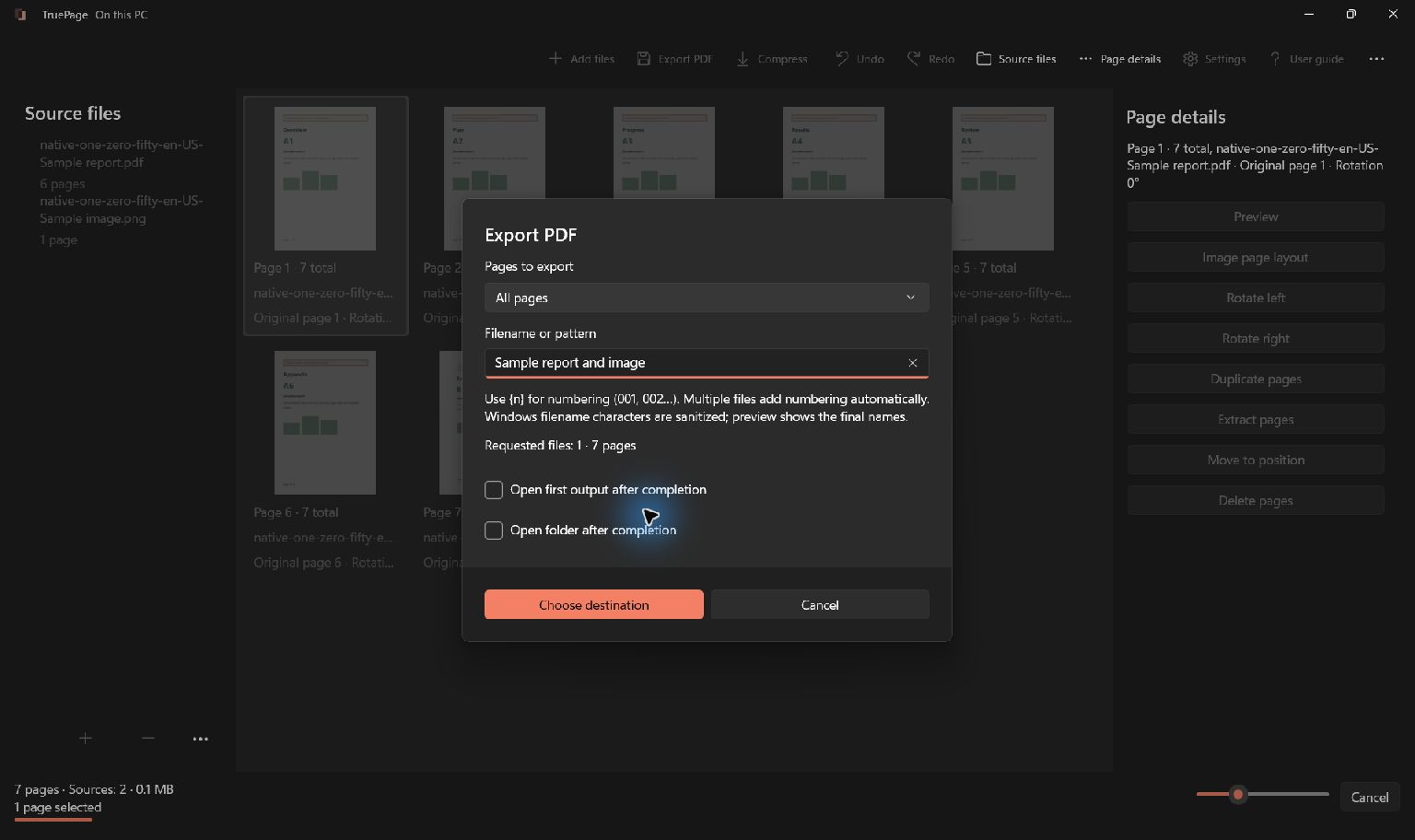
Save a distinct output, wait for export to complete, and open that exact file. Check the page count, first and last pages, and every moved section. If you are sharing the PDF, verify the attachment or destination filename too. Several files named “final” can hide an otherwise correct export.
If the result still appears wrong, compare page content rather than only the counter. A printed 03 that occupies output position 3 may be correct, but the same label could also exist in a second imported report. Source identity and content remain necessary when combining documents.
For a packet assembled from several PDFs, continue with merging files in a deliberate order. For an added front sheet, use adding a cover page. Both build on the same habit: define the sequence, move a verified selection, and inspect the saved result.

Your pages. Your space.
Available now for Windows 11