Give the packet a clear first page
Prepare the cover in its authoring app, add it with the existing PDF, move it to the first position, then export all pages as a new PDF.
Decide what the cover needs to communicate
Keep the cover useful to the recipient. A descriptive document title, relevant date or period, and a short description may be enough. If the receiver has a required cover sheet, use that sheet rather than inventing a replacement that omits required fields.
Avoid adding personal details merely to fill space. For an internal review copy, a project reference may be sufficient. For an application, follow the receiving organization’s directions about identifiers and supporting material. A cover makes the packet easier to identify; it does not establish that its contents meet a particular submission requirement.
If you include an index or page references, draft them with the final arrangement in mind. Adding one cover shifts the report’s output positions by one, but does not change numbers already printed inside the report. Decide whether the cover should describe section names, printed numbers, or positions in the assembled PDF.
For a short packet, a list of document names is often less fragile than a detailed page index. If the packet is likely to change, finish the order before creating precise references and recheck them after every insertion or removal.
Prepare a clean cover source
Create the cover in your usual writing or design application and export a PDF. A PDF is convenient when it already has the intended paper dimensions, typography and margins. Before importing it, open that source and verify the title, spelling, date, and any contact details.
A JPG or PNG can also serve as a cover, but it behaves as an image page. Its readability depends on the source pixels and the size at which you place it. Text that looks clear in a small image preview may become soft when enlarged to a full page.
Choose a page size suitable for the rest of the packet. A4 and Letter are similar but different; an unnoticed mismatch can become visible when printing or scrolling through the result. Mixed sizes can be intentional, but you should know that the difference exists before exporting.
Keep the original editable cover document and the exported cover file. If the title or date changes later, editing the original is more reliable than expecting the PDF organizer to modify the text on the assembled page.
Add the cover and the existing document
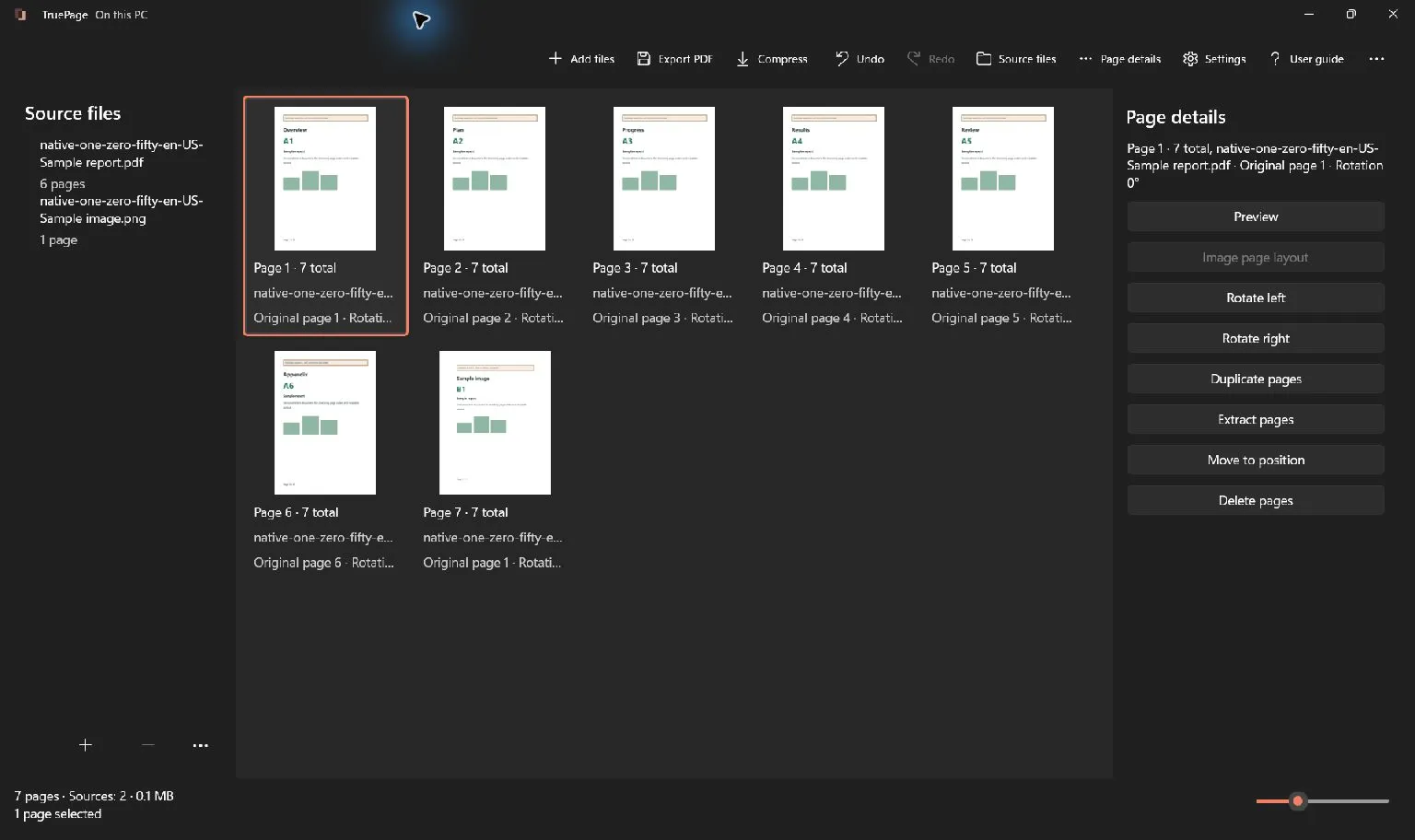
Use Add files or Ctrl+O to import the required sources. You can add the cover before the report or add it to an arrangement that already contains the report. In either case, inspect where the imported page actually appears; do not rely on a file-picker selection order as the final sequence.
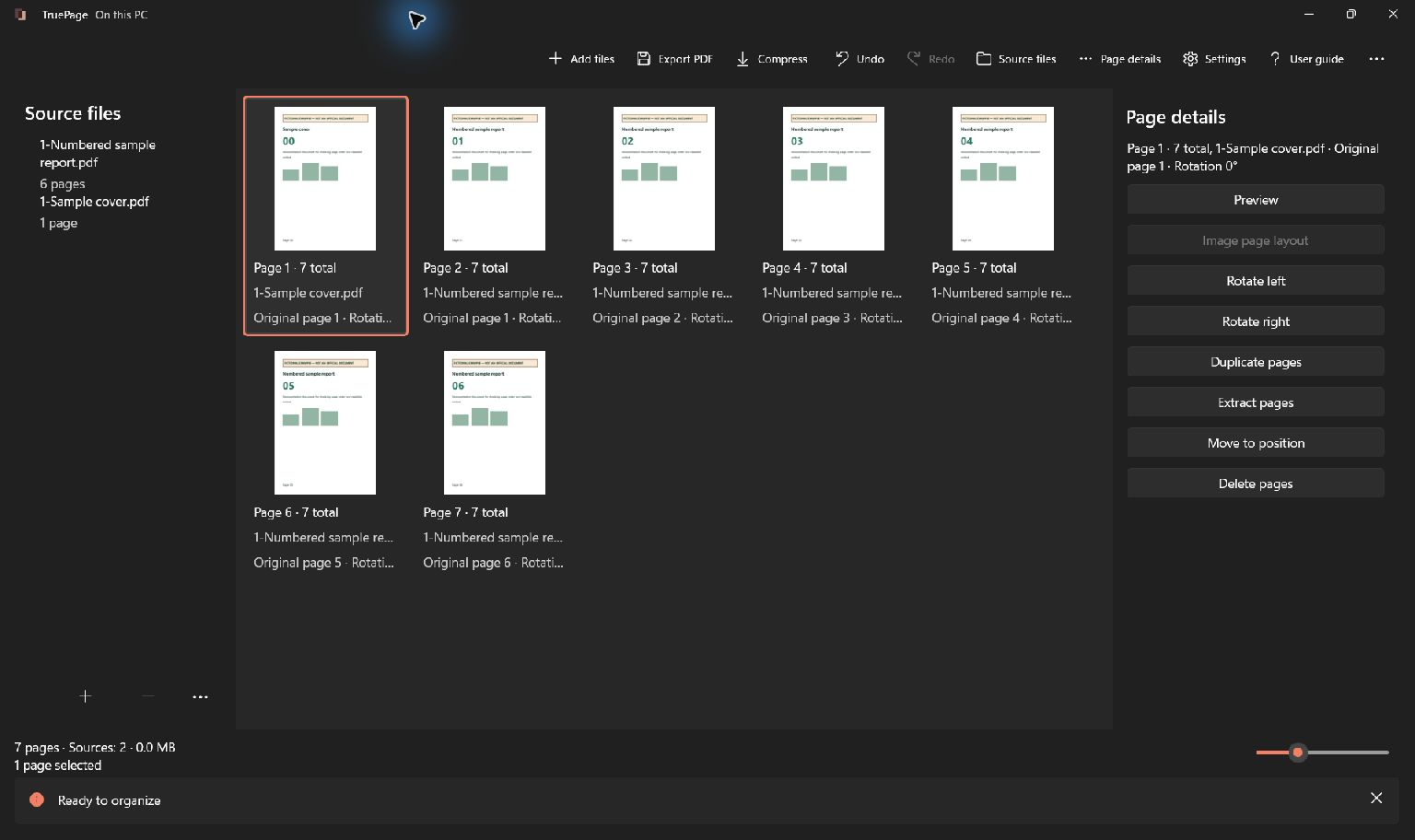
Check the total count. A one-page cover plus a six-page report should produce seven page occurrences. If the total is eight, inspect whether the cover PDF itself contains a blank second page or whether another source was imported unintentionally.
Open Source files to distinguish similarly named inputs. A file called cover-final.pdf can still contain yesterday’s title, so preview the page rather than trusting its filename alone. When replacing an earlier cover, compare the two versions before removing the obsolete occurrence.
Keep the sources in place while working. Moving or changing an imported source outside the app can trigger recovery or reload behavior, which is separate from the ordinary page moves described here.
Move the cover to the beginning
Select only the cover occurrence. Check the highlight and selected count, especially if you were previously working with a group of report pages. Choose Move to position, select Beginning, and confirm Move.
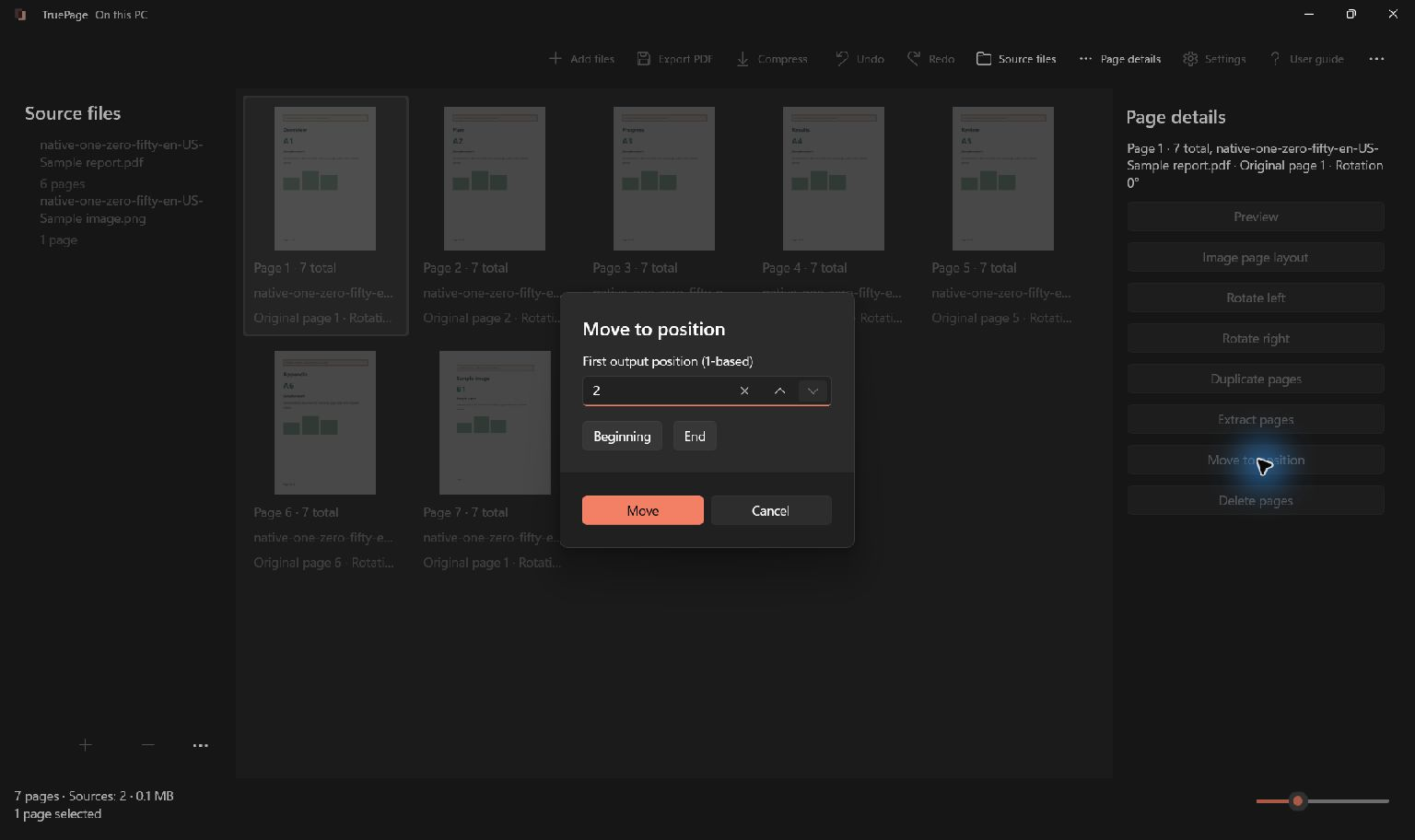
You can also drag the cover before the first report page, watching the insertion indicator before releasing. For a long document, the explicit Beginning option is usually easier to verify than a drag that spans several screens.
The finished sequence should be cover, report page 01, report page 02, and so on. If the cover is already first, no move is needed. Avoid adding another copy simply to achieve the right first thumbnail; that can leave an unwanted duplicate elsewhere in the arrangement.
If the wrong group moved, use Undo or Ctrl+Z, restore a single-page selection, and repeat the move. The cover and report sources remain unchanged. Undo restores the arrangement, but it does not remove a previously exported output from disk.
Check dimensions, orientation and image placement
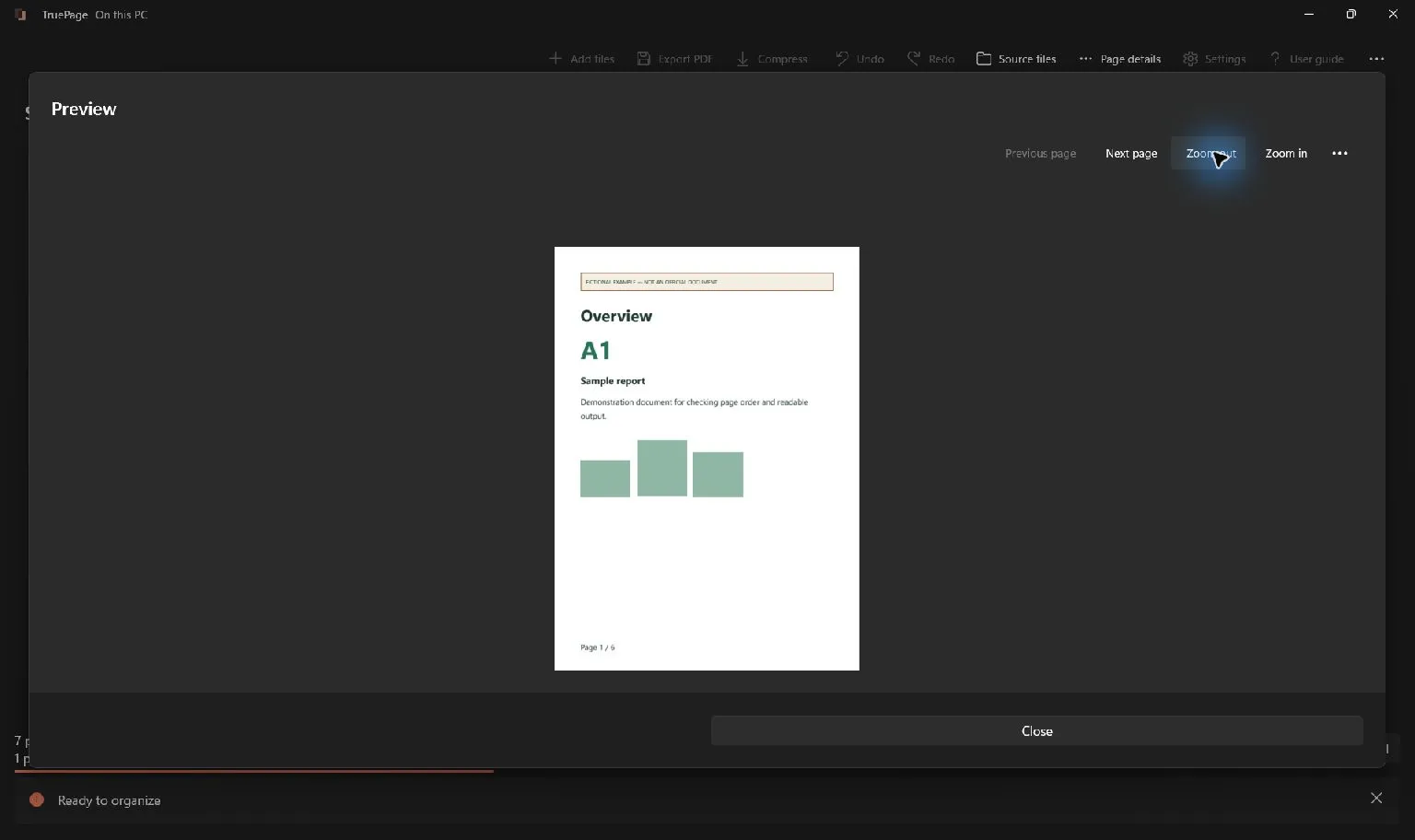
Preview the cover and the first report page in sequence. Check that the cover is upright and that its complete title, margins and footer are visible. A landscape cover is not automatically wrong, but it should be a deliberate choice rather than an unnoticed source orientation.
For a JPG or PNG cover, use Image page layout. Choose the page dimensions and orientation, then inspect the placement preview. Fit keeps the whole image within the available area; Fill (crop) can cut off edges to fill that area. A cropped footer or logo is easy to miss if you only examine the center.
Center without enlargement can help avoid expanding a small image, but the page preview still determines what fits with the chosen size and margins. It cannot add detail missing from the original. Obtain a larger or better-quality source if the title is unreadable at the intended output size.
These image settings apply to image pages. They do not automatically reformat the dimensions of existing PDF report pages. If a PDF cover itself has the wrong layout, correct and export it again from the source application.
Understand the numbering shift
Adding a cover changes the report’s positions in the assembled PDF. In our example, printed report page 01 now occupies output position 2. Printed page 06 occupies output position 7. The number printed on each page remains unchanged.
Use current output positions for extraction and export ranges. To extract the report without its cover from this seven-page example, the relevant positions are 2 through 7. Entering 1 through 6 would include the cover and omit the report’s final page.
Longer documents can make the distinction more complicated. A report may already contain a title page, Roman-numbered introduction, and a main section that restarts at 1. Do not assume a single arithmetic offset works across every section. Identify the intended pages by content and confirm the current positions.
TruePage does not rewrite a contents page or automatically renumber the printed document. If your cover includes an index, revise its source when necessary. Read why page numbers and counters differ for a fuller explanation before preparing range-based outputs.
Export the entire packet
Choose Export PDF, then select All pages for the complete cover-and-report arrangement. The cover may still be selected after moving it; exporting Selected pages would save only that cover.
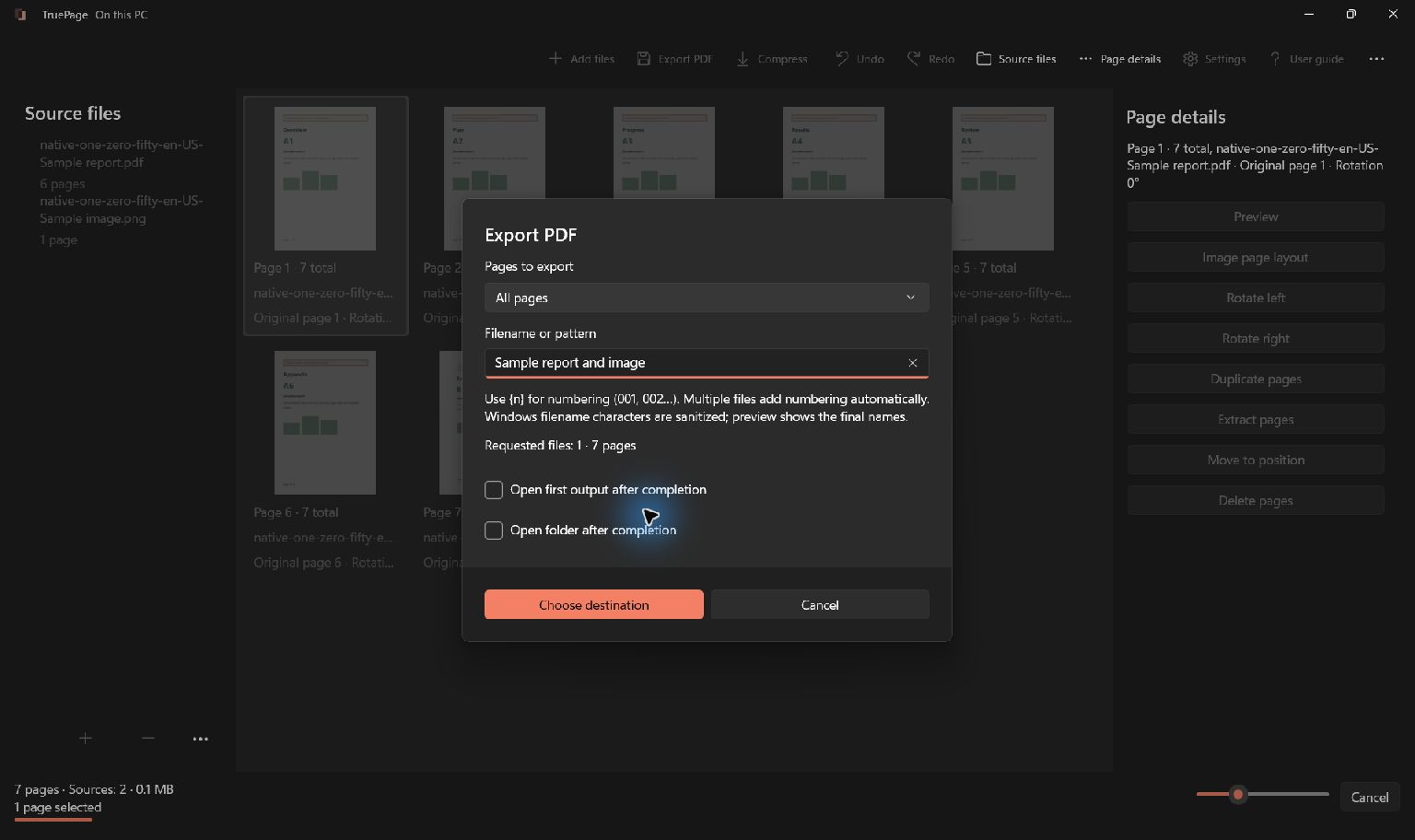
Choose a destination and a filename that identifies the assembled packet, such as project-report-with-cover.pdf. Keep the original report and cover sources available. When a destination already exists, review the app’s filename handling instead of assuming that the older file is the copy you intended to replace.
Wait for export to finish and open the actual saved output. Check that the cover is first, the report starts immediately afterward, and the last report page is present. Confirm the total count and read any index entries against the finished file.
If the source report was digitally signed, adding a cover produces a changed assembled document. Preserve the signed original and do not describe the new packet as retaining that original signature’s validation unless the relevant signing workflow establishes it.
Make later revisions without losing track
When a cover needs a new date or title, prepare a revised cover source and replace the old occurrence in the arrangement. Verify the content of the revision before removing the original cover. A matching page count does not prove that the correct version is first.
If you discover an extra blank page behind the cover, inspect whether it was intentional for printing before deleting it. If it was accidental, remove that occurrence, then recalculate any output-position references and export a new checked copy.
For a packet containing more than one report, use merging PDFs in order to check the boundaries between sources. For a professional delivery, the client handover walkthrough expands the same process into a final-version and completeness review.
For a worked example, see: How to Add a Page to an Existing PDF on Windows.

Your pages. Your space.
Available now for Windows 11