Assemble a sequence that makes sense to the reader
Add the PDFs, verify each source, move complete documents into the requested order, and export all pages. Import order alone is not a substitute for checking the saved packet.
Make a short assembly outline
List the intended sections before importing them. For a simple packet, that might be cover, main report, schedule, and supporting evidence. For a review bundle, it might be an introductory note followed by documents in date order. Let the recipient’s instructions determine the sequence when a specific order is required.
Record the expected page count for each source. Adding those counts gives you a useful first check, although a correct total alone cannot establish that the right versions are present. A six-page obsolete report can replace a six-page current report without changing the total.
Identify duplicates deliberately. Two files may contain the same cover or instruction sheet. Removing one occurrence can improve the packet, but repeated material is not always accidental: a section may need its own introductory page to remain understandable when extracted later.
Keep source filenames recognizable while you work. A prefix such as 01-overview can help you identify a file, but a filename is not proof of its contents or final workspace position. Open uncertain sources and check their visible title, date, and version.
Import the sources and verify what arrived
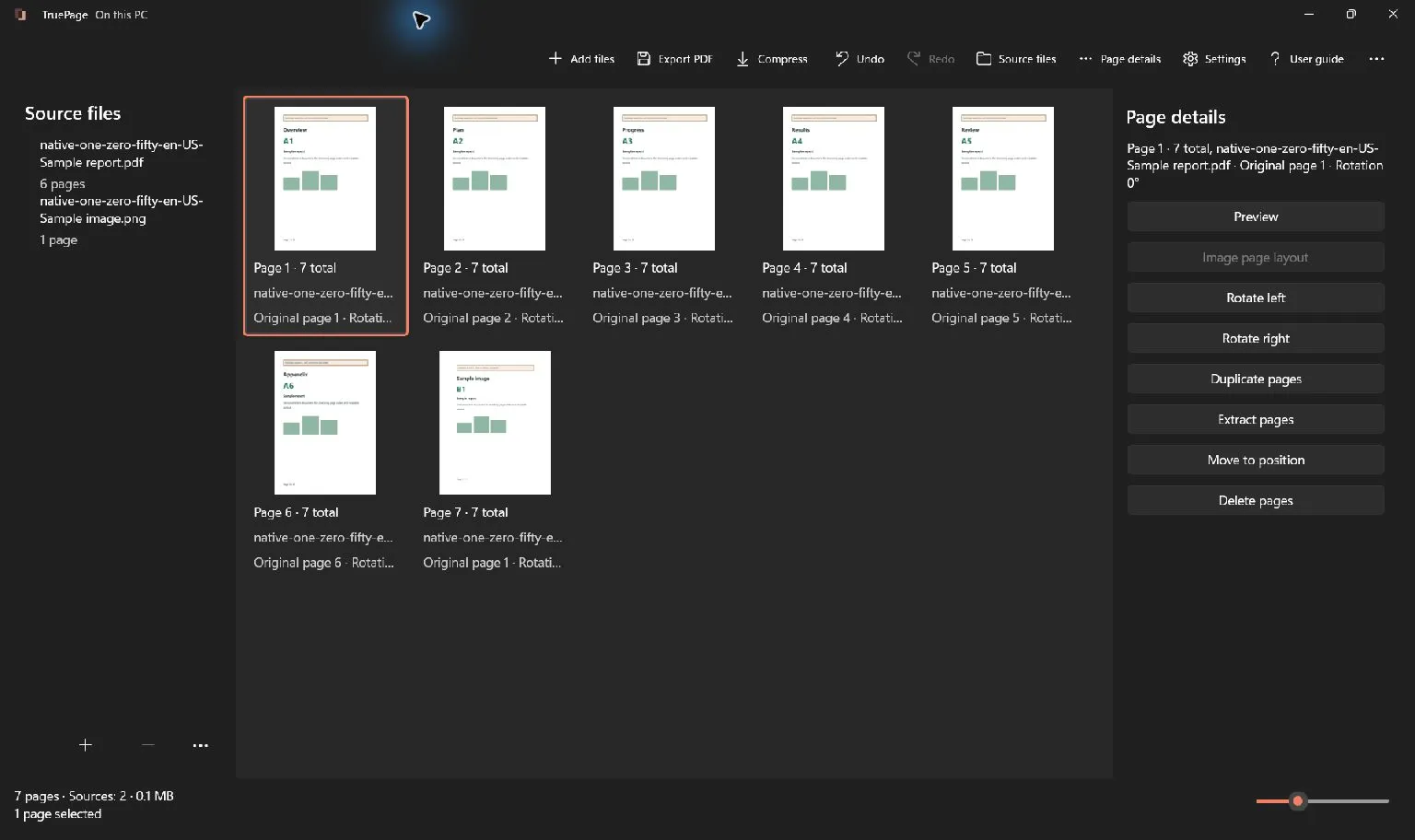
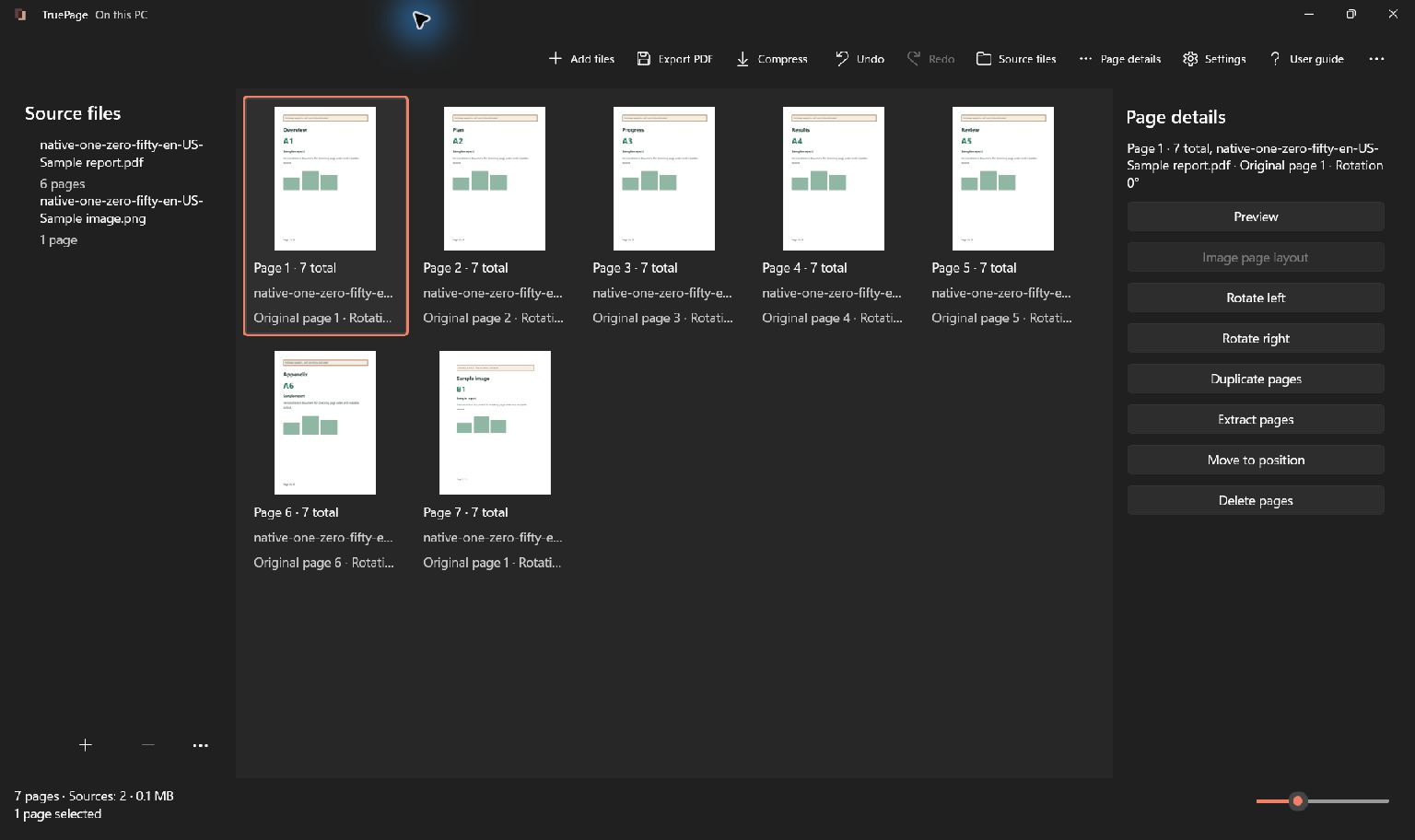
Choose Add files or press Ctrl+O, then select the PDFs. You can import several together or add them one at a time. After import, inspect the page board and Source files panel rather than assuming the picker established your intended final order.
If a source fails to import, do not infer that the whole operation failed or that the successful sources disappeared. Check the imported file list and page count, resolve the failed source, and avoid importing already present pages again unintentionally.
A password-protected PDF may require a valid password before its preview becomes available. Entering a password to open a source is separate from deciding how the exported output should be protected. Do not assume the merged result automatically inherits every source’s protection settings.
Keep the original files in their existing locations during the session. If a source changes or moves externally, follow the app’s source-recovery process. Continuing to rearrange remembered thumbnails is not a reliable way to establish that the current source still matches what you imported.
Read the arrangement across file boundaries
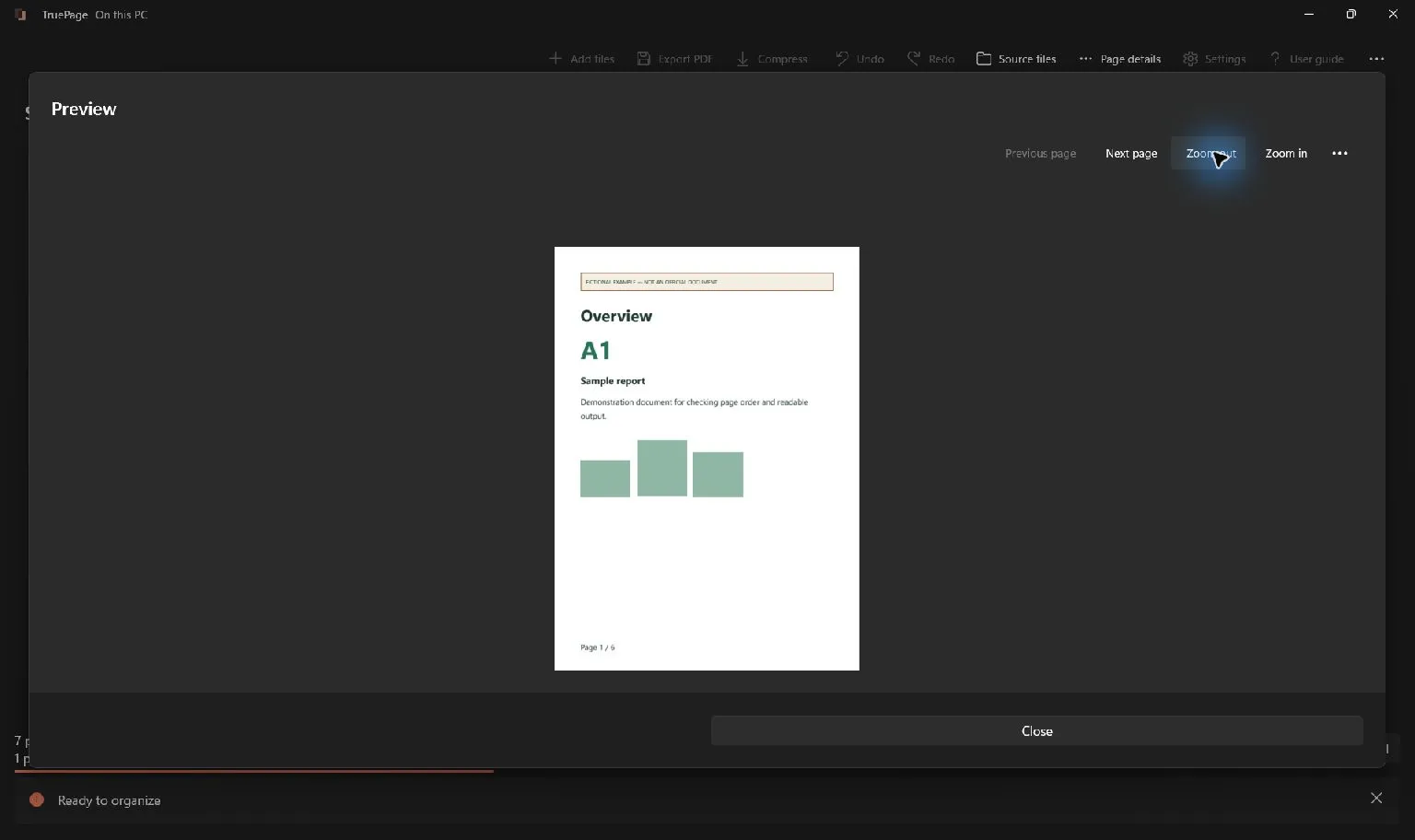
Start at the first page and identify each source’s beginning and end. Page details distinguish the original source page from the current output position. This is helpful when several documents all begin with a page printed “1.”
For example, suppose an overview has two pages, a report has six, and an appendix has three. The intended output has eleven pages: overview at positions 1–2, report at 3–8, and appendix at 9–11. These ranges are valid only while that arrangement remains unchanged.
Preview the last page of the overview and the first page of the report together in sequence. Does the transition make sense? Repeat at the report-to-appendix boundary. A misplaced title sheet or omitted continuation page can be more noticeable here than in a total-count check.
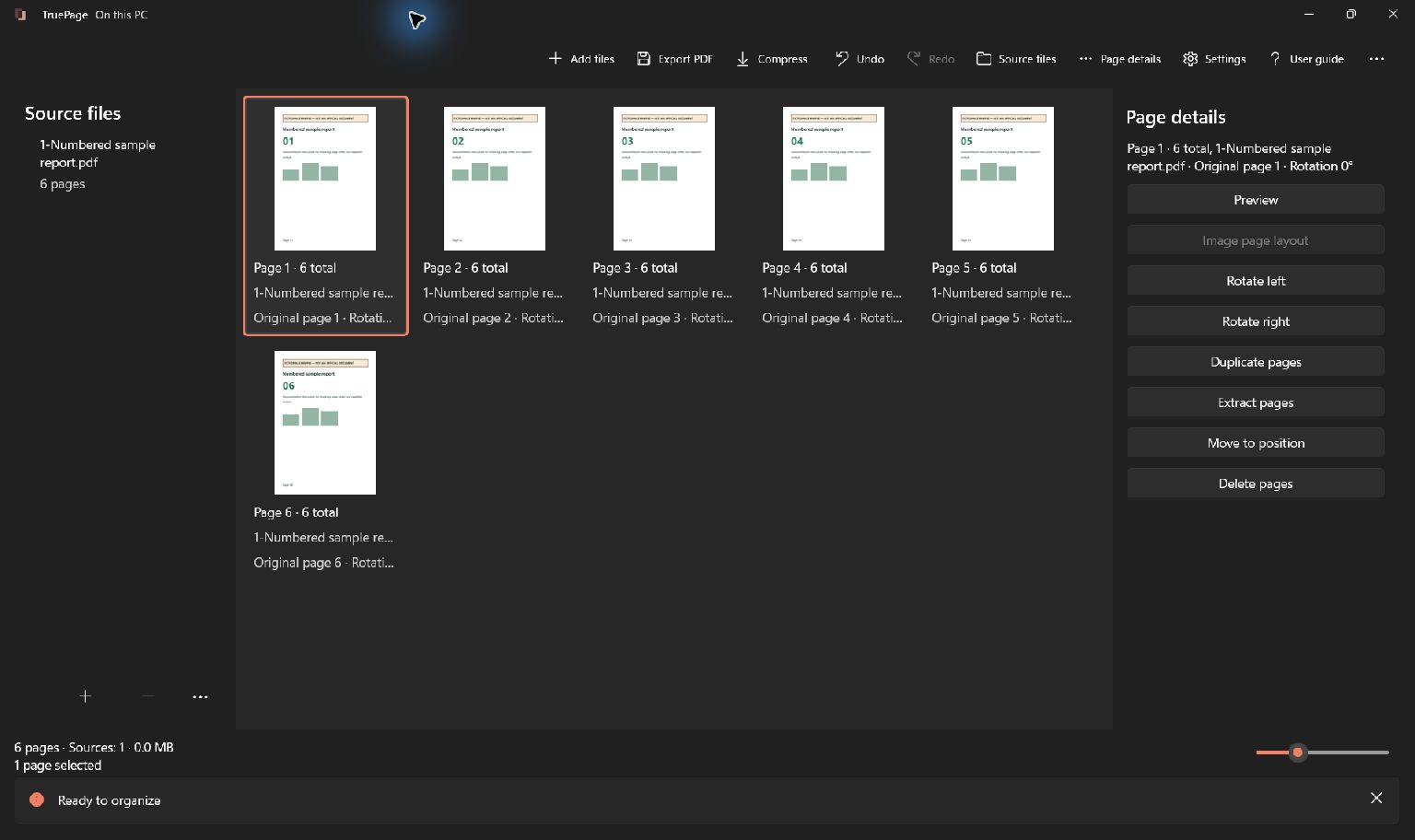
Our synthetic numbered example shows why inspecting content matters: the board contains six pages, but two pairs are reversed. A complete membership list has not yet produced the correct sequence.
Move complete documents or smaller groups
Select a source in Source files to select its contributed page occurrences. Inspect that selection before moving it, especially if you have already removed, duplicated, or distributed some pages from the source. A whole-source selection is useful only when that is the group you intend to move.
You can also select a continuous range with Shift+click or adjust a multiple selection with Ctrl+click. Check the selected count and highlighted cards. A selected group retains its internal order when moved, so the group itself should already be in the sequence you want.
Use Move to position for a precise destination, or Beginning and End for clear boundary moves. Dragging works well when the insertion indicator and destination are visible. Move earlier and Move later, including Ctrl+Alt+Up and Ctrl+Alt+Down, suit smaller adjustments.
For the overview-report-appendix example, move the complete overview to Beginning if it arrived last. Then confirm that the six report pages still precede the appendix. Work from a stable outline rather than correcting one apparent mismatch at a time without reviewing the whole arrangement.
Repair ordering inside a source when necessary
Merging does not require every imported source to remain a single uninterrupted block. You can interleave a relevant diagram or corrected page with material from another source. The important thing is that the final reader can follow the resulting document.
If the pages inside one source are scrambled, moving the whole source cannot fix them. Select the individual misplaced page or smaller group and correct that sequence. In the sample, moving printed page 02 before 03 and printed page 05 before 06 restores numerical order.
Check the predecessor and successor after each move. A page placed one position too early may still look reasonable on the board, especially when adjacent pages share the same header. Preview enough content to establish the intended transition.
Use Undo if a move is wrong. Several uncertain corrective moves make it harder to understand how you reached the current state. Returning to the last verified arrangement is usually clearer than trying to compensate for a mistake you have not identified.
Remove duplicates without losing required material
Inspect repeated pages by content, not just appearance. Two certificates, diagrams, or cover sheets may look similar while differing in date, revision, or scope. Choose which occurrence belongs in the output before using Delete pages.
Deleting a selected occurrence removes it from the arrangement, leaving its source unchanged. It does not automatically find every duplicate or decide which version is current. If you need both copies for different sections, keep them deliberately and make their purpose clear in the packet’s structure.
After a removal, update your expected page count and any range notes. Removing a repeated two-page instruction sheet from the eleven-page example produces nine pages and shifts every following output position by two.
Be careful with Remove source when your goal is only to remove one duplicated page. That command removes the source and its contributed pages from the workspace. Page-level deletion gives you control over which occurrences remain.
Check mixed page sizes and existing document features
Merged PDFs can contain portrait and landscape pages, different paper sizes, and different printed numbering systems. These differences may be appropriate, especially for diagrams or certificates. Preview each transition so an intentional difference does not hide an accidental one.
Image layout controls apply to imported image pages; they do not automatically standardize the dimensions of every PDF page. If a PDF source needs a different layout, prepare that correction in the source application and assemble the revised output.
Review any existing index, reference, form, or signature requirement before treating the packet as final. Rearranging pages does not rewrite text references or establish that a digital signature validates the combined document. Keep authoritative originals separately and heed operation-specific warnings if export cannot safely proceed.
For encrypted output, follow the password-protection workflow on the assembled PDF. That separate whole-source operation is applied after the arrangement has been exported, rather than being assumed from an imported source’s settings.
Export the complete merged PDF
Choose Export PDF and select All pages. This scope matters because the last document or group you moved may remain selected. Selected pages would export only that group, even though the board still contains the complete packet.
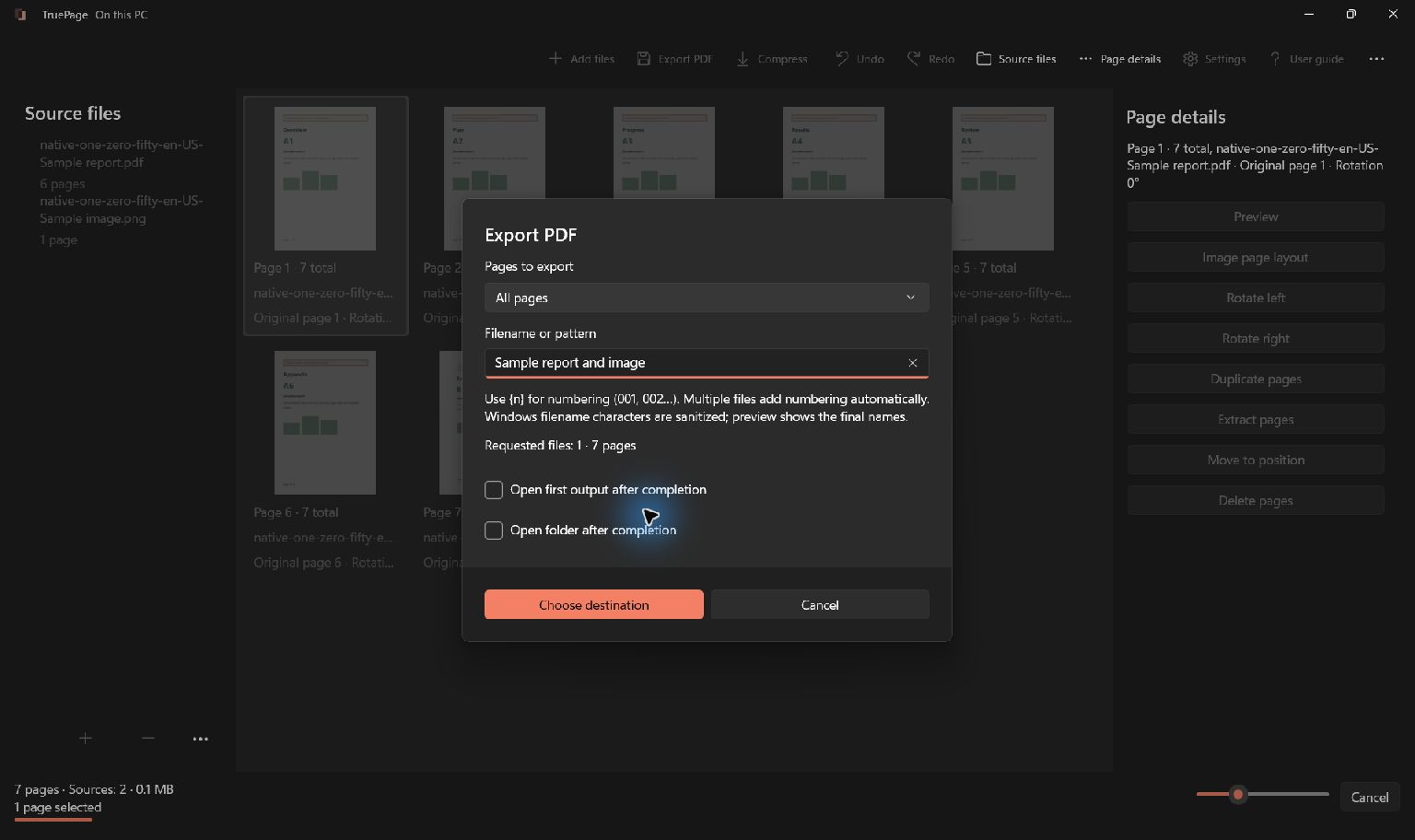
Choose a descriptive destination filename and review any existing-name choice. Wait for completion, then open the exact saved output. Confirm the total, the first and last pages, and every source boundary. Verify that the current versions are present and the intended duplicates are gone.
If file size is a problem, first establish the correct complete output. Then use compression on that exported PDF and compare readability before keeping the compressed result. Compressing an unrelated original does not change the merged file you are preparing to send.
Finally, check the file you actually attach or place in the delivery folder. The workspace, original sources, first merge attempt, and final checked output may all coexist. A clear filename and one last open-file review prevent a correct arrangement from being undermined by sending an older result.
For a worked example, see: How to Remove Duplicate Pages from a PDF.

Your pages. Your space.
Available now for Windows 11