Remove repeated pages after combining overlapping PDFs
To remove duplicate pages from a PDF in TruePage, inspect the repeated content, select the unwanted page occurrences, choose Delete pages, and export a new PDF. This is a manual review workflow. TruePage does not automatically identify duplicates or decide which copy should be retained.
The example combines one source containing content pages 1, 2, 3 with another containing 2, 3, 4. The initial arrangement is 1, 2, 3, 2, 3, 4. After confirming that the repeated pages are identical in the relevant content, remove the second occurrences of pages 2 and 3. The intended result is 1, 2, 3, 4.
Both original source files remain unchanged. Removing an occurrence from the workspace determines what will appear in the exported copy; it does not erase that page from the original PDF on disk.
Confirm that the pages are really duplicates
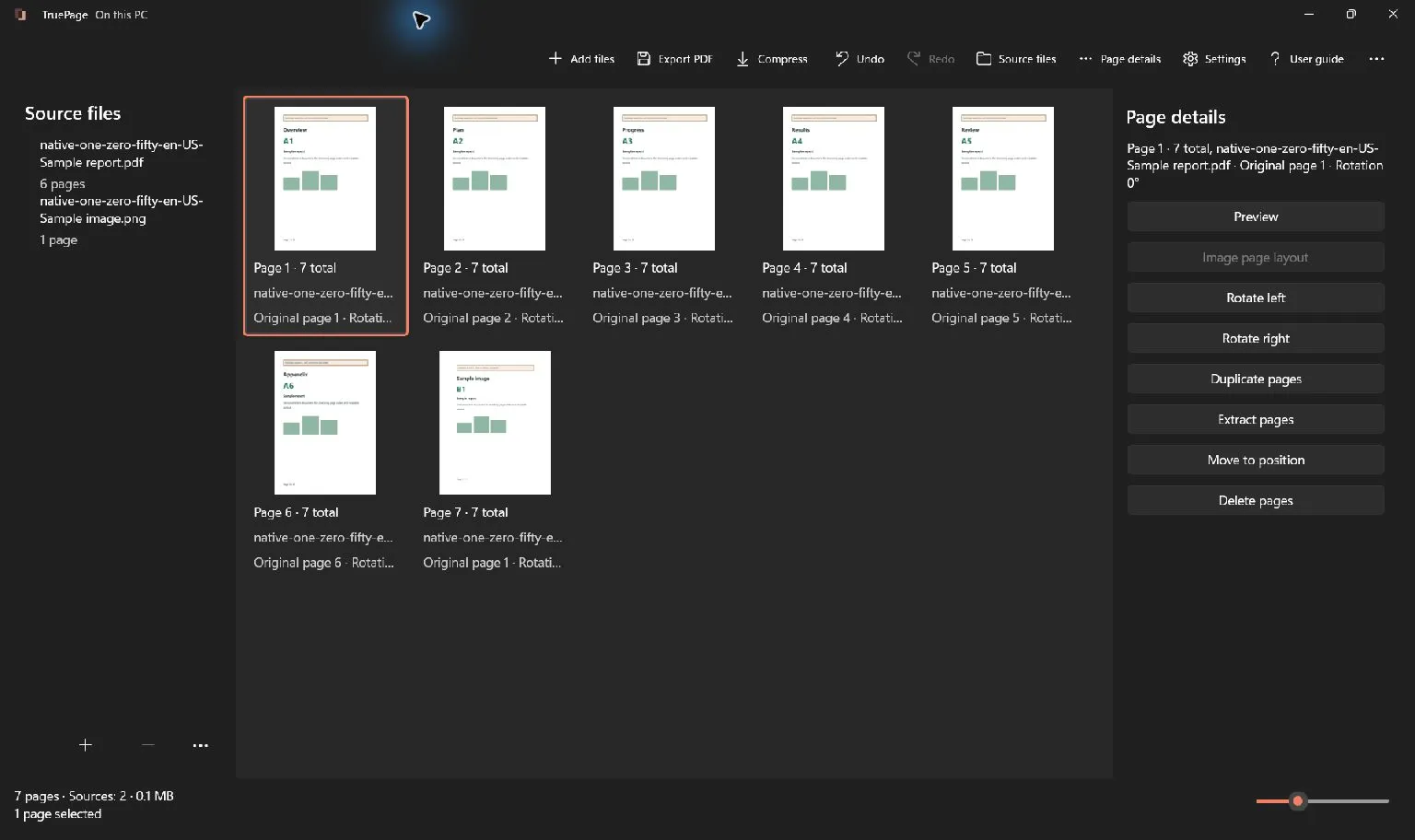
Begin with Add files and import the two sources in the intended order. Look at the boundary where the first source ends and the second begins. Overlapping scan batches often repeat a few pages at that transition, but the exact overlap must be checked.
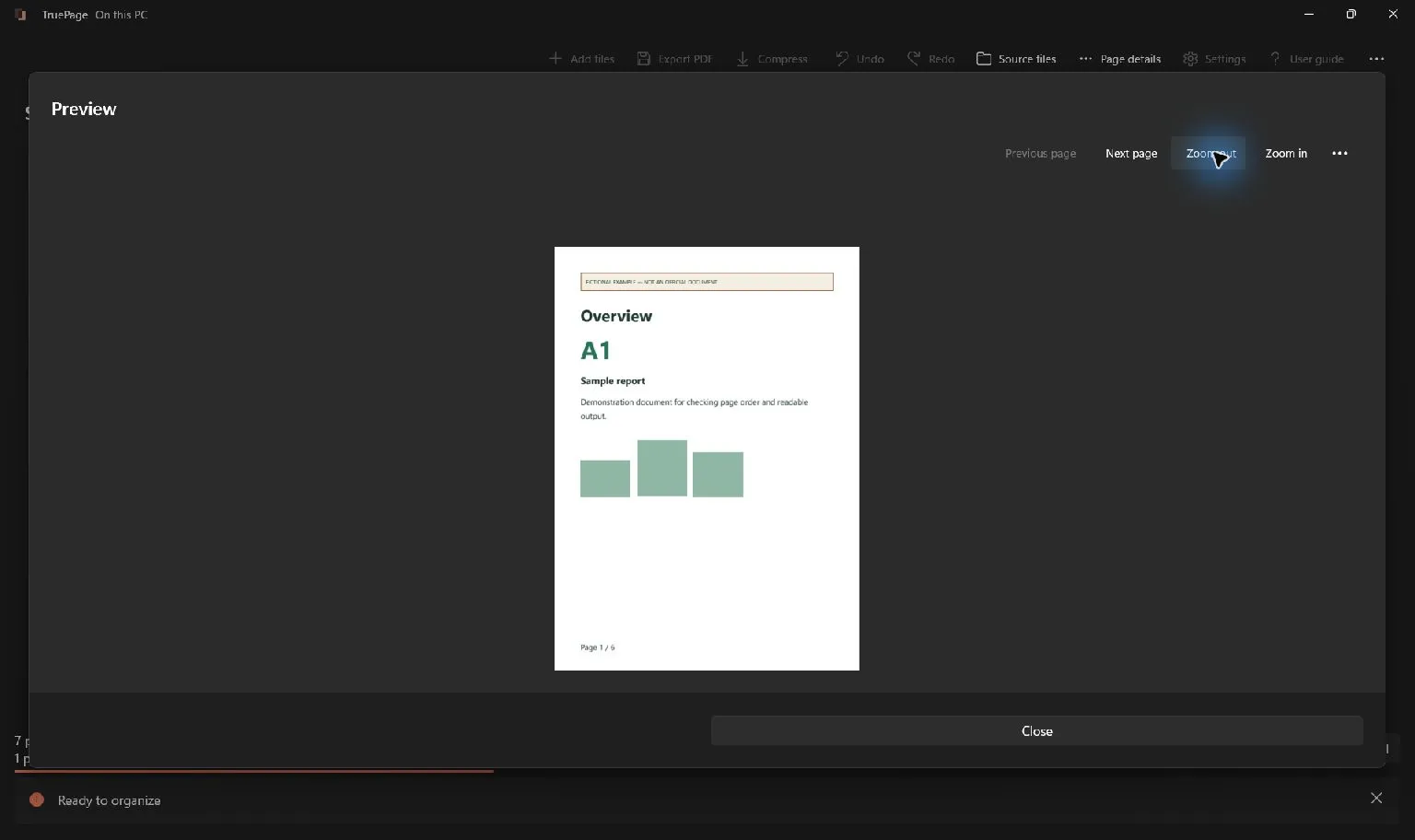
Open Preview and compare each suspected pair. Read headings, reference numbers, dates, continuation text and any handwritten marks. Similar templates can contain different answers, and a revised page can look almost identical to an earlier edition. Keep the required version rather than deleting a page solely because its thumbnail resembles another.
The synthetic sources in this walkthrough deliberately contain identical content for pages 2 and 3. Real scans may have different skew, contrast or annotations even when they depict the same sheet. Decide whether those differences matter to the intended document before selecting a copy for removal.
Repeated content can also be intentional. A reference sheet might belong in multiple sections, or a checklist might have been duplicated deliberately. Use the expected document structure and recipient’s requirements to distinguish intended repetition from an accidental overlap.
Mark the unwanted occurrences by output position
In the six-page example, the positions are:
| Current output position | Content page |
|---|---|
| 1, 2, 3 | 1, 2, 3 from the first source |
| 4, 5, 6 | 2, 3, 4 from the second source |
The unwanted occurrences are at output positions 4 and 5. They are not output positions 2 and 3, even though their printed content numbers are 2 and 3. Check both the page content and the current position before deleting.
Source information helps explain where each occurrence came from. Matching original page numbers across different files do not prove duplicate content, and different original page numbers do not prove unique content. A source’s page 1 could repeat another source’s page 2 after a scan was divided differently.
If you reorder pages while reviewing them, update your position list. Removing one page shifts all subsequent positions. Selecting the complete unwanted group before one deletion avoids applying a stale page number after each separate removal.
Delete only the confirmed extra copies
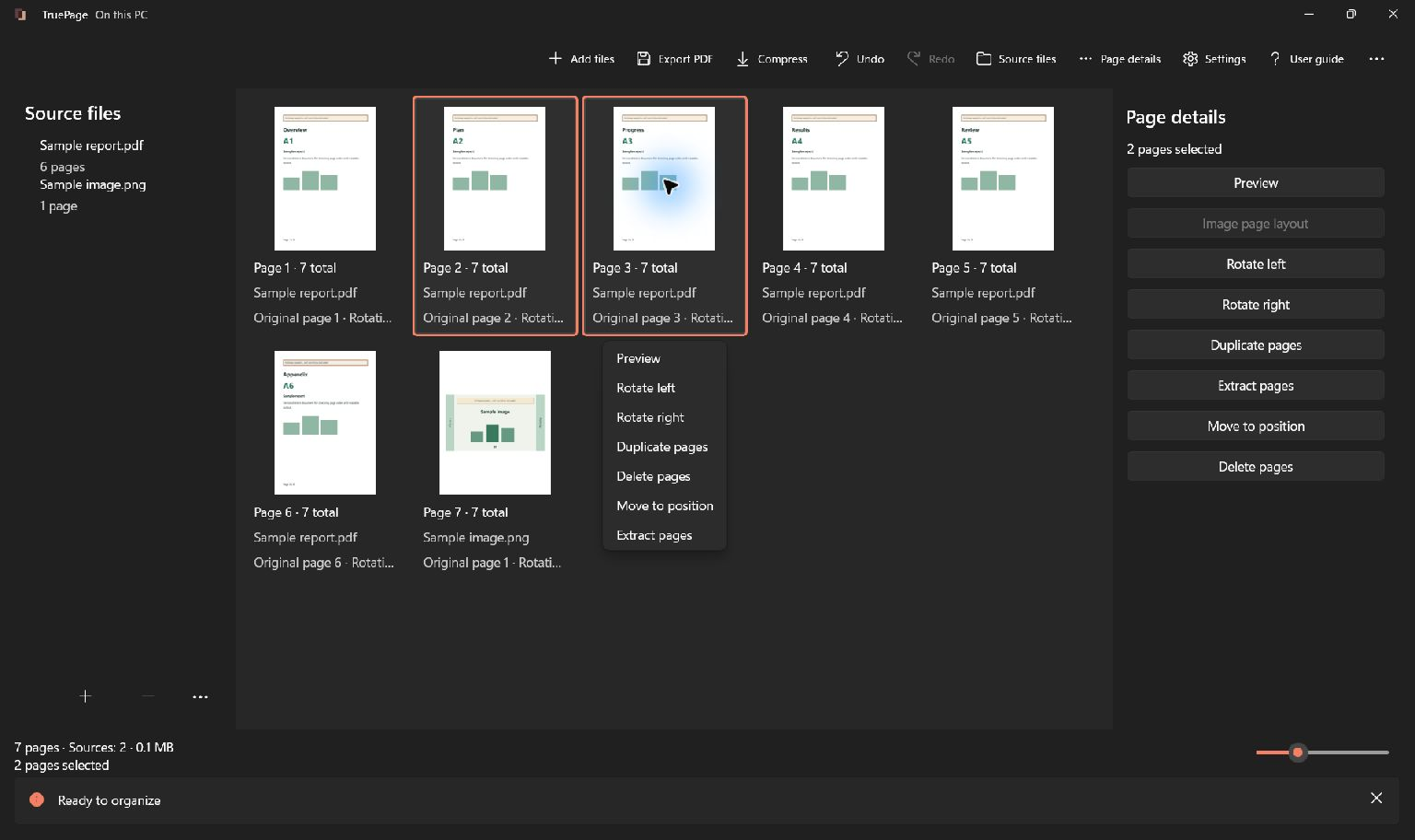
- Click the occurrence at current output position 4.
- Add position 5 to the selection using Ctrl+click, or select the contiguous pair with Shift+click.
- Confirm that exactly two occurrences are highlighted and that they show the repeated content pages 2 and 3 from the second source.
- Choose Delete pages, or press Delete.
- Inspect the resulting four-page arrangement before making another change.
The second source can remain listed under Source files because its page 4 still contributes to the result. The source list is not a count of files that will be exported; the arranged page occurrences and export scope determine the output.
If the wrong page disappears, use Undo or Ctrl+Z immediately. Recheck the selection before repeating the operation. Avoid continuing a long cleanup sequence from an uncertain state, because later page positions will be harder to interpret.
Export the cleaned four-page document
Choose Export PDF and select All pages for the complete cleaned arrangement. Confirm one requested file with four pages. Use a name that distinguishes this copy from the original scan batches and any previous combined result.
Choose the destination and inspect the output preview. If the filename already exists, review the collision choice rather than assuming it is safe to replace. Keep both preserves the earlier file separately. The originals remain the reference if you later need to revisit which occurrence was retained.
Open the saved PDF and confirm the complete sequence. Read pages 1 through 4, inspect the transition between the two contributing sources, and verify that each required content page appears once. Do not stop at checking that the page count decreased from six to four; removing two unique pages would produce the same count with the wrong contents.
Handle similar pages and other cleanup tasks
Blank-looking pages need a different inspection decision. Some contain faint text, stamps or intentional separators. Use the blank-page removal tutorial when the question is whether a scan back is empty, rather than whether its content repeats another page.
If one version of a page must replace another, follow the replacement-page workflow and verify the chosen revision. If pages are merely out of order, move them instead of deleting and trying to reconstruct the document afterward.
For large documents, work through a recorded list of suspected overlaps and check each pair at a readable zoom. Do not treat a lack of obvious thumbnail differences as automatic duplicate detection. Save a verified copy when the arrangement is correct, and remember that Undo does not retract an exported file. The page organization guide provides the complete selection and history controls.

Your pages. Your space.
Available now for Windows 11