Make another occurrence of an existing PDF page
To duplicate a page in a PDF with TruePage, select its thumbnail and choose Duplicate pages, or press Ctrl+D. Inspect the new occurrence, move it if necessary, and export the complete arrangement as a new PDF. The source PDF remains unchanged.
Duplicating a page is useful when you want several copies of a printable worksheet, checklist or reference sheet in one document. This tutorial starts with one fictional checklist and creates a two-page PDF containing the same checklist twice. It uses a static printable page, so the result is easy to inspect without relying on interactive form behavior.
A duplicated page is another occurrence in the workspace. It has its own place in the output and can be moved or rotated independently. It does not create a second source file on disk, recognize text, or turn a printed checklist into an editable form.
Decide whether you need a duplicate or a separate file
First identify the intended result. If you need two copies inside one PDF, duplicate the page in the arrangement. If you only need to send one existing page as its own document, use selected-page extraction instead. If you need pages from another document, follow copying pages between PDFs.
Repeated pages are not always mistakes. A checklist may legitimately appear once for each section of a packet. Write down how many copies you need and where they should appear so that a later cleanup pass does not remove an intentional repetition.
Inspect the page before copying it. Any printed answers, dates or annotations already visible in the source may also appear in the copies. Start with a genuinely blank worksheet when that is what the recipient needs. For independently editable form fields, use a form-authoring workflow and verify field behavior; this example does not establish that duplicated interactive fields become independent.
Select one page and duplicate it
- Choose Add files and open the checklist PDF.
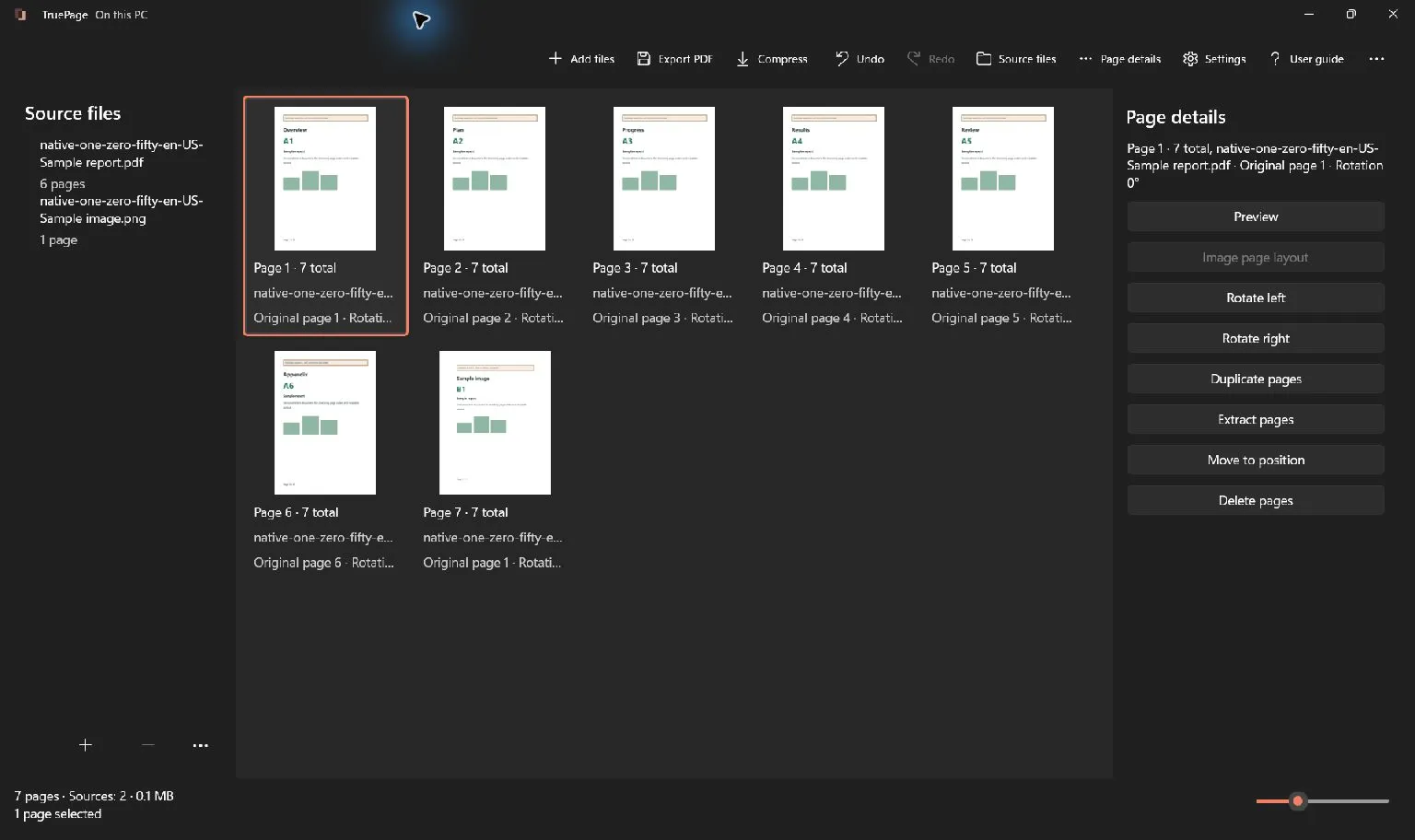
- Click its thumbnail and confirm that one page is selected.
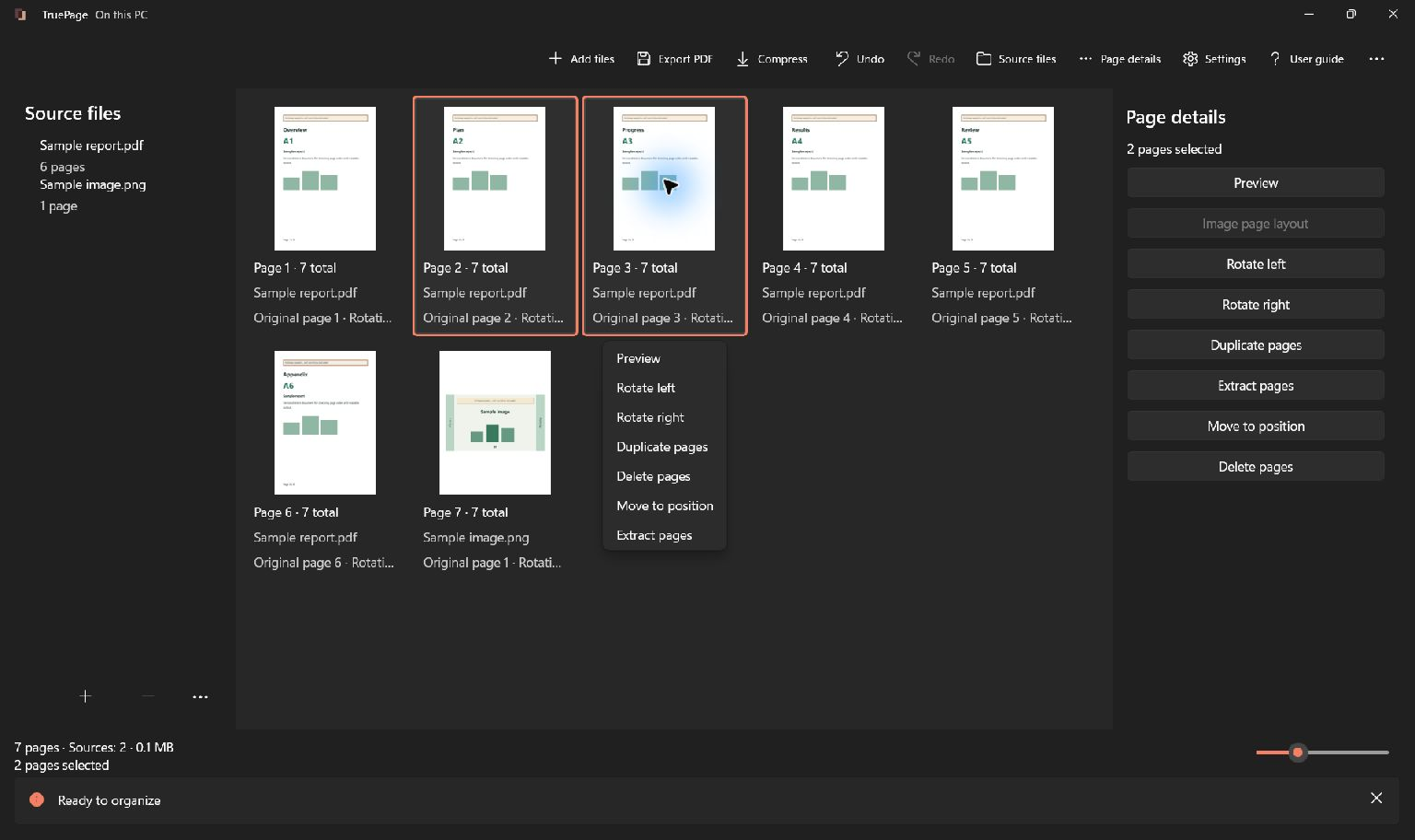
- Open the page actions menu or Page details, then choose Duplicate pages. Alternatively, press Ctrl+D while the intended page is selected.
- Inspect the arrangement and check that it now contains two occurrences of the checklist.
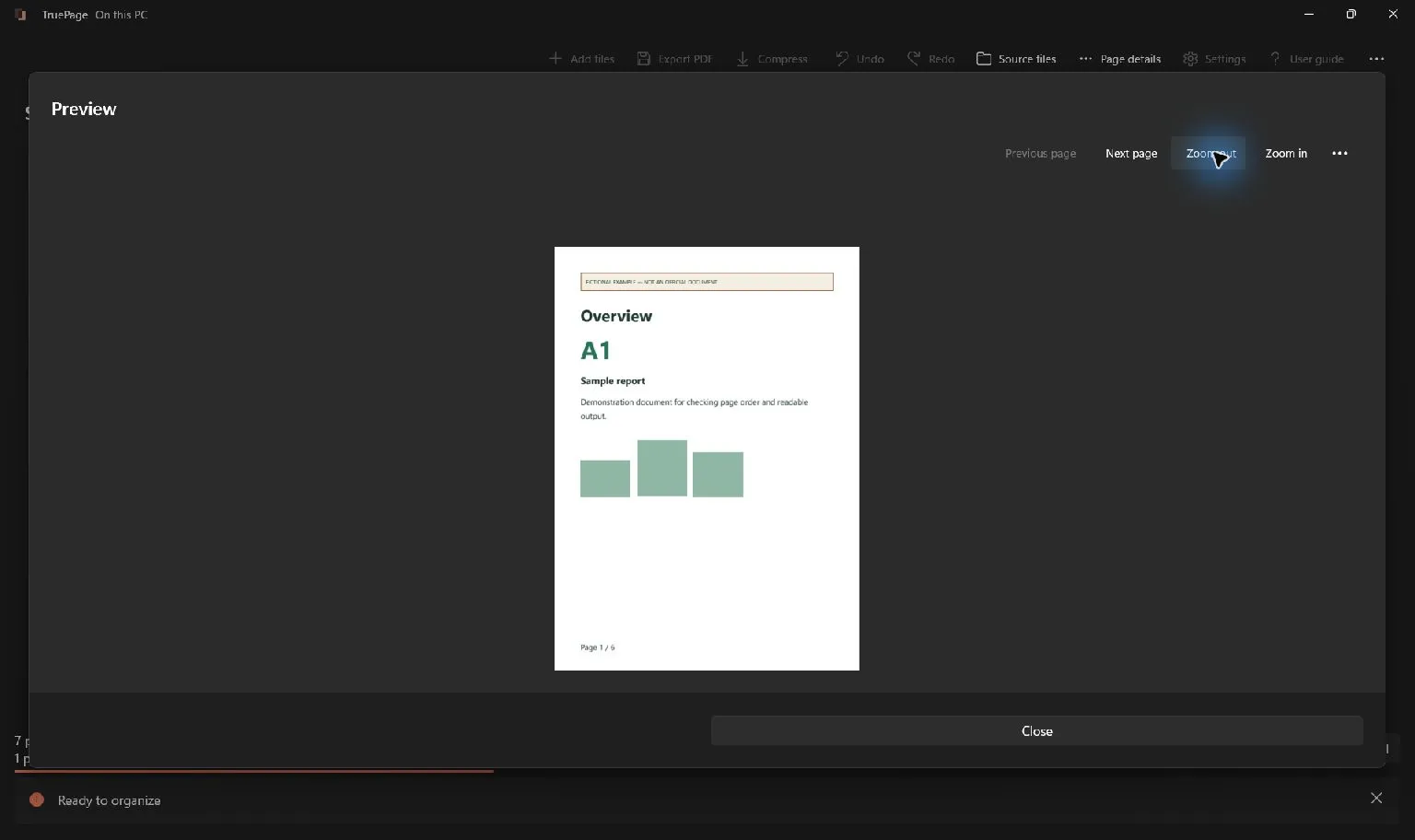
- Open Preview if you need to verify the complete page content at a readable scale.
Selection is important. Duplicating three selected pages creates new occurrences of those selected pages, not just the thumbnail you happened to look at last. Before using the command repeatedly, read the selected count. If the result is unexpected, use Undo and make a fresh selection rather than continuing from an uncertain arrangement.
Put each copy where it belongs
For a simple two-copy checklist, both occurrences can remain together. In a longer packet, select the copy that should move and drag it to the insertion position. Move to position provides a precise alternative when the destination is easier to describe as an output page number.
A page’s source information may match another occurrence because both refer to the same original page. Their output positions distinguish where they appear in the arrangement. Do not treat a shared source filename or original page number as evidence that duplication failed.
If a copy needs a different orientation, rotate that selected occurrence and inspect it again. Rotation changes the arrangement and the exported result; it is not just a temporary viewing adjustment. Editing one occurrence’s position or rotation does not require overwriting the source file.
Use Ctrl+Z to undo an accidental duplication or movement. Ctrl+Y can redo a reversed workspace edit while that history remains available. Creating a new edit after undoing changes the redo path, so check the current page count before relying on a repeated shortcut sequence.
Export the two-page checklist
Choose Export PDF and select All pages for the complete two-page arrangement. Confirm that the summary requests one output file with two pages. If only one occurrence remains selected, choosing Selected pages would produce only that selected subset.
Give the output a recognizable filename, choose its destination, and inspect the previewed name before confirming. Keep the exported copy distinguishable from the single-page source. If an earlier result already uses the same name, review the collision choice; Keep both retains the existing file separately.
Open the saved PDF after export. Confirm that it contains exactly two pages, that both checklists are complete, and that their orientation is correct. If the document will be printed, inspect readability at the intended paper size as well as at a comfortable screen zoom. A repeated page that is clipped or too small remains a problem even when the count is correct.
Avoid accidental repetitions in larger packets
When duplicating pages for a longer document, work in small, verified steps. Keep a simple list of intended occurrences, such as “checklist before section A” and “checklist before section B.” Check the pages immediately before and after each copy before exporting the final packet.
Do not use repeated duplication as a substitute for selecting the correct pages from an external document. Import the appropriate source and arrange only the required occurrences. Similarly, if repeated pages appeared accidentally after merging overlapping scans, use the manual duplicate-removal walkthrough instead of deleting pages solely because their thumbnails look alike.
Exported files are separate from workspace history: Undo does not retract a PDF that has already been saved. If you discover an error in the saved result, correct the arrangement and export a clearly identified new copy. The organization guide explains selection, movement, duplication and history together.

Your pages. Your space.
Available now for Windows 11