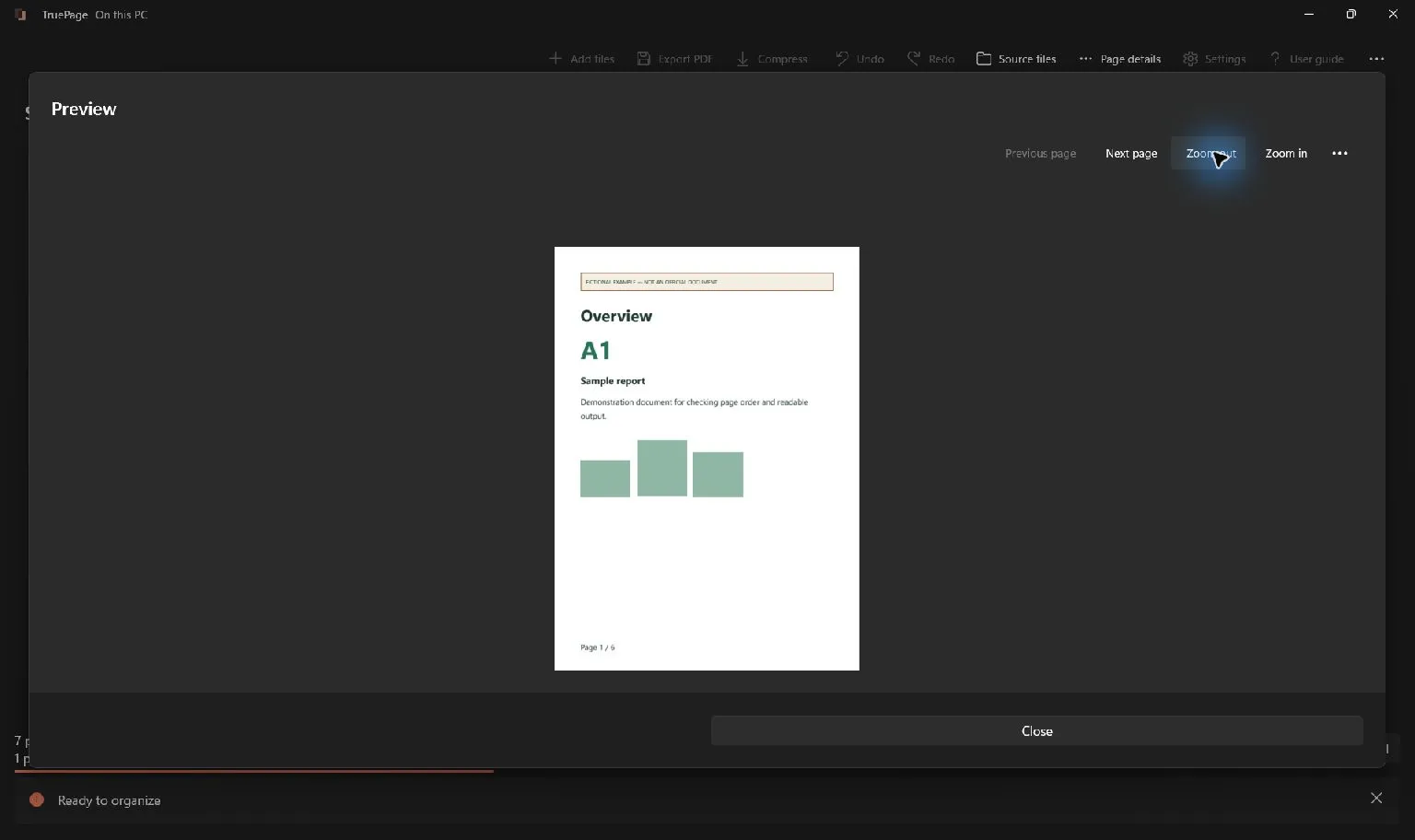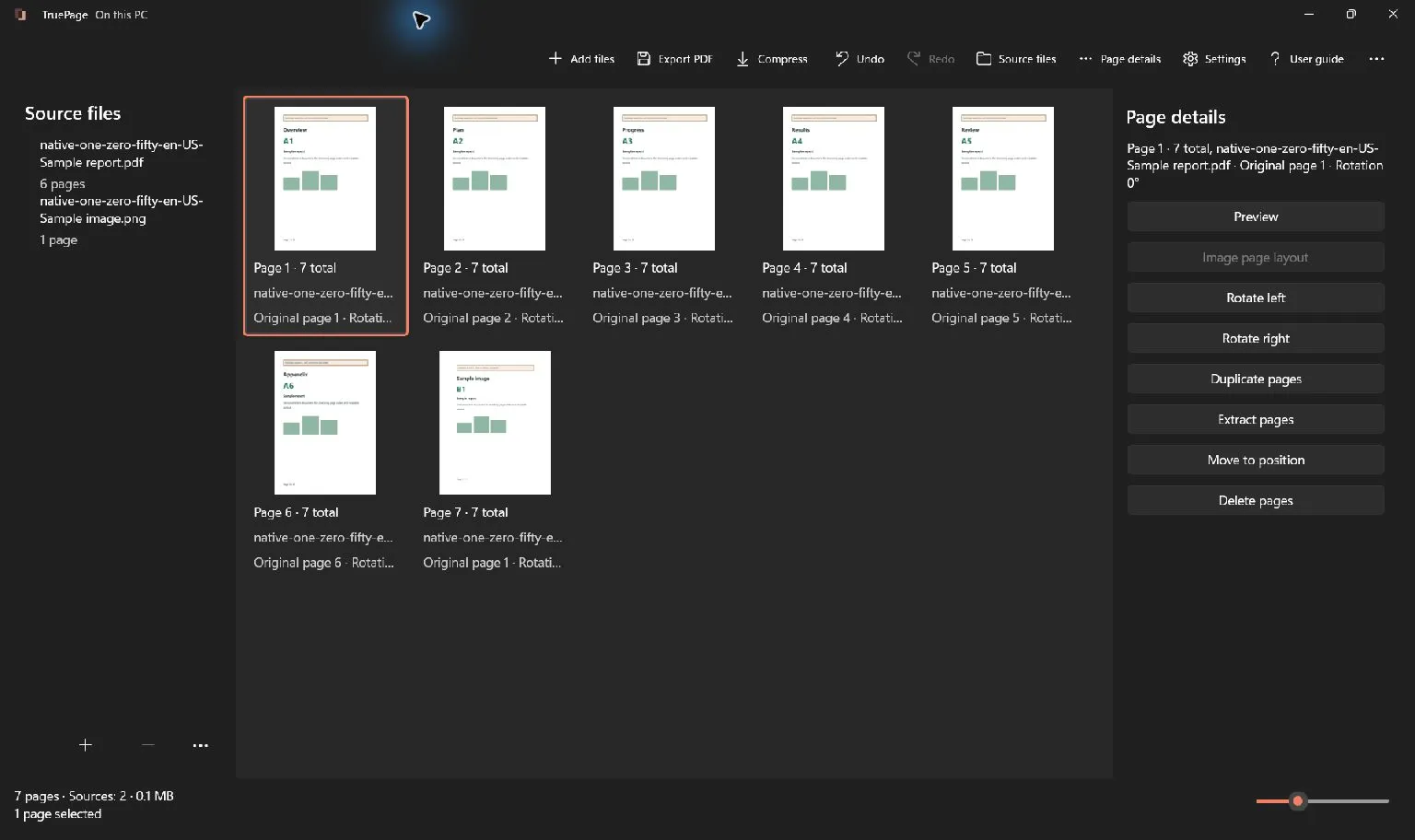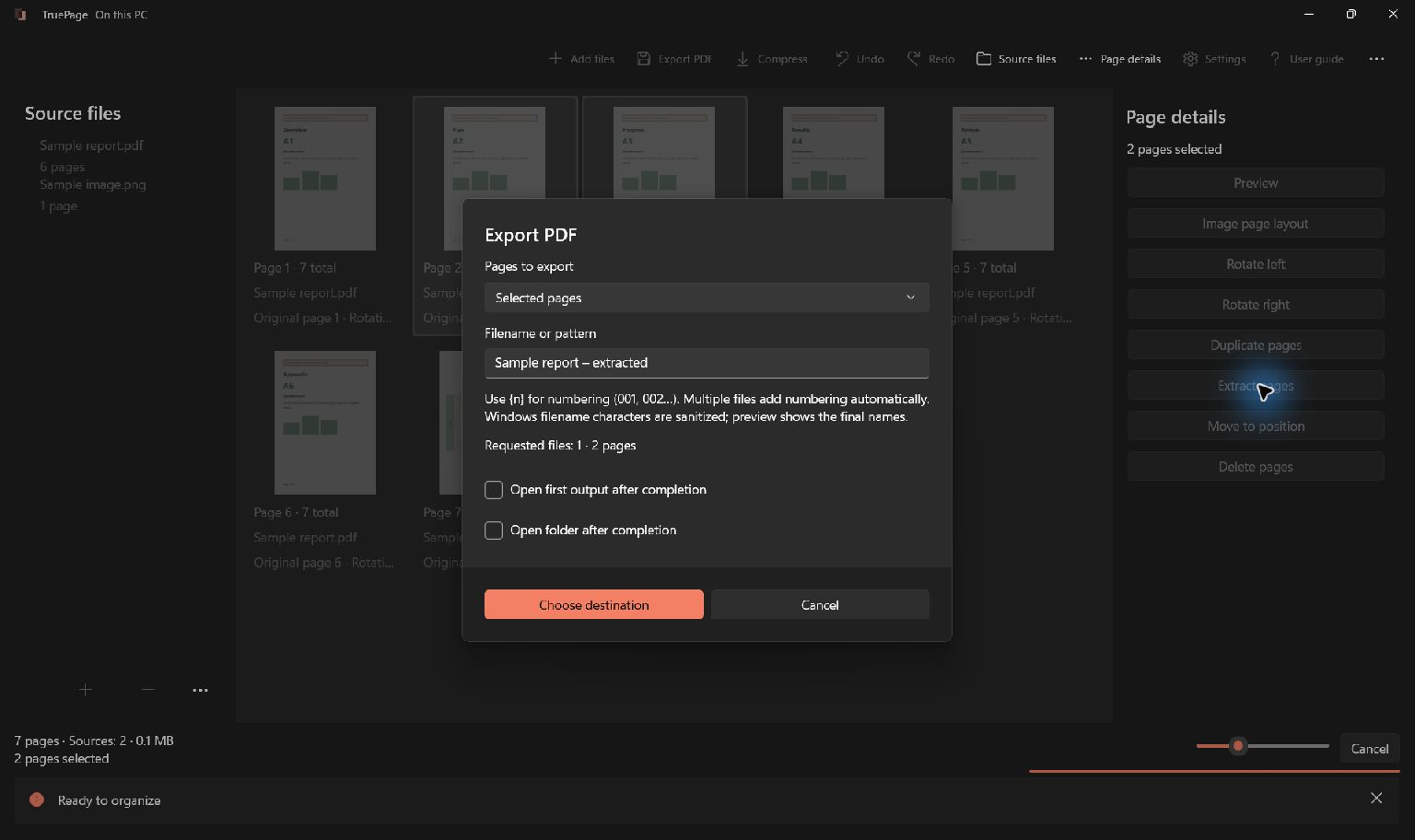
Start with the document you actually need
Select the required pages, choose Extract pages with Selected pages, then save one PDF and verify its contents. For typed ranges, use current output positions; extraction keeps workspace order.
Distinguish extraction from splitting
Extraction and splitting can use similar-looking controls, but they answer different requests. Extracting pages 2, 3 and 6 produces one PDF with those three pages. Splitting a document into sections produces several files, each with its own contents and filename.
Choose extraction when someone asks for “a PDF containing these pages.” Choose splitting when the request is “one PDF for each section” or “a separate file for every page.” This distinction matters before you choose a destination because it determines the number of outputs you should expect in the final preview.
You do not need to delete all the unwanted pages from the workspace just to extract a subset. Keeping the full arrangement visible can make it easier to compare the selection with the surrounding material. Deletion remains available for organizing a document, but selection or ranges are more direct for a one-off extraction.
For splitting procedures, use the extraction and splitting guide. The steps below concentrate on producing one checked PDF.
Understand which page numbers the app uses
There can be three different numbers associated with what looks like one page. A printed number belongs to the document’s design. An original source position identifies where the page came from. The output position identifies where its occurrence currently sits in the workspace.
TruePage’s ranges use current output positions starting at 1. If the first PDF page is a cover and the next is a contents page, the printed “1” may be the third output page. If you combine two PDFs, their printed numbering can overlap. Reordering pages changes output positions without rewriting the numbers printed inside them.
This is why a request for “pages 5 to 8” should be checked against the visible content. Determine whether the requester means the printed page labels or the physical positions in the file. You can then select the intended pages on the board, where the current sequence is visible.
The same caution applies after editing. If you remove a cover or move an appendix, a range noted before that change may refer to different pages. Finalize the arrangement before typing the range, or recheck the numbers after the last edit.
Select a few pages directly
For a small or irregular selection, clicking the pages is often the clearest method. Add the PDF, locate the first required page, and click it. Hold Ctrl while clicking additional separate pages. Use Shift+click for a continuous range when that is easier.
Look at the highlights and selected-page count before opening export. Avoid treating keyboard focus as proof that every desired page is selected. If you accidentally included a page, correct the selection while the board still shows the surrounding sequence.
Choose Extract pages, then keep Selected pages in the export dialog. Enter a meaningful filename, choose the destination, review the output, and export. An empty selection must be corrected before the operation can continue.
For a longer selection, check the beginning and end as well as the total. A count of six selected pages cannot tell you whether you chose the intended six. Preview uncertain pages before exporting rather than relying on similar-looking thumbnails.
Use ranges for predictable sections
Choose Extract by ranges when the required positions are clear. In a six-page arrangement, 1-3, 5 means output pages 1, 2, 3 and 5. Use ordinary digits, commas and hyphens. Spaces around the numbers are allowed, but reversed ranges, zero, empty entries and positions beyond the arrangement are invalid.
Start with a short expression you can check mentally. For example, 2-4 requests three consecutive pages. Adding , 6 requests one more. If your expression becomes difficult to read, compare it against a written content list before you continue.
Extraction combines the requested occurrences in workspace order and does not repeat the same occurrence simply because ranges overlap. For example, 4-5, 2-4 extracts pages 2, 3, 4 and 5 in that order. It does not move pages 4 and 5 to the front, and it does not repeat page 4.
This behavior differs from splitting by ranges, where each entered range defines a separate PDF. Do not transfer assumptions from one mode to the other. Read the chosen mode and requested output counts each time you open the dialog.
Reorder pages before extraction when necessary
If the new PDF needs a different sequence, arrange the pages on the board first. You can drag a selection to an insertion point, use Move earlier or Move later, or choose Move to position for an exact destination. Then extract the desired occurrences from that arrangement.
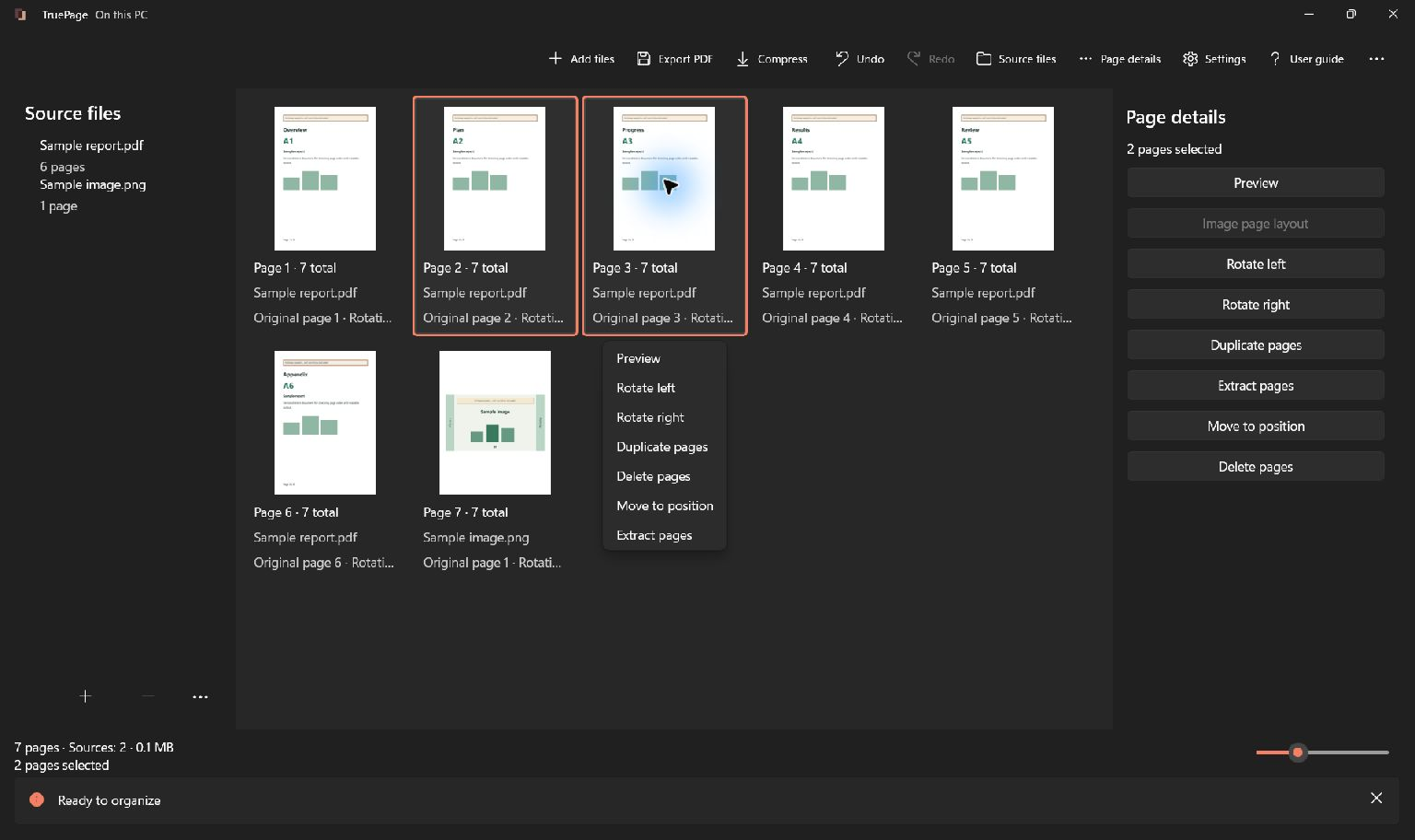
Suppose the useful section is at the end of a report but belongs first in the new document. Move that section to its intended output position, then check the range or selection again. Typing the last section’s range first is not a substitute for reordering in extraction mode.
A duplicated page occurrence is distinct from the original occurrence on the board. If you intentionally need the same source page twice, duplication can create two occurrences that both belong in the output. Overlapping ranges alone do not create that second occurrence.
Check the filename and destination preview
Name the result for its purpose rather than for the operation that created it. A name such as equipment-instructions is usually clearer to a recipient than extracted-final-new. Use a naming convention that makes sense alongside the source and any later revision.
Select Choose destination and review the final output list. For an ordinary extraction, expect one PDF and the intended page count. If several output files appear, check whether a splitting mode was selected by mistake.
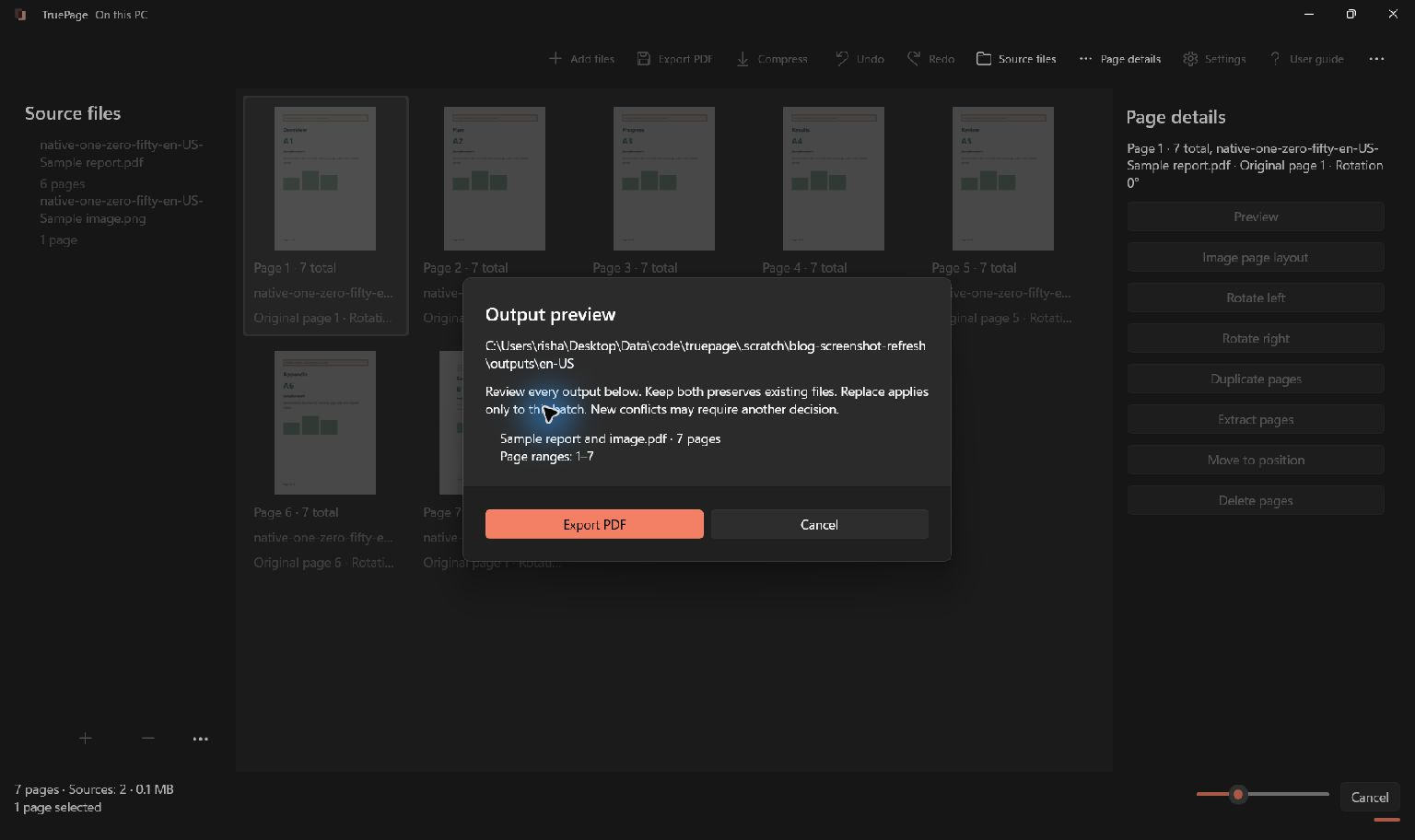
If the destination already contains a file with that name, Keep both preserves it. Replace applies to the explicitly reviewed output and requires a deliberate choice. The source originals cannot be overwritten by this export. A distinctive filename or dedicated output folder can make it easier to identify the new result without confusing it with an older extraction.
Inspect the new PDF as a reader would
Open the saved PDF and check more than whether it opens successfully. Confirm the page count, the first and last pages, and the boundaries between selected sections. Read headings or distinctive content so that a superficially similar page does not slip through the check.
Check orientation and readability. Look for references to omitted material: “see the table on the next page” is less useful if that table was not included. If context is missing, return to the original arrangement and make a revised extraction with the necessary supporting page.
A selected page may contain information you do not intend to share. Extraction chooses whole pages; it is not a redaction or sanitization operation. If you need to remove content within a page, use an appropriate tool and verify the resulting file separately. Do not describe a document as sanitized merely because unrelated pages were left out.
For protected input, read any unprotected-output acknowledgement before continuing. Organizing pages from an authenticated source can produce an unprotected PDF. If the final document needs password protection, export the arranged result first, then use that output as the source of the separate protection operation.
Recover from a mistaken selection
If the result has the wrong pages, first compare the output with the current arrangement. A mismatch between printed labels and output positions is a common explanation. Correct the selection or range and give the revised export an identifiable name.
If the pages are right but in the wrong order, reorder the workspace rather than rearranging the range expression. If a required page appears twice, check whether two separate occurrences exist on the board. Undo can reverse workspace edits, but it does not retract a file already exported to disk.
Keep the original until the new document has served its purpose. The workspace is not a permanent project archive, and the extracted PDF is a new deliverable with a narrower set of pages. Knowing which file is the source and which is the checked result makes future corrections much simpler. For the full destination workflow, see exporting PDFs.
For a worked example, see: How to Copy Pages from One PDF to Another.

Your pages. Your space.
Available now for Windows 11