Copy selected PDF pages into a new combined document
To copy pages from one PDF to another in TruePage, import both documents into the same workspace, select the pages that belong in the result, and use Extract pages to export that selection as a new PDF. Arrange the pages first if their final order needs to change. Neither original source file is overwritten.
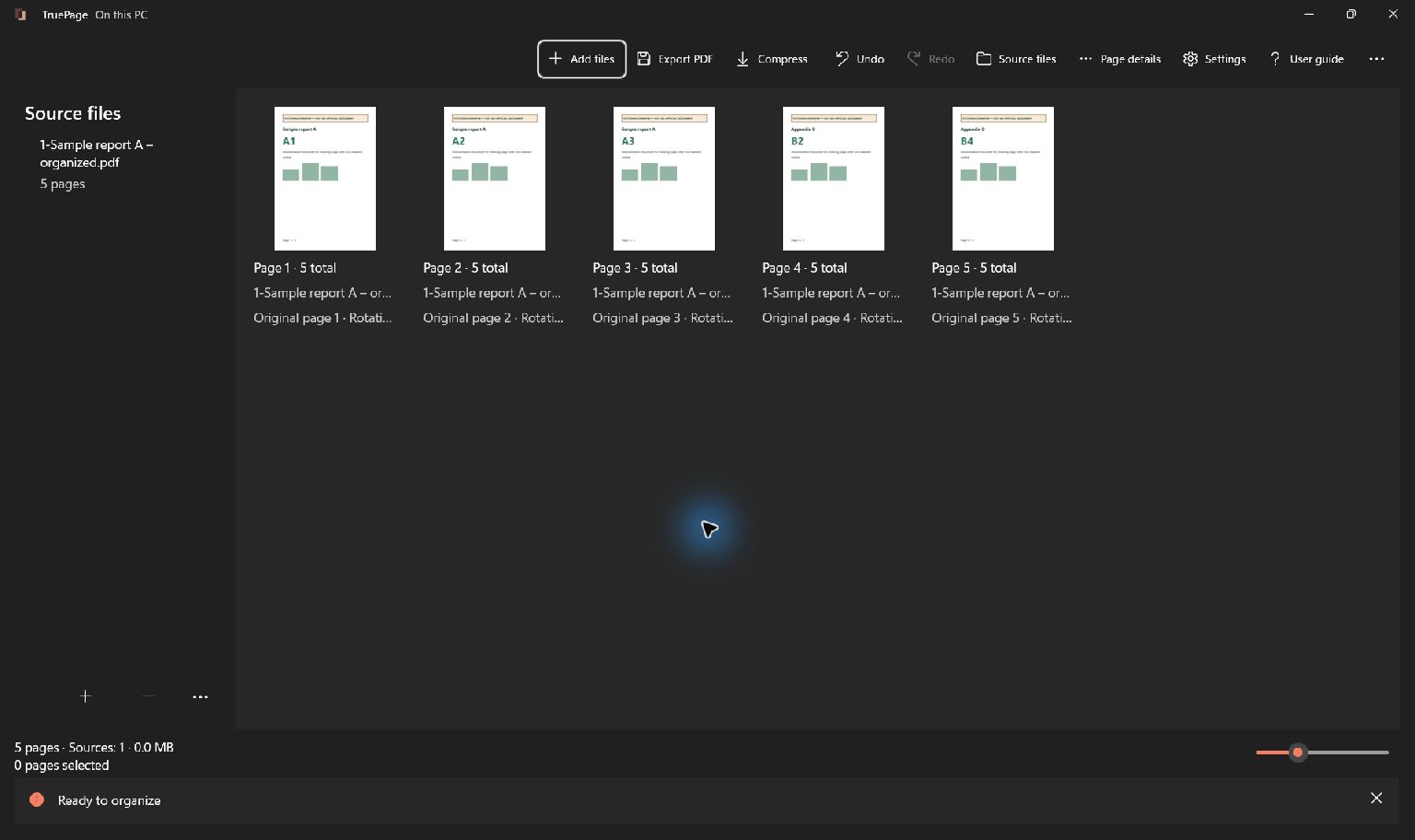
This workflow is useful when most of one document should be kept but only a few pages of another are relevant. The example keeps all three pages of document A and copies pages 2 and 4 from document B. The intended output is A1, A2, A3, B2, B4, a five-page PDF.
TruePage combines page occurrences in one arrangement and exports the required result. The important distinction is between importing a source, selecting its relevant pages and choosing the correct export scope.
Identify the exact pages you need
Prepare a short content list before importing. For this example, document A contributes its complete three-page main report. Document B contributes two selected supporting pages; its pages 1 and 3 must not appear in the saved output.
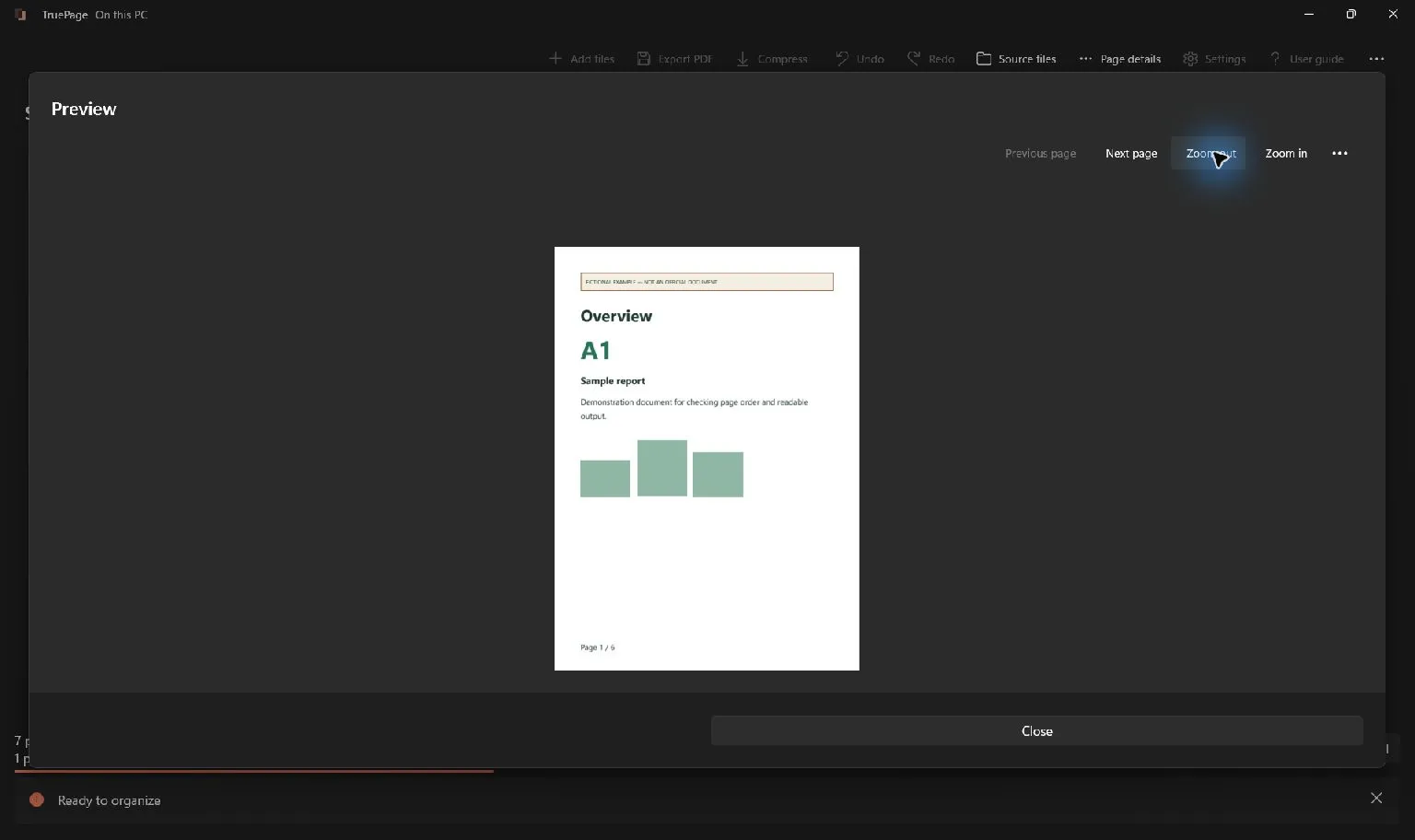
Read page content as well as filenames. A supporting page from an old revision can look almost identical to the intended version. Open Preview to check a heading, reference or date that distinguishes it. A selected source file is not the same thing as a verified set of selected page occurrences.
Check what the recipient expects. If the result must be one combined PDF, exporting each selection separately creates extra assembly work. If separate files are required, a combined packet may be inappropriate. The submission checklist helps turn those requirements into concrete output checks.
Add both PDFs to the workspace
- Choose Add files and import document A.
- Confirm its three pages appear in their intended reading order.
- Choose Add files again and import document B.
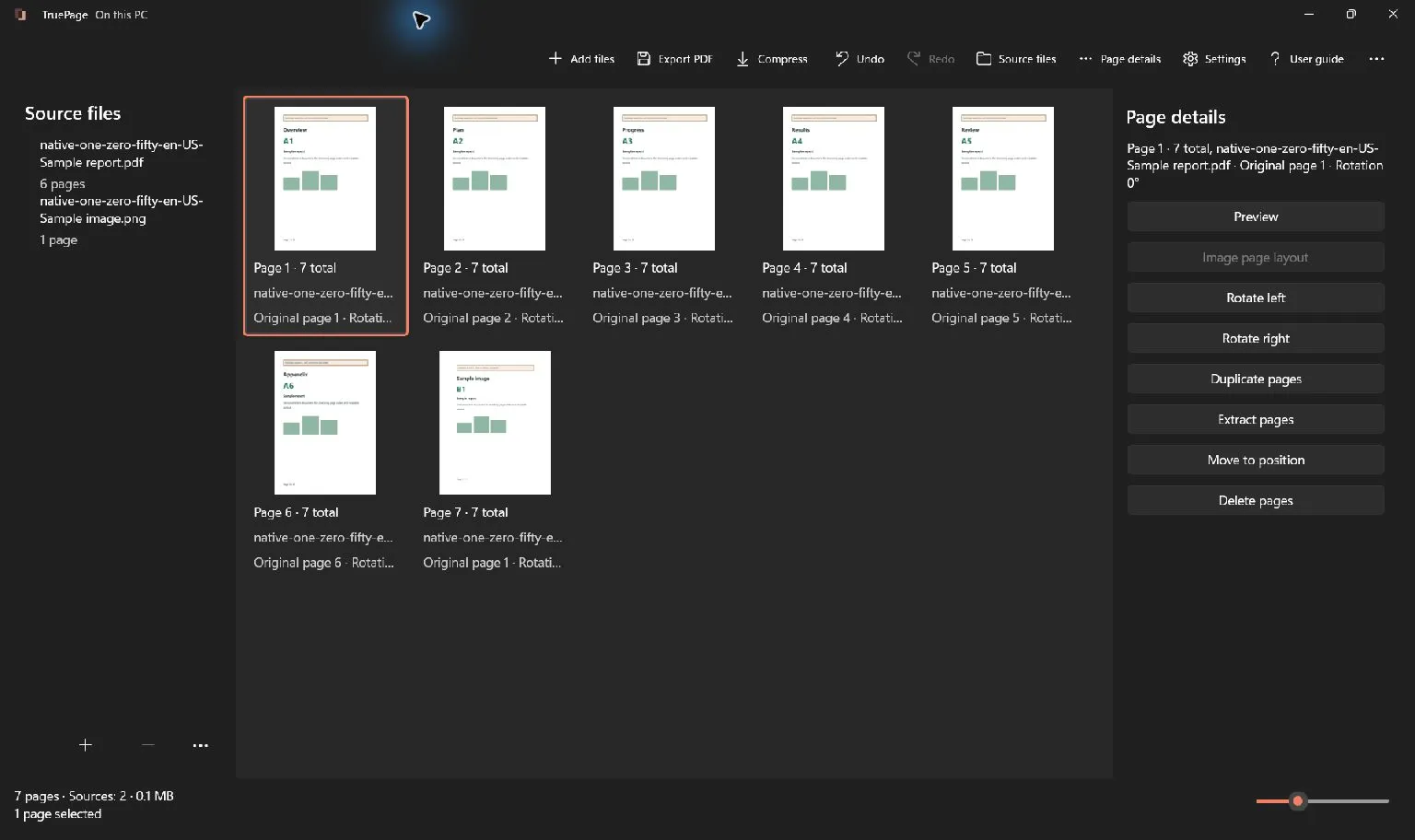
- Inspect the seven-page arrangement and identify the pages belonging to each source.
- Select the three pages from A and pages 2 and 4 from B.
- Check that exactly five page occurrences are selected.
When A’s three pages precede B’s four pages, the selected output positions are 1, 2, 3, 5 and 7. Those positions are specific to this arrangement. Document B’s original page 2 is current output page 5 because the three pages of A come before it.
Use Ctrl+click to adjust a multiple selection and Shift+click for a contiguous range. If selecting a range would also include unwanted pages, use individual selection adjustments and verify the final highlights. Keyboard focus alone does not establish which pages will be extracted.
Establish the order before extracting
The desired example order is A1, A2, A3, B2, B4. If the workspace already follows that sequence for the selected pages, no further movement is required. If the supporting material belongs in the middle, move the relevant occurrence or group first, then recheck the selection and its new output positions.
Move to position lets you place a selected page or group at a precise output position. A moved group keeps its internal order. Dragging is also available; check the insertion indicator and the neighbors after releasing the selection.
Extraction follows workspace order. It is not a way to specify an arbitrary new order by entering ranges in a different sequence. For example, entering a later range before an earlier one does not reverse the selected pages. Finish the arrangement first, then export it. See the page organization guide for precise movement and Undo.
Export only the intended five pages
Choose Extract pages with the required occurrences selected. Keep Selected pages in the export dialog and check that it requests one file containing five pages. Choose a filename, destination and the final export confirmation.
If you use Export PDF instead, explicitly choose the intended scope. All pages would include B1 and B3 while they remain in the arrangement. Removing those unwanted occurrences first is another valid approach, but selecting and extracting the required five pages avoids changing the rest of the current arrangement.
An empty selection must be corrected before extracting. Likewise, if only B2 and B4 are selected, the output will contain those two pages without A’s report. The selection must include the main document as well as the copied support pages when the goal is one complete combined file.
Verify the combined copy
Open the saved PDF and confirm its five-page sequence: A1, A2, A3, B2, B4. Check the transition between the report and the first supporting page, and inspect the final page. Verify that B1 and B3 are absent and that no required page is duplicated.
Inspect orientation, completeness and readability in the saved result. Combining pages preserves their individual source dimensions; a landscape supporting sheet may legitimately differ from the report. This workflow does not edit the text inside a page or automatically update printed numbering and cross-references.
Keep the original documents for reference and give the combined copy a distinguishable name. If a destination collision occurs, review the existing file before choosing whether to retain both copies or replace the intended output. For a single missing page that should be inserted into the middle of a packet, the add-page tutorial provides a shorter example. For one source and one extracted subset, use saving selected PDF pages.

Your pages. Your space.
Available now for Windows 11