Review the file that will actually leave your computer
Confirm that the source is expected and approved for this task before opening it, and verify the recipient or portal address before sending. Check whether the output folder is shared or synchronized: another program may upload the file before you submit it. Follow your organization’s process for suspicious attachments; exporting is not a way to make them safe. See the local-processing boundaries.
Translate the request into concrete checks
Read the destination’s instructions for file type, maximum file size, naming, page limits and whether documents must be combined or separate. If the portal asks for three separate PDFs, one convenient combined packet may not meet the request.
Make a short content list in the intended order. For example, you might need a cover page, a two-page statement and three supporting images. That gives you an expected six-page output and a sequence you can compare with the workspace.
Distinguish a maximum file size from a maximum page count. Reducing bytes does not remove extra pages, and deleting pages does not guarantee that the remaining PDF is small enough. Treat each constraint as its own check.
Note any requirement for searchable text, permitted protection, signatures or particular page dimensions. Do not assume that a visually correct PDF satisfies those requirements. If the requested behavior depends on a capability beyond arranging and exporting pages, prepare the source or final document in the appropriate workflow.
Confirm the inputs and remove version ambiguity
Add the intended source files and check the actual content of each. Read a date, heading or revised paragraph that distinguishes the current version from an older one. Filenames such as final, final2 and latest are not evidence that the contents are correct.
Keep source files distinguishable from exported copies. A useful naming pattern identifies the document and revision without relying on the download order. Follow the recipient’s naming rule when one exists; otherwise, choose a name that you can recognize during attachment selection.
If you imported several versions for comparison, make sure the arrangement contains only the intended occurrences. The source list can retain files after their pages have been removed from the arrangement. The planned output is determined by the arrangement and export scope, not simply by the list of imported sources.
For a corrected page, inspect the old and new versions before removing the old occurrence. Then check its neighbors after placing the replacement. The page replacement walkthrough explains this sequence in detail.
Check completeness and order on the board
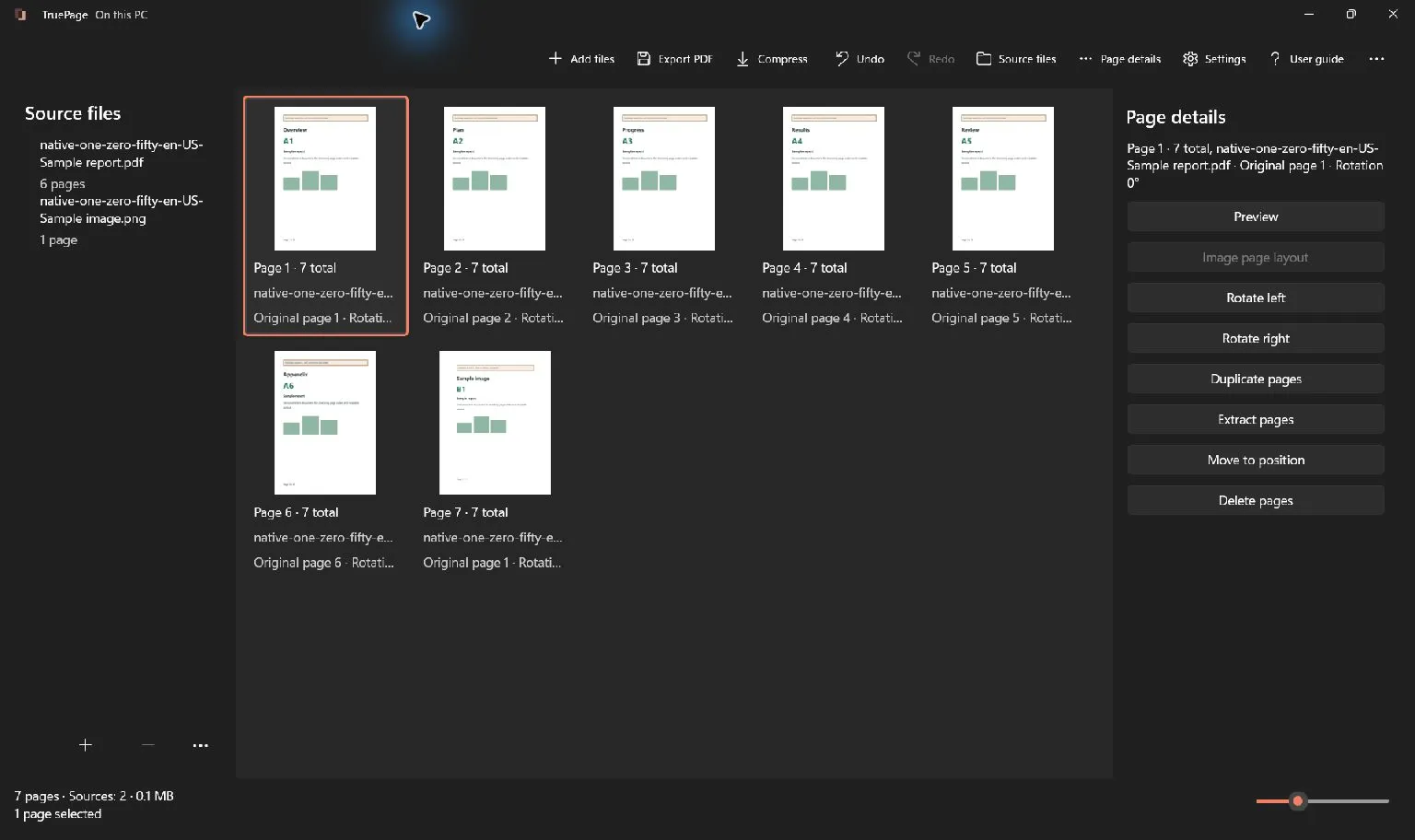
Compare the arranged pages with your content list. Count the pages and look for duplicates, gaps and misplaced attachments. Similar forms or receipts deserve a closer look because a repeated thumbnail can be mistaken for a legitimate second page.
Read the sequence in output order. Page positions start at 1 and change when you remove or move pages. A printed page number is part of the source content and may not match the current output position, especially after adding a cover or combining documents.
Check transitions between sources. The last page of one document and the first page of the next are common places for an unwanted blank, duplicate cover or reversed order to appear. A quick review of each source separately may miss that boundary.
Do not remove a blank-looking page automatically. It might be intentionally included or contain faint information. Preview it and compare it with the requirements before deciding whether it belongs in the final output.
Inspect orientation, edges and small text
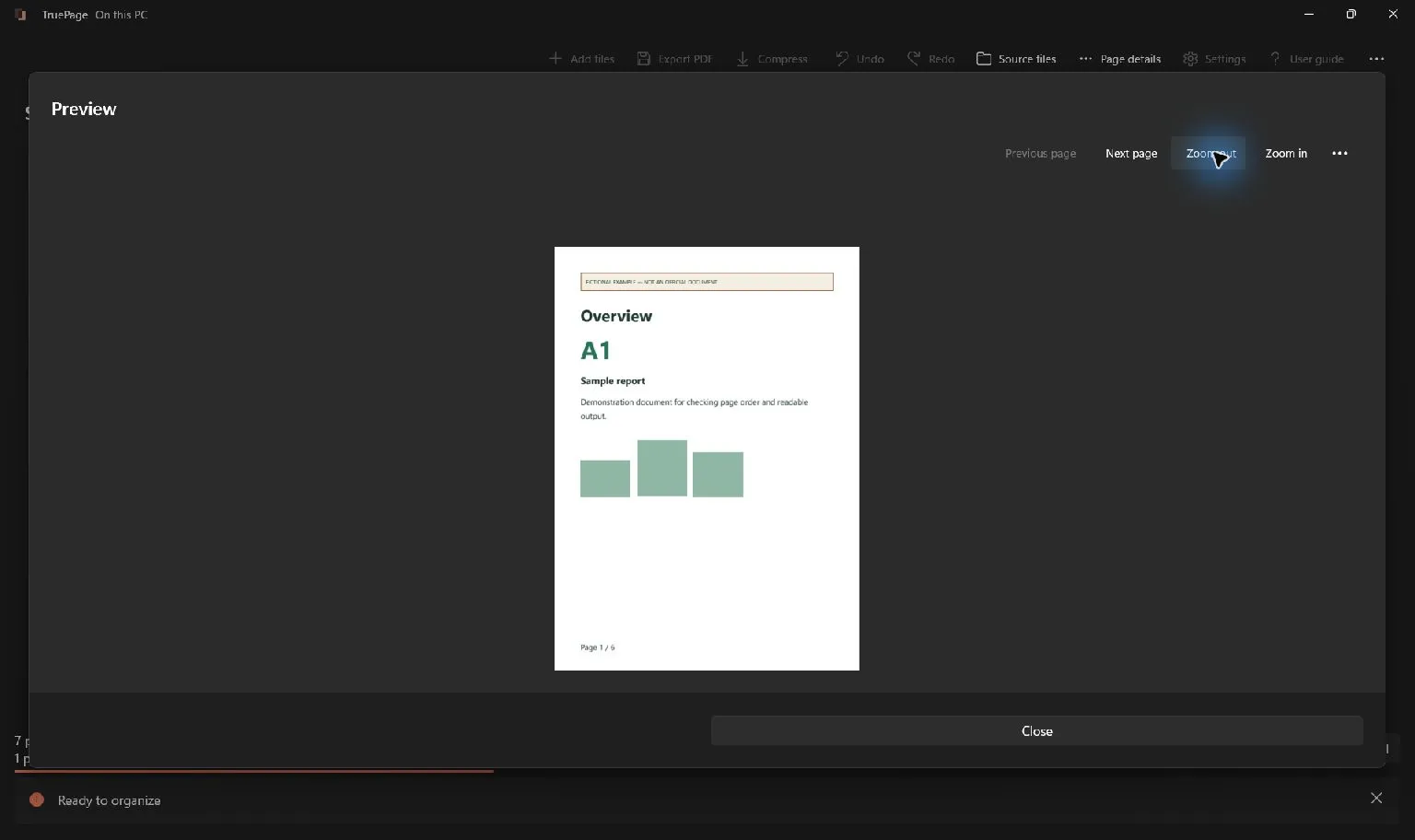
Open Preview and work through the pages. Begin with a view that shows the whole page so you can inspect its orientation and boundaries. Then zoom in to check the smallest text or detail that the recipient needs to read.
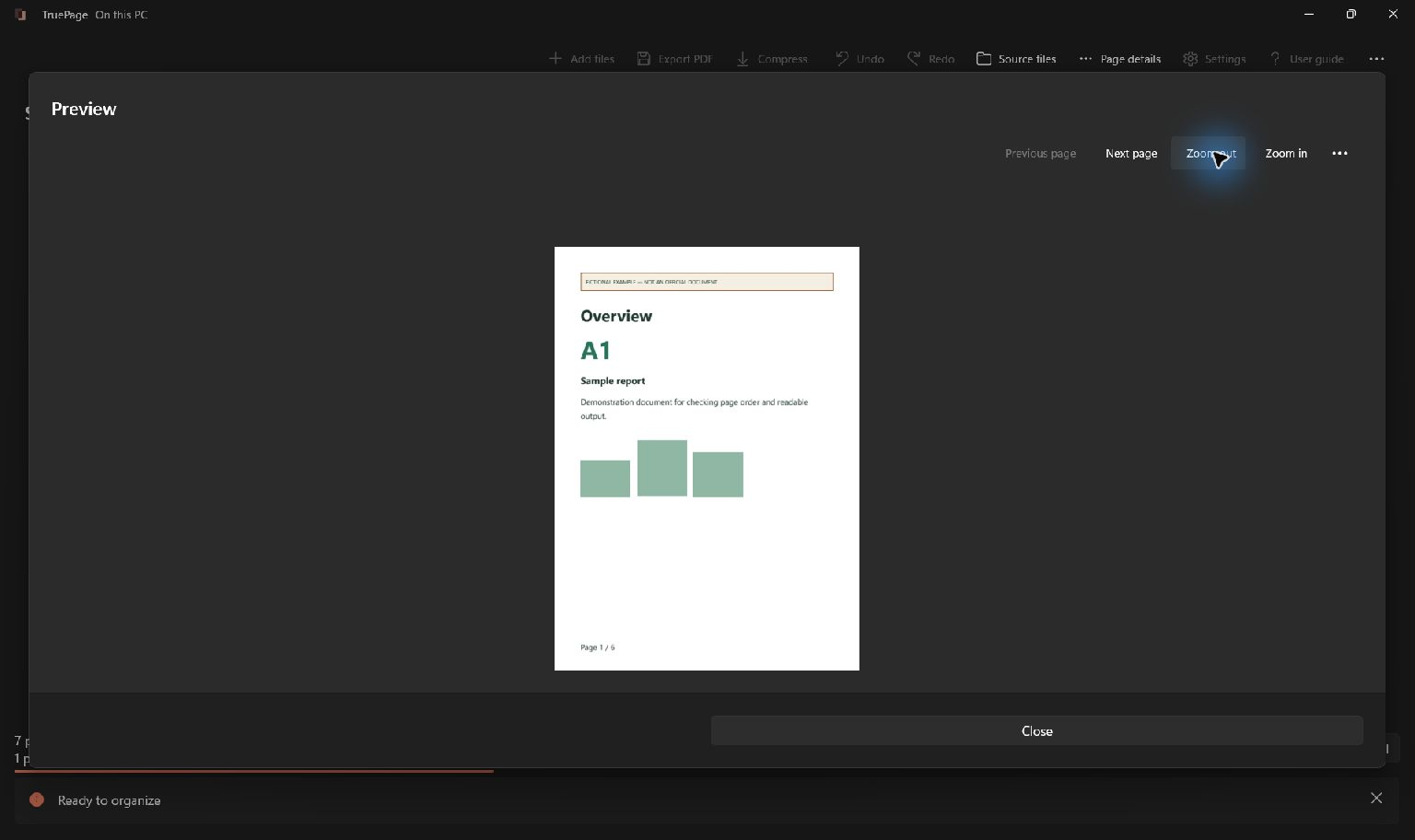
Rotate sideways or upside-down pages as needed, while keeping legitimately landscape pages in their intended orientation. TruePage’s preview rotation changes the arrangement. Leave each page in the orientation you want saved before closing Preview.
For photographs and scans, read the actual text rather than judging only sharp borders. A receipt can have a crisp paper edge and a blurred total. Layout and compression cannot reconstruct characters missing from the source, so replace a poor input when possible.
For image pages, inspect Fit, margins and page size. Fill (crop) can remove edges when proportions differ. Make sure dates, totals, legends and footers remain visible. A page that neatly fills the available area may be less complete than one with some blank space.
Check what the PDF needs to preserve
If searchable text is required, test the saved document in a viewer that supports text selection and search. Merely putting photographs into a PDF does not make their words searchable. TruePage does not add OCR during image import or PDF assembly.
If the recipient needs interactive fields or links, do not replace the PDF with exported page images. PNG and JPG show rendered page content without retaining the original PDF’s interactive behavior. Choose a deliverable that supports the required use.
Review warnings for protected or signed sources. Organizing authenticated protected PDFs can produce an unprotected output with an explicit acknowledgement. Editing a signed PDF and exporting it does not preserve its valid signature status. Check the requirements for the resulting file rather than assuming the source’s properties carry over unchanged.
Page arrangement is not redaction. Removing an entire unwanted page is different from securely removing sensitive information within a page. If content inside a retained page must be redacted, prepare and verify that source using an appropriate redaction workflow before assembling the packet.
Choose the export scope deliberately
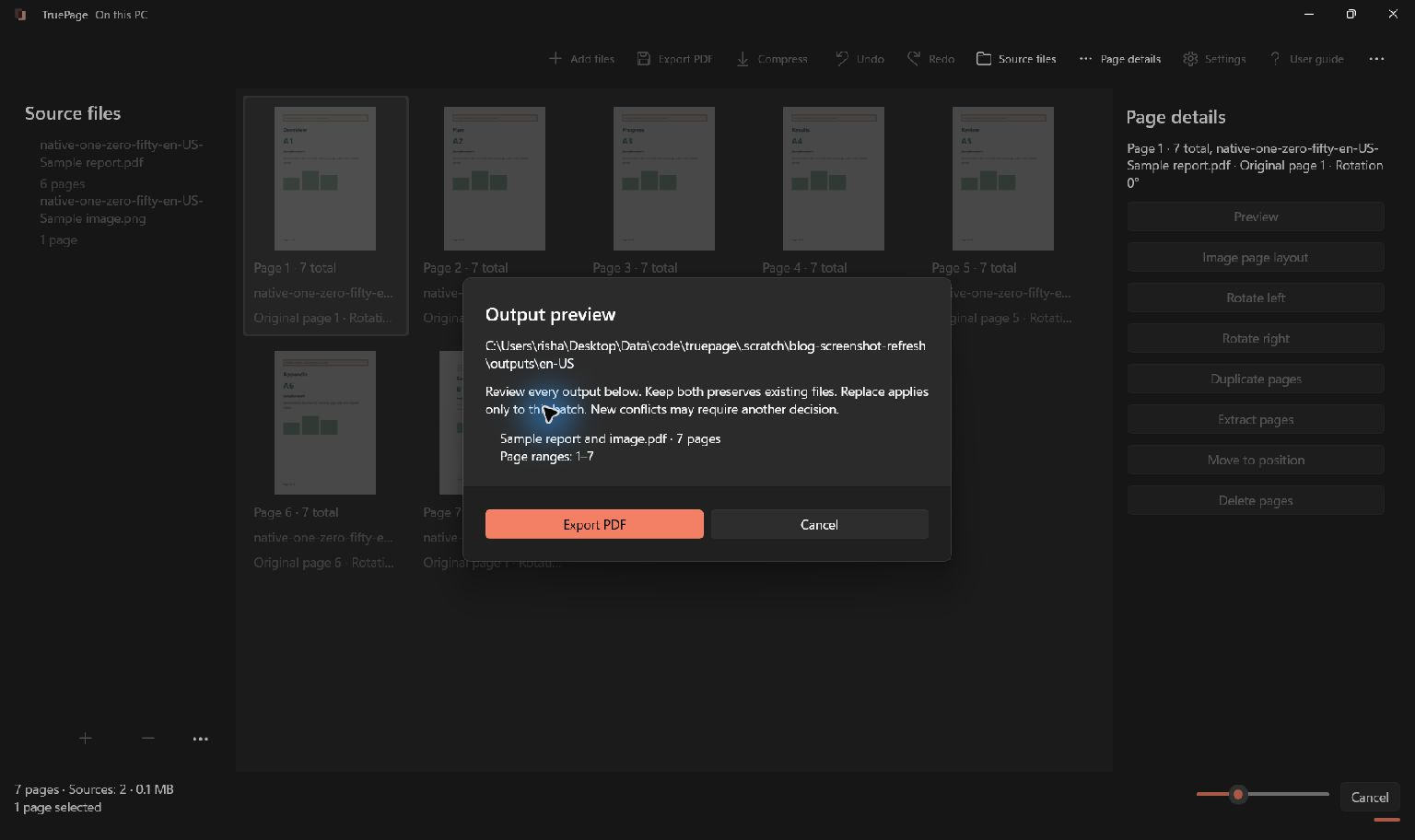
Select Export PDF and check the scope before continuing. All pages saves the full arrangement. Selected pages saves the current selection. Extract by ranges uses positions in the current arrangement. The correct choice depends on the deliverable you planned.
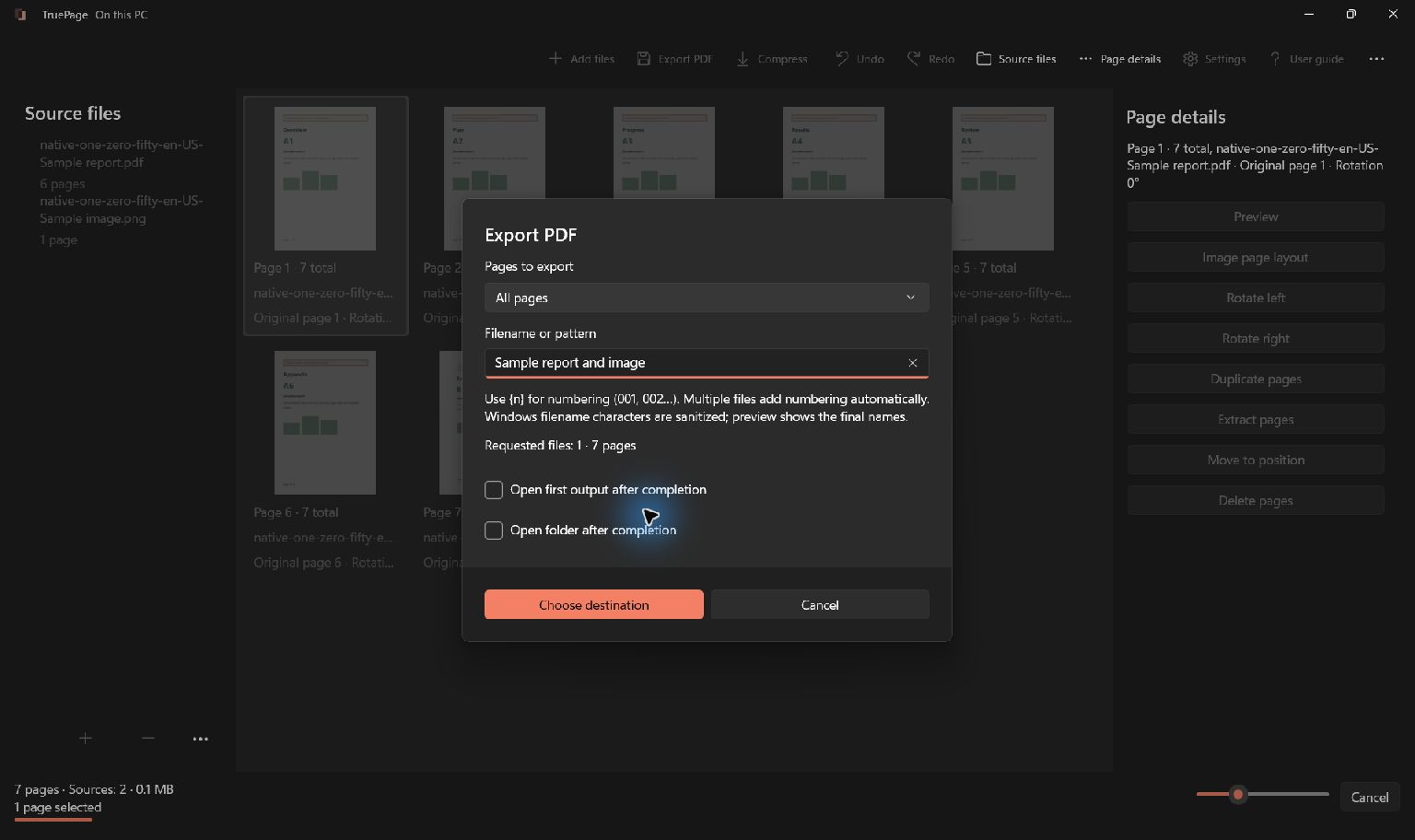
Check the proposed file count as well as the page count. Extracting several ranges into one PDF is different from splitting ranges into separate PDFs. One output containing the right pages may still be wrong if the recipient requested separate attachments.
Review the filename and destination. If an output with the same name already exists, read the collision choices and choose the intended result. Keep track of whether you retained both versions so that the older one is not selected later by mistake.
Complete the export and wait for the operation to finish. Reviewing a proposed output does not itself save the file. If the operation reports an error, resolve it before treating the planned document as ready to submit.
Check size without sacrificing required content
Inspect the saved PDF’s file size against the destination’s stated limit. If it is too large, first confirm that every included page is required. Removing an accidental duplicate can reduce size without changing image quality, but deleting required content is not an acceptable way to satisfy the limit.
If you use TruePage compression on an arranged document, export the arrangement first and then compress that output. Compression operates on a whole PDF source; selecting pages on the board does not make it compress only those selected occurrences.
Review the compression result and inspect small text in the new file. A smaller copy is useful only if the required content remains readable. Some PDFs have little room for further reduction, and a compression attempt can produce a file that is not smaller.
Keep an uncompressed checked copy while comparing results. Do not repeatedly compress an already degraded image-based document in the hope that a quality loss will somehow reverse. See why a PDF may remain large after compression for a more deliberate diagnosis.
Reopen the final output and compare it with the request
Open the PDF from its destination after export or compression. Check its filename and location so you know you are looking at the new output rather than an older viewer tab. Confirm that the file opens without an unexpected prompt or error.
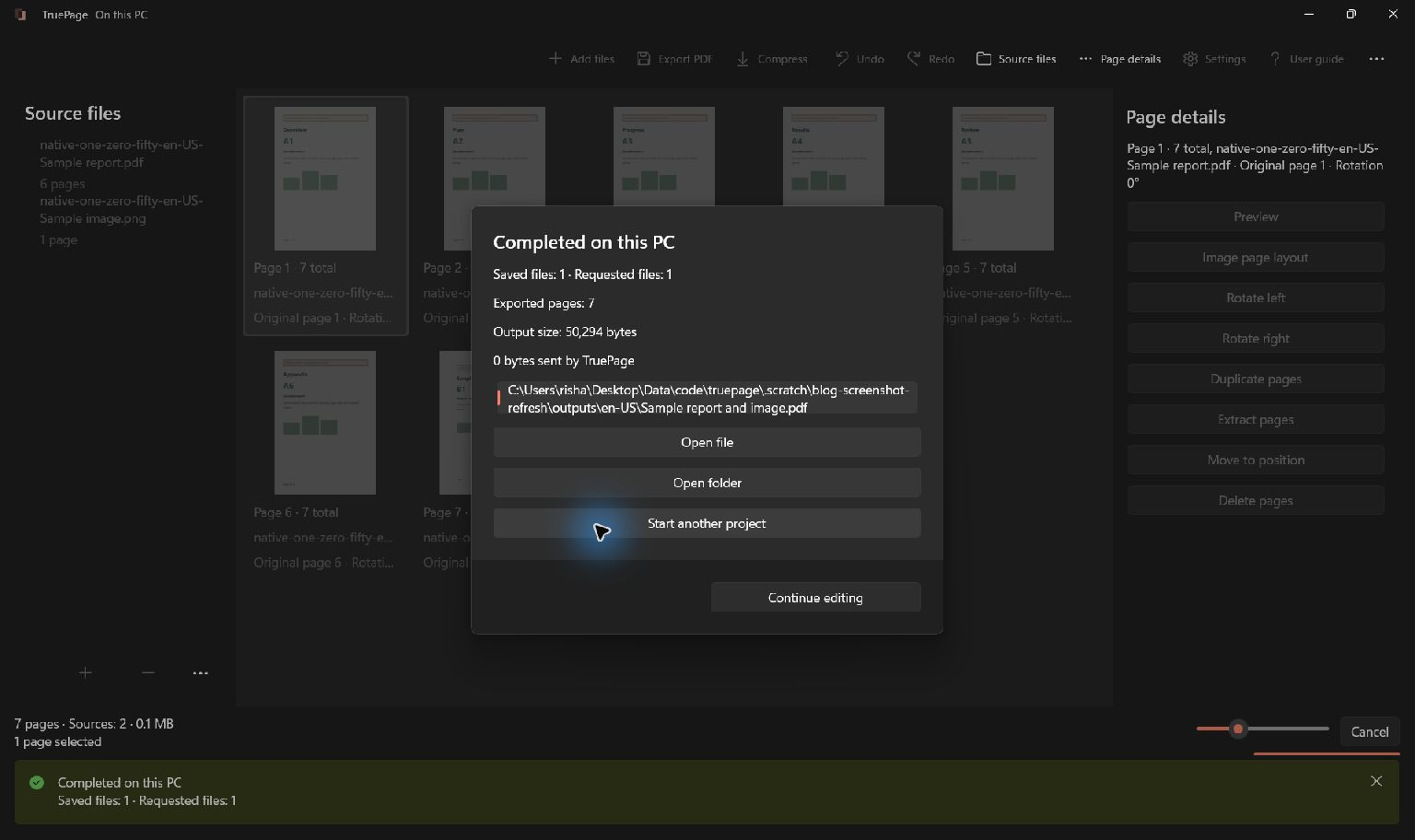
Compare the page count and sequence with the list you made at the start. Inspect corrected pages and critical details again, especially after compression. This final review should cover the exact file that will be attached.
Check the filename, extension and size once more in the location from which you will select the attachment. If several revisions remain nearby, make the checked copy unambiguous. A correct document in the wrong folder does not prevent selecting a similarly named older version.
Finish in the destination’s own workflow
When you choose the file in the destination, compare the displayed attachment name and size with the checked output. If the destination offers a preview, inspect it before final submission. A successful local export does not establish that the correct attachment was chosen elsewhere.
Follow any completion or receipt step the destination provides. Keep a copy of the submitted file so you can identify precisely what was sent if a later correction is requested. Avoid editing that only copy and losing the ability to compare versions.
The PDF export guide covers TruePage’s output controls. Use this checklist whenever a document moves from an editable arrangement to a file someone else will rely on: verify the requirements, inspect the arrangement, export deliberately, and review the exact saved output.
For immigrant-visa supporting documents, use the CEAC PDF upload guide to check document grouping and distinguish file problems from service errors.

Your pages. Your space.
Available now for Windows 11