A small reduction can be the correct result
First confirm the exact size limit and that you compressed the correct saved PDF. Already optimized files may shrink little. Try a more aggressive mode only if its saved result remains readable.
Check the exact requirement first
Find out whether the destination limits each individual file, the total attachment size, or the number of files. These are different constraints. Splitting a large document can help with a per-file limit while doing nothing to reduce the total bytes you must send.
Also check which formats are accepted and whether the document must remain one PDF. Replacing a PDF with a set of JPGs may be unsuitable even if each image is small. An archive can keep files together, but a destination that accepts PDFs only may reject it.
Use the requirement shown by the actual destination rather than a remembered limit from another service. Once you know the target, keep the source file and work on identifiable copies. You can then compare alternatives without losing the best-quality version or confusing one compression attempt with another.
Consider what is inside the PDF
A short PDF is not necessarily a small PDF. One page can contain a large photograph or a detailed scan, while many pages of efficiently stored text can occupy less space. Page count is useful for understanding the document, but it cannot by itself predict compression results.
PDFs may combine text, vector drawings and raster images. Different content has different storage characteristics. A scanned report can consist mainly of page images. A digitally produced report may contain selectable text and charts together with photographs. Treating both as “a ten-page PDF” hides the distinction that matters for optimization.
Visible complexity is not a reliable file-size meter either. A page that looks simple may contain a high-resolution image, and a visually detailed vector diagram may be stored quite compactly. TruePage’s measured before-and-after sizes are more useful than guessing from appearance alone.
If you can return to the document’s source application, its export choices may also matter. Keep that option in mind when a finished PDF offers little room for safe reduction. Do not repeatedly discard detail from an already degraded copy merely because it is the file closest at hand.
Start with Safe optimization when fidelity matters
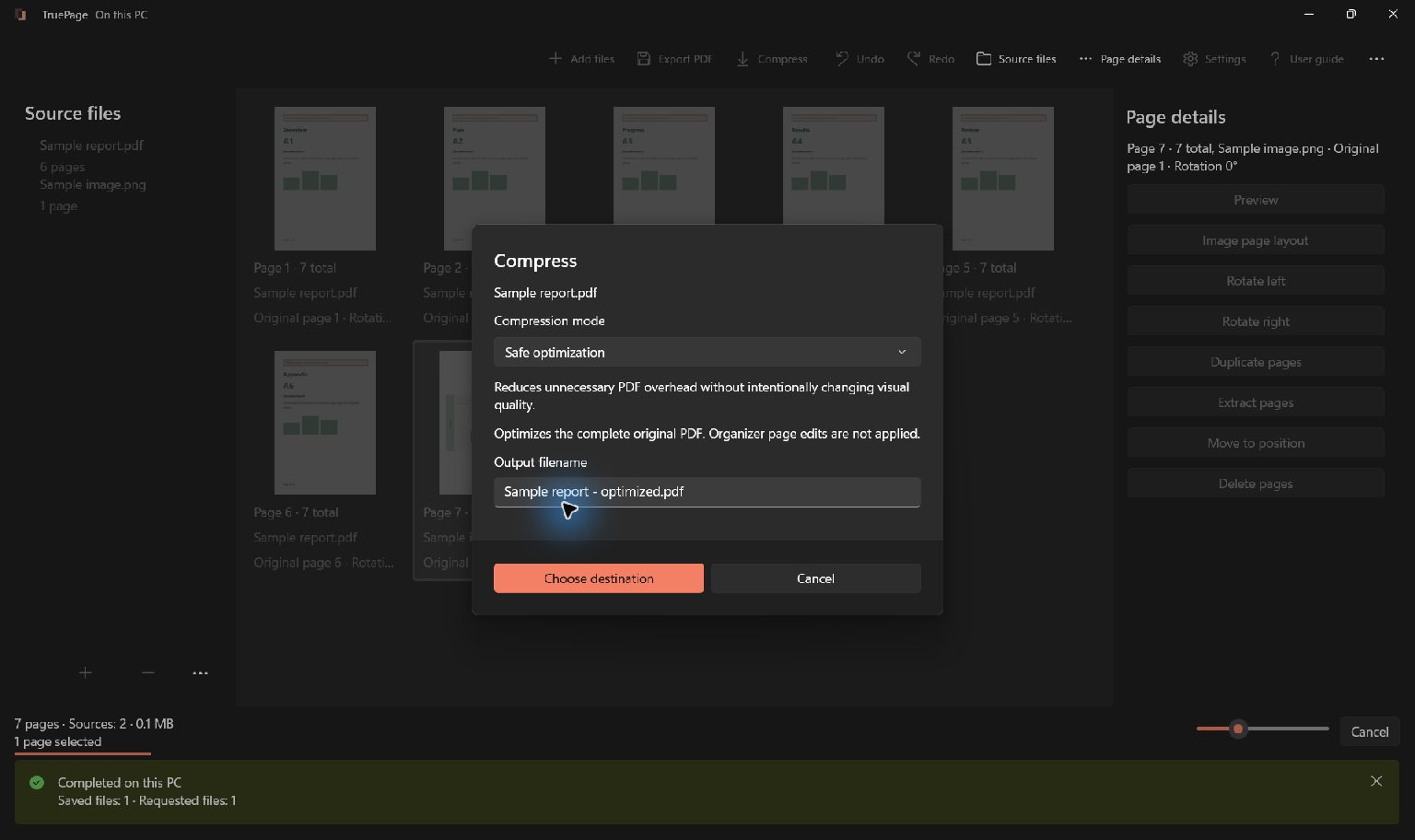
Safe optimization reduces unnecessary PDF overhead without intentionally lowering image resolution or visual quality. It is a sensible first attempt when text, diagrams or document images need to retain their existing fidelity.
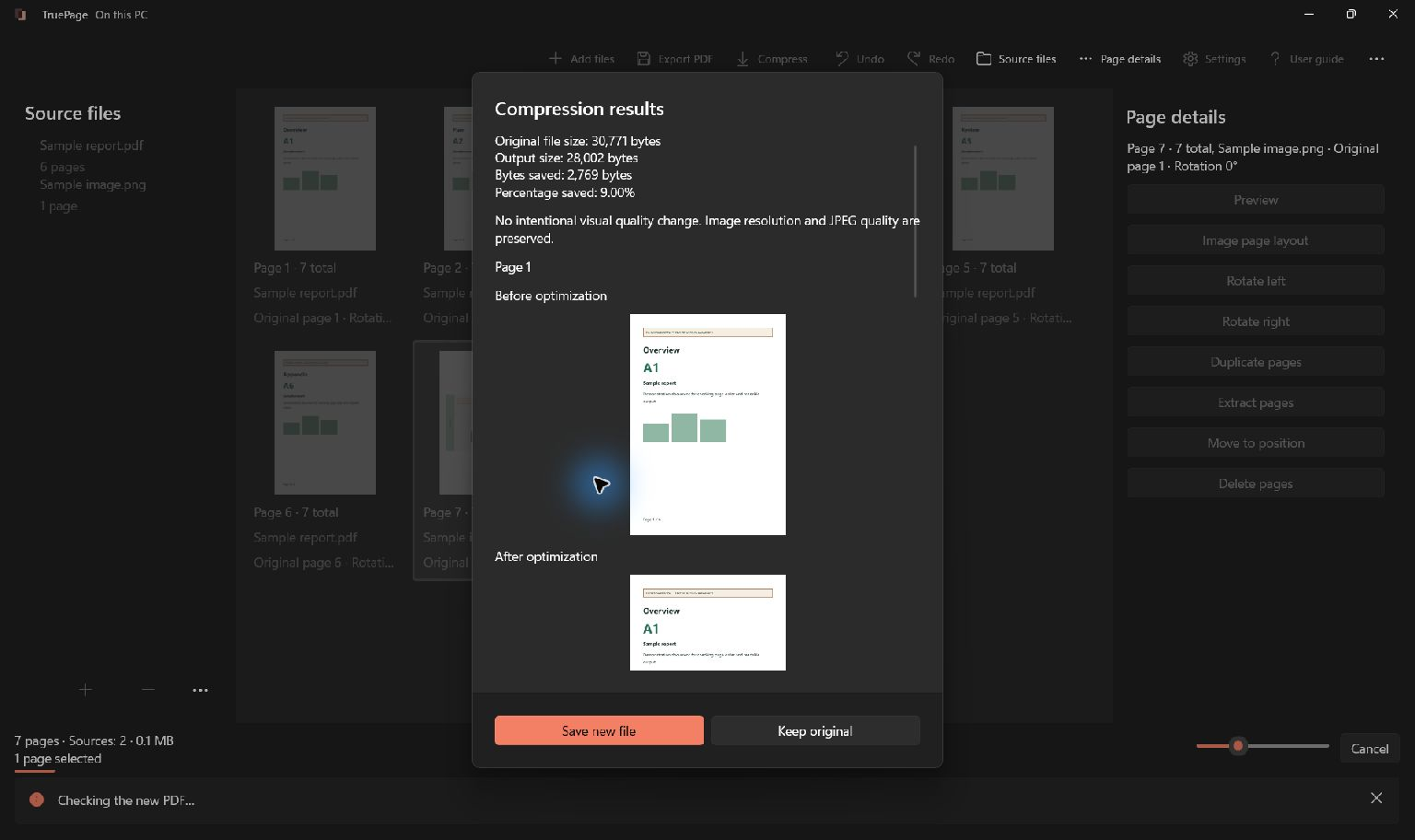
That restraint is also why the reduction may be modest. If most bytes belong to useful, already compressed images, structural changes alone cannot remove large amounts of data without changing something else. A result that saves only a small amount can still be doing exactly what this mode is intended to do.
Safe optimization is not a repair for a blurry scan. It does not invent missing detail, straighten a photographed page or add searchable text. Keep those problems separate from file size so that a smaller number does not distract from the quality the recipient actually needs.
If the candidate is not useful, keep the original and consider the alternatives below. Save a compressed copy only when its size and readability suit the task.
Try Smaller file only with a quality check
Smaller file may recompress eligible images, which can reduce size at the cost of visible image quality. Searchable text is preserved; the operation is not intended to turn every page into a flat picture. Documents with few eligible images may show little additional benefit.
Whether the tradeoff is acceptable depends on the contents. A photograph used only as context may tolerate a change that would make a tiny reference number unacceptable. Fine lines, faint handwriting and small labels deserve particular attention because a page can remain broadly recognizable while losing information that matters.
There is no need to decide from the mode name alone. Prepare the result, examine the measured sizes, and compare representative before-and-after previews at equivalent scale. If the detail is no longer adequate, decline the candidate rather than treating the smaller size as the only measure of success.
Make sure you compressed the intended source
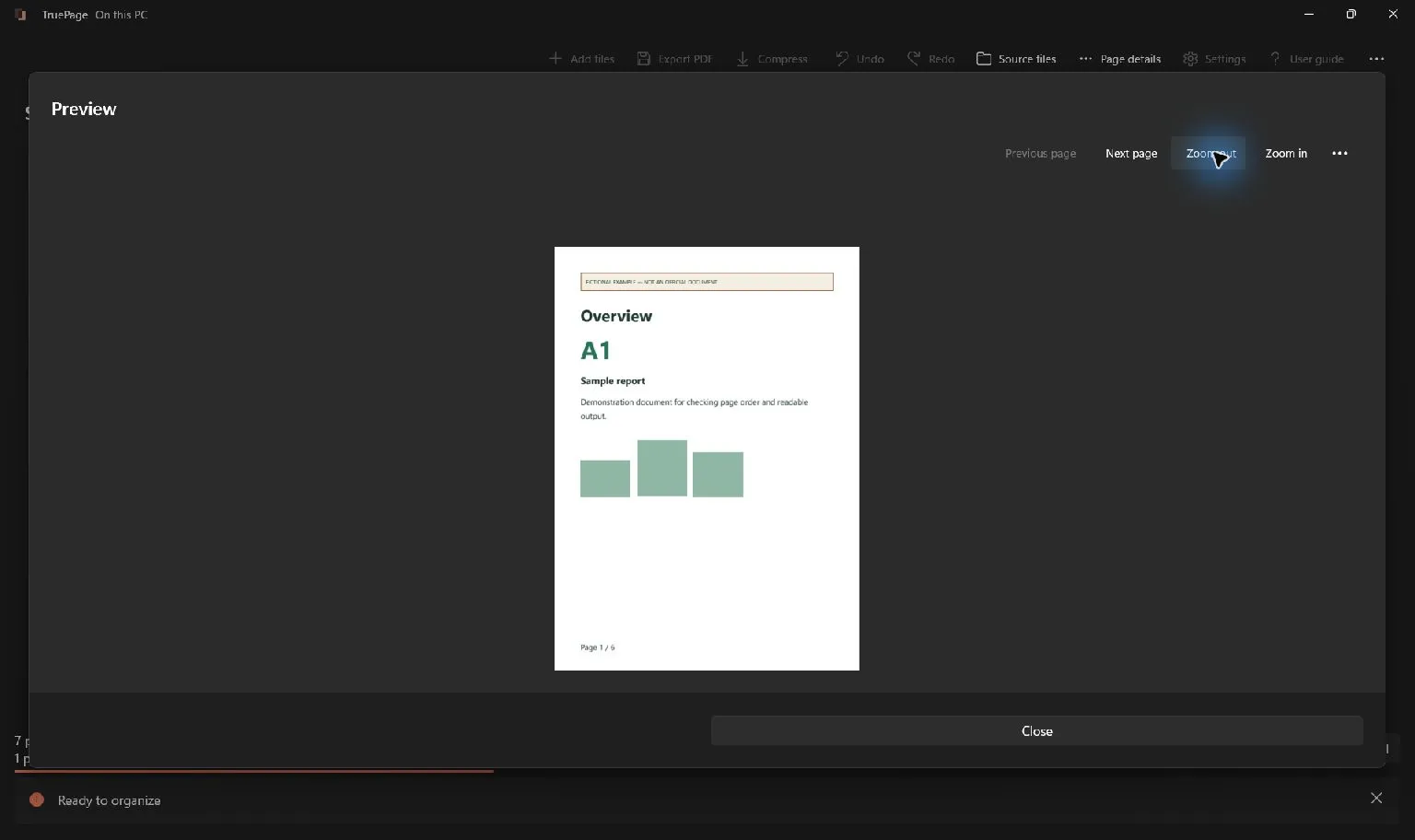
TruePage’s compression operation uses an entire source PDF. It does not apply unsaved page deletions, rotations or reordering from the organizer. This distinction can explain a result that still contains pages you thought you had removed.
Suppose you import a large report, remove two appendices from the board, and then compress the original file. The compression input is still the original report, including those appendices. The edited arrangement and the source file are different things.
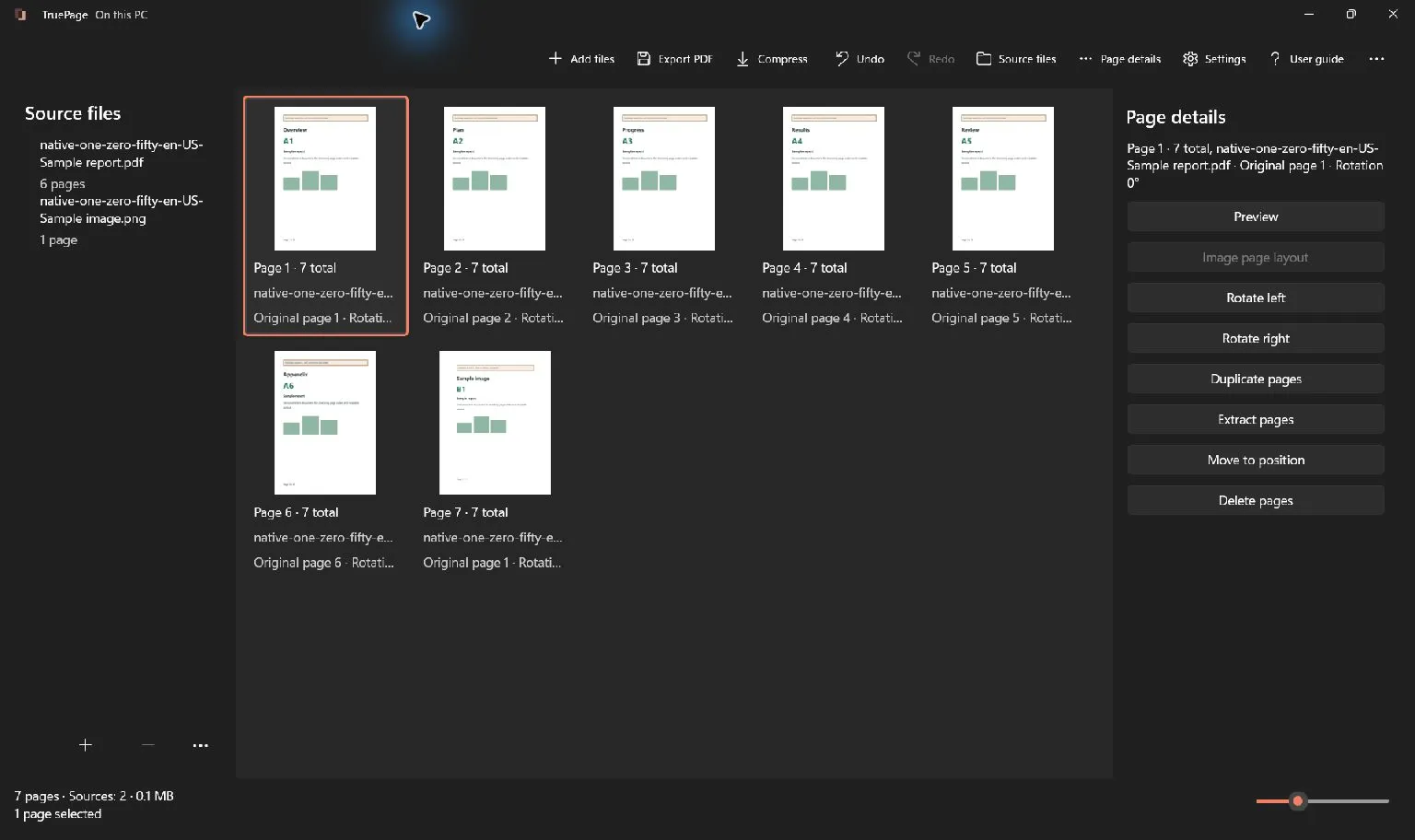
To compress your arranged result, first choose Export PDF and save that arrangement as a new PDF. Check the saved document, then use that output as the source for Compress. The order is organization, export, verification, and then compression of the verified output.
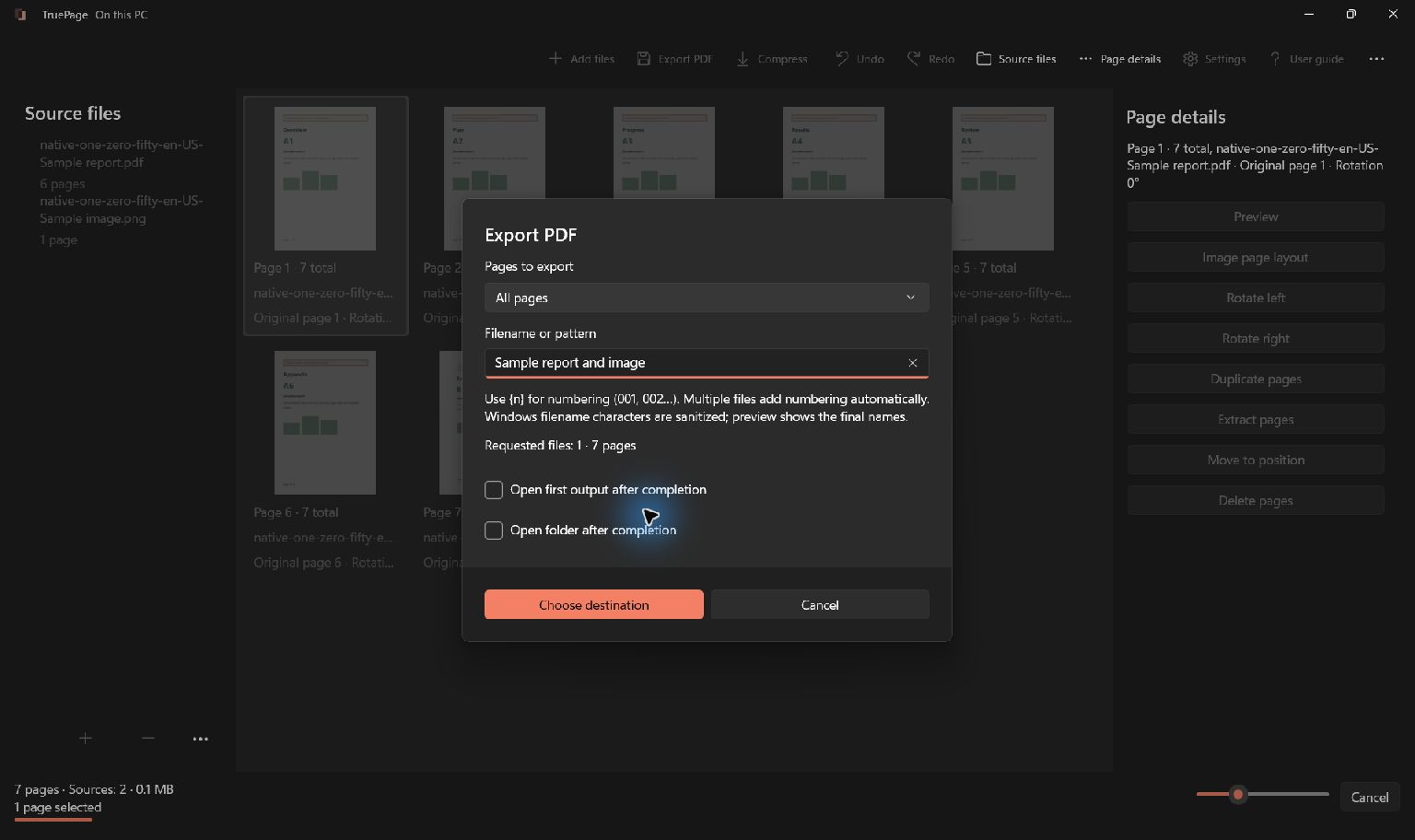
This also applies when you combine photographs with pages from several PDFs. Compression cannot act on an unsaved combined workspace as though it were already a single source file. Exporting establishes the exact document you intend to optimize.
Remove unnecessary pages only when they are unnecessary
Reducing the amount of content can be more useful than repeatedly changing compression settings. If the recipient asked for one section of a report, an extraction of that section may be the right deliverable. If the entire report is required, removing pages just to satisfy a size limit is not a successful solution.
Read the request and check context before choosing a subset. A summary may refer to a table in an appendix, or a form may require its instructions and supporting pages. The goal is a complete document for the task, not simply the smallest document you can produce.
Use the selected-page tutorial for the selection and numbering rules. After extracting, inspect the new PDF before compressing it. Check both the content and the page order; a smaller file is not helpful if it omits the page the recipient needed.
Split only when multiple files are acceptable
Splitting can make a long document easier to handle when each upload has its own size limit. It does not guarantee that the combined size of the resulting files is smaller. Each output also has its own PDF structure, and the recipient must be able to use the resulting set.
Choose meaningful section boundaries where possible. A chapter, a supporting-document group or a defined range is easier to explain than an arbitrary cut through the middle of a related section. Name the outputs so their order and purpose are clear.
If you split every N pages, remember that the last group can be shorter. Verify every file when the boundaries matter. Check the destination’s rules before relying on this approach: a form that accepts exactly one attachment will not become more accommodating because the split files are individually small.
The splitting guide explains range-based and fixed-size groups. Use the filename preview to confirm what will be created before publishing the batch.
Avoid repeated quality loss
When comparing image-recompression choices, return to the best available source rather than repeatedly processing the last lossy result. A second pass cannot restore what a previous pass discarded. Multiple generations can complicate quality assessment because you are no longer comparing each candidate with the same baseline.
Keep names that identify the source and chosen result. You do not need a complicated versioning system, but you should be able to answer which file has the original detail and which one has been checked for delivery. Open the candidate you actually plan to send, not an earlier file left in the viewer.
For image-heavy documents, preview small lettering and detailed regions at useful scale. The review’s representative pages are not an exhaustive comparison of every page. After saving, inspect other pages that matter to the task, particularly if their content differs from the examples shown in the review.
Decide whether the candidate is worth saving
TruePage offers Save new file when the prepared result is ready for review. If it is not smaller, the app explains that and offers Save new file anyway; Keep original discards the prepared result. The original source remains unchanged.
A candidate can fail your practical requirement in two different ways: it can still be too large, or it can be small enough but no longer sufficiently readable. Record both conclusions. That makes the next decision clearer than saying only that “compression did not work.”
For encrypted sources, compression requires valid authentication and preserves the existing password protection and permission settings. This differs from organizing protected pages into a separate unprotected output. Follow the operation-specific prompts rather than assuming every PDF operation handles protection identically.
If neither compression mode yields an acceptable document, use a permitted content reduction, split at agreed boundaries, return to the original authoring source, or ask the recipient for an accepted delivery alternative. Keep the readable original while you resolve the requirement. The compression guide provides the complete native workflow and destination checks.
Judge detail as well as file size
Our synthetic compression checks compare scanned text, screenshots, diagrams and continuous-tone images separately. Existing JPEGs and images with color profiles or transparency can leave little to recompress. Savings and processing time depend on content, not just page count.
Searchable text surviving is a separate check from scan readability: a hidden text layer can remain searchable even if the visible scan loses detail. Compression adds no OCR. Inspect small digits and fine lines at matching scale; use Safe optimization when preserving those details matters more than extra savings.

Your pages. Your space.
Available now for Windows 11