Treat replacement as a change to the arrangement
Add the original document and the replacement source first. Compare both pages, remove the outdated page from the arrangement, move the new page into position, and export the complete result. TruePage does not edit the old page’s text or automatically match replacements.
In TruePage, replacing a page is a short sequence of arrangement edits. Add the original document, remove the outdated page occurrence, add the replacement source, move the new page into the intended position, and export the complete result. There is no dedicated command that edits the text of the old page or automatically matches a replacement to it.
The main challenge is keeping track of identity and position. Two pages can look similar while containing different dates. Removing a page also changes the positions of the pages after it. This tutorial uses a three-page synthetic packet so those changes are easy to follow.
Prepare the replacement before you begin
Open the corrected source and confirm that it is the version you intend to use. Read the changed heading, date, figure or paragraph. A filename containing “final” is less reliable than checking the actual content, especially when several revisions exist.
Ideally, prepare a one-page replacement PDF. If the corrected page belongs to a longer PDF, you can add that source and keep the intended occurrence in the arrangement, or first extract the required page into a separate file. Avoid leaving its unrelated pages in the final packet by accident.
A replacement can also begin as a JPG or PNG. In that case, TruePage treats it as an image page, and you can choose its page size, margins and placement before export. It will remain an image rather than editable PDF text. A PDF replacement is usually the clearer choice when you already have one with the desired page layout.
Keep the original document and the replacement source. The arrangement edits described here do not overwrite either input. Those originals let you compare versions or correct the assembled output without depending on a previously exported derivative.
Identify the old page by content and position
Add the original PDF to the workspace and find the outdated page. Preview it if necessary. Note both what it contains and its current position in the arrangement. Printed page numbers can differ from output positions because a document may include covers, introductory pages or its own numbering scheme.
For example, a page printed “1” may occupy output position 3 after a cover and contents page. If you remove output position 1 based only on the printed label you remembered, you could remove the cover instead of the intended page.
Look at the neighbors too. A corrected page should sit between the same surrounding content unless the revision also changes the document structure. Remembering “after the introduction, before the appendix” gives you a second check beyond a numerical position.
If the workspace already combines several sources, page details help distinguish them. A source page can appear more than once in an arrangement, so make sure you have identified the occurrence you intend to replace. The action applies to the selected occurrence, not to every matching source page automatically.
Add the new page and compare the two versions
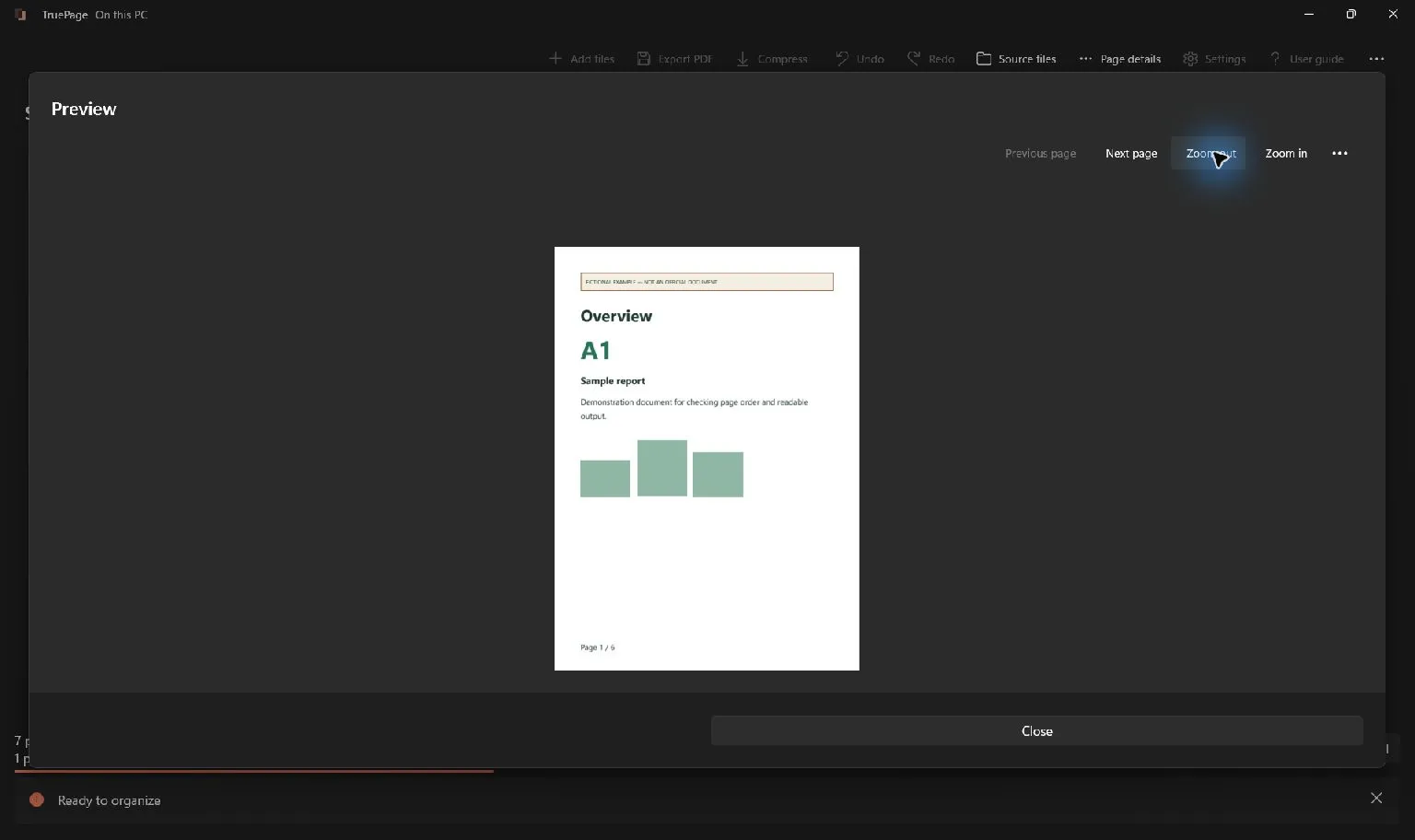
Add the replacement source. Inspect the resulting arrangement before removing anything. It is useful to compare the old and new pages while both are available, particularly when the visible difference is small.
Check the new page’s orientation and dimensions. A landscape replacement might be correct even if the surrounding pages are portrait, but an unexpectedly tiny or oversized page deserves investigation. For an imported image, use Image page layout to establish the intended paper size and placement.
Read the corrected content again in Preview. This is the moment to discover that the new file is actually another copy of the old page, or that the correction was made to the wrong revision. Reordering cannot fix a source that still contains the wrong information.
For a one-for-one replacement, adding the new page temporarily increases the count by one. That is expected. If the count increases by several pages, inspect the replacement source and remove any additional occurrences that do not belong in the deliverable.
Remove the outdated occurrence
Select only the old page. Check the highlight and selection count before choosing Delete pages. A previous multi-page selection can turn a simple replacement into the removal of unrelated content if you do not inspect it first.
Removing a page from the arrangement does not delete the source PDF from disk. It changes the planned output. You can use Undo if you remove the wrong occurrence, then reselect the intended page and try again.
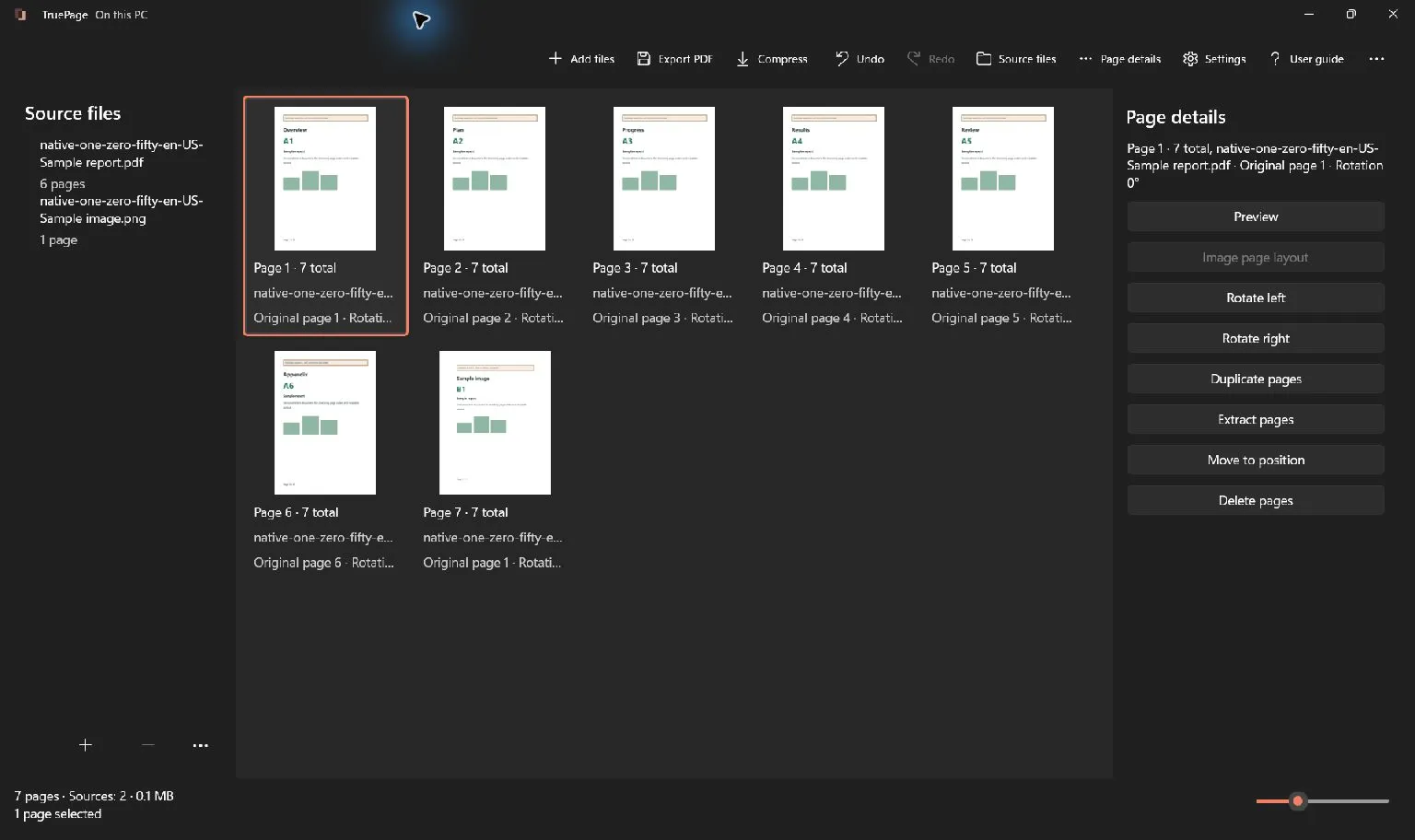
After removal, the following pages shift forward. In the example, deleting the original second page from 01, 02, 03, revised 02 leaves 01, 03, revised 02. The revised page is present, but the order is not finished yet.
This intermediate state explains why matching the final page count is insufficient. The arrangement can contain three pages, just like the original, while placing the corrected page after the wrong neighbor. Check both membership and sequence.
Move the replacement into its final position
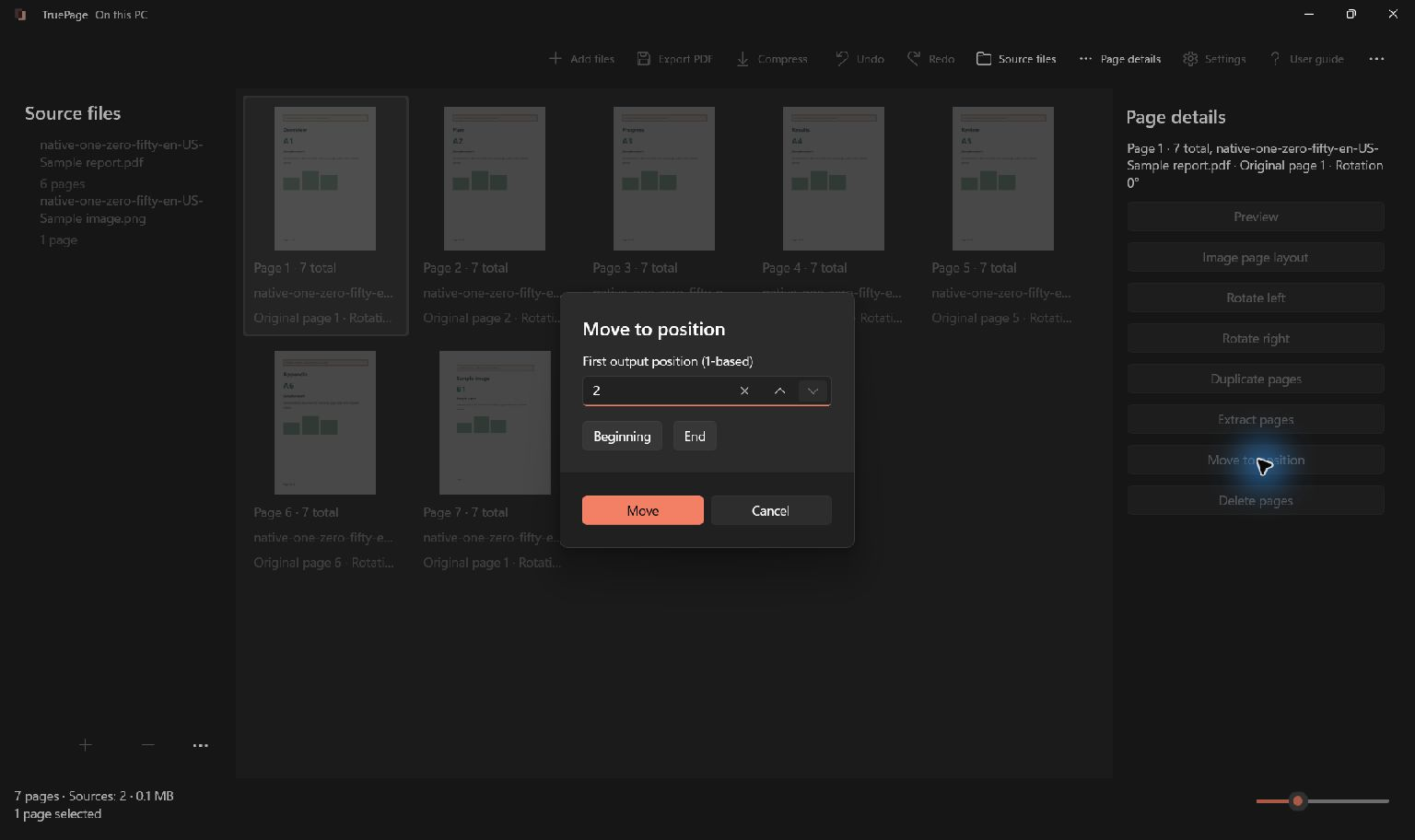
Select the revised page and use Move to position to place it where it belongs in the current arrangement. You can also drag it or use Move earlier and Move later. The keyboard shortcuts Ctrl+Alt+Up and Ctrl+Alt+Down move selected pages earlier or later.
For the three-page example, move the revised page to position 2. The intended result is 01, revised 02, 03. Read the cards from left to right and continue onto the next row when the board wraps.
For a longer document, use a position based on the arrangement as it exists now. A position written down before several removals or moves may no longer identify the same location. Preview the previous and next pages after moving the replacement.
If you accidentally move a group instead of one page, undo the move and inspect the selection. Page movement can operate on selected pages together. A clear single-page selection is easier to verify for a one-page replacement.
Check layout and document continuity
Open Preview on the page before the replacement, then move through the new page to the following page. Read enough of each to establish that the document still makes sense. A correct position does not guarantee that the surrounding references agree with the revision.
Check printed page numbers, section headings and any continuation text. TruePage arranges pages; it does not rewrite a contents page or update references such as “see page 7” to reflect your edits. If those details need changing, prepare corrected source pages for them too.
Compare the replacement’s paper dimensions and visual scale with its neighbors. A different size may be deliberate, but an unintended mismatch can affect reading and printing. Existing PDF pages are not automatically reformatted by image layout settings.
If the document contains a digital signature, do not assume that replacing a page preserves its valid signature status. An exported edited PDF is a changed document. Review any operation-specific warning and follow the workflow required for the resulting document rather than treating the old signature as validation of the new content.
Export the complete revised document
Choose Export PDF and select All pages when the complete arrangement is the intended revised document. This matters because the replacement page may still be selected after the move. Choosing Selected pages would produce only that selection.
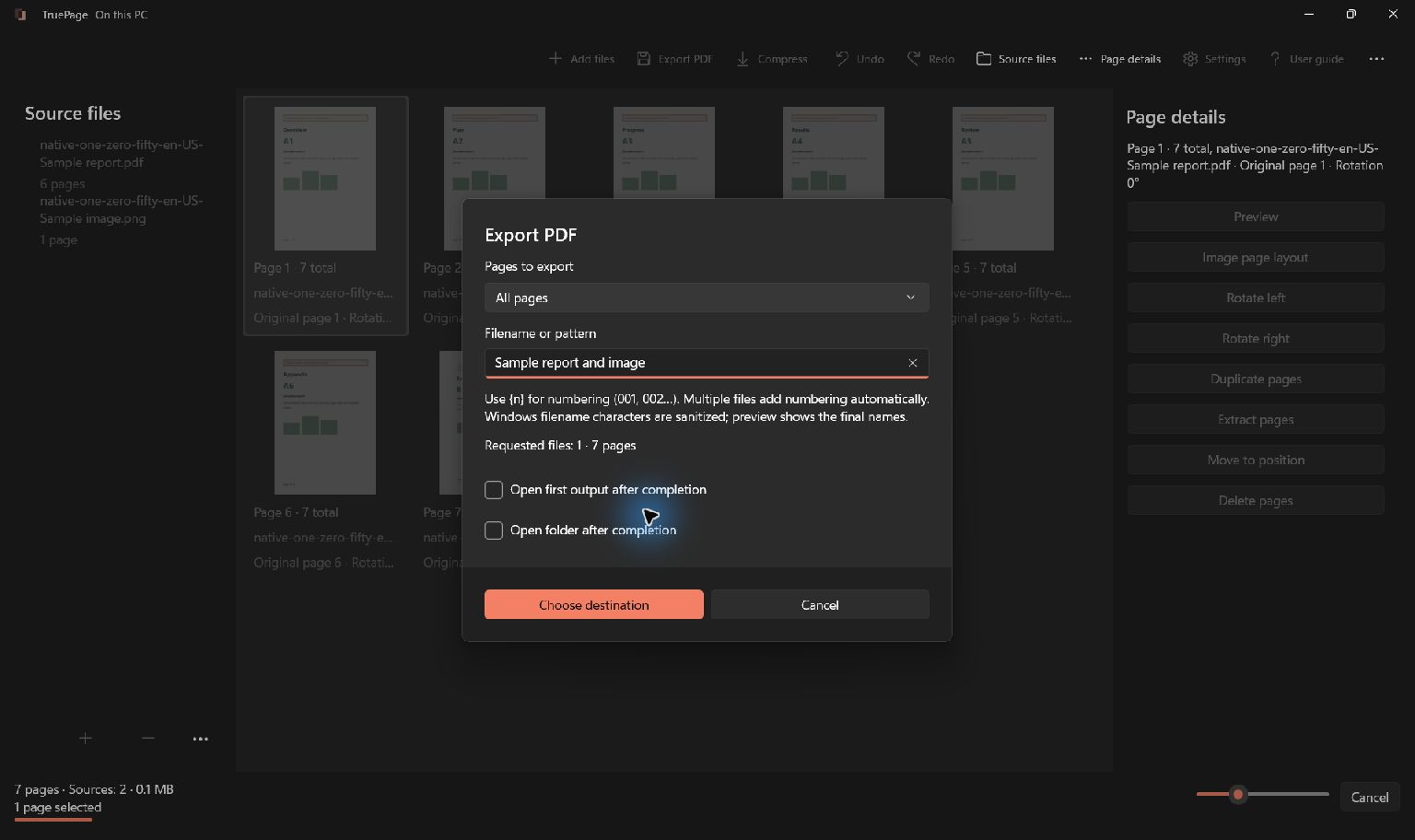
Give the output a distinguishable name, such as packet-revised, and review the destination and proposed page count. Keep it separate from the source while checking it. A clear filename makes it less likely that you will attach the original by mistake.
Complete the export and wait for confirmation. If the destination contains an existing file with the same name, review the collision choices. Do not assume that a newly edited workspace has already updated a previously saved PDF.
Protected sources require attention to the specific operation. Organizing authenticated protected PDFs can produce an unprotected output with an explicit acknowledgement. The source’s protection does not automatically describe the revised file; read the displayed warning before proceeding.
Verify the saved result independently
Open the new PDF from its destination. Confirm that the old page is absent, the revised page appears once, and the surrounding pages remain in order. For a one-for-one replacement, compare the final count with the original count.
Read the actual correction again in the saved file. This catches an easy mistake: exporting the right arrangement once, revising it later, and then sharing the earlier output. The version you inspect should be the same file you intend to provide.
If the result is wrong, correct the workspace and export a clearly identified new copy. Undo changes the arrangement; it does not retract or alter a PDF already saved elsewhere. Keep the final checked output distinguishable from intermediate attempts.
For additional controls, see organizing pages and saving selected pages. A reliable replacement has three checks: the corrected content is present, the outdated occurrence is absent, and the saved document preserves the intended sequence.

Your pages. Your space.
Available now for Windows 11