Make the handover understandable without an explanation call
Use the client’s delivery list to select final versions, arrange the documents in reading order, and export one clearly named PDF only if the client requests a combined file.
Define what belongs in the delivery
Start with a short checklist of the agreed deliverables. Separate documents the client needs now from working notes, obsolete drafts, and internal material that happened to live in the same project folder. A larger packet is not automatically a more complete handover.
Identify the purpose of each included document. An overview explains the packet, a final report presents the result, an operating guide supports use, and an appendix provides reference material. If a document has no clear role, decide whether it belongs in this PDF or should be supplied separately.
Check whether the recipient also needs editable source files, spreadsheets, drawings, or other original formats. A combined PDF may be a useful reading copy, but it does not preserve every capability of those source formats. Delivering the PDF alone does not satisfy a request for editable project assets.
Record any required filename, destination, size limit, or document order before assembly. Use the agreed delivery process; a local PDF workflow does not itself establish approval, access control, receipt, or acceptance by the client.
Select the final version of every source
Open each proposed source and verify its visible title, date, revision, and relevant content. A file called final-final.pdf can still be an old export. Compare ambiguous versions in their original applications or against the project’s approved version record.
Check headers, footers, document references, and attachments. A revised report may still mention an obsolete appendix, or a copied cover may retain another project’s title. These mistakes are content issues that should be corrected before you assemble the packet.
Keep authoritative originals, including signed documents, separately. A merged reading copy is not automatically a replacement for the original’s signature status, audit history, or approval record. Follow the appropriate workflow if a signed or controlled document must be delivered in a particular form.
Export clean PDFs from the source applications when possible. If a required page is wrong, revise it there and create a corrected source. TruePage’s page organizer does not edit the text inside an existing PDF page.
Prepare the cover and any index separately
A useful cover identifies the project, the purpose of the packet, the delivery date, and the included sections. Keep it concise enough that the reader can understand the structure immediately. Include only the contact information or identifiers needed for this delivery.
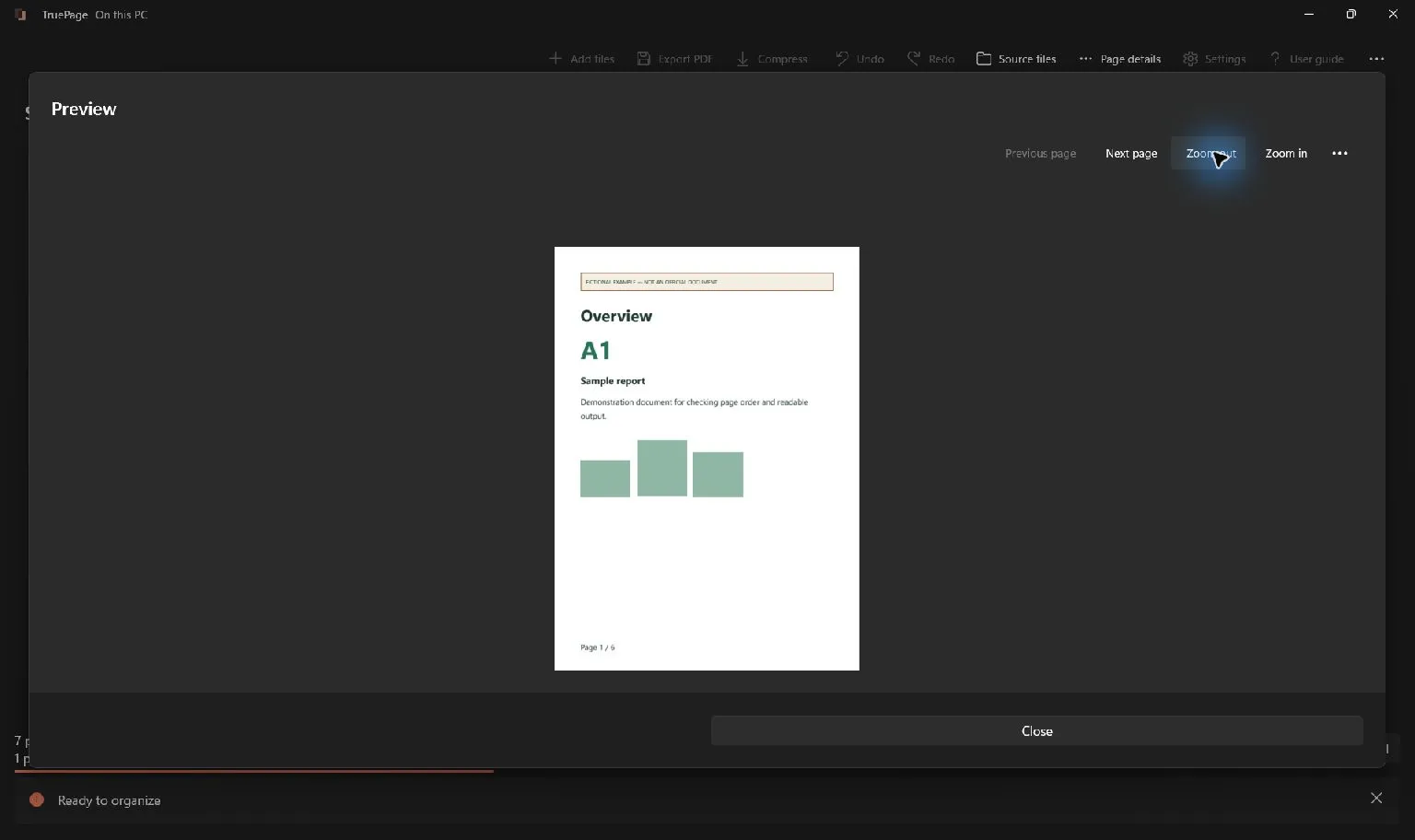
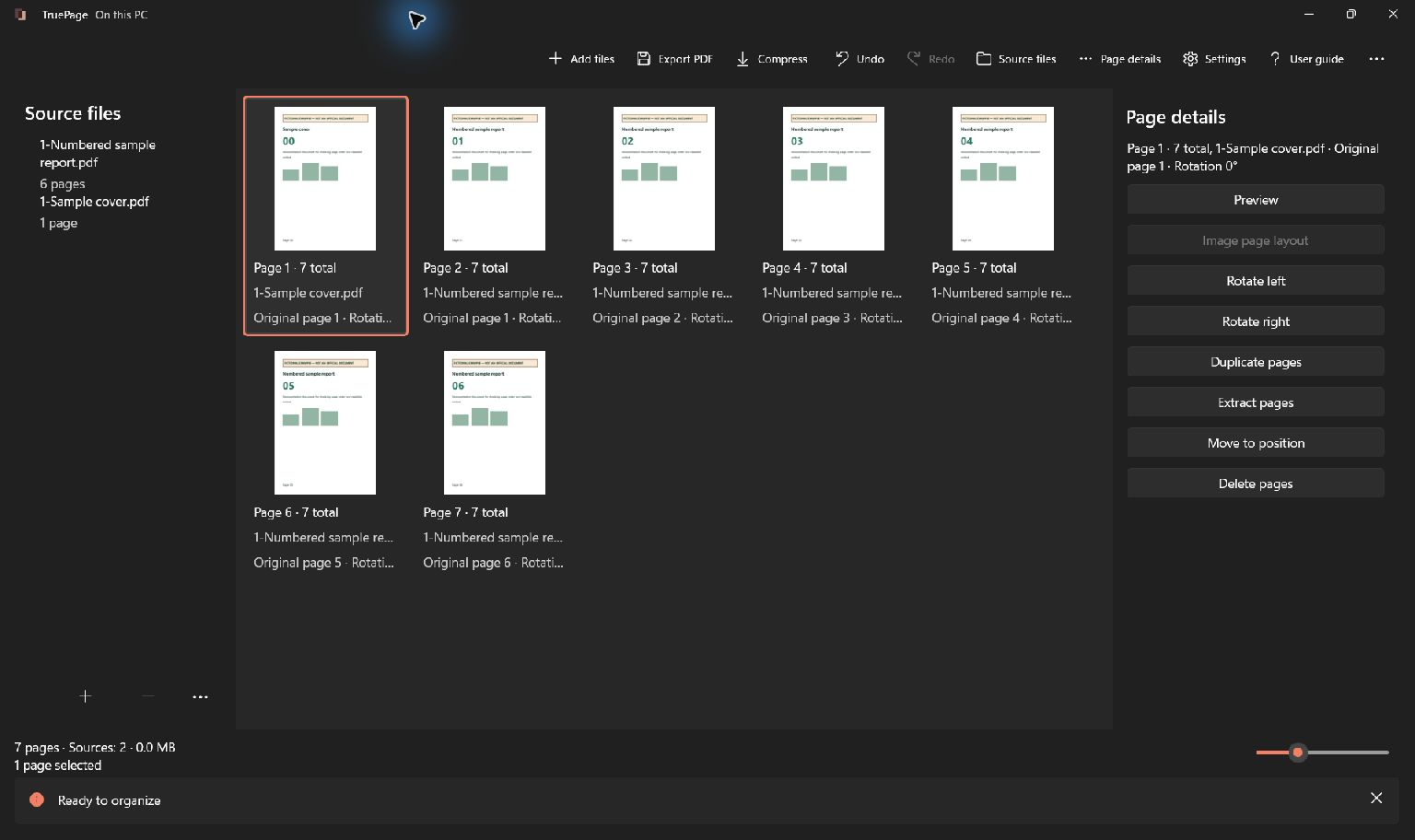
Create the cover in a writing or design application and export it as a PDF. Inspect it before import. The synthetic example in the lead capture uses a separate cover followed by a six-page report, demonstrating the assembly without presenting invented client information as real.
If you include an index, decide how its references will work. Section names are less sensitive to page insertions than output-position references. A detailed numerical index can be useful, but its source must be updated after the final arrangement is established.
TruePage does not generate or rewrite that index automatically. Adding a cover shifts output positions while leaving printed numbers inside the report unchanged. Read the page-number explanation before writing references that combine those systems.
Import the selected documents into one workspace
Choose Add files or Ctrl+O and import the finished sources. Compare the imported file list and page count with the delivery checklist. If a file fails to import, resolve that source without accidentally importing the successful group a second time.
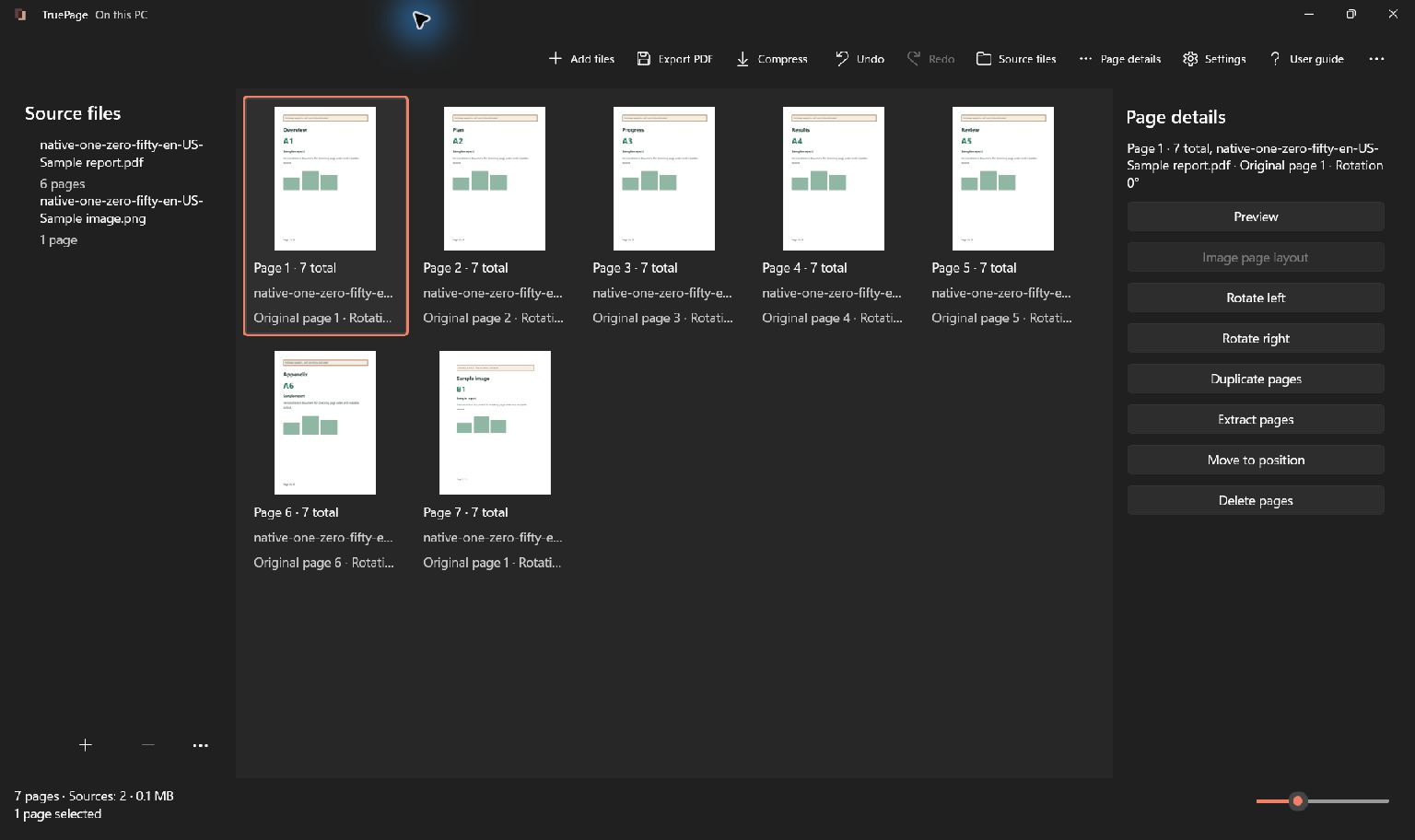
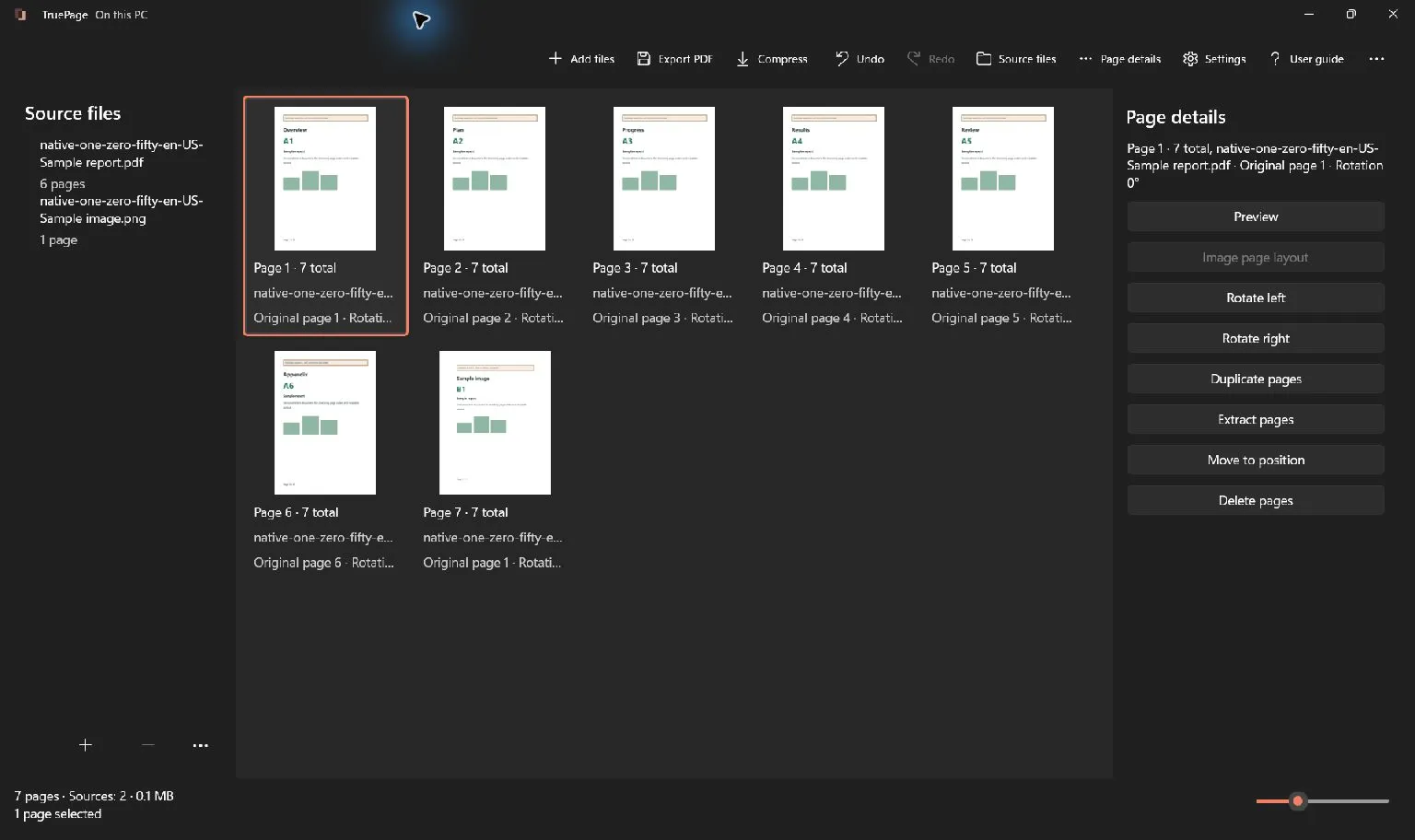
Use Source files to identify similar inputs and Page details or Preview to check their content. The generic screenshot illustrates a sample report and an image in the shared workspace; it is not a claim that these sample pages contain the client’s actual deliverables.
For a simple handover, you might have a one-page cover, a six-page report, a two-page operating note, and a three-page appendix. The expected total is twelve pages before any deliberate removals. Keep that expectation as a check, while remembering that equal counts do not prove equal content.
Leave the imported files in their existing locations during the session. Moving, replacing, or editing them externally can require source recovery. Finish ordinary arrangement work against stable sources whenever possible.
Arrange sections around the reader’s next actions
Choose an order that supports how the client will use the material. A cover and overview may come first, followed by the principal deliverable, operating instructions, and reference appendices. The agreed requirements take precedence if they specify a different sequence.
Select a complete section and use Move to position, Beginning, or End to place it. Selecting a source chooses its contributed occurrences, so inspect the highlighted pages before moving a whole-source group.
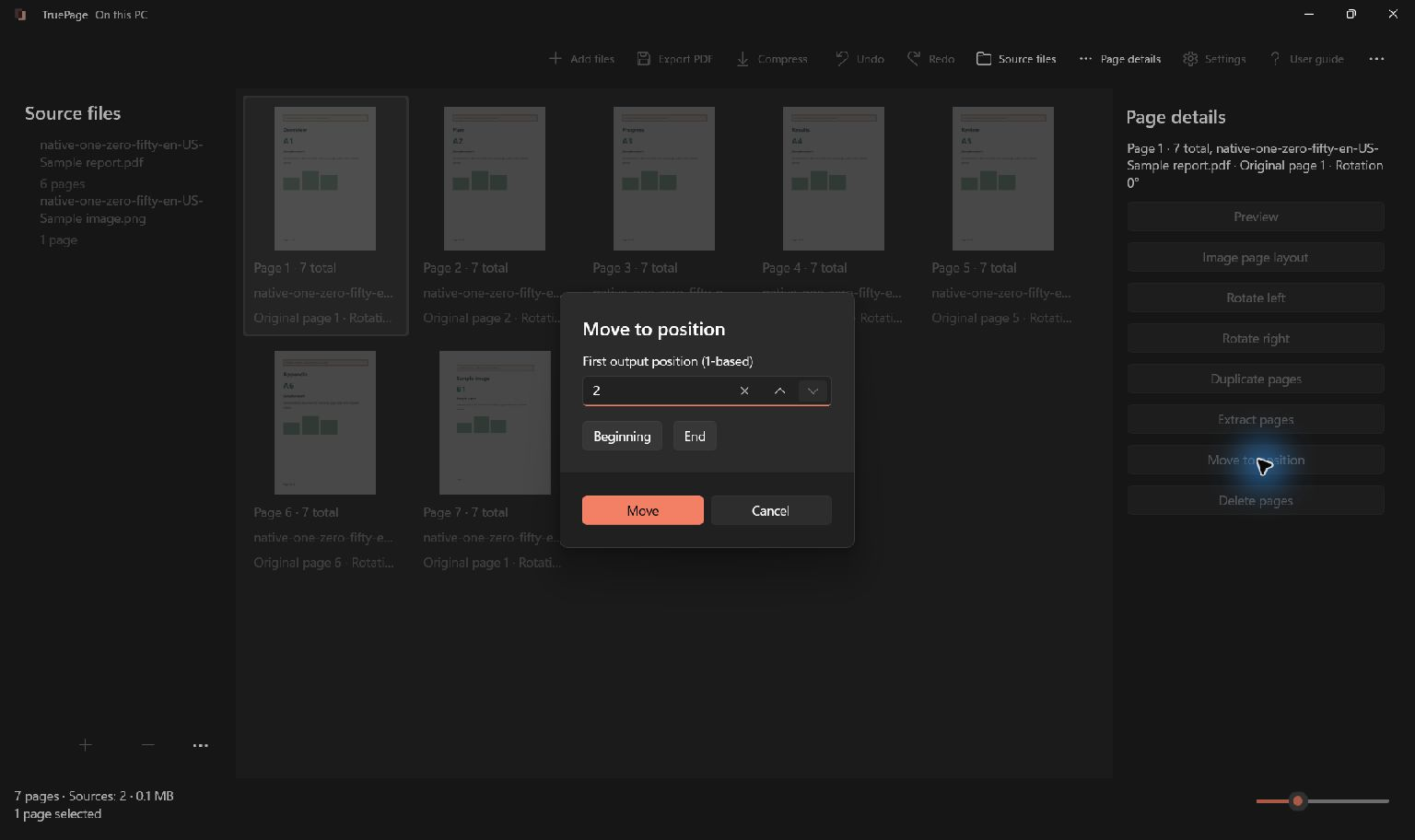
A group keeps its internal order when moved. That helps preserve a two-page operating note, but it will not fix pages that were already reversed inside the group. Inspect the beginning, end, and internal sequence of each section.
Use dragging when the insertion point is visible, or Move earlier and Move later for small changes. If a move is wrong, use Undo and return to the last verified arrangement. Avoid building a long chain of compensating edits without understanding which pages are currently selected.
Remove obsolete and duplicated occurrences carefully
Check for repeated title sheets, outdated diagrams, and old revision pages. Compare the actual contents before removing a similar-looking page. Two pages with the same heading may describe different dates, sites, or components and both may be necessary.
Use Delete pages for the selected occurrences you have decided to exclude. This changes the output arrangement without deleting the source file. Do not use Remove source when you intend to retain other pages from that same source.
After any removal, update the expected count and recheck the surrounding section boundary. A correct total can still hide the wrong replacement or an accidental duplicate. Verify membership and order together.
If the revision changes text elsewhere, prepare corrected source pages too. Replacing a diagram does not automatically update a report paragraph that references its old label, and removing an appendix does not rewrite the contents page.
Check readability across different source types
Preview the packet in order. Look for mixed orientations, very small diagrams, missing image edges, and abrupt changes in page dimensions. Some variation is appropriate, but every required detail should remain usable at the expected reading or printing scale.
For JPG or PNG pages, use Image page layout to choose dimensions, orientation, margins, and placement. Fit preserves the whole image within the available area. Fill (crop) can remove edges, which is risky when a diagram’s legend or a scan’s reference number sits near the border.
Image layout does not reformat existing PDF pages. Correct an unsuitable PDF layout in its authoring application when necessary. Obtain a clearer source if the important text is already blurry; enlargement cannot recover missing detail.
Read the transitions as a new recipient would. Are unexplained abbreviations introduced? Does an instruction refer to a separate file that is absent? Is a supporting document placed where its purpose is clear? These content checks make the packet useful beyond simply being technically valid.
Export a complete, identifiable delivery copy
Choose Export PDF and select All pages. The last section you moved may still be selected; Selected pages would export only that section. Check the scope before choosing the destination and name.
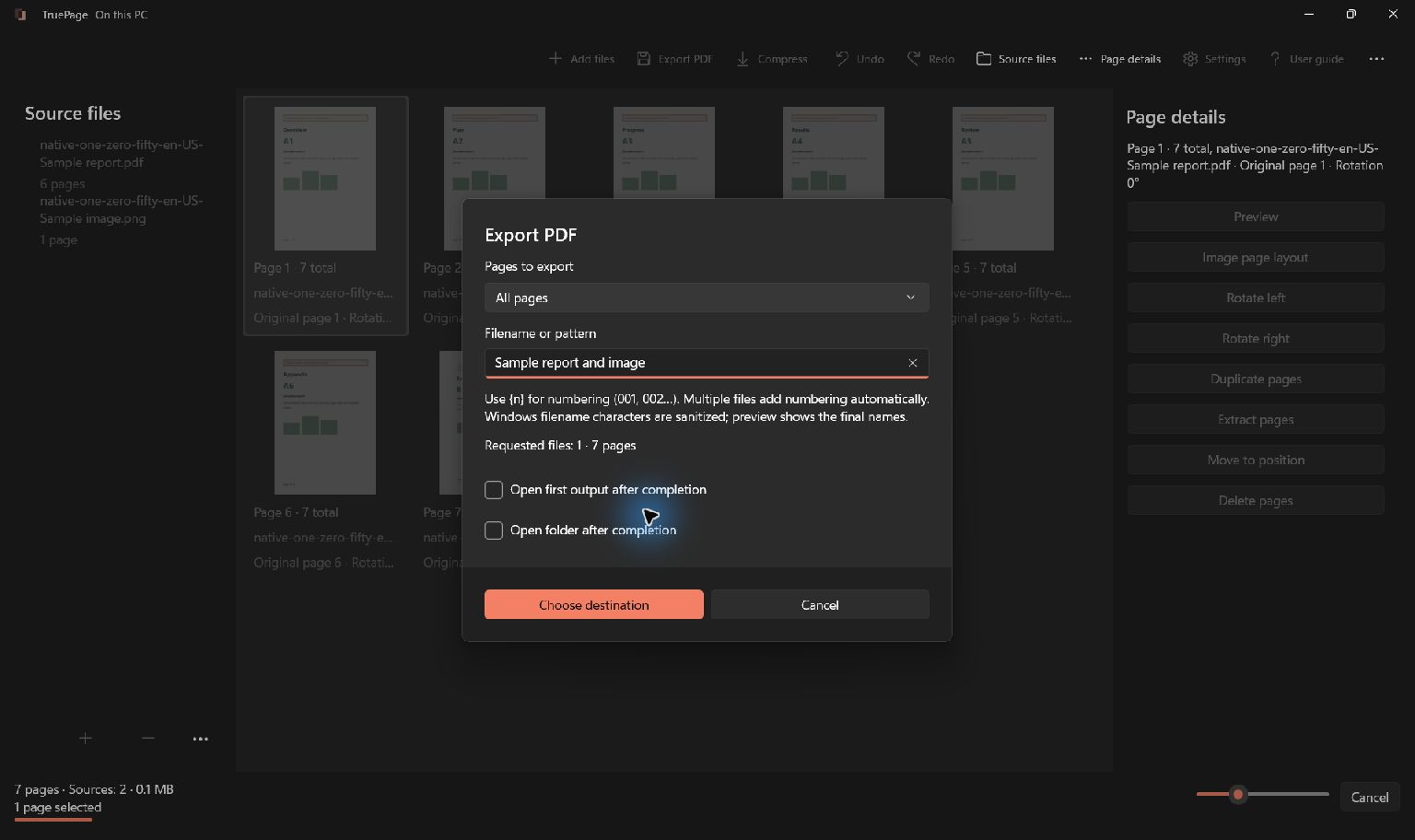
Use the agreed naming convention or a clear project-and-date name. Distinguish the assembled handover from its inputs and earlier drafts. Review existing-name handling before saving over any previous output that may need to remain available.
Wait for completion and open the exact saved PDF. Verify its page count, first and last pages, every section boundary, and the visible revision details. Check index entries against that output rather than the arrangement you remember from an earlier editing stage.
If compression is required, apply the separate operation to this exported PDF and inspect the compressed result again. If password protection is required, likewise use the assembled output as the source of that separate operation and follow the agreed delivery process for the password.
Finish with a delivery check
Compare the final file with the original deliverables checklist. Confirm that the PDF contains the requested reading material and that any separately required source files are prepared through their appropriate workflow. Do not assume that a combined PDF replaces those other deliverables.
Check the exact attachment or delivery-folder file before sending. A correct packet saved locally can still be confused with an earlier draft that has a similar name. If another system provides a preview, use it to confirm that the intended file arrived.
Retain the checked handover copy and its source versions according to your normal project process. TruePage’s workspace is not a persistently saved project or an audit trail. Keeping identifiable source documents and the final output makes a later correction or follow-up much easier to explain.
For a final general review, use the PDF submission checklist. For multi-source ordering details, see merging PDFs in order. The handover is ready when the exact output matches the agreed contents and reads clearly from its cover through its final appendix.

Your pages. Your space.
Available now for Windows 11