One page can have several different numbers
Ranges use the current output positions starting at 1, not printed page labels. A cover before a page printed 1 shifts that page’s output position; recheck after every move or deletion.
Distinguish printed, source and output numbering
Printed numbering is visible content on a page: a footer saying “1,” a heading saying “Appendix A-3,” or an introductory page marked “iv.” Those markings were created in the source document and do not automatically change when you move the page.
Source numbering identifies the page’s original position within its imported PDF. The third physical page of a source is source page 3 even if its footer says “1.” A JPG or PNG contributes its own image page rather than a multi-page printed numbering scheme.
Output numbering describes the current arrangement, beginning at position 1. Adding, removing, duplicating, or moving pages changes output positions. The underlying source and its printed labels can remain unchanged while a page moves to a different position in the planned result.
A page reference is an occurrence in that arrangement. The same source page can appear twice, producing two occurrences at different output positions. A printed label alone cannot distinguish those occurrences, so source identity and context become important when the board contains repeated pages.
Follow a simple cover-page example
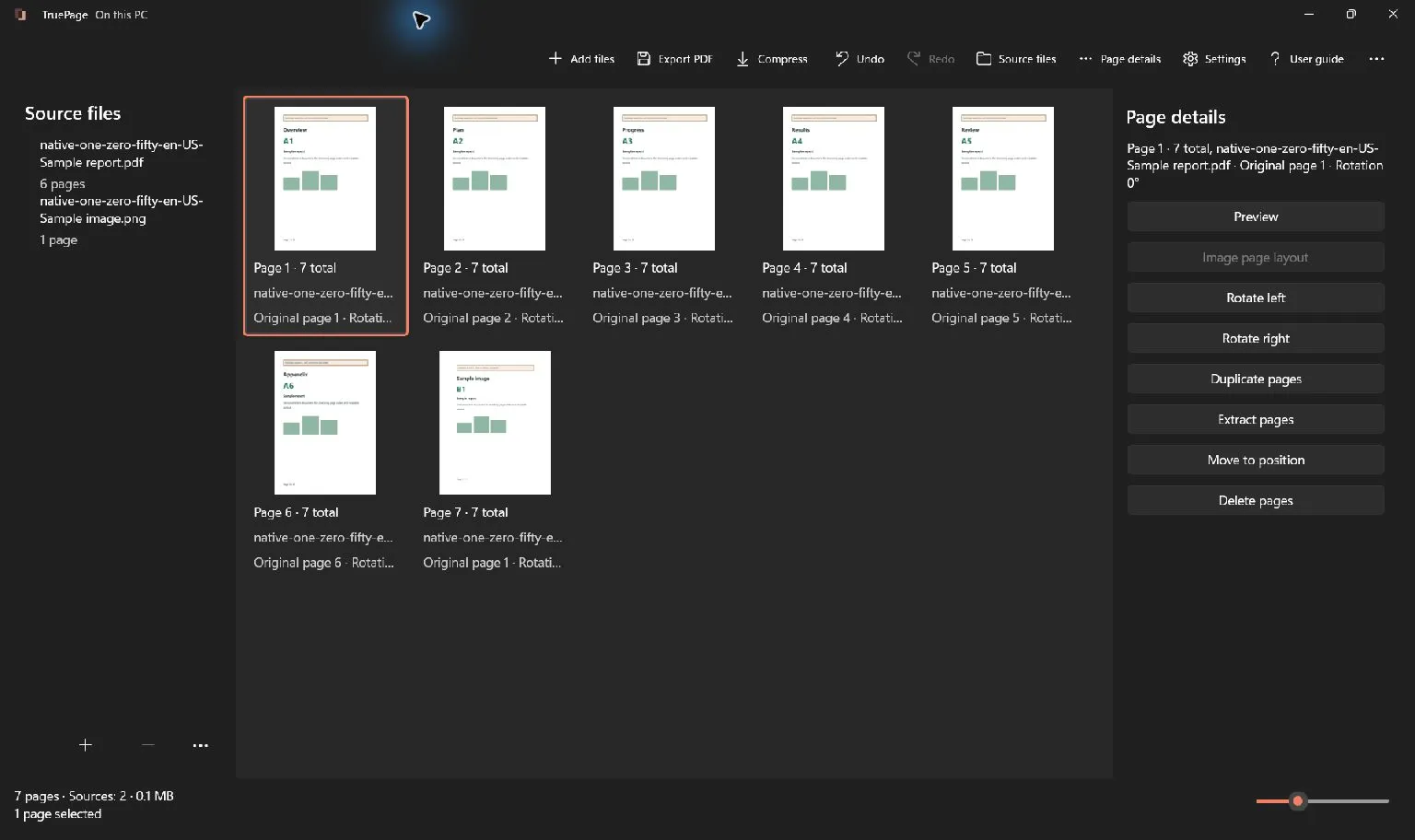
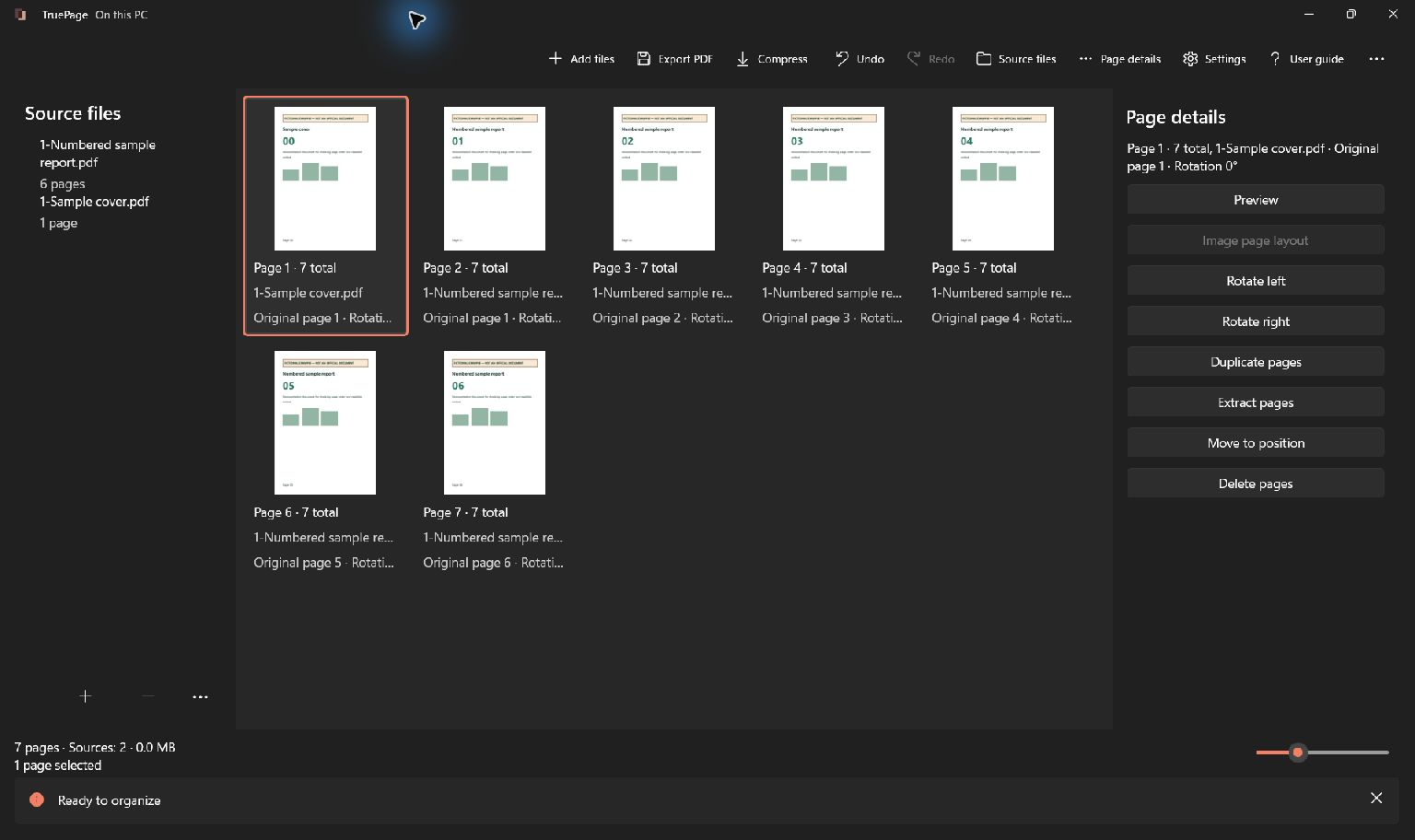
Start with a six-page report arranged in printed order 01 through 06. In the native demonstration, the report was rearranged from a differently ordered source; its source page positions still refer to that original file. Add a separately prepared one-page cover before the report, and the complete arrangement now contains seven pages.
The cover occupies output position 1. Printed report page 01 occupies output position 2, printed page 02 occupies output position 3, and printed page 06 occupies output position 7. The report’s first page is still source page 1 of the report PDF.
If the task is to export the report without the cover, choose output positions 2–7 in this exact arrangement. Selecting 1–6 would include the cover and omit printed page 06. Both ranges contain six positions, so an expected count of six would not expose the mistake by itself.
Read the first and last pages of the extracted file. Their content establishes whether you selected the intended section. Counts and range syntax help you prepare the operation, but the saved output still needs a content check.
Use the board and page details together
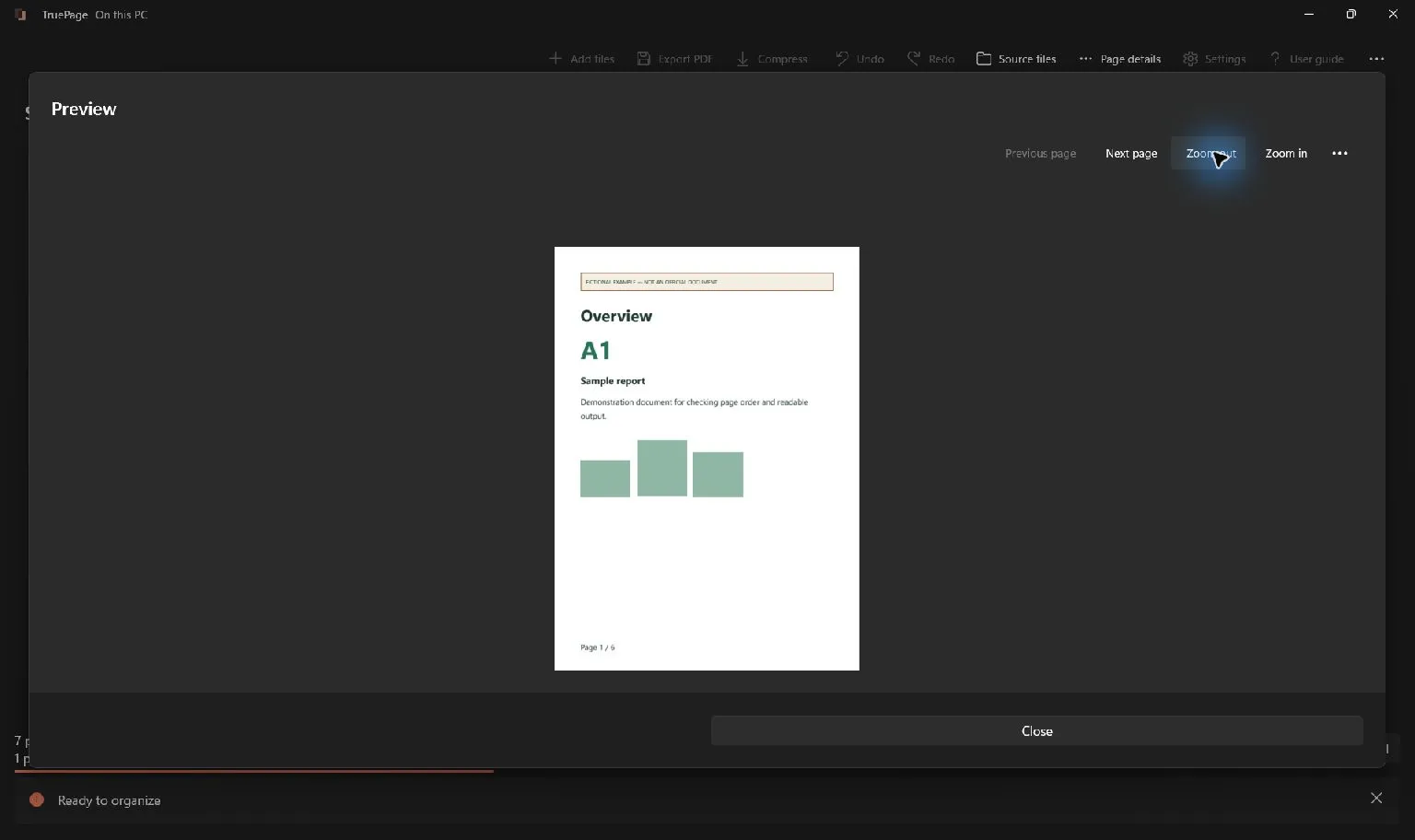
Import the sources with Add files, then inspect the board. The card information identifies current position and source details. Open Page details or Preview when you need to identify the selected occurrence more closely.
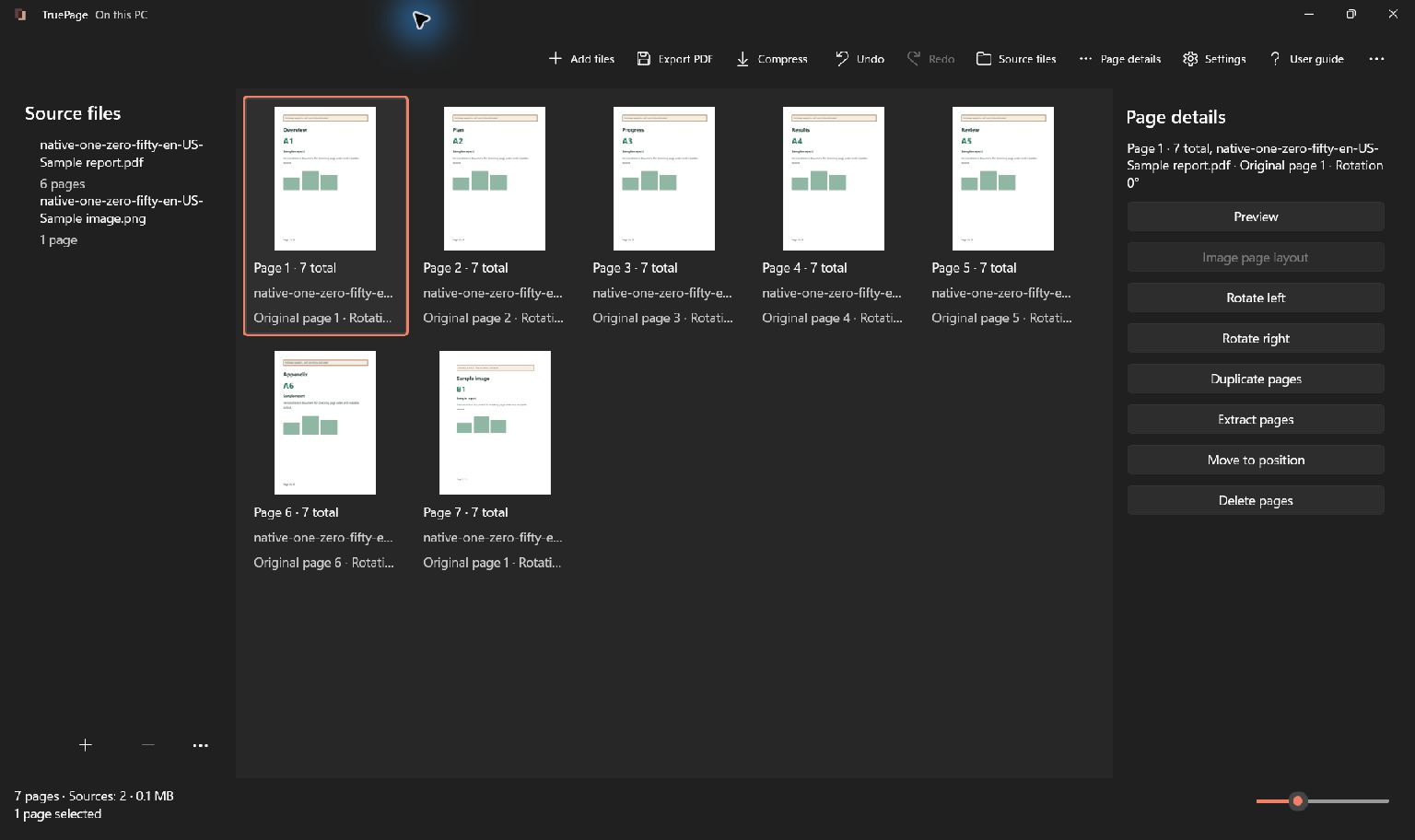
The retained generic workspace capture contains a sample report and an image. It illustrates how source information and arranged positions can coexist; it is not evidence that all real documents use matching printed and source numbers.
Look at the page’s visible title or section heading as well as its number. Two imported reports may both contain a page printed 01. If you are selecting “page 1 of the schedule,” confirm that the occurrence belongs to the schedule source rather than the report that happens to be beside it.
Use the adjacent content as a second check. “The page after the cover and before the introduction diagram” can identify an occurrence more reliably than a remembered counter value after several edits.
Recalculate after inserting or deleting pages
Output positions change when the arrangement changes. In the cover example, deleting the cover moves printed report page 01 from position 2 to position 1. Adding a two-page introduction before it moves it to position 4 instead.
Do not continue using a range written down before those edits without checking it again. A positional range describes a particular arrangement, not a permanent bookmark attached to the page content.
Deletion creates the same issue within a range. If you remove current page 2, the old page 4 becomes current page 3. Removing current page 4 next would act on a different occurrence. Either select all intended occurrences before deleting them or identify each remaining target again after the previous edit.
When an edit goes wrong, use Undo and inspect the restored sequence. Do not rely solely on the counter returning to its earlier total. Verify that the expected source pages and their neighbors are present again.
Treat Roman numerals and restarted sections carefully
A longer report may contain an unnumbered cover, several introductory pages numbered i, ii and iii, and a main section beginning at 1. An appendix may then restart with A-1 or another scheme. The relationship between visible labels and output positions can change at each boundary.
In that situation, “add one to the printed page number” is not a safe general rule. Locate the start of the relevant section, identify the target content, and inspect its actual current output position.
Do not type a printed Roman numeral or appendix label into a numeric range field and expect the app to search the page content for that label. TruePage’s range workflow is based on the current numeric positions, not on recognizing and interpreting every numbering scheme printed inside a document.
When someone else requests a page using an ambiguous label, clarify which section or content they mean. A reference such as “the page headed Project Costs in the April report” can resolve an ambiguity that the phrase “page 3” cannot.
Enter extraction ranges from the current arrangement
Use the extraction controls when you want one PDF containing only specified pages. Enter the range using current output positions and check the app’s resulting count or preview before confirming. The guide explains the supported numeric range syntax and the difference between extracting one file and splitting several.
For the unchanged seven-page cover-and-report example, positions 2–7 select the six report pages. If the report has since been rearranged, that range still selects those positions, but their contents may no longer be the original contiguous report sequence.
Visual selection can be clearer than ranges when you need a few recognizable pages distributed across sources. Select the intended occurrences, inspect the highlights and count, and use the selected-page extraction workflow. This avoids translating an uncertain printed label into a guessed numeric range.
If the task is to export the complete arrangement, All pages avoids unnecessary range calculations. Check the chosen scope carefully: a lingering selection after a move can make Selected pages an unintended partial export.
Explain page references clearly to the recipient
When sharing instructions about a PDF, identify which numbering system you mean. “PDF position 7, printed page 6” is clearer than “page 6” when a cover shifts the counter. Include a section title or short content description when repeated labels make the reference ambiguous.
Keep those references tied to the exact version being shared. If you send a revised packet with a new front sheet, an earlier message’s output-position references may no longer point to the same content. Updating the file without updating the explanation can create avoidable confusion.
For a short packet, a section list may be more durable than a detailed numeric index. For a long packet, a carefully checked index can help, but its references need to be prepared and maintained in an appropriate source document.
Do not assume that an image of a contents page automatically becomes navigable or that TruePage rewrites it after a move. Page arrangement and authoring an updated index are separate tasks.
Know what changing the arrangement does not change
Moving a page does not rewrite its printed footer. Deleting an earlier page does not automatically close gaps in printed numbering. Duplicating a source page creates another occurrence with the same visible content, including any number printed on it.
If the final deliverable requires new printed page numbers, prepare them in an application that supports that editing task, then inspect the resulting source before using it in the arrangement. Do not promise recipients that the counter and printed labels will match simply because you exported a new PDF.
Likewise, reorganizing a digitally signed document creates a changed output. Preserve the authoritative original and do not treat its old visible signature as validation of a newly numbered or rearranged packet.
The practical benefit of the distinction is control: you can choose exactly which occurrences belong in the output without pretending that their original content or identity has changed along with their positions.
Check the saved result by content
After export or extraction, open the exact saved PDF and inspect its first and last pages, expected count, and requested sections. Compare them with the description of the task, not only the numbers you entered.
For the cover example, confirm whether the cover belongs in the output and whether printed page 06 is present. For a multi-source packet, confirm the source and section around each extracted page. These checks expose mistakes that a matching total can miss.
Read saving selected PDF pages for the complete extraction procedure, or rearranging pages for movement methods. In either workflow, current positions tell the app where to act; visible content and source identity tell you whether those are the pages you intended.

Your pages. Your space.
Available now for Windows 11