You can merge password-protected PDFs when you have a valid password for each file. In TruePage, open the inputs, arrange their pages, and export one combined PDF. Then use that saved PDF as the source for Add password and create a separate protected copy. Finally, reopen the exact file you intend to share and test its new password.
The important distinction is that merging and protecting are separate operations. A combined PDF does not automatically inherit the opening passwords of its source documents. TruePage warns that the arranged export will be unprotected. Finish the protection step before treating the result as ready to send.
This walkthrough combines two two-page sample PDFs with different passwords into a four-page packet. The screenshots show real TruePage windows and synthetic documents containing no personal information. Your filenames and page counts will differ, but the same checks apply.
Before you begin
Have every input PDF and its valid opening password ready. Use documents you own or are authorized to process. If a sender provided two files, do not assume that both use the same password. Keep track of which credential belongs to which filename without putting real passwords into filenames or screenshots.
Choose a destination and two distinct output names: one for the combined intermediate PDF and another for the final protected copy. In this example they are “Combined project.pdf” and “Protected project.pdf.” Keeping both names visible makes it easier to test and share the correct result.
Keep the original PDFs until you have checked the final document. The procedure creates new files; it does not need to overwrite your originals. If you encounter an existing-file prompt, review it carefully and use Keep both when you want to preserve an earlier output.
For an introduction to importing documents, see the getting-started guide.
The complete workflow at a glance
- Add the protected inputs and enter the password for each named file.
- Check the combined page count and arrange the pages in the intended order.
- Export All pages to a clearly named combined PDF.
- Acknowledge the unprotected-copy warning and authenticate each source again when prompted.
- Start a fresh workspace and add the saved combined PDF.
- Choose Add password, save a separate protected copy, and enter and confirm its new password.
- Open that final copy in a fresh session and verify both its password and its pages.
There are three kinds of files to distinguish: the protected inputs, the unprotected intermediate, and the protected final output. A successful merge completes only the middle part of that sequence.
1. Open the first protected PDF
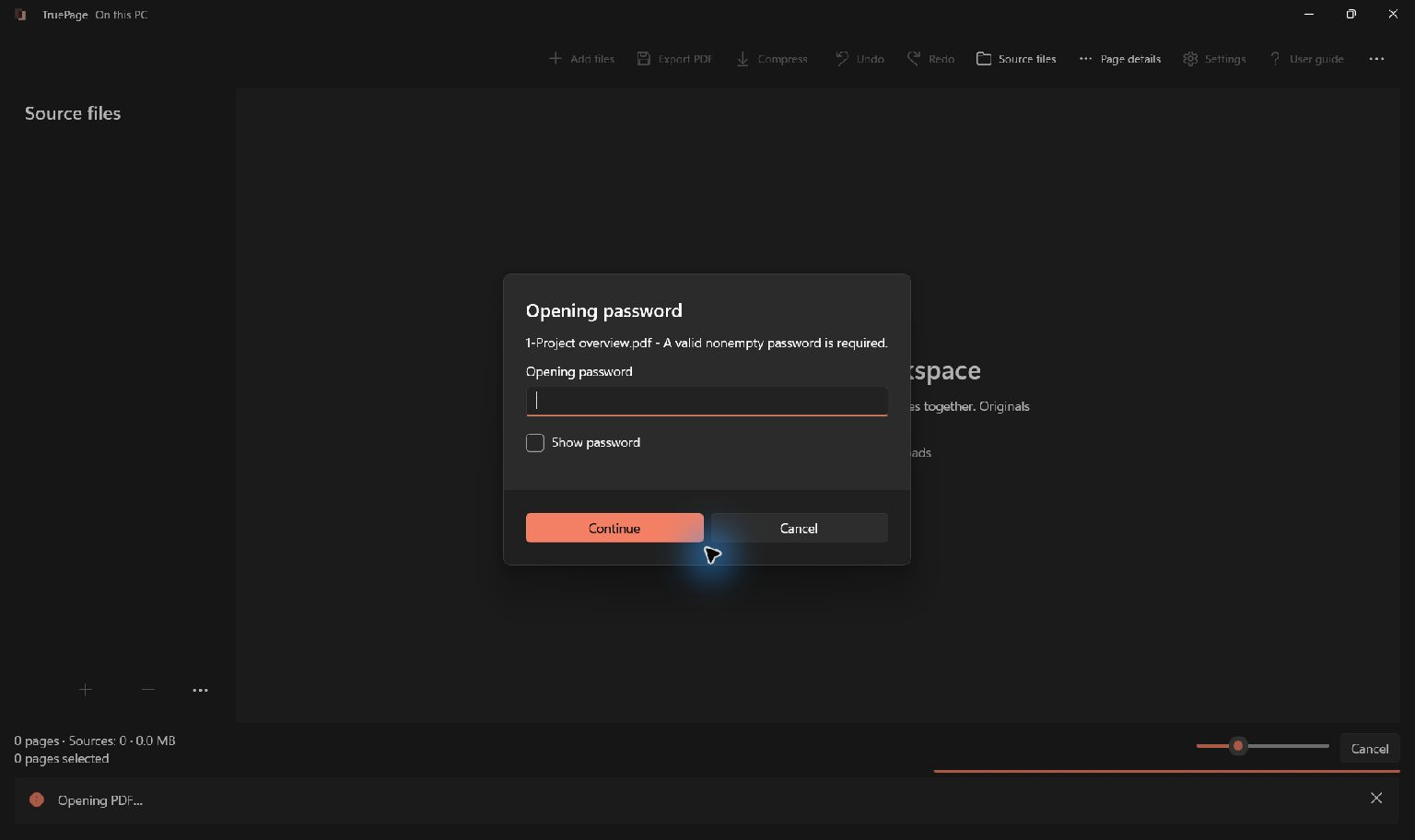
Choose Add files and select the PDFs you want to combine. When Opening password appears, read the filename in the dialog before typing. Enter the password for that particular PDF and choose Continue.
The first sample is a project overview with two pages. After authentication, TruePage can read those pages for the workspace. That does not remove encryption from the original file, and it does not create a saved combined document.
Leave Show password off for screenshots or shared screens. If an entry is rejected, check capitalization, keyboard layout, and accidental spaces from copying. A website login or ZIP password is not necessarily the opening password of the PDF inside a download.
If you do not know a valid password, obtain it from the document’s owner or ask for an authorized accessible copy. This workflow does not recover or bypass unknown passwords.
2. Authenticate the other inputs individually
When TruePage asks about the second file, enter that file’s password. In our example, the project schedule uses a different password from the overview. The second dialog names the schedule, so there is no need to guess which credential the app expects.
Repeat for any additional protected inputs. If you add documents separately, use Add files again after the earlier import has finished. An ordinary unprotected PDF can also be part of the arrangement; it does not require an opening password simply because another source does.
Do not continue to export until the intended sources have loaded. A canceled or failed import can leave a smaller workspace than you expected. Count the sources and pages rather than assuming every selected file was successfully included.
3. Check and arrange the combined pages
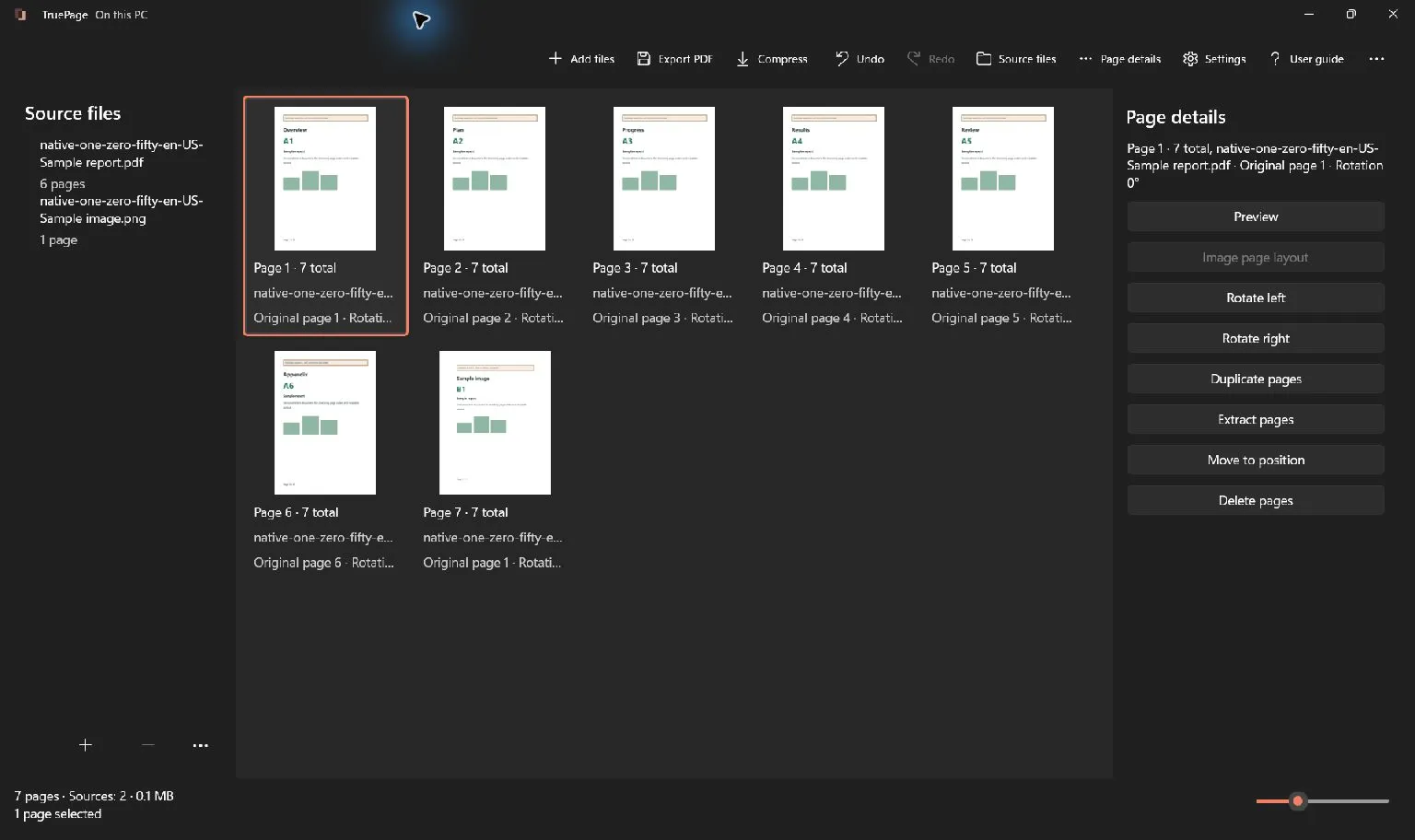
The sample workspace should contain four pages from two sources: overview pages 1 and 2, followed by schedule pages 1 and 2. The large labels in our demonstration documents help distinguish the source pages from their new output positions.
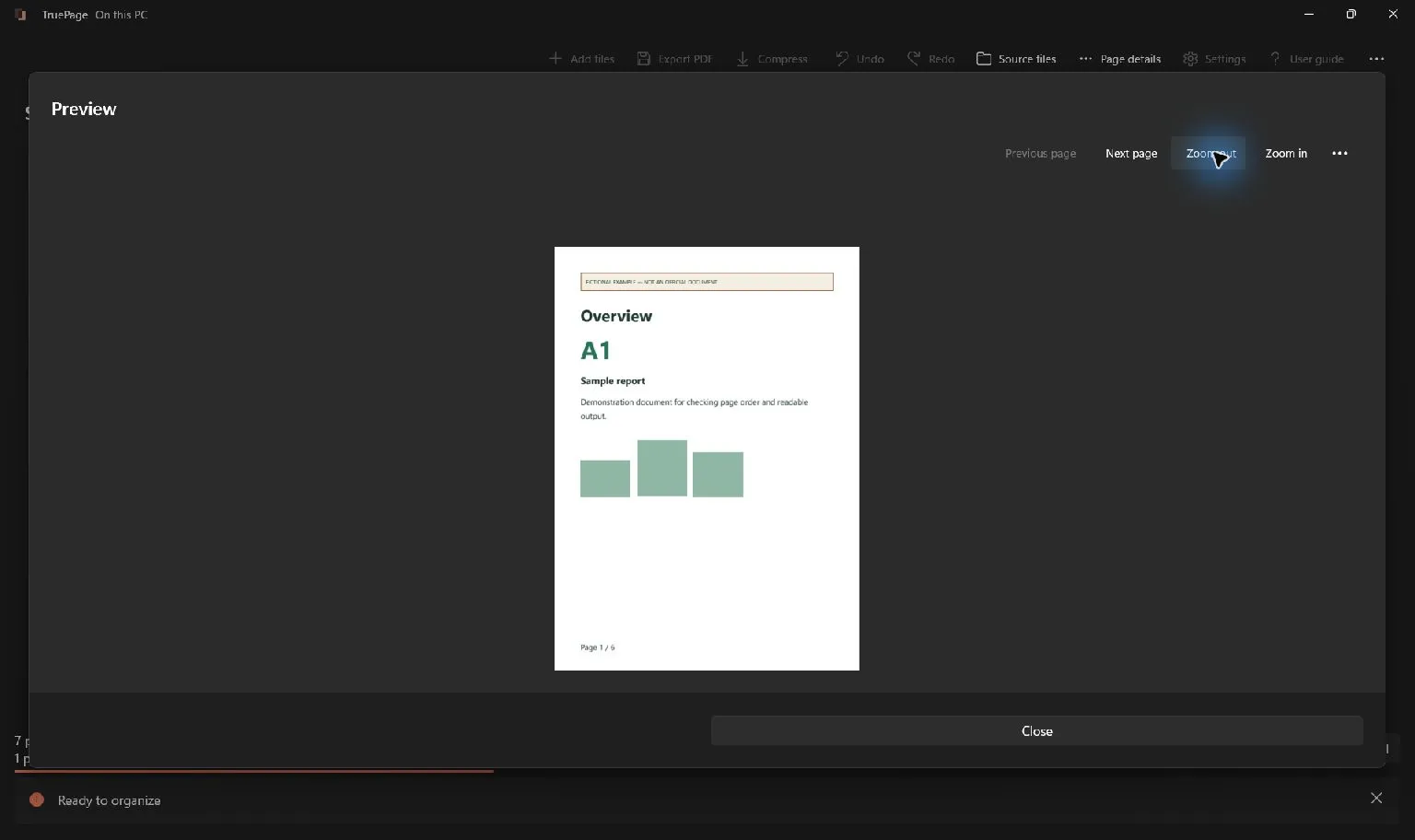
Inspect the actual order shown on the board. If necessary, move pages into the desired positions and preview them to check orientation and readability. Current output page numbers describe the combined arrangement; the original page numbers still refer to each source document.
Check the boundaries between documents especially carefully. It is easy to miss a duplicated cover page or to place an appendix before the report it belongs to. For this example, two pages plus two pages should produce four pages, with neither source omitted.
Make any intended arrangement changes now. Add password acts on a whole source PDF, not on the edited arrangement or the currently selected thumbnails. Protecting the overview at this point would not protect the four-page packet you have assembled.
For detailed page controls, see the page-organization guide.
4. Export the arrangement as one PDF
Choose Export PDF. Select All pages, enter a clear filename, and choose the destination. Review the output preview: it should show one requested file and the expected page count. For the sample, that is one file containing four pages.
Then start the export. TruePage displays Unprotected copy, explaining that the new PDF will not be password-protected and that the encrypted originals remain unchanged.
Choose Create unprotected copy to continue with this intermediate file. When asked to authenticate the export, enter each source’s password again. These prompts can appear even though the thumbnails are already visible. Read the filename each time; the second input still needs its own credential.
Wait for completion and check that the app reports one saved file and four exported pages. Record the displayed output path. A filename entered into a dialog is not proof that the file was saved, and a canceled or failed export is not a result to protect or share.
5. Use the saved combined PDF as the protection source
From the completion screen, choose Start another project, then add the combined PDF using its saved path. It should open without requesting an opening password because this is the unprotected intermediate. Check that it contains the complete four-page arrangement.
Using a fresh workspace makes the next operation easier to verify: there is now one source, the combined PDF. If you keep several sources loaded instead, carefully select the saved combined file when TruePage asks which source to protect.
Open the toolbar’s … menu and choose Add password. Give the protected copy a distinct filename, select its destination, and review the source name and output path. Confirm that the source is the combined document, not either of the original two-page inputs.
6. Add and confirm the final password
Enter the new password in Opening password, then enter it again in Confirm password. Choose a long, unique password or passphrase and keep it somewhere safe. Do not reuse the published demonstration credentials for a real document.
The two entries must match. If TruePage reports a mismatch or unsupported characters, correct the entries according to the displayed message. Do not assume the protected copy exists until the operation finishes successfully.
Continue and check the completion result and destination. The final copy should still contain all four pages. Adding a password changes who can open that saved copy; it does not protect the unencrypted intermediate or any other copy stored elsewhere.
For the standalone operation, see how to password-protect a PDF on Windows 11.
7. Reopen the exact final file and test it
Start another fresh workspace and add the protected output, using the path from the completion screen. Do not test the original overview or the intermediate combined file by mistake. Similar names are a common source of confusion.
The final PDF should request an opening password before its pages become available. For a deliberate check, try an incorrect password once and confirm that it is rejected. Then enter the new password you assigned to the combined file and open it successfully.
Verify the page count, order, orientation, and important content. Check both the beginning and the end of the packet and the transition between the two sources. A correct password prompt alone cannot show that every intended page made it into the document.
A screenshot of readable pages also cannot establish protection by itself: those pages may already be unlocked in the current session. The useful evidence is the whole sequence—fresh opening, password request, rejection of an incorrect entry, and successful opening with the new password. Repeat the check in your normal PDF reader if that is how the recipient will view the file.
Troubleshooting common problems
One source password is rejected. Match the credential to the filename in the prompt. Check copied whitespace and keyboard layout. Do not substitute the new output password during source authentication.
TruePage asks for passwords again during export. This is a separate authentication step. Supply the password for each named input; previously unlocked thumbnails do not replace it.
The final file has only two pages. You may have protected an original source instead of the merged export. Reopen the intermediate, verify its four pages, and use that exact file for Add password.
The final file opens without asking. Check the full path and try a fresh session. You may have opened the intermediate or reused an already authenticated preview. If the exact output still opens without a password in a fresh session, do not describe or share it as protected.
Saving fails or the folder is unavailable. Keep the inputs and inspect the displayed error. Select an available destination and a distinct output name before retrying. Verify the saved-file count after the next attempt.
Store and share the right copy
TruePage processes documents in the app and its local worker processes; this workflow does not require uploading the PDFs or creating a TruePage account. A cloud-synchronized output folder can still upload files through another application. Choose a destination suitable for the intermediate as well as the final copy.
Share the verified protected output, and communicate its password through an appropriate separate channel. Review what to do with the unprotected intermediate under your own storage policy. Password protection does not secure that intermediate, backups, or originals elsewhere.
An opening password helps restrict access to the PDF. It does not prevent someone who can open it from copying, printing, exporting, or photographing its contents. Merging is also not redaction, and rewriting a signed PDF does not preserve its valid signature status. Retain signed originals when you need them as records.
Frequently asked questions
Can the inputs have different passwords?
Yes. Enter the correct password for each named source when importing and authenticating the export. The combined protected copy then uses the new password assigned during Add password.
Will the merged PDF inherit the original passwords?
No. The arranged export is unprotected after you acknowledge the warning. You must separately protect that saved result and test it.
Do I need to remove every input password first?
No. You can open the protected inputs with their valid passwords and export the arrangement. Creating separate unprotected copies of every source is unnecessary for this walkthrough. If that is your actual goal, see removing a known PDF password.
Can I change the page order after adding the password?
If you organize the protected copy and export a new arrangement, that arranged output again needs its own protection step. Finish page edits first, then protect and verify the version you intend to send. See the password-protection guide for related behavior.

Your pages. Your space.
Available now for Windows 11