Split a PDF into two-page files
To split a PDF every two pages in TruePage, add the document, open Export PDF, choose Split every N pages, and enter 2 under Pages per PDF. Choose a destination, review the filenames and page ranges, then export. A seven-page document produces four files containing pages 1–2, 3–4, 5–6 and 7. The last file contains one page because the original has an odd number of pages.
This is useful when a scan contains several two-page forms, questionnaires or worksheets. You set the interval once instead of extracting each pair separately. TruePage processes the document on your PC and creates new output files; it does not cut pages out of the original PDF.
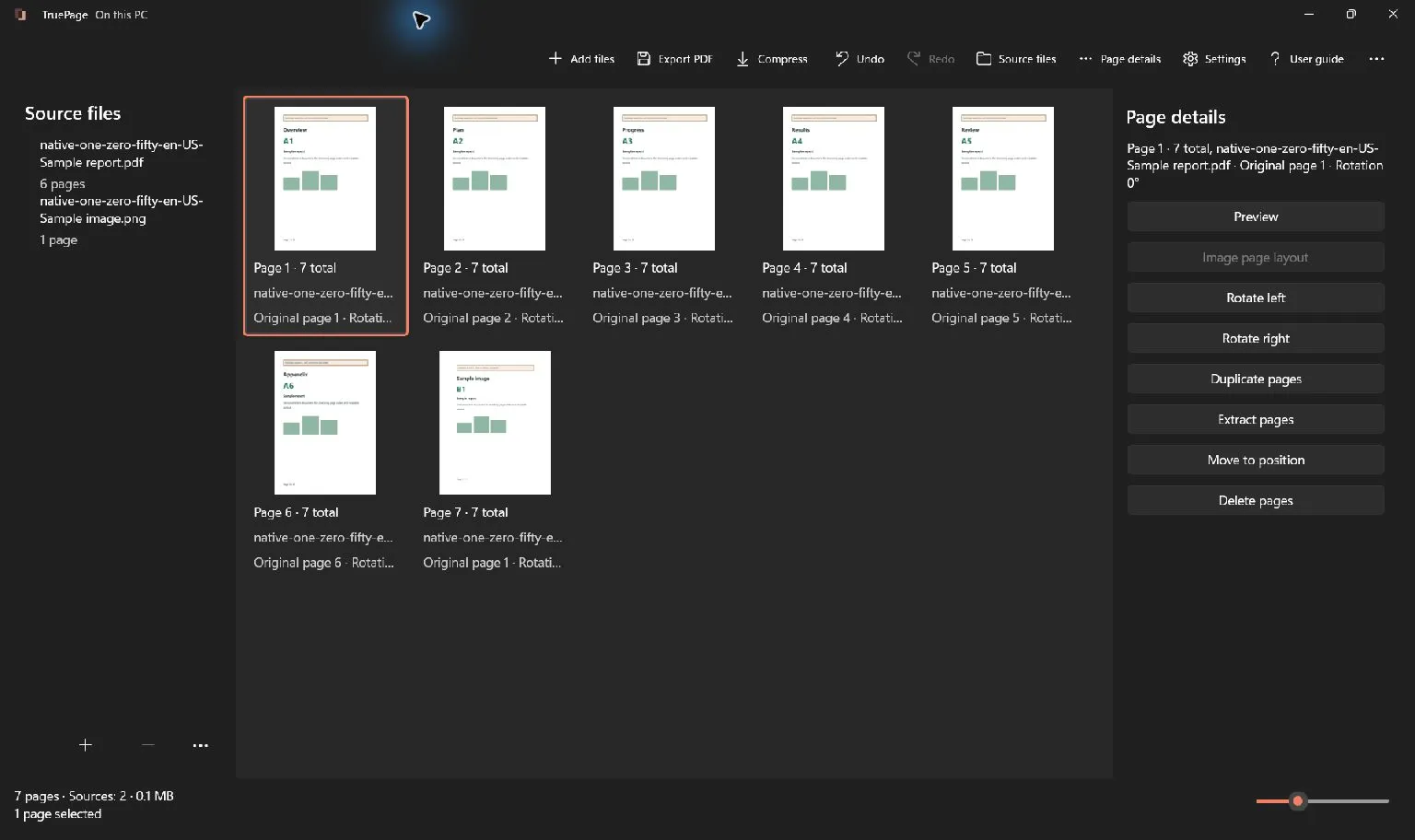
The walkthrough uses a fictional seven-page sample: three complete two-page forms followed by a one-page appendix. Before applying the same method to your own document, confirm that every intended boundary really occurs after two pages.
Check the document before choosing an interval
Open the PDF with Add files and read through its thumbnails. Check the first page, every transition between forms, and the final page. A cover, an inserted instruction sheet or an unwanted blank back can shift all later pairs. For example, if page 1 is a cover, the first two-page output would contain the cover and only the first page of the first form.
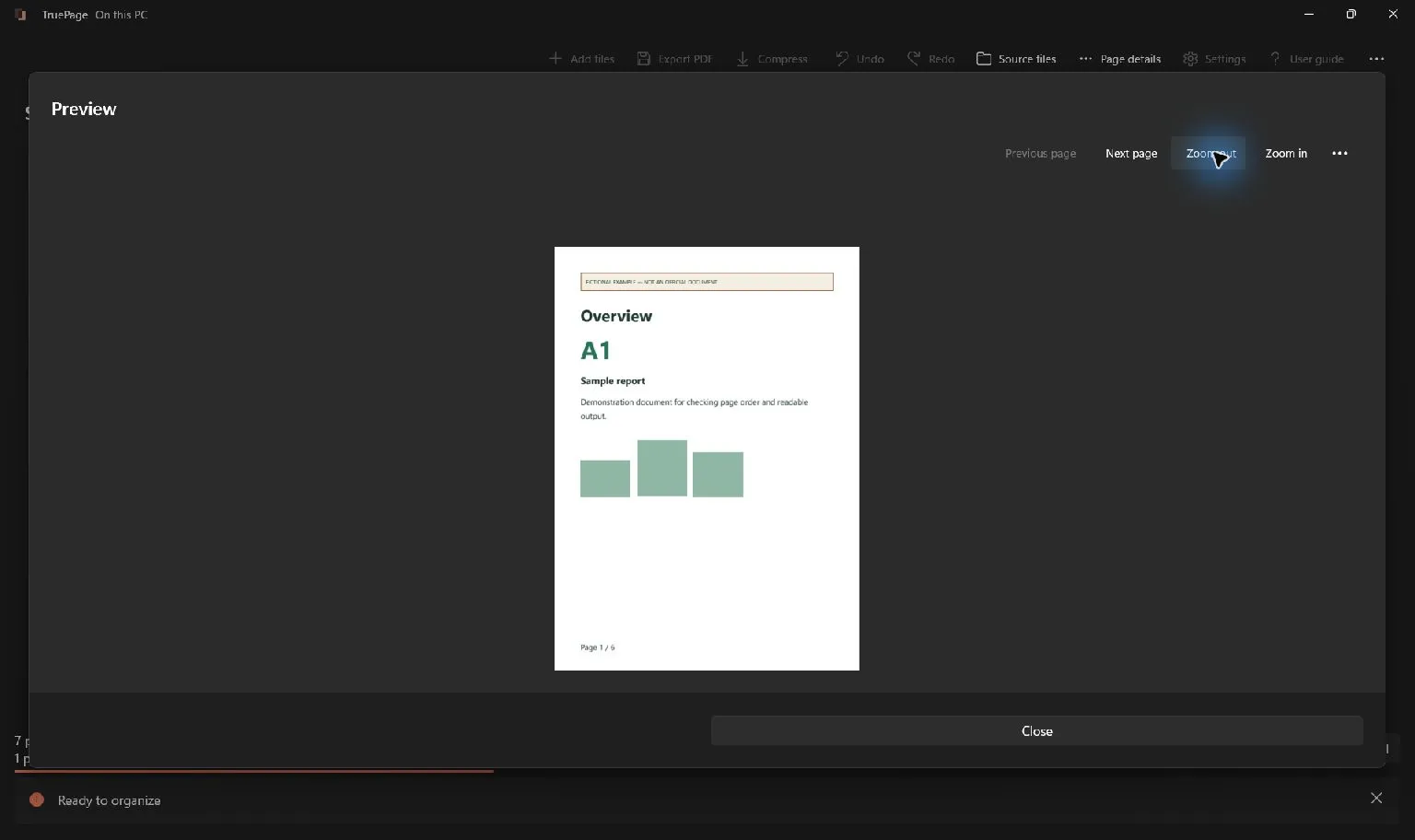
Count actual pages in the arrangement, including blanks. Use Preview when a thumbnail is too small to distinguish a continuation sheet from the next form. A page printed “1” can be output page 3 after introductory material; splitting uses current output positions, not numbers printed inside the document.
If the forms have different lengths, use splitting scanned invoices by chosen ranges as a model instead. Fixed intervals cannot detect where a document begins or ends. If some pages are out of order, rearrange them first and check the boundaries again.
Set two pages per PDF
- Add the source PDF to the workspace. For this example, check that the arrangement contains seven pages in order.
- Choose Export PDF from the main toolbar.
- Open Pages to export and select Split every N pages.
- Enter 2 in Pages per PDF. The native summary should now show four requested files containing seven pages in total.
- Review the Filename or pattern field. A descriptive base name makes the output batch easier to recognize later.
- Choose Choose destination and select a folder for the new PDFs.
The page count must be a positive whole number. Using 2 means two consecutive output pages per file; it does not mean “split into two files.” An eight-page PDF produces four two-page files. A two-page PDF produces one file, while a single-page PDF produces one shorter file.
A filename pattern can include {n} for numbering. The dialog explains the numbering format and the preview shows the actual resulting names. Keep that placeholder unchanged when following the instructions in another language. Avoid relying on an assumed filename when the preview already provides the complete batch.
Review all four outputs
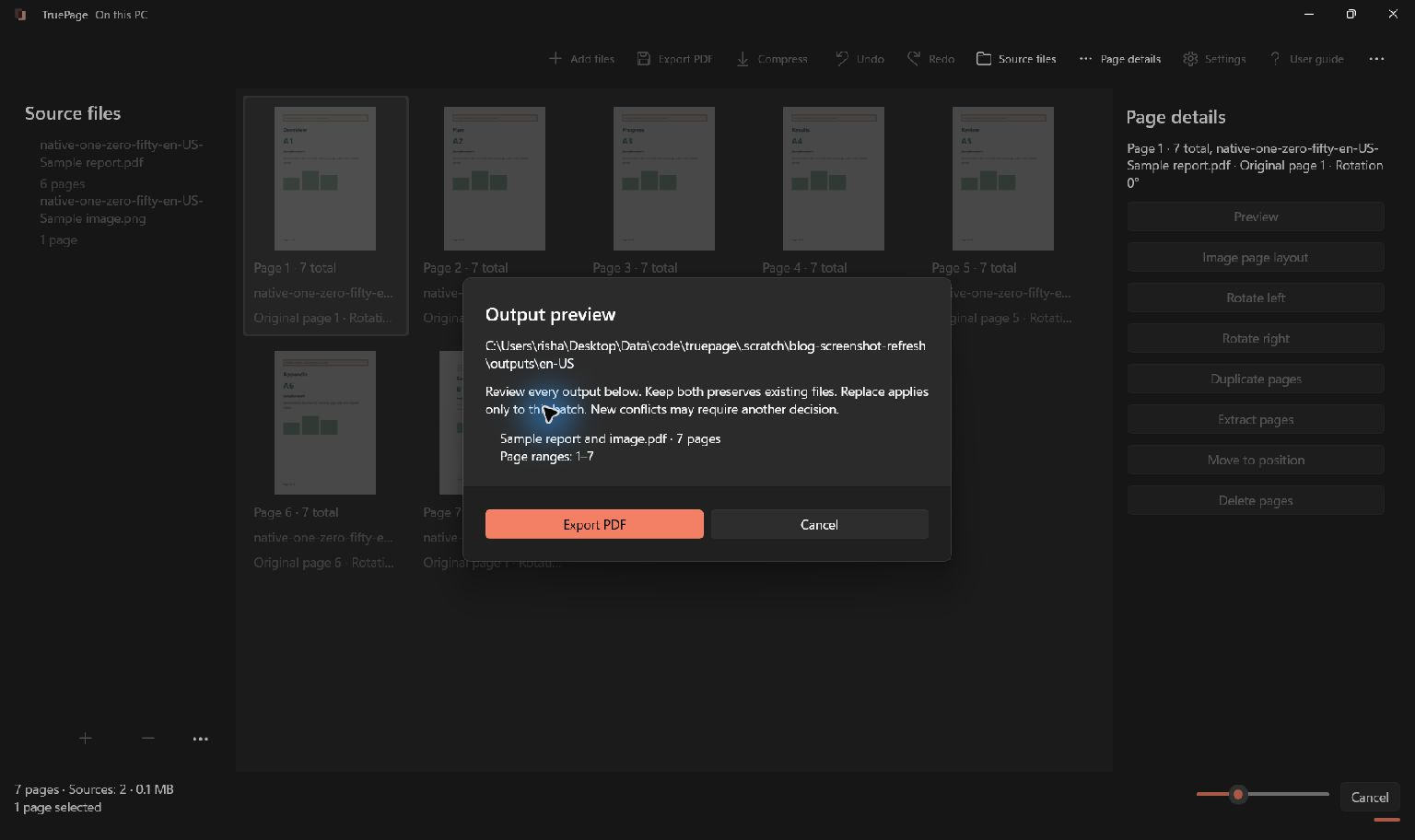
For the seven-page demonstration, the preview lists the following groups:
| Output | Pages included |
|---|---|
| First PDF | 1–2 |
| Second PDF | 3–4 |
| Third PDF | 5–6 |
| Fourth PDF | 7 |
Read every row before confirming Export PDF. Check the destination, filenames and final one-page group. TruePage does not pad the final group with a blank page. If your receiving system requires exactly two pages in every file, decide how to handle the appendix according to that system’s instructions; do not assume the splitter can invent a missing page.
If a filename already exists, review the offered collision choice. Keep both preserves the existing output as a separate file. Only choose replacement when you have identified the intended destination file. Saving the results in a separate batch folder helps keep new copies distinguishable from an earlier attempt.
Verify the saved files
Open the exported PDFs and confirm their page counts and contents. In this example, the first three files should each contain both pages of one form, and the fourth should contain only the appendix. Read the start and end of each file rather than checking the total number of files alone.
Check that sideways scans were corrected and that small text remains readable. Splitting by page interval organizes the existing pages; it does not recognize scanned text, repair blurry source images or make incomplete forms complete. A clean-looking filename is not proof that its pages belong together.
The phrase “split PDF into equal parts” can mean equal page counts or equal file sizes. This workflow controls page counts. Two pages containing large scanned photographs may use far more storage than two pages of ordinary text. If an upload has a byte limit, inspect each saved file’s size and follow the compression guidance separately.
When the result is unexpected
If a form is divided between neighboring files, cancel or return to the arrangement and find the first misplaced boundary. A single cover or blank page near the beginning can explain a repeating mismatch. Correct the arrangement or switch to explicit ranges instead of trying different intervals at random.
If an export is interrupted, some completed files may already exist. Inspect the saved-file count and destination before retrying. Keep the original source and distinguish any new retry batch by its names or folder. For all splitting modes, including one file per page and custom ranges, see the extraction and splitting guide.

Your pages. Your space.
Available now for Windows 11