A smaller PDF is useful when it fits an attachment limit or makes a collection easier to store. But “compress” can describe very different operations. Some reorganize the file’s internal structure. Others change how images are stored, which can change how the pages look.
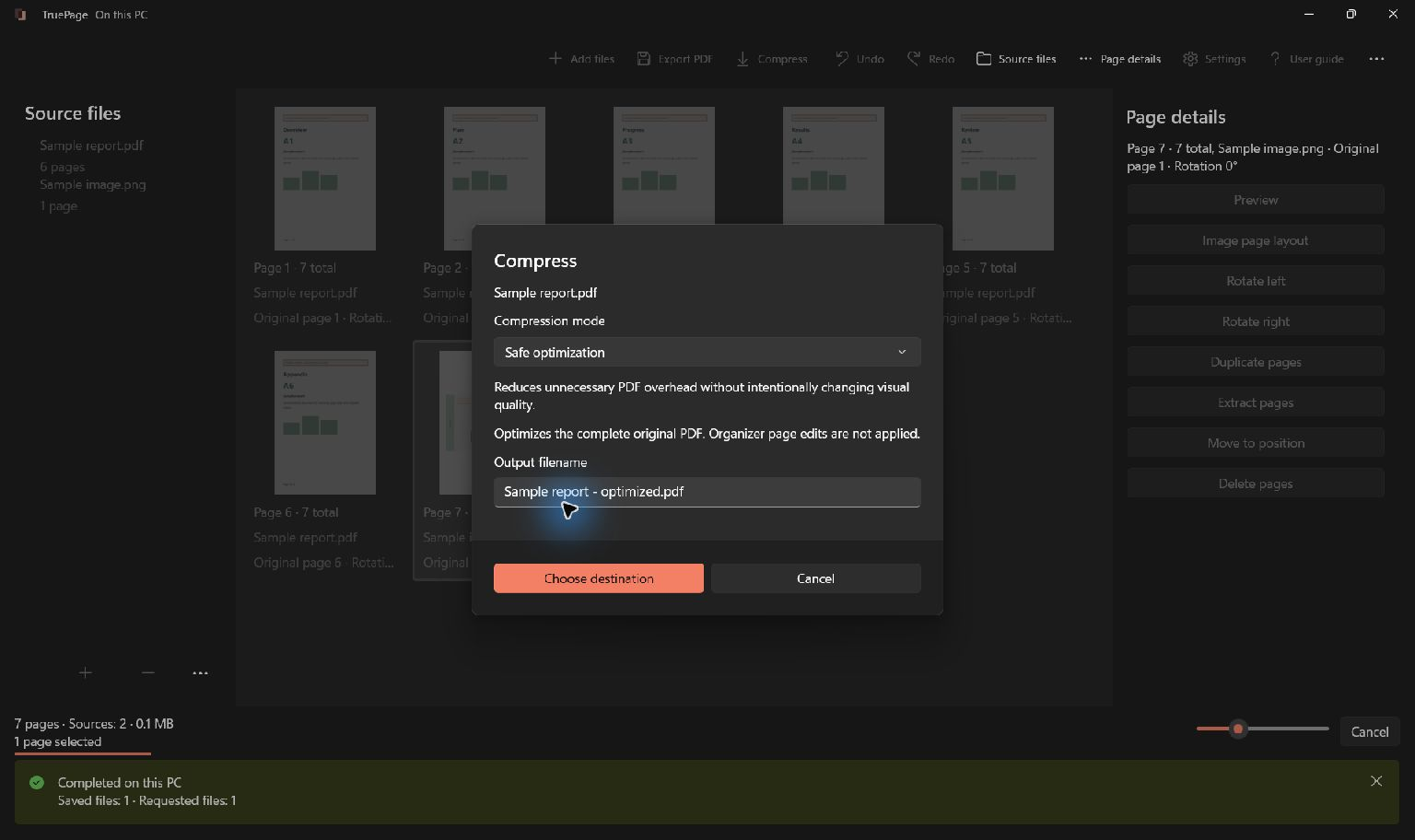
TruePage makes that choice explicit with two modes: Safe optimization and Smaller file. Both run locally. Neither promises that every PDF will become smaller.
Compression uses the whole source
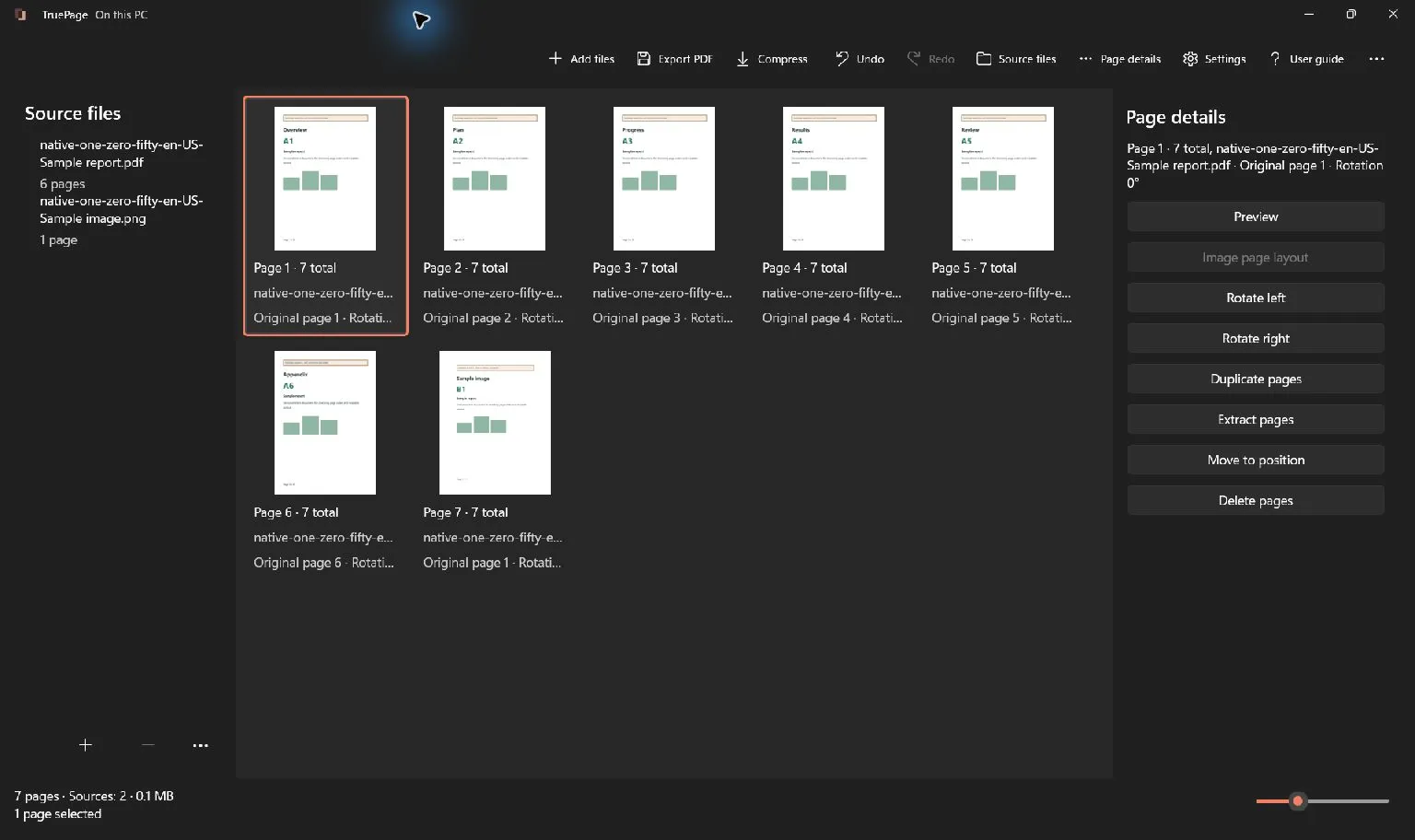
Compress optimizes the complete original PDF. It does not apply page ordering, deletion, rotation or other organizer edits. To compress an arranged result, first export that arrangement to a new PDF, then choose that exported file as the compression source.
Start with a readable PDF. Compression cannot guarantee a reduction: some files are already efficiently stored, and another rewrite may produce the same size or a larger result. The comparison dialog shows what actually happened.
Start with Safe optimization
Safe optimization is the default. It aims to reduce structural overhead without intentionally lowering image resolution or visual quality. It does not turn ordinary document pages into pictures as a shortcut to reducing size.
This makes it a sensible first attempt when you want to retain the document’s appearance. A PDF assembled or rewritten by different tools may contain opportunities for structural savings. Another PDF may already be efficiently stored, leaving little for this mode to improve.
The result depends on the file. A short text document can have very different opportunities from a large scan. The same page count does not mean the same amount of data, and a lack of savings does not mean the operation failed.
Use Smaller file when the tradeoff fits
Smaller file may recompress eligible images. That can reduce file size, but it can also introduce visible changes. In the current implementation, eligible images are recompressed at JPEG quality 85 without automatic downsampling. Not every image is eligible, and some image structures are intentionally left unchanged.
That technical setting is not a guarantee about the appearance of every document. Fine lettering in a scan, small lines in a diagram, or subtle gradients can reveal changes more readily than a large photograph. Judge the actual result rather than treating a quality number as a verdict.
This mode aims to preserve searchable text rather than rasterizing ordinary document content. However, text visible only inside a scanned image is still image content; image recompression can affect how it looks. Compression does not add OCR or turn a scan into searchable text.
Compare the pages that matter
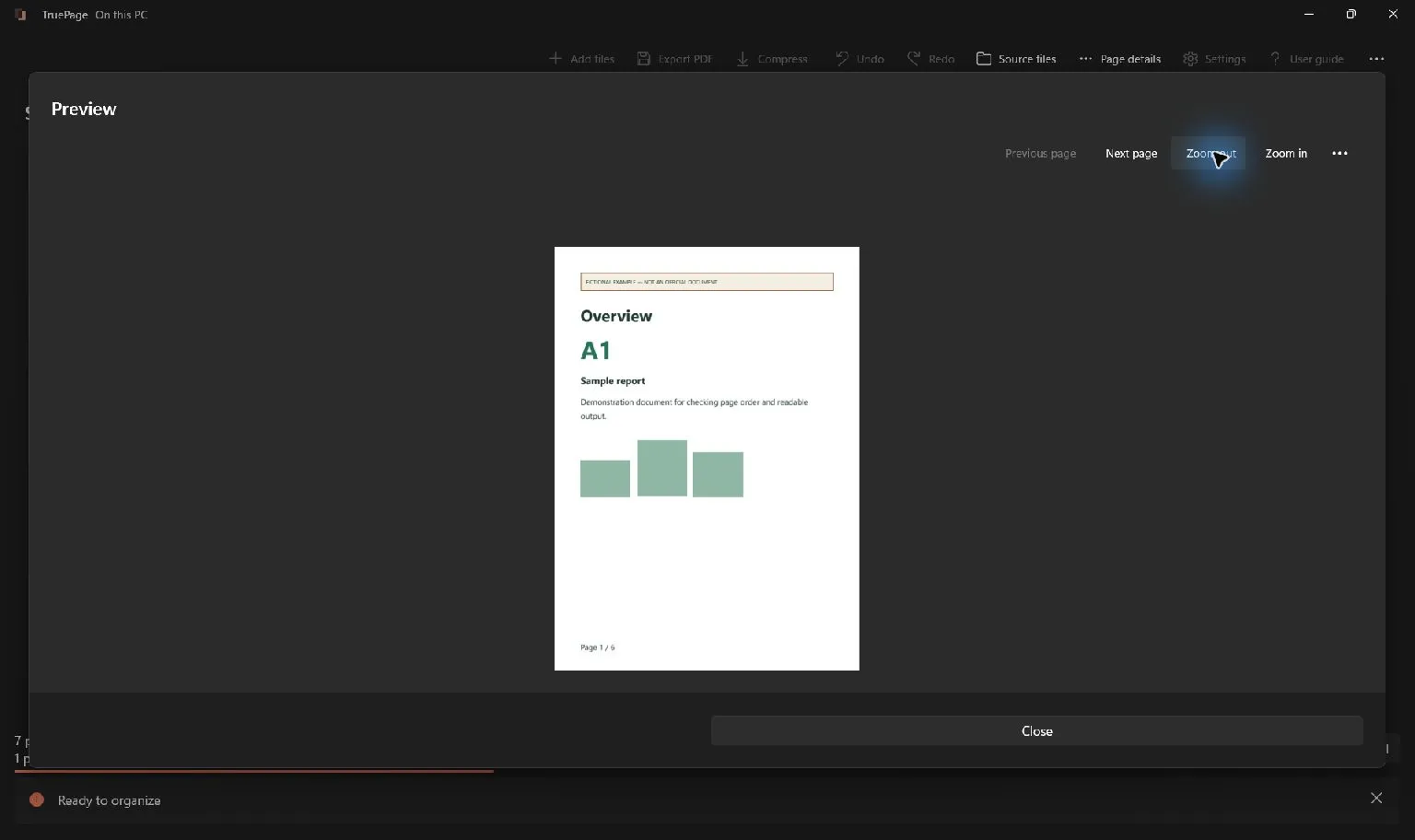
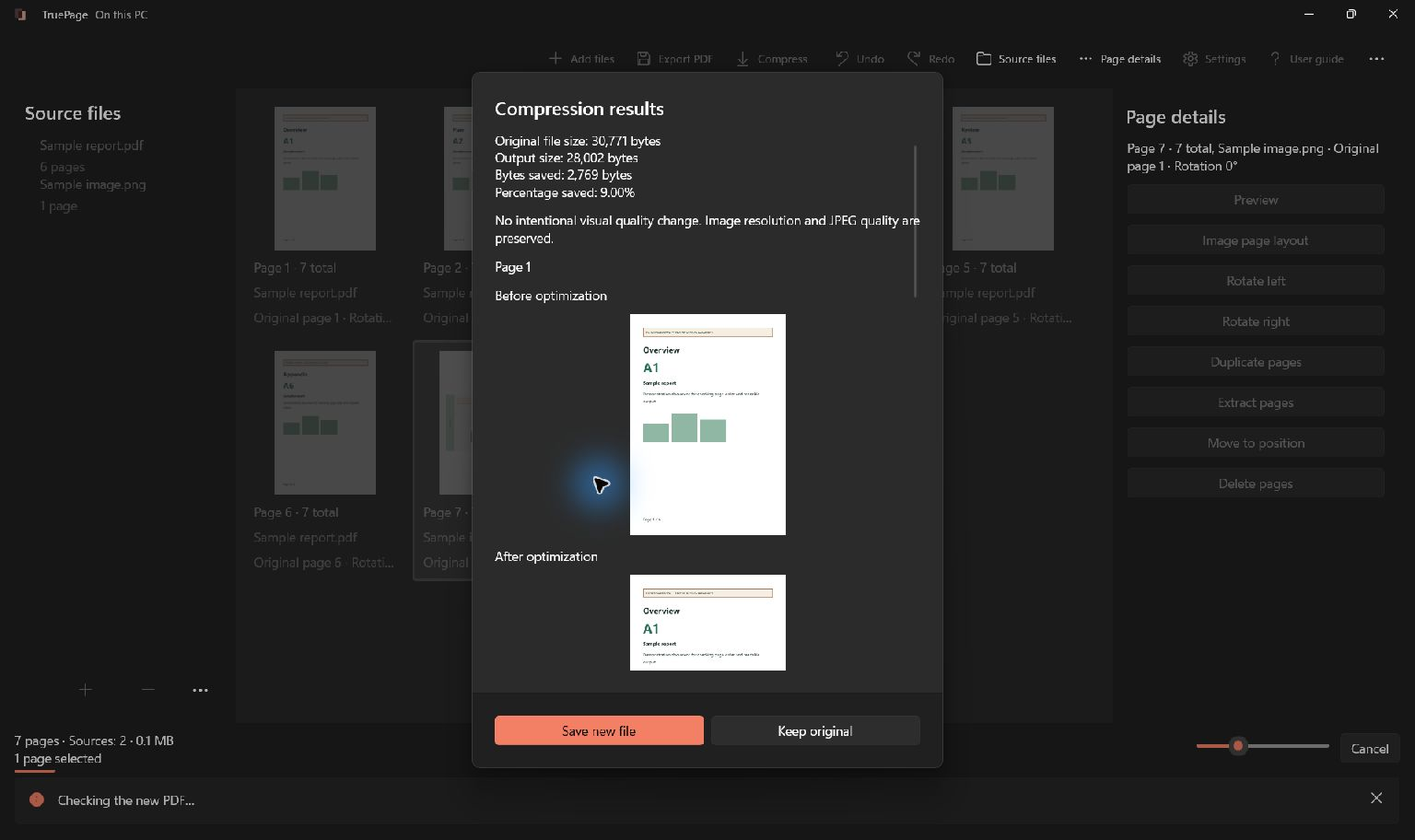
Before saving, inspect the before-and-after previews and the reported file sizes. TruePage’s comparison includes representative pages and, when identified, an affected image page. Those previews are a starting point for review rather than a claim that every page is identical.
Look especially at:
- Small text and digits in scanned pages.
- Fine lines, diagrams, and charts.
- Dark areas, gradients, and edges in photographs.
- Pages whose readability matters to the person receiving the file.
Keep the scale comparable when judging the two views. A smaller on-screen preview can hide changes you would notice at a larger zoom or on paper. For an important document, open the output and inspect more than the representative previews.
Read the size result before saving
A compression attempt can produce a file that is nearly unchanged, or even larger. TruePage reports the actual result and lets you keep the original. When the candidate is larger, saving the new file anyway is an explicit choice.
This is particularly relevant for very small or already optimized PDFs. There may be little redundant structure to remove, and rewriting the file can introduce overhead that outweighs any saving.
Avoid repeating lossy compression just to chase a lower number. If you want to compare modes, start each comparison from the same source document. That gives you a clearer view of the tradeoff than compressing an already recompressed result.
Keep the original and the purpose in view
TruePage exports to a separate output and protects source documents. Choose an output name that makes the result easy to recognize, then verify it before sharing.
Compression is not redaction. A smaller file is not evidence that hidden or sensitive content has been removed. It also does not make an unsupported PDF feature safe to rewrite. Read any document-specific warnings, particularly around signatures and advanced content.
For a document comfortably below your sharing limit, keeping the original may be the best choice. For an image-heavy packet that needs to fit a limit, Smaller file may offer a worthwhile tradeoff after review. For routine optimization, begin with Safe optimization and let the observed result guide you.
If the document contains pages you do not need, organizing and extracting the relevant pages may be the more useful first step. All of these operations share the same local-processing boundary.
Judge detail as well as file size
Our synthetic compression checks compare scanned text, screenshots, diagrams and continuous-tone images separately. Existing JPEGs and images with color profiles or transparency can leave little to recompress. Savings and processing time depend on content, not just page count.
Searchable text surviving is a separate check from scan readability: a hidden text layer can remain searchable even if the visible scan loses detail. Compression adds no OCR. Inspect small digits and fine lines at matching scale; use Safe optimization when preserving those details matters more than extra savings.

Your pages. Your space.
Available now for Windows 11