An application form, a scanned receipt, and a few pages from a longer PDF. They belong together, but they arrive as separate files. Making one useful document should be a small task, not an afternoon of moving between websites.
TruePage’s organizer starts with a simple idea: put the pages in front of you. Work on their arrangement. Export when that arrangement is ready. The document processing happens on your Windows PC.
Start with the documents you actually need
Start with the PDFs, JPGs and PNGs that belong in the same packet.
For a small application packet, that might mean a two-page form, a receipt image, and a supporting letter. You do not need to convert each image through another service before arranging the packet.
Keep your originals in a location you recognize. TruePage reads the source documents rather than turning the workspace into a permanent archive of copied documents. If a source changes or moves while you work, the application may need you to resolve that before export.
- Select Add files or press Ctrl+O.
- Choose one or more supported PDFs or images in the file picker.
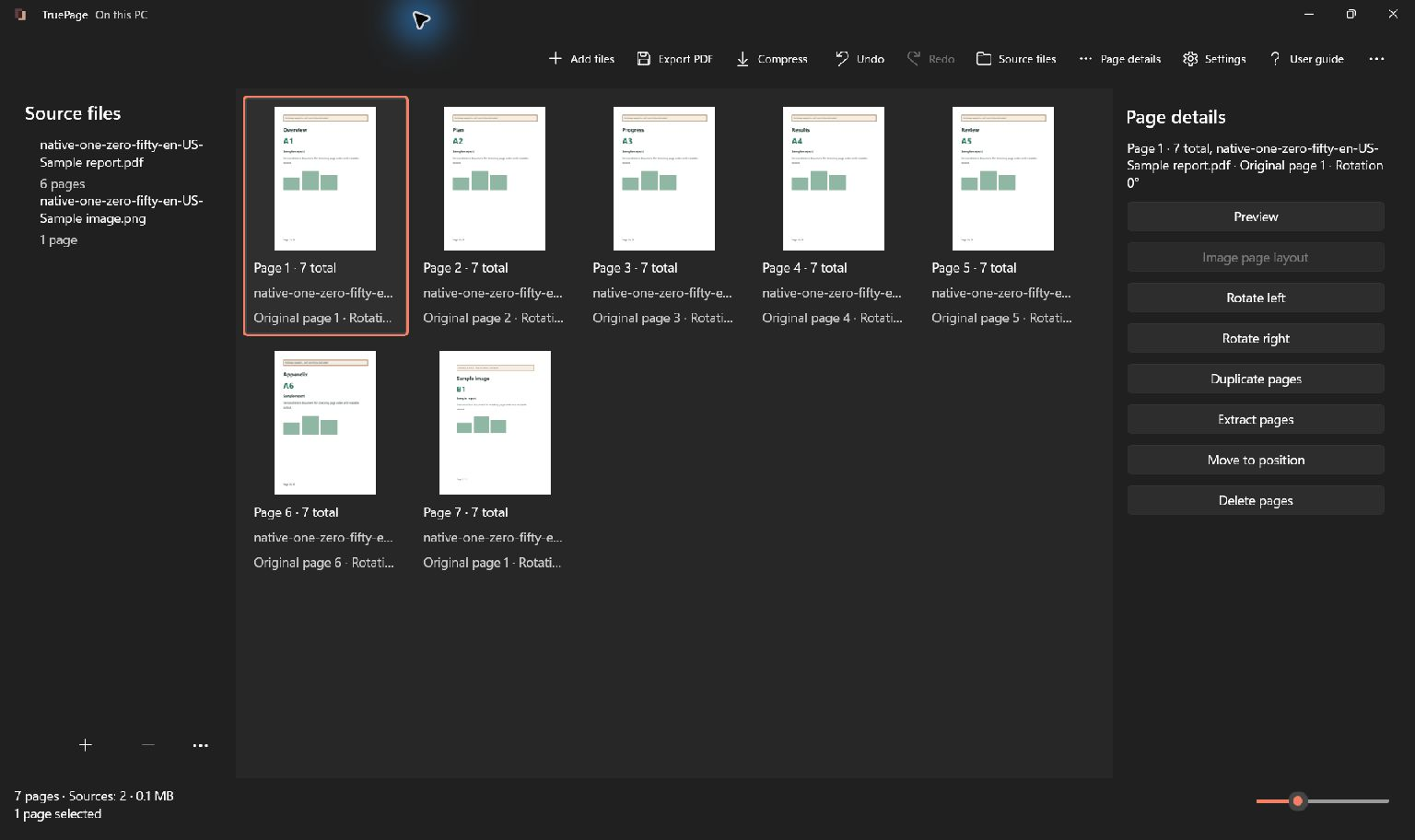
- Confirm and wait for the page board to populate. A PDF contributes its pages; each image contributes an image page.
- Check the status area and the total page count. If some files fail to import, successfully added sources and your existing edits are retained.
- Open Source files to inspect which files are present. Use Page details or Preview to check a specific page before arranging it.
You can also drop supported files onto the workspace. Dropping a PDF onto Compress instead starts the separate whole-source compression workflow, so use the page board when your intention is to add pages.
Protected PDFs may ask for a password before their previews appear. A wrong password is not an import shortcut: enter a valid password or cancel and continue with other files.
Arrange the story, page by page
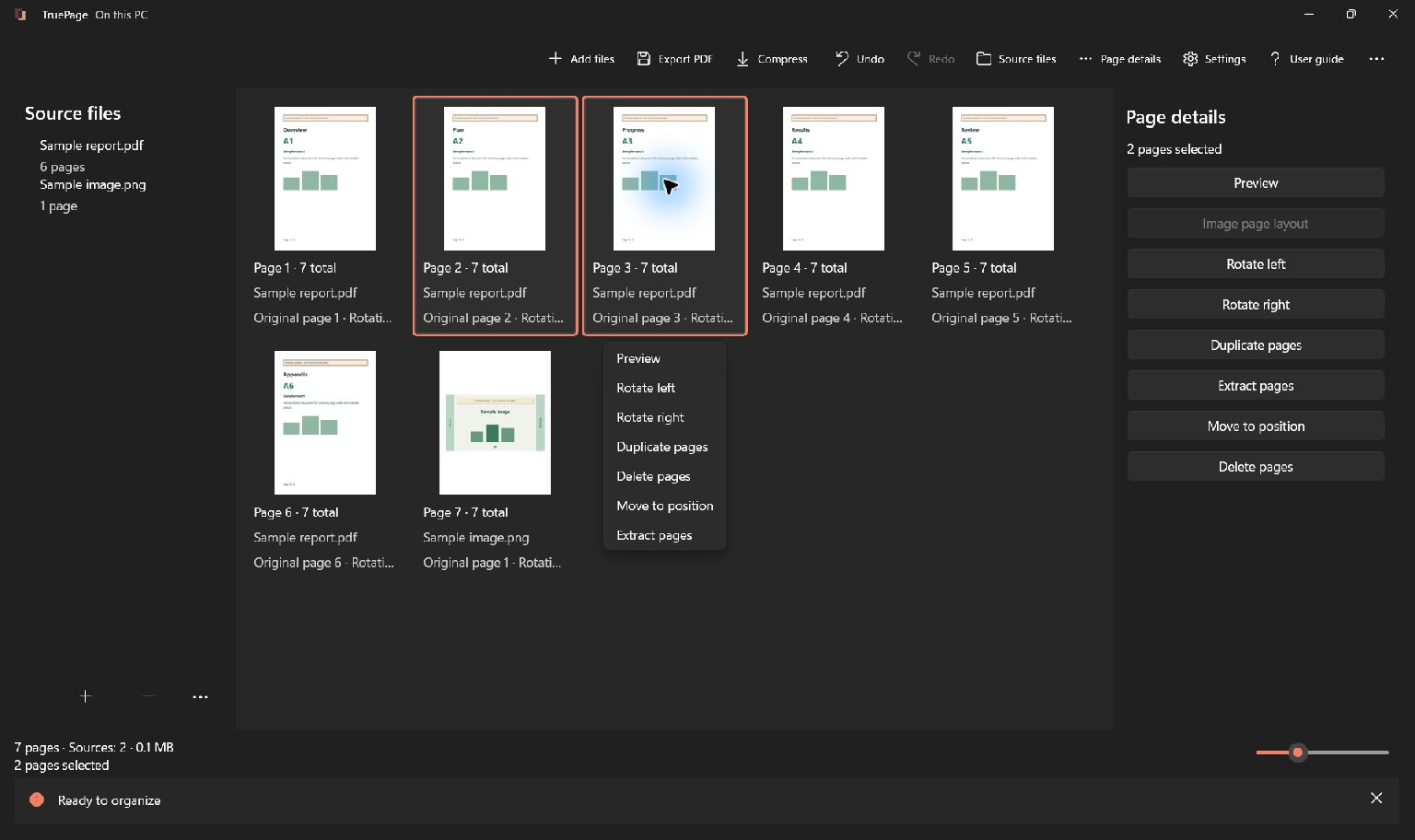
Look through the page board before exporting. Put the main document first, move supporting pages into a useful order, and rotate pages that arrived sideways. Remove a page from the arrangement when it does not belong in the output; that edit does not delete the page from the original source.
- Rotate right turns selected pages clockwise; Ctrl+R performs the same action. Rotate left turns them the other way. Repeating a rotation changes the angle again.
- Duplicate pages or Ctrl+D creates new occurrences of the selected pages. These can be edited independently; it does not copy the source file on disk.
- Delete pages or Delete removes selected occurrences from the arrangement. It does not erase pages in the original document.
- Page details provides another place to find page actions. Preview rotation also changes the workspace arrangement rather than merely rotating your view.
Page-level edits are reversible. Undo lets you back out of a change, and Redo brings it forward again. Duplicating a page creates another occurrence in the arrangement, which can be useful when the same cover sheet needs to appear more than once.
Keep two kinds of numbering in mind:
- A source page number identifies a page within its original document.
- An output page number is the page’s current position in the arrangement you are preparing.
A page that started as page 12 in a report might become page 3 in your packet. Check the output order rather than relying only on page numbers printed inside the document.
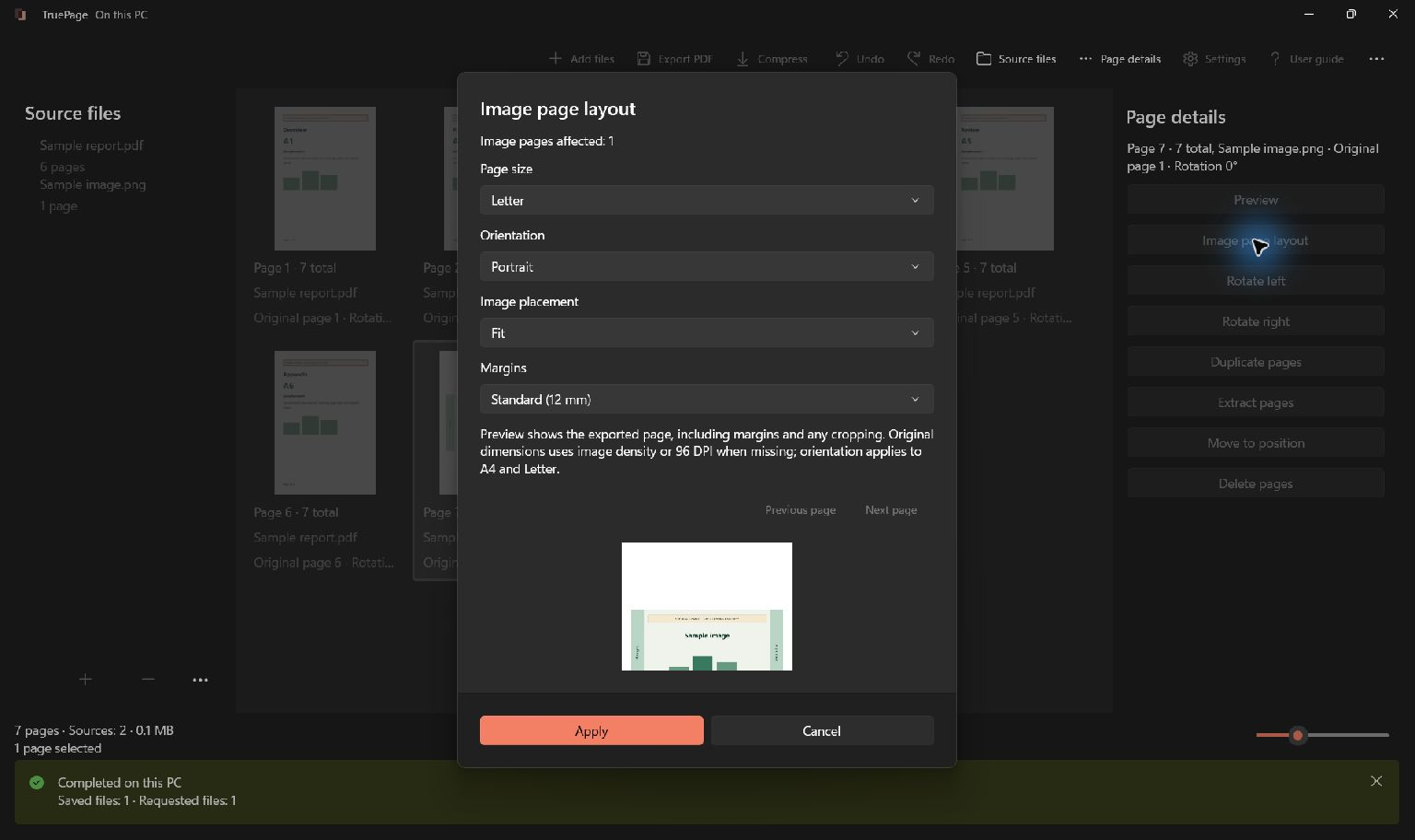
Give images a sensible page size
Photographs and scans rarely begin with the same proportions as a sheet of paper. TruePage offers page-size and placement controls so you can make that choice deliberately.
Fit keeps the whole image within the usable page area. Fill fills that area by cropping the image, with a crop preview to inspect. Center avoids enlarging the image and scales it down when necessary. You can choose A4, Letter, or original dimensions, along with orientation and margins.
For a receipt or a form, start with Fit and check all four edges. A tidy-looking crop is not useful if it removes the date or a reference number. Preview the result before committing to the output.
Export a fresh copy
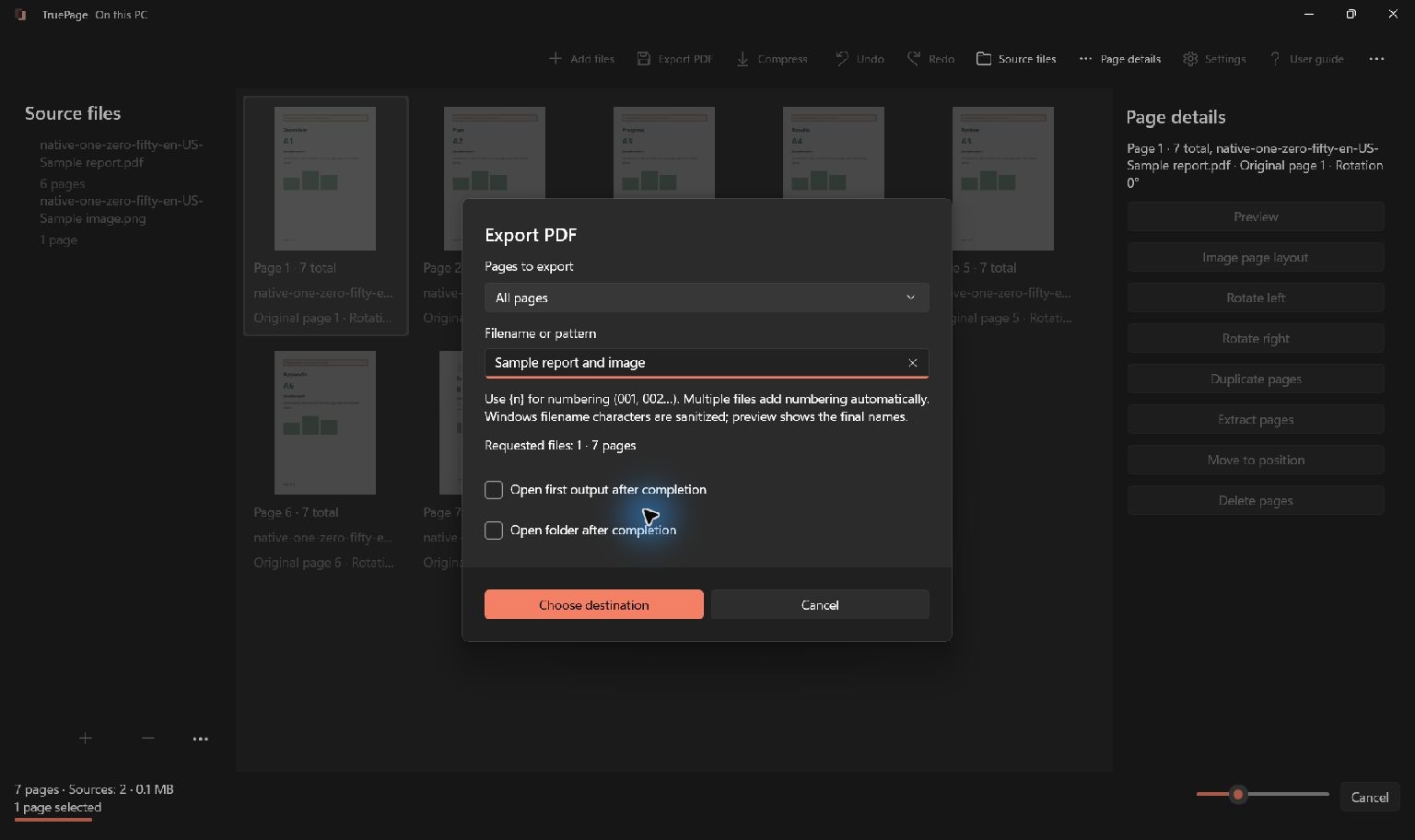
Finish the page order, rotations and image layout before exporting. Export uses the arrangement at the start of the job; it is not a live view that keeps changing while files are written.
- Select Export PDF or press Ctrl+E.
- In Pages to export, choose All pages for the entire arrangement or Selected pages for the current selection. Other choices support extraction and splitting.
- Enter Filename or pattern. A simple name such as
application-packetis enough for one PDF. - Optionally select Open first output after completion or Open folder after completion.
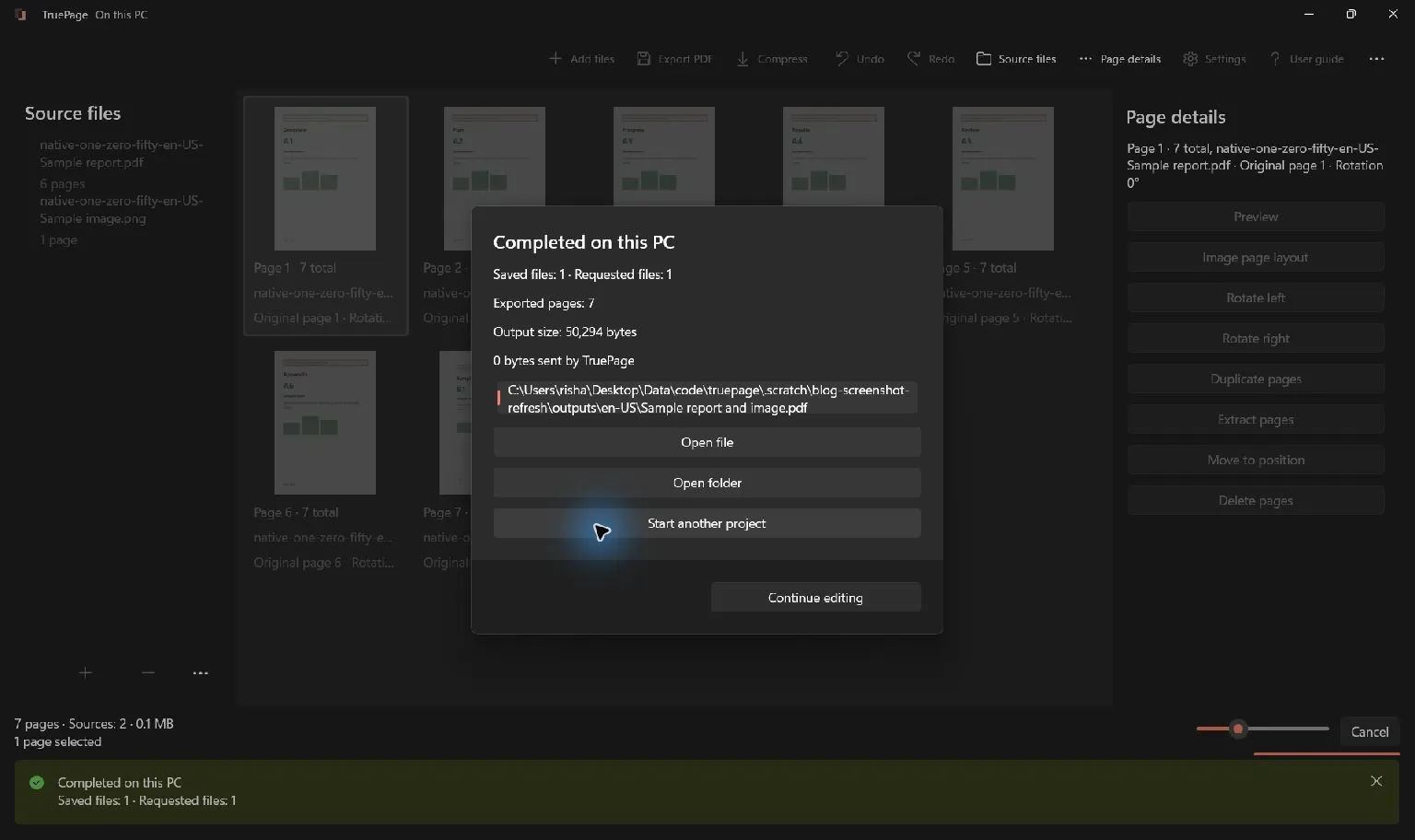
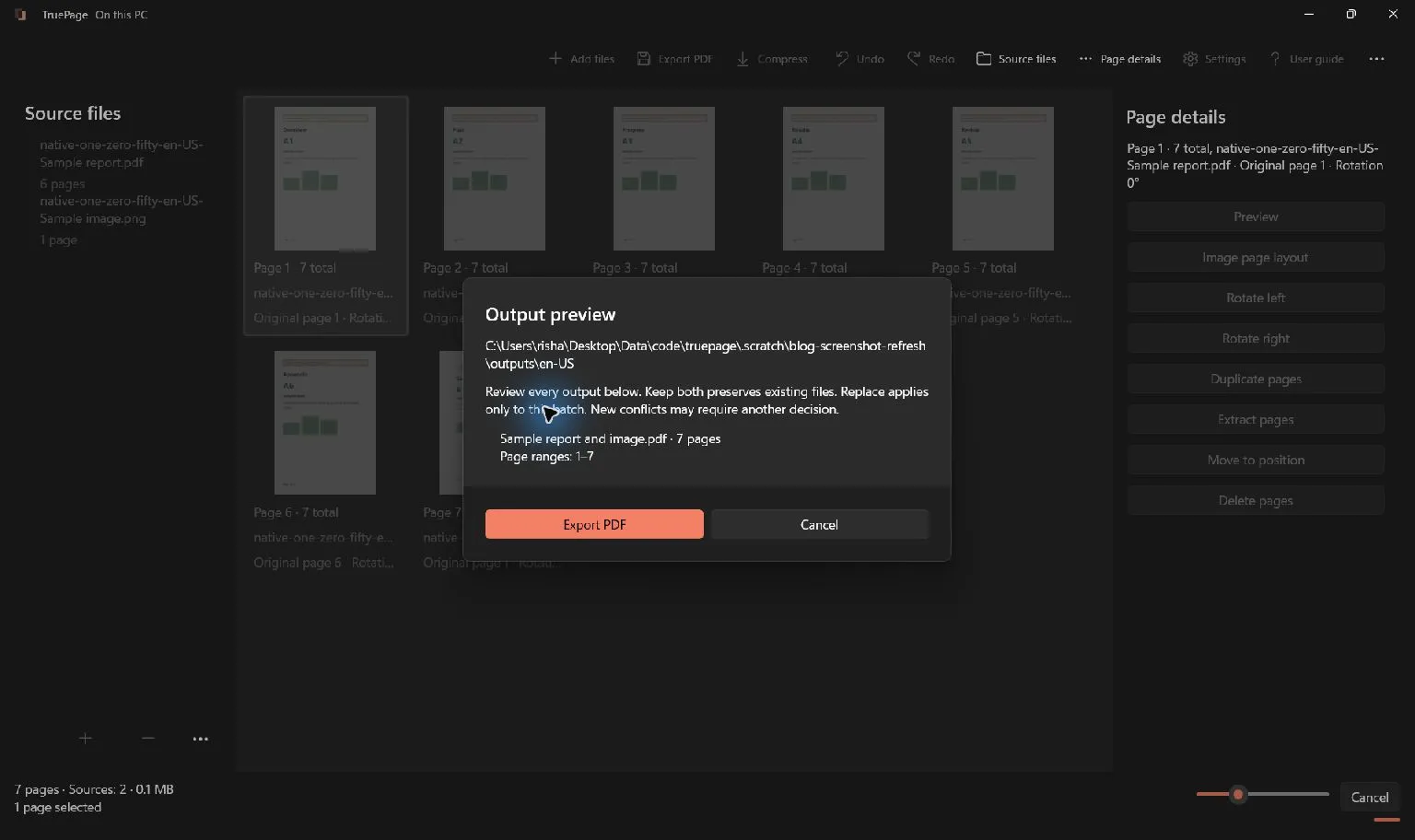
- Check the requested file and page counts, then select Choose destination.
- Choose the output folder. Review the complete destination list before confirming the job.
If the output name already exists, Keep both is the default. An explicit replacement choice concerns an existing output, not permission to overwrite one of the source documents. Read the filename preview, especially when producing multiple files.
You can also extract selected or ranged pages, or split a PDF into separate outputs. Before a split, inspect the full filename preview so you know which documents will be produced and where they will go.
Finish with a quick review
Open the exported document and check the page count, order, rotation, image edges, and readability. Where documents contain signatures, forms, or unusual interactive features, pay attention to operation-specific warnings. Rewriting a signed PDF does not preserve its valid signature status, and not every advanced PDF feature is supported.
If it needs compression or a password, use the exported PDF as the source for that separate operation. Compress and Add password work on a whole source PDF, not on unsaved changes to the arrangement. Keep an identifiable original and verify the final copy, including its password, before sending it.
If the resulting file needs to be smaller, read about choosing a compression mode. For the boundary around offline work, see what local PDF processing means.
What stays local
Document processing runs in TruePage and its local worker processes. No TruePage account or document upload is required. Installing the app, Store updates, opening the website and other Windows services are separate activities.
Optional feedback is separate: choosing to send it transmits your message and any reply email over the internet; documents and logs are not automatically attached. See what local processing means for the full boundary.
Windows, backup tools and cloud-synced folders follow their own policies. Saving an output in a synchronized folder may cause that software to upload it. A local-processing statement is not a promise that the entire PC makes no network requests.
Protected-source exports can create unprotected PDFs, images or ZIP files after explicit acknowledgement. Choose destinations and sharing methods appropriate for those results. The workspace itself is not a permanent project archive: export what you need before closing.
For a safe first attempt, return to getting started.
TruePage does not provide OCR, existing-text editing, redaction or signatures. Rewriting a signed PDF does not preserve its valid signature status. Keep originals and follow operation-specific warnings. See the usage guide for complete procedures and limitations.

Your pages. Your space.
Available now for Windows 11