Separate scanned invoices by their actual boundaries
To split a scanned invoice PDF in TruePage, first identify which pages belong to each invoice. Use One PDF per page when every invoice occupies one page. For invoices of different lengths, choose Split by ranges and enter one range for each output file. Review the names and page counts, then export the separate PDFs.
TruePage does not automatically recognize invoice numbers or detect document boundaries. You choose the ranges by inspecting the pages. This distinction matters when one invoice continues onto another sheet: splitting every page would separate material that should remain together.
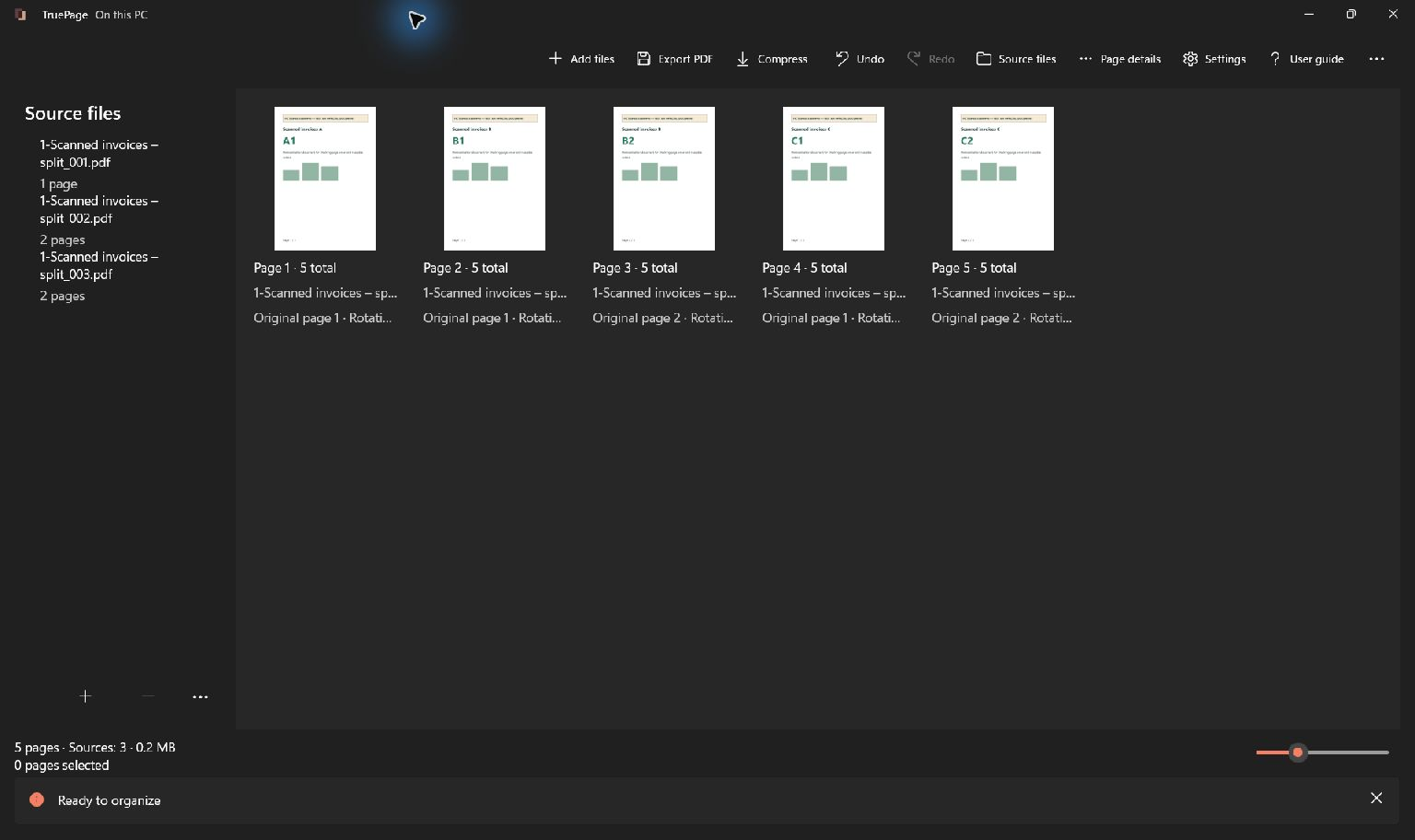
The main example contains five scanned pages: invoice A occupies page 1, invoice B occupies pages 2–3, and invoice C occupies pages 4–5. Entering 1, 2-3, 4-5 produces three PDFs with page counts 1, 2 and 2. All examples use fictional documents and keep the original scan unchanged.
Make a boundary list before exporting
Import the combined PDF using Add files. Open Preview and read each page closely enough to identify the invoice reference and any continuation wording. The first page of a new invoice can look similar to a continuation page, so a thumbnail alone may not be sufficient.
Write down the current output positions for each invoice. In the example, the first page says invoice A, the next two say invoice B, and the last two say invoice C. The visible page references help verify grouping; they are not instructions that the app automatically interprets.
Check for covers, blank backs, duplicate scans and supporting attachments. A cover at the beginning shifts every later output position. An attachment might need to remain with its invoice even if it does not display the same invoice heading. Decide according to the intended recipient’s requirements and inspect the complete document before removing anything.
If pages need reordering, finish those changes before finalizing your range list. Deleting or moving a page changes output positions. For accidental repeated material, the manual duplicate-removal tutorial explains how to inspect overlaps without assuming that similar-looking pages are identical.
Use one file per page for single-page invoices
When every invoice really is one page, choose Export PDF, open Pages to export, and select One PDF per page. Review the resulting output count: seven single-page invoices should produce seven one-page files.
Do not use this mode just because the scan has one invoice heading on every thumbnail. Open continuation pages and confirm whether they belong to the preceding invoice. If every invoice consistently has two pages, splitting every two pages can simplify the operation, but a single exception makes explicit ranges the more appropriate choice.
Split the five-page example into three invoices
- Confirm the arrangement contains the five pages in the intended order.
- Choose Export PDF.
- Under Pages to export, select Split by ranges.
- Enter
1, 2-3, 4-5using ordinary digits, commas and hyphens. - Review the summary: three requested files containing five pages overall.
- Choose a descriptive Filename or pattern, then select Choose destination.
- Read all three entries in the output preview before confirming Export PDF.
Each comma-separated range describes one output PDF. The first entry 1 creates a single-page file, the second 2-3 keeps invoice B together, and the third 4-5 keeps invoice C together. A hyphen joins consecutive positions inside one file; a comma starts another file.
Extract by ranges serves a different purpose: it combines the selected ranges into one PDF. If the receiving workflow expects a separate attachment for each invoice, make sure you selected splitting rather than extraction. The extraction and splitting guide explains both modes.
Review filenames and complete saved documents
The preview shows the actual names before files are written. A pattern containing {n} adds sequential numbering; it does not read invoice numbers from the page contents. Keep a small mapping between the output sequence and the invoice references so that the saved files are easy to identify correctly.
For the worked example, check that the first output has one page, the second has two, and the third has two. Open each exported PDF and verify the first and last pages. Seeing three files in a folder is not enough: incorrect ranges can still create three incomplete or overlapping documents.
If you need filenames based on invoice references, review and rename the outputs using the appropriate file-management process after verifying their contents. Do not assume the app performs automatic invoice recognition or semantic naming. When a destination filename already exists, inspect the collision decision and use Keep both when retaining the earlier copy is appropriate.
Handle exceptions without losing context
Ranges refer to current output positions starting at 1, not printed invoice page numbers. A continuation marked “page 2 of 2” might be output page 3 in the combined scan. Recheck your boundary list after any arrangement change.
Overlapping split ranges can intentionally include a page in more than one file, but accidental overlap can send the same page to the wrong recipient. Gaps omit pages from the requested outputs. Compare your range list with the entire batch and confirm every required attachment has a destination.
Splitting a scanned PDF does not add searchable text. If a later process requires OCR, use an appropriate recognition tool separately. If an export stops partway through, inspect any saved outputs before retrying, because completed files can remain available. Keep the original scan as the reference and share only the verified copies required for the task.

Your pages. Your space.
Available now for Windows 11