Find where the missing detail comes from
Compare the source and saved PDF at similar viewing sizes. If the source is blurry, replace it; if layout enlarged it or compression degraded it, adjust that stage and inspect the new result.
Distinguish text content from an image of text
A PDF page may contain text and drawing instructions, a scanned page image, photographs, or a mixture of those elements. Two pages can look similar at a glance while responding differently to enlargement. A screenshot of a paragraph is still an image even when its appearance resembles a text document.
Try inspecting the source at a larger scale. If the edges of letters break into obvious pixel blocks, you may be looking at a limited-resolution image. Text selection can provide another clue, but it is not a complete diagnosis: a scan may have an OCR text layer behind its visible image.
Searchability and visual clarity are separate properties. OCR can make recognized words searchable without making the visible scan sharp. Conversely, a clear photograph of a page can remain unsearchable because it has no recognized text layer. The scanned-PDF explanation covers that distinction in more detail.
When the original writing application is available, exporting a PDF directly from it can be preferable to taking a screenshot of its pages. That gives you a new source to assess rather than repeatedly enlarging an image of an otherwise available document.
Compare the source and output at similar scales
Open the original image or PDF and the saved output. Look at the same small feature: a date, a thin line, or a short word near the edge of a diagram. Compare them at a similar displayed size so that a large zoom difference does not dominate the judgment.
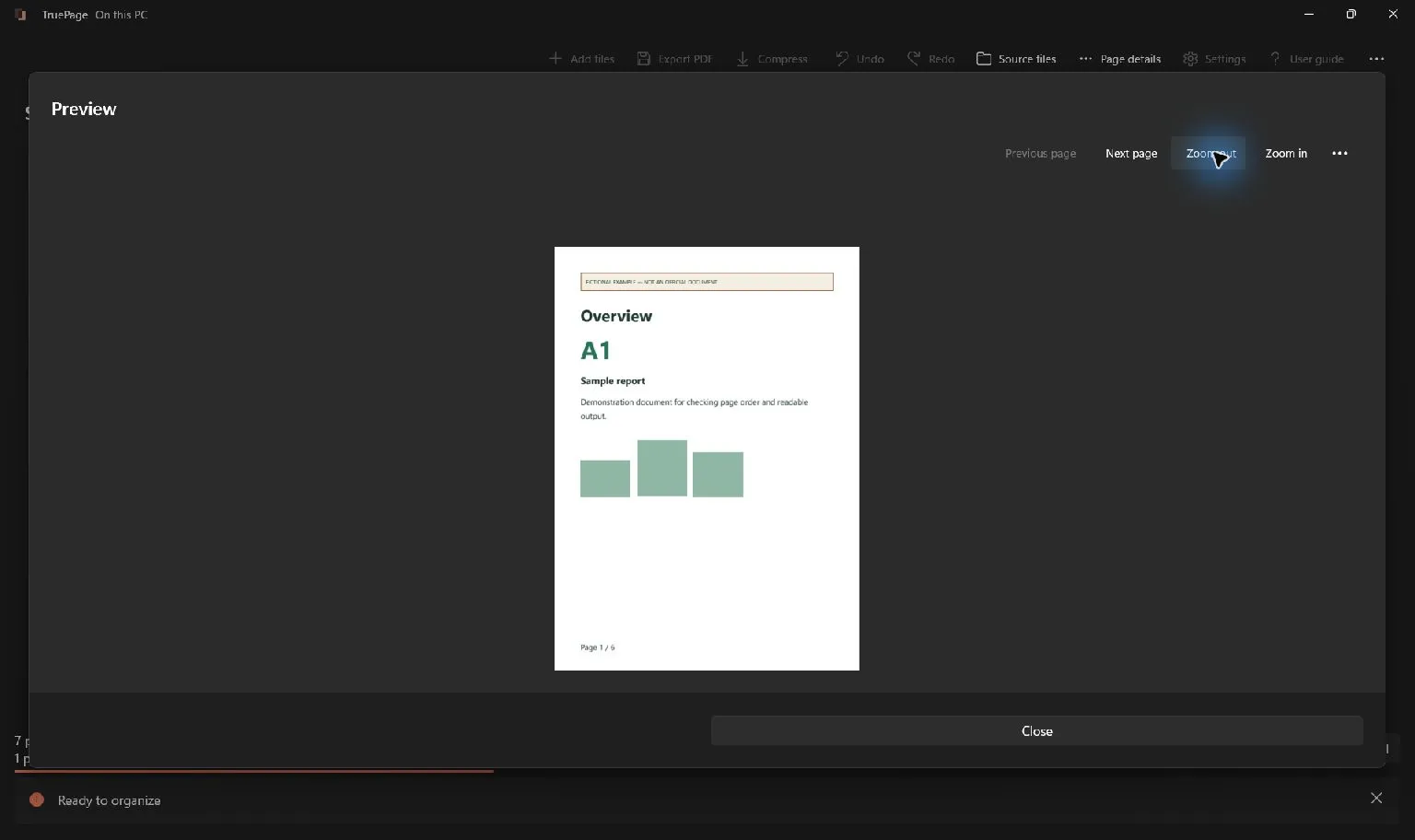
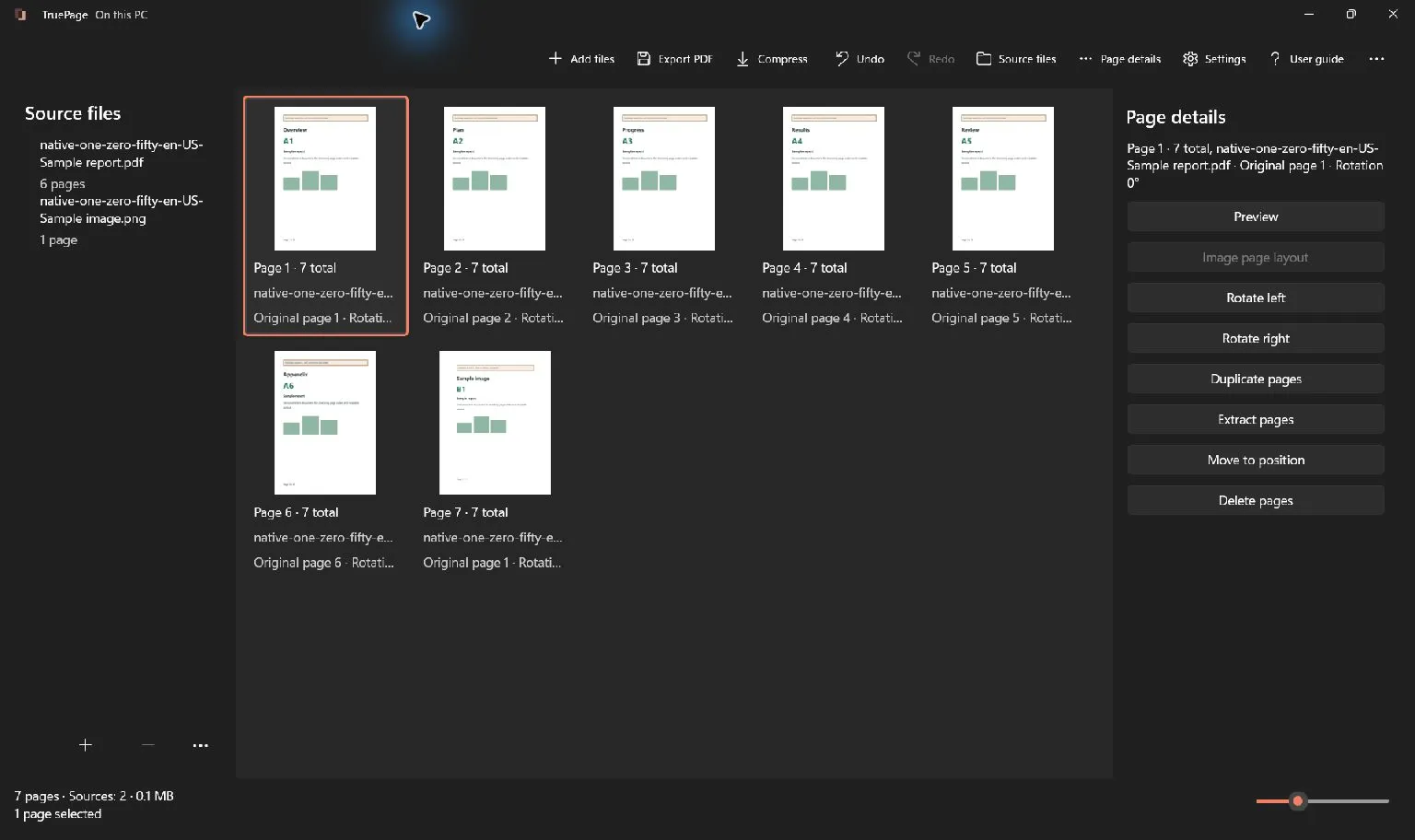
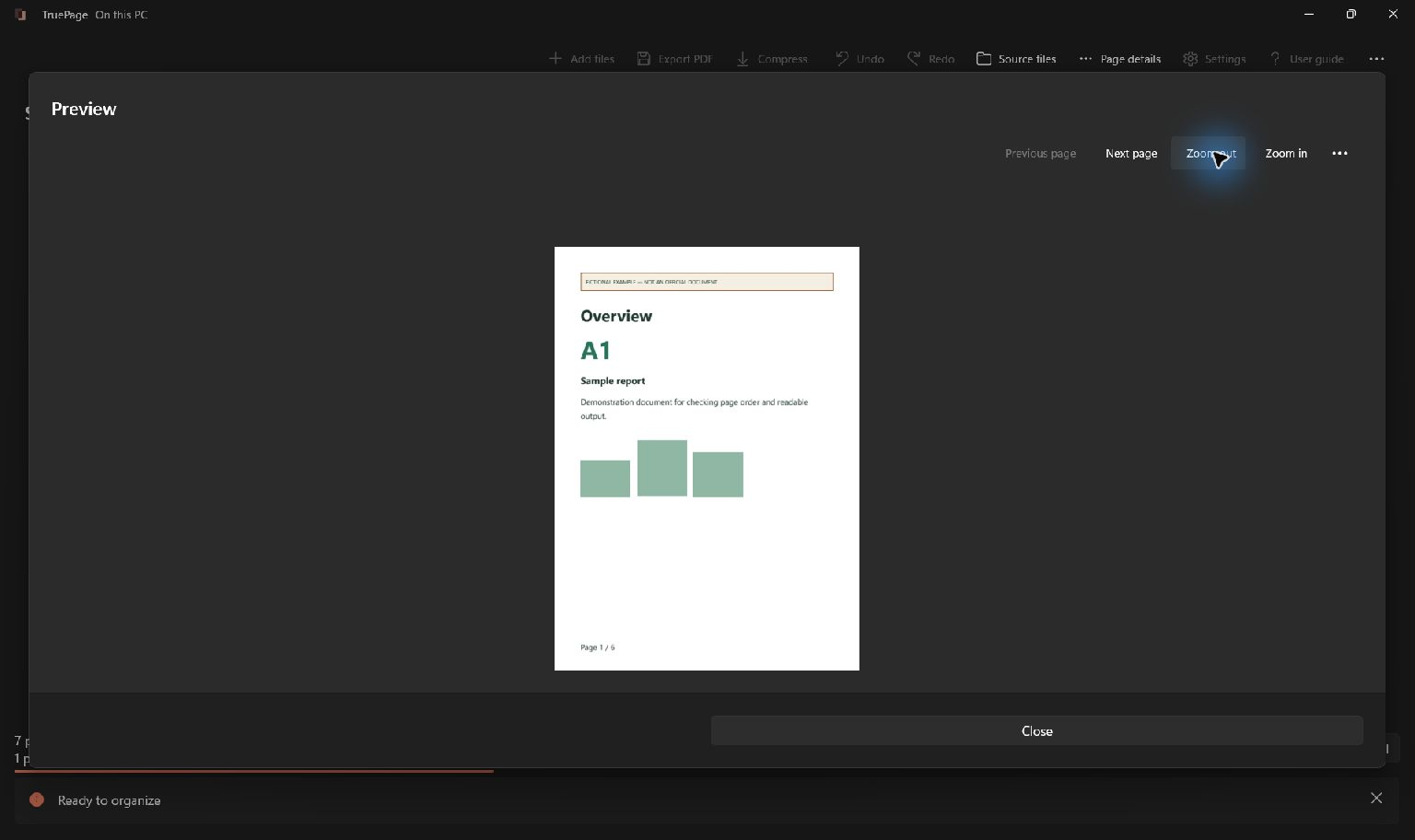
Do not use the thumbnail board as the only quality check. A thumbnail is an overview of a page, often much smaller than the source. Open Preview to inspect content, then reopen the actual export before deciding whether the saved file has lost detail.
If the original is already unreadable, changing the arrangement cannot recover the missing information. If the original is clear but the exported copy is not, inspect image layout and any separate compression or conversion steps applied after assembly.
Record which exact files you compared. A folder may contain an original scan, a resized image, an earlier compressed PDF, and a newly exported output. Comparing the wrong pair can make an unchanged export appear to be the cause of an older quality loss.
Understand pixels and placement size
An image has a fixed number of source pixels. When you spread those pixels over a larger area on a PDF page, each pixel represents a larger part of the visible image. Enlarging the placement does not create new source detail.
As a comparison exercise, place 1200 × 800 and 240 × 160 versions of the same image at the same page dimensions. The smaller source has fewer samples for the same letters and lines. The illustration here shows Preview with a separate sample report.
There is no single pixel count that guarantees readability for every page. A photograph with large shapes and a screenshot full of tiny interface labels have different demands. Assess the smallest information the recipient needs at the intended reading or printing size.
Use image layout to avoid unnecessary enlargement
For an imported JPG or PNG, open Image page layout. Check paper size, orientation, margins, and placement together. An unnecessarily large page or unsuitable orientation can produce a result that is technically complete but awkward to read.
Fit keeps the entire image within the available area. Fill (crop) may crop edges while filling that area. Neither option can restore detail absent from the image, and choosing Fill simply to make the page look full can remove useful information as well as enlarging it.
Center without enlargement can be useful when you want to avoid expanding a small image. Inspect the actual preview; the selected paper dimensions and margins still matter.
It is not a claim that Center repairs a blurry receipt. A smaller placement can make limited detail less conspicuous, but the image still contains the same information.
Image layout settings apply to imported image pages, not to every existing PDF page. If a PDF already contains an oversized low-resolution scan, changing the layout of a different image in the workspace will not change that embedded scan.
Separate viewer scale from saved content
Display scaling can influence the appearance of fine lines and small text on screen. Inspect a few nearby zoom levels and, when useful, another viewer before concluding that the document itself is damaged. Compare the same saved file, not two different exports with similar names.
This check should remain bounded. If important text is unreadable in the source at every reasonable scale, repeatedly changing zoom does not solve the source problem. Likewise, a single attractive zoom level does not prove the page will be readable when printed at its intended size.
Look at the full page as well as a magnified detail. A large zoom can reveal pixels without establishing that those pixels are objectionable during normal use. The acceptance question is whether the document communicates the required information in the way the recipient will actually use it.
If printing is the intended use, inspect a representative printed page where practical. Choose one with the smallest relevant text or most demanding image, rather than only a cover with large lettering.
Check whether compression changed the result
Compression is a separate operation in TruePage and works on a whole source PDF. When you have assembled a packet, export it first and use that saved output as the compression source. Keep an uncompressed copy for comparison.
Safe optimization reduces structural overhead without intentionally reducing image resolution or visual quality. Smaller file may recompress eligible images with some visible quality reduction while preserving searchable text. Neither mode guarantees a particular size reduction for every document.
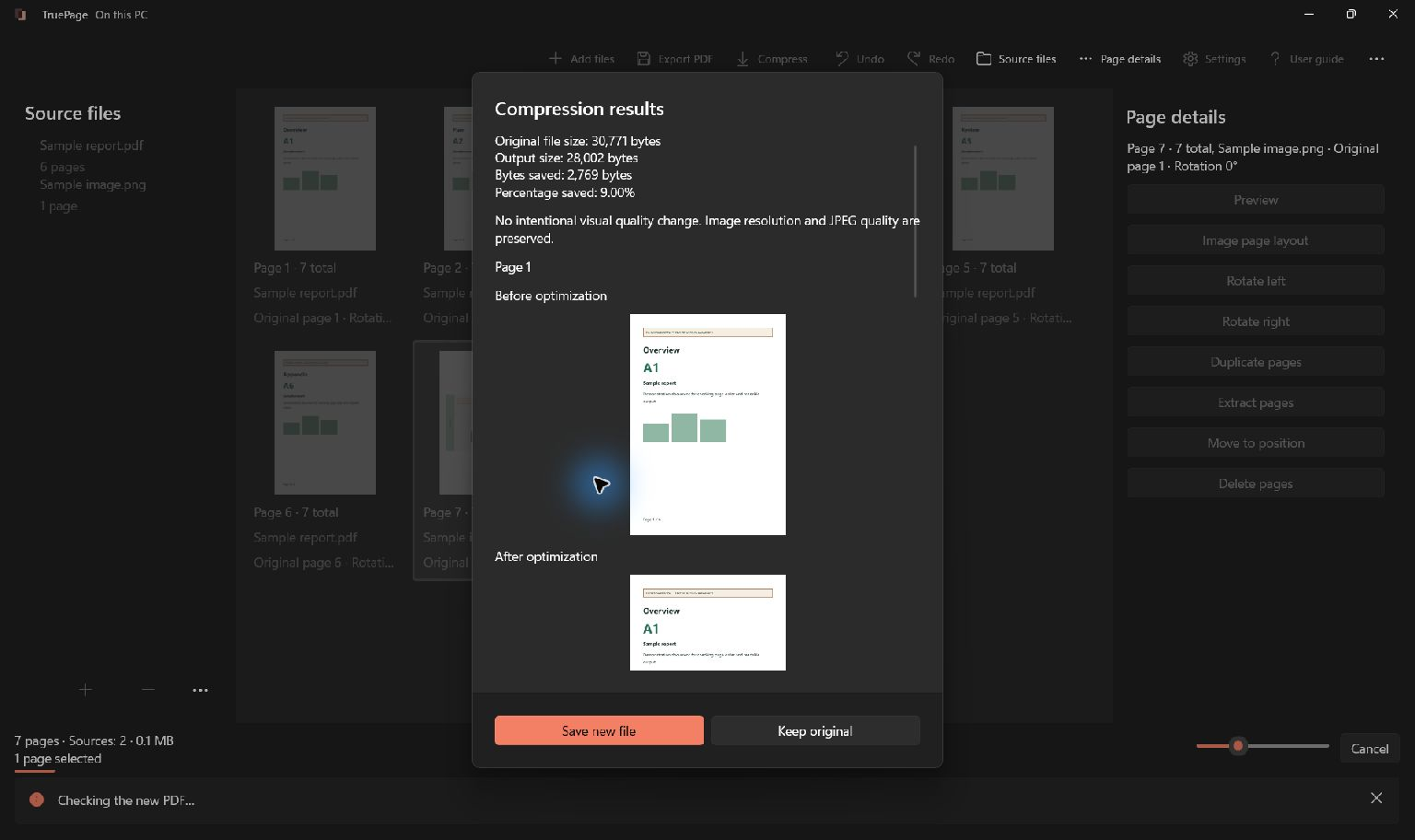
Compare the compressed result with the uncompressed output. Inspect small text inside scans, fine diagram lines, and high-contrast edges. A file can become smaller while becoming less useful for its purpose, so evaluate both size and readability.
Avoid repeatedly compressing the last compressed copy in search of an arbitrary target. Return to the original assembled output when comparing alternatives, and retain the candidate that meets the actual requirement. Read choosing PDF compression for the complete workflow and its limits.
Improve the source when the source is the problem
If a photograph is out of focus, retake it with the relevant page flat, fully visible, and clearly lit. If a scan omitted details, obtain a better scan. If a screenshot contains tiny text because an entire large desktop was captured, prepare a more focused capture of the necessary region.
Use the original high-quality file rather than an image copied from a chat preview or an already resized document when one is available. A format change alone does not reverse quality loss that occurred earlier in the chain.
For text you authored, correct the source layout or export settings in the original application. Rebuilding the source PDF may be more effective than converting its pages to images and placing those images into another PDF.
Be explicit about what cannot be fixed. TruePage does not invent missing characters, automatically enhance a blurred photograph, or verify uncertain text. If a date or identifier cannot be read reliably, obtain an authoritative source rather than guessing from a softened image.
Verify the chosen fix before sharing
Once you have changed the source, placement, or compression choice, export a fresh copy and reopen it. Compare the feature that first exposed the problem. Check other representative pages as well, since improving one large image does not establish that the smallest text elsewhere remains clear.
Confirm the complete arrangement and export scope. A sharper one-page output is not a successful replacement for a required ten-page packet. Check order, count, first and last pages, and the exact filename you intend to send.
Keep the checked result distinct from diagnostic copies. A simple note about which source and compression mode produced it can prevent later confusion without requiring every experiment to become a new official version.
If the file still looks poor, return to the first comparison: source, preview, and exported result. Identify the stage where useful detail is missing and address that stage. The aim is a readable document with an explainable origin, rather than a sequence of setting changes that makes one screen look slightly different.

Your pages. Your space.
Available now for Windows 11