A visible word is not always stored as text
A scanned page may contain only an image of words. Arranging or exporting it in TruePage does not add OCR. Prepare a readable PDF, use an OCR-capable tool, and check recognized text against the scan.
Distinguish three common document types
A PDF created from a text document can contain actual text objects. A viewer can often select and search those objects, although the quality of copying and reading order can vary with how the PDF was created. The visual page and the stored text are related but not identical things.
An image-only scan contains a picture of the page. The dark marks that look like letters are pixels. A viewer can display them clearly without having a sequence of characters to search. Enlarging the page makes the pixels easier to inspect but does not convert them into text.
A scanned PDF with OCR can combine the page image with recognized text. The image may look the same as before while a text layer makes words selectable or searchable. That recognized text can contain errors, so a successful search is evidence of text availability, not proof of perfect transcription.
A single document can mix these cases. Its first page may come from a word processor, while later pages are photographed receipts. Searching a heading on the first page does not establish that every attachment is searchable too.
Check the file in a viewer with text search
Open the saved PDF in a viewer that supports selecting text and searching within the document. Choose a distinctive word that is visibly present on the page and search for it. Then try selecting a short sentence and copying it into a plain text field you control.
Use more than one page and more than one word. A word may be split, encoded unexpectedly or recognized incorrectly, so a single failed search does not prove that the entire document is image-only. Conversely, one successful search does not prove that all pages have usable text.
Look at the copied result. Are the characters correct? Are spaces and line breaks sensible? Do letters from columns become interleaved? These checks help distinguish merely having text objects from having text that serves the reader’s purpose.
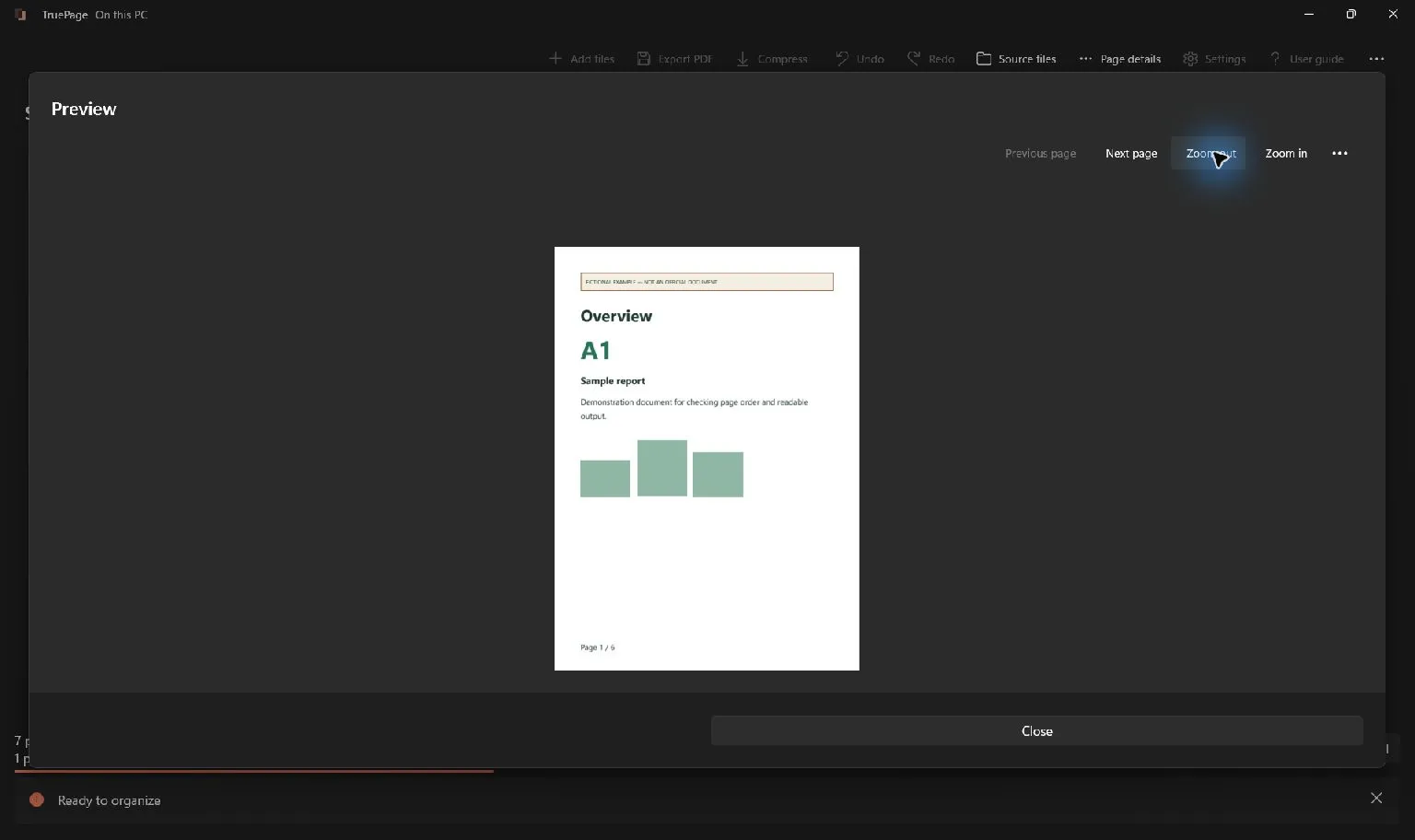
If selection is unavailable, consider the viewer’s behavior and any document restrictions before drawing a conclusion. TruePage’s visual preview is designed for page inspection; it is not an OCR accuracy test. Perform search and copying checks in a viewer that supports those features.
Why exporting again does not solve it
When you add a JPG or PNG to TruePage, it becomes an image page in the arrangement. Exporting that arrangement as PDF places the image into the resulting document. It does not inspect every group of pixels and assign characters to it.
The same applies to an image-only PDF source. Rearranging, removing or rotating its pages changes the document arrangement. Those operations do not create a recognized text layer for the scanned words.
Changing the file extension also cannot add text. A PDF produced from an image needs recognition work if searchable characters are required. The useful next operation is OCR in a tool that provides it, rather than repeating an arrangement export.
Compression serves another purpose. It aims to reduce storage, not recognize words. TruePage’s compression settings should not be treated as an OCR option. A smaller image-only PDF remains image-only unless a separate process adds text.
Improve the source before recognition
Inspect the original scan for blur, missing edges, shadows and skew. Recognition works from the available image, so a missing footer or unreadable character cannot be reliably recovered simply by requesting an output with more pixels.
Look at small text as well as the overall page. A scan may appear neat at full-page size while confusing similar characters at reading size. Dates, reference numbers, punctuation and decimal separators deserve careful review when they matter to the document’s use.
If you can rescan or photograph the page again, capture the complete sheet with readable detail. If the image needs perspective correction or other cleanup, prepare a copy in an appropriate image tool. Keep the original so you can compare any changes and avoid losing source information.
Do not assume that increasing export DPI creates new detail in an already blurred scan. Higher DPI can produce more output pixels, but the underlying source still limits what those pixels can show. A better input is more useful than a larger representation of the same defect.
Arrange the pages before the OCR handoff
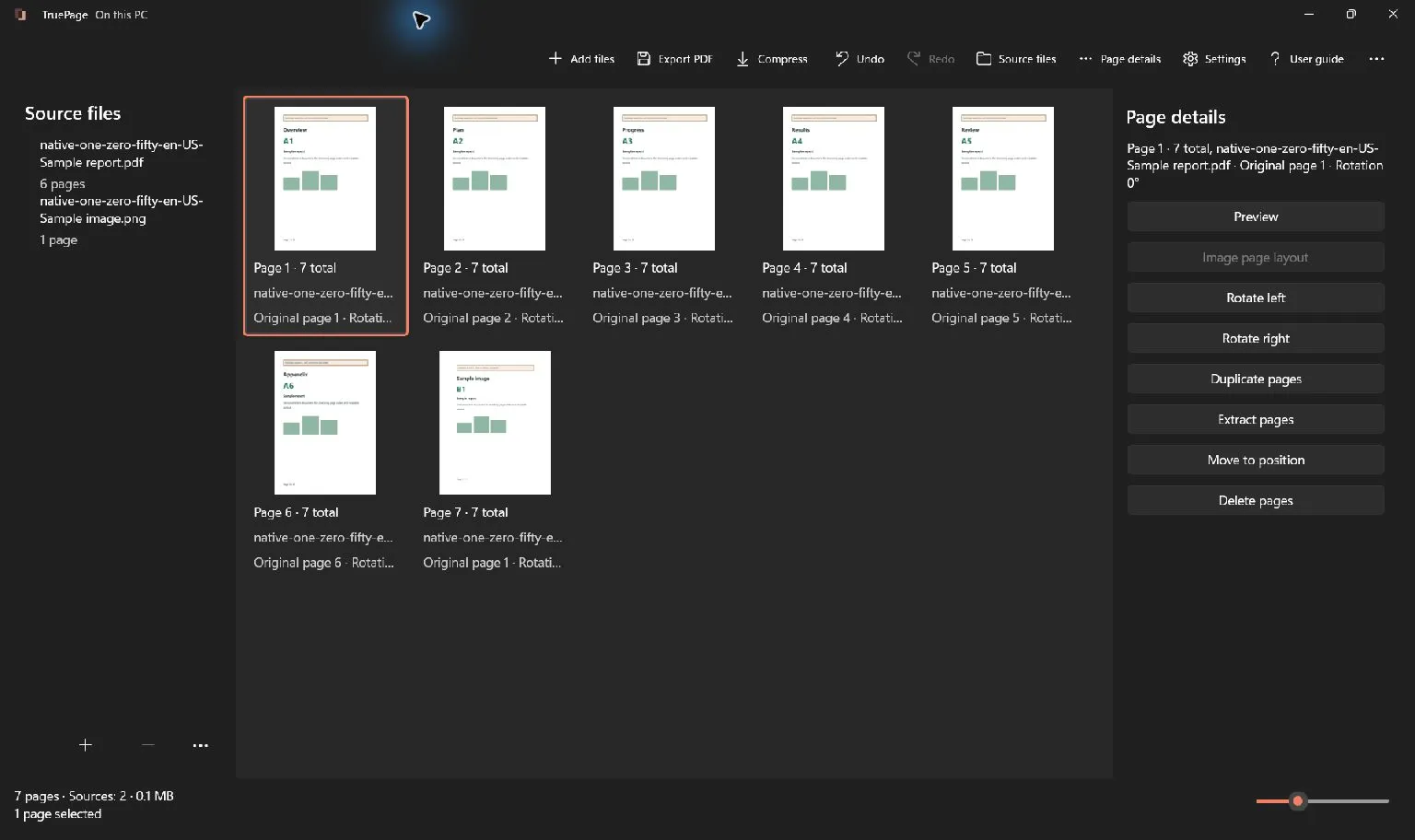
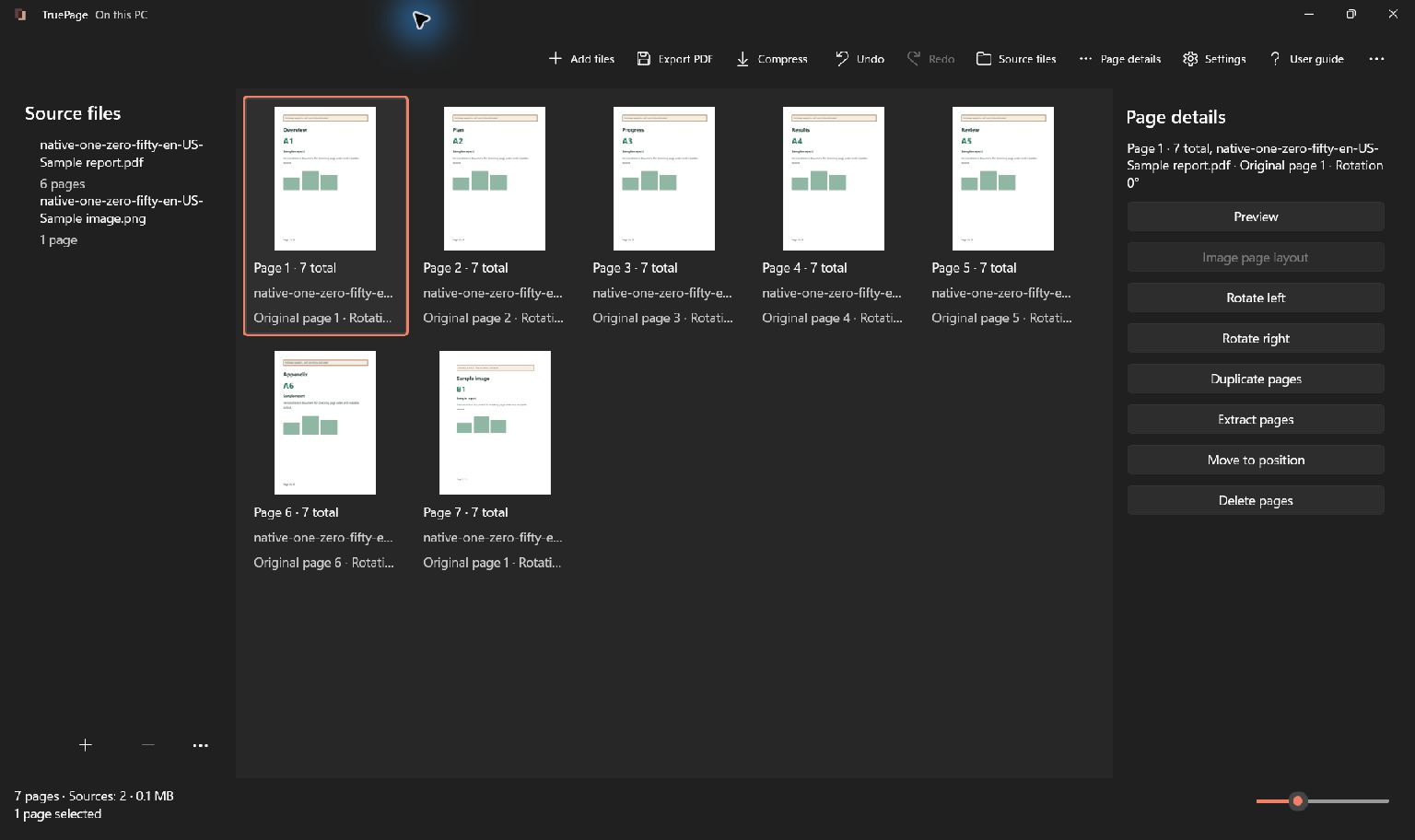
TruePage can help prepare a coherent document for a separate OCR workflow. Add the intended sources, put pages in order, remove unwanted occurrences and rotate sideways pages. Check the result so the next tool receives the packet you actually want recognized.
Choose the sequence based on the intended document, not just filename sorting. A scan may include a cover, attachments and pages with their own printed numbering. Read the transitions between sources and compare the arranged count with your expected count.
For directly imported images, use Image page layout to choose page size, margins and placement. Fit keeps the whole image visible inside the available area. Fill (crop) can hide edges, which is undesirable when those edges contain words the OCR workflow needs to read.
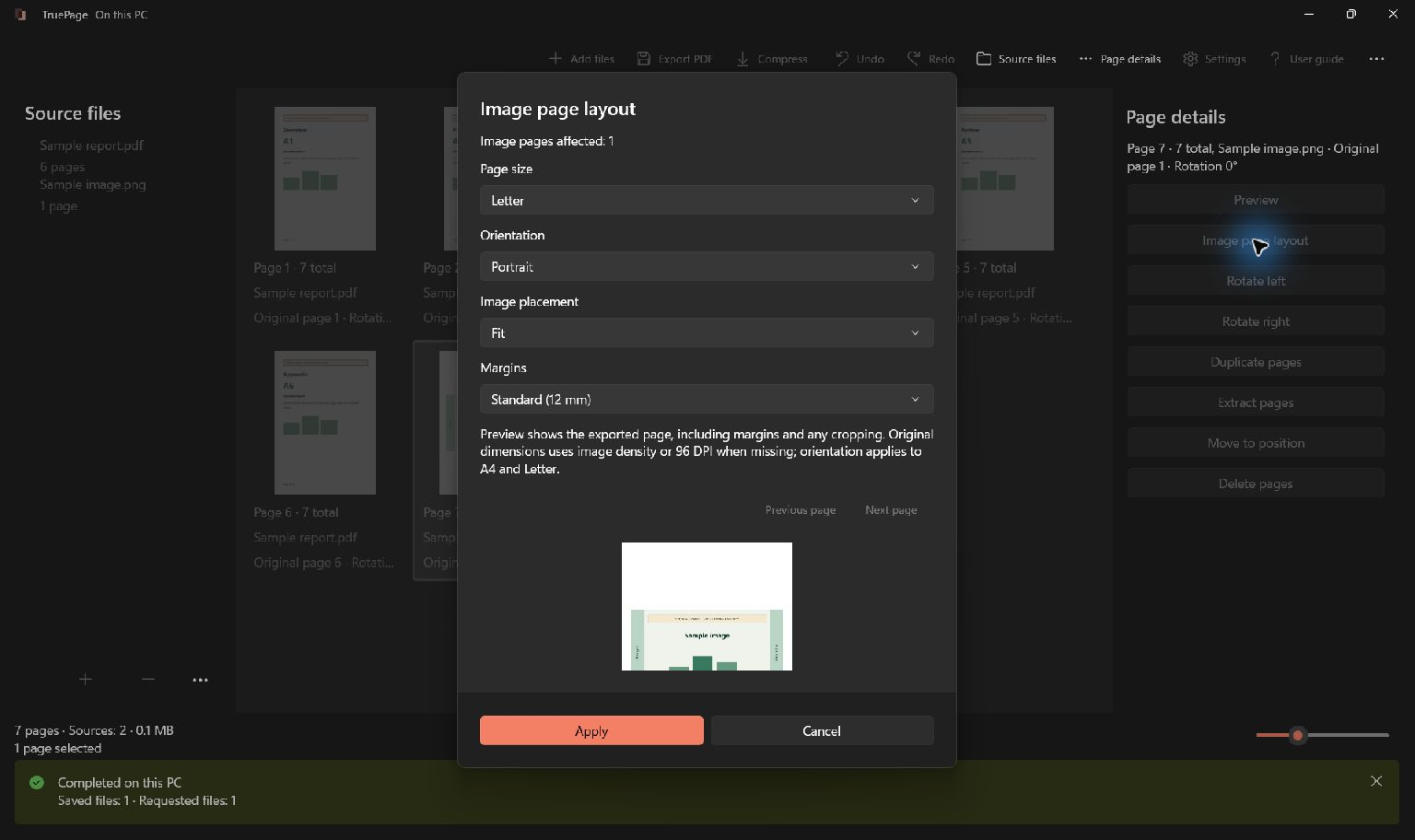
Review every page after applying shared image settings. Different image proportions can produce different results under the same layout. Existing PDF-source pages are not reformatted by image page layout controls, even when they contain scanned images.
Export a clearly identified input for OCR
Choose Export PDF and confirm the intended scope. All pages uses the complete arrangement; Selected pages uses the current selection. Check the proposed page and file counts before saving the document you will hand to the OCR tool.
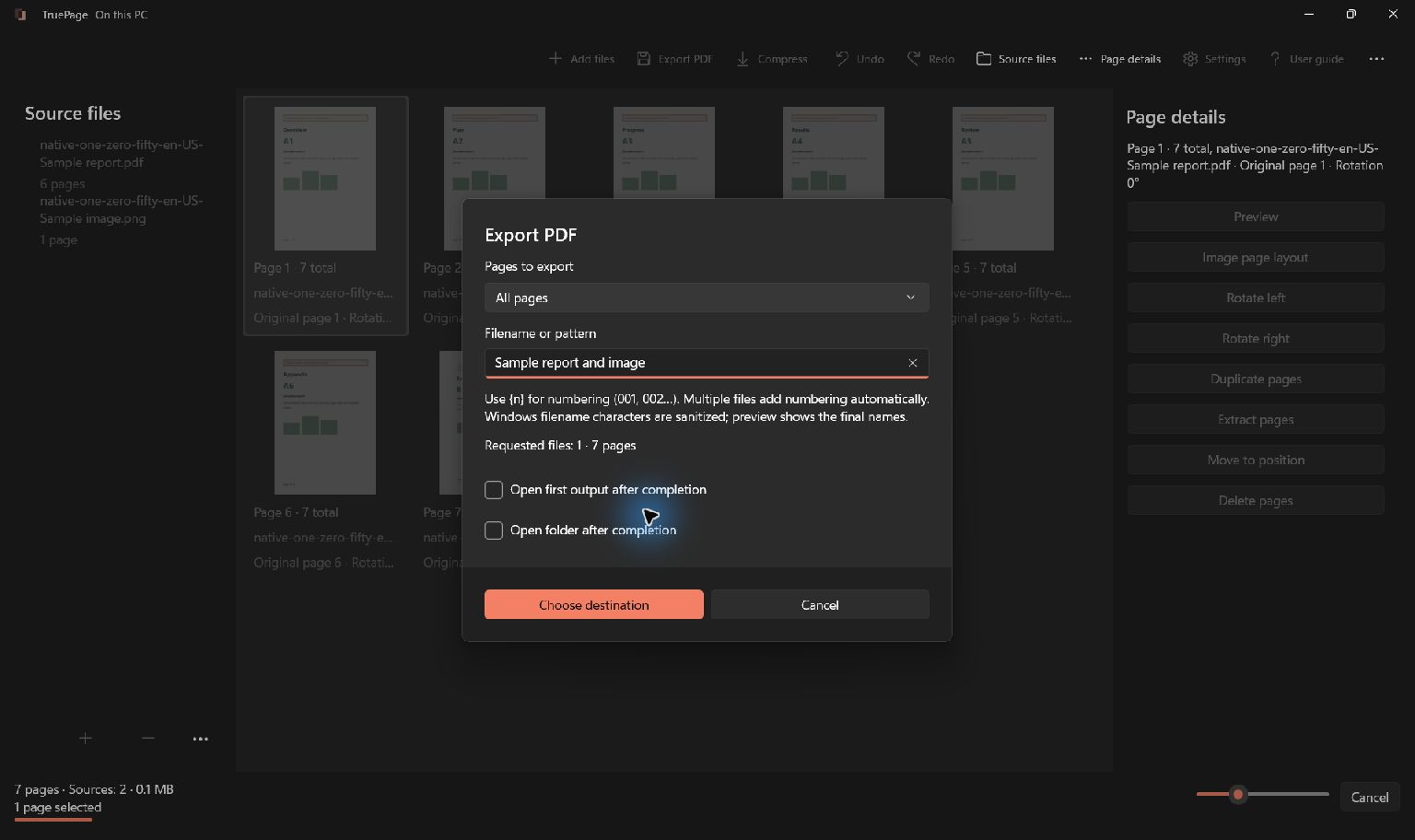
Use a filename that distinguishes the prepared input from the recognized output, such as packet-arranged and packet-searchable. The names describe workflow stages; verify the actual contents before treating the second file as successfully recognized.
Open the arranged PDF and inspect its order, orientation, edges and readability before proceeding. This prevents recognition work from being applied to a packet that still contains the wrong page or excludes a required attachment.
Keep this prepared copy while you evaluate the OCR result. If recognition changes the visible page unexpectedly or introduces another problem, the arranged input provides a clear reference without requiring you to rebuild the packet.
Choose the OCR output for the intended use
In a tool that supports OCR, choose the document language or languages appropriately and review the available output choices. A searchable PDF that retains the page image serves a different purpose from an editable text document. Use the form the recipient actually needs.
Check whether the workflow processes documents locally or sends them to a service before choosing it for material you need to keep on your computer. This is a decision about that OCR workflow; TruePage’s local arrangement does not determine how another tool handles the file.
If the source contains several languages, tables or unusual layouts, plan a closer review. Recognition and reading order are separate concerns. Correctly recognized words can still be copied in an inconvenient sequence when a page has columns or complex positioning.
Avoid treating a searchable PDF as automatically accessible or as a complete editable reconstruction. Searchable characters are one capability. Reading order, structure and the requirements of the intended reader or system may need additional work in a suitable tool.
Verify recognition against the visible page
Open the OCR output and repeat the search and copy checks. Test pages from different parts of the document, including the most difficult scan. Compare recognized words with the visible image instead of trusting a completion message alone.
Inspect names, numbers, dates and short labels closely. A single incorrect character can make a reference number difficult to find even when most surrounding words are correct. Keep the visible source available while checking these details.
Confirm that the page count and order are unchanged and that required edges remain visible. OCR success should not hide an accidental document-assembly problem. Also check any destination requirement for file size and format after the OCR output has been saved.
If you later export PDF pages as PNG or JPG, remember that those outputs are pictures again. They do not carry the PDF’s searchable text layer as searchable PDF text. Keep the recognized PDF for readers who need document search and use images only where a picture is the intended deliverable.
For the preparation controls, see images to PDF and organizing pages. TruePage prepares and arranges the visible pages; a separate OCR workflow recognizes characters, and a final comparison establishes whether those characters are useful and accurate enough for your task.

Your pages. Your space.
Available now for Windows 11