Fix the page, then check the saved copy
Select the pages, rotate them to the intended reading direction, then export the arrangement as a new PDF. Reopen the saved file to confirm rotation; changing the workspace alone does not save it.
Identify the direction of the actual content
Begin with the text or other meaningful content, not just the shape of the thumbnail. A wide page is not automatically wrong. A landscape spreadsheet can be upright and readable on a landscape page, while a portrait page can contain a photograph that is sideways inside it.
Read a heading or look at a familiar feature to determine which direction should be up. If every line of text requires you to tilt your head, a quarter-turn is probably appropriate. If the page is upright but a small photograph inside it is sideways, rotating the whole page will also rotate all the surrounding content.
TruePage’s page actions rotate the page as a whole. They do not independently select and rotate one embedded picture inside a PDF. Keep that distinction in mind when a page contains several elements with different orientations.
Also distinguish a sideways page from a slightly slanted scan. Turning a page left or right is a quarter-turn operation. It is not a deskew tool for correcting a small angle in a photographed sheet. Start with an appropriately prepared source when that kind of correction is needed.
Select only the pages that need the same change
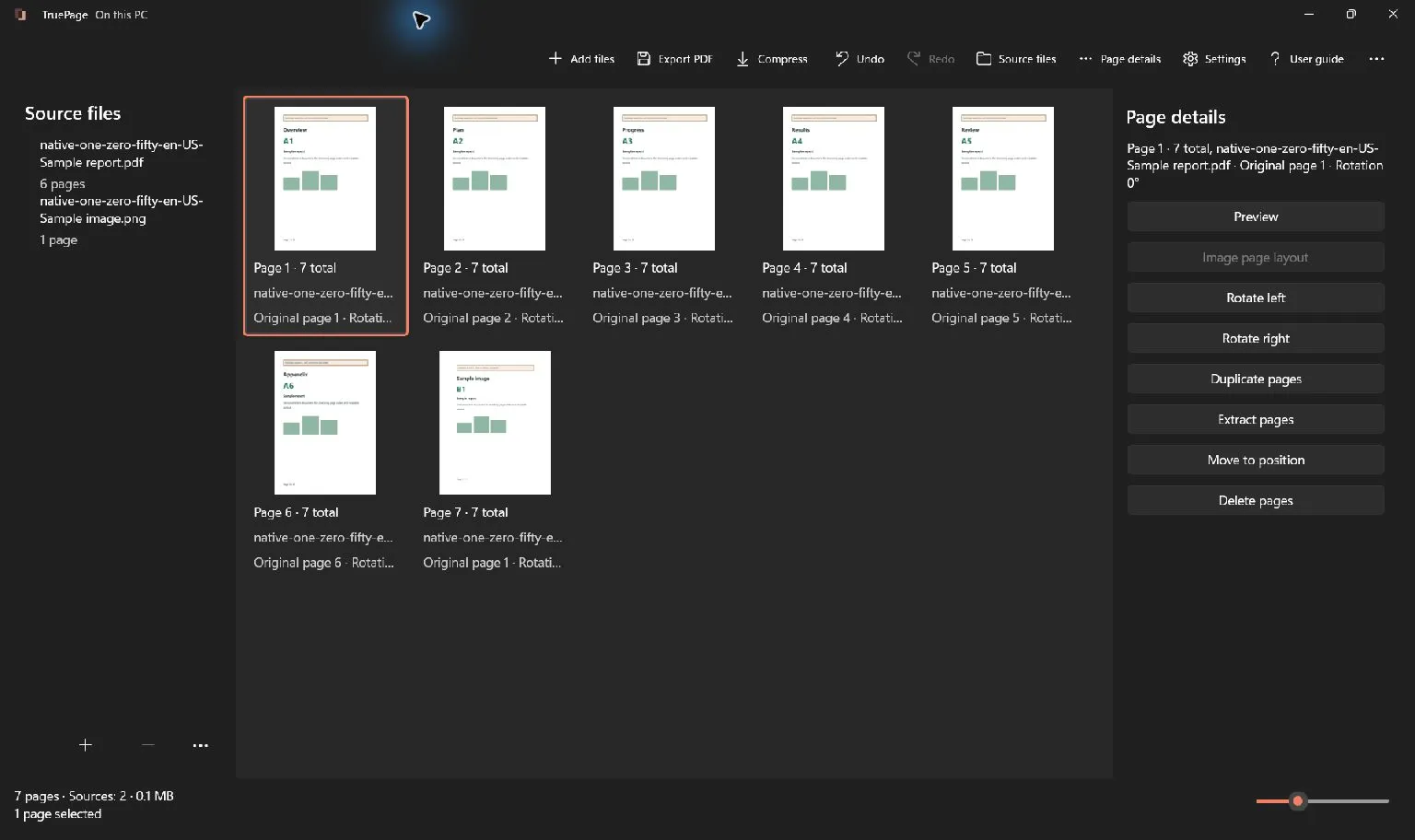
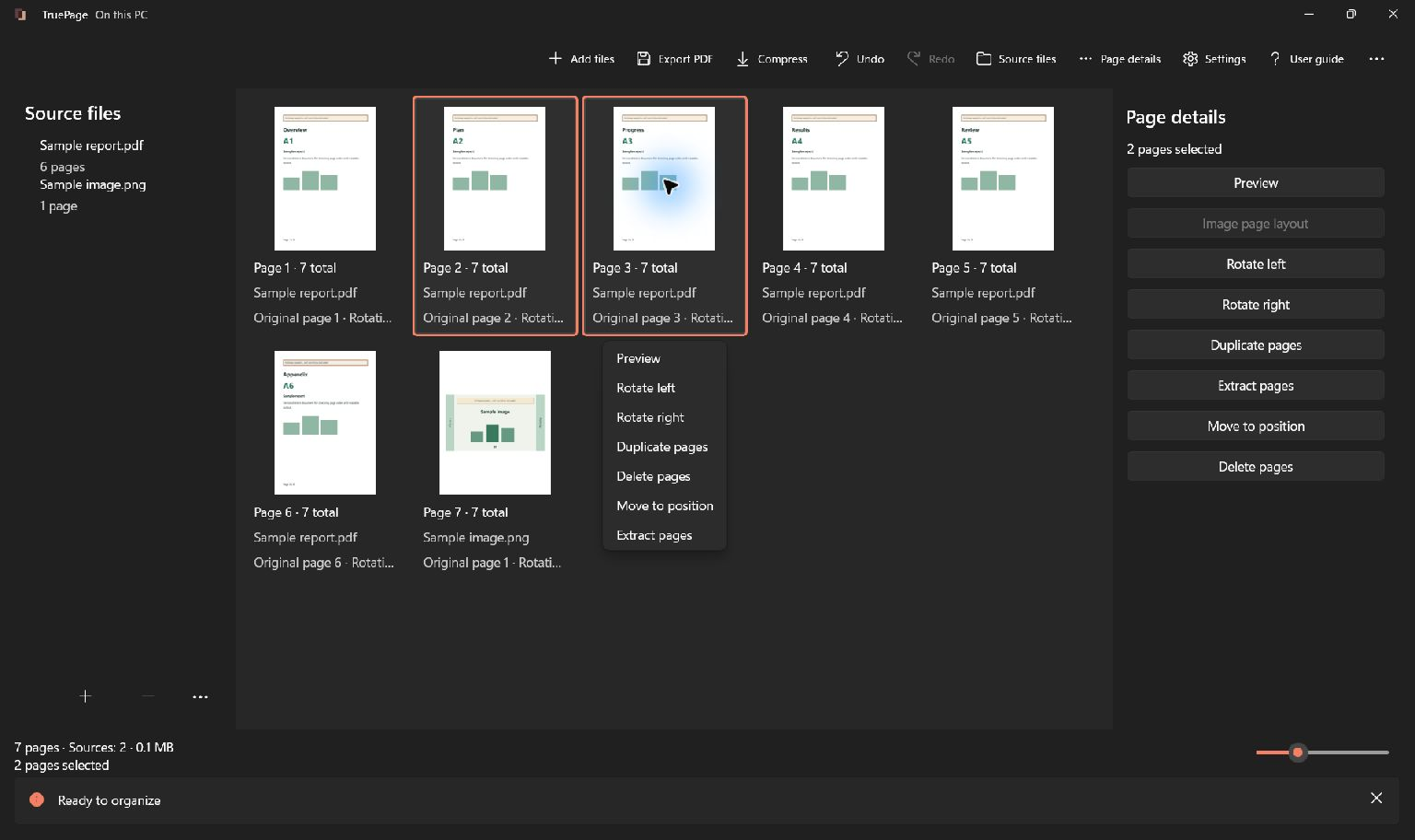
Add the PDF and look through the arrangement. Click the page you want to rotate. To rotate several separate pages in the same direction, hold Ctrl while clicking them. For a continuous group, Shift+click can make selection quicker.
Check the highlighted pages and the selected count before applying the action. This matters in a mixed document where most pages are already upright. Selecting the entire document and rotating it can fix the sideways group while making the previously correct pages wrong.
Separate the work into groups by the change required. Pages that need one clockwise turn belong in one selection. Pages that need a counterclockwise turn belong in another. Upside-down pages need two quarter-turns. After each group, review the result before selecting the next one.
If you are unsure about a thumbnail, preview the page. Similar page layouts can make it hard to see which direction a small heading faces. A brief content check is more reliable than remembering which pages looked wrong during a fast scroll.
Rotate a selected page on the board
Open the page actions or Page details, then choose Rotate right for a clockwise quarter-turn or Rotate left for the other direction. The keyboard shortcut Ctrl+R performs Rotate right on the selected pages.
For an upside-down page, apply two quarter-turns and inspect the result. Repeating a rotation keeps changing the angle; it is not an on/off switch. If you go too far, use Undo or apply the appropriate reverse rotation.
The board reflects the arranged result, and page details report its rotation. Interpret that value together with the visible page. A source can already contain an orientation, so a workspace rotation value on its own is not a substitute for looking at the content.
Do not confuse the current output position with the original page position. Reordering does not prevent you from rotating a page, but it may change which occurrence is currently described as page 2 or page 3. Check the source information and visible content when the document has been rearranged.
Use Preview to inspect the change
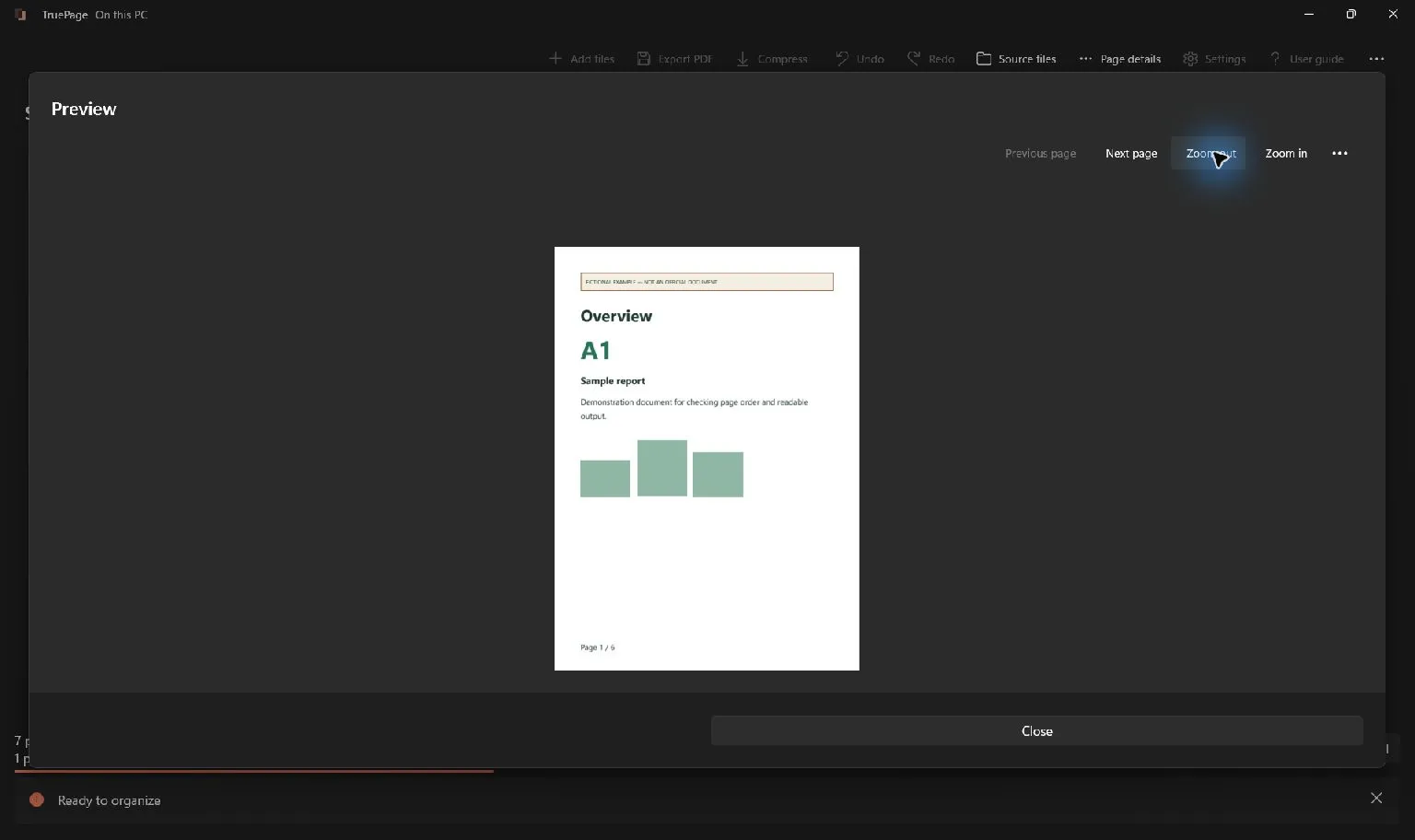
Open Preview for the page you are working on. The native preview shows the arranged page and offers navigation and zoom controls. In its … menu, Rotate left and Rotate right perform the same kind of workspace edit as the board actions.
After rotating, check the heading, the main content and the page edges. Adjust preview zoom if the whole page does not fit comfortably in the available space. A close-up is useful for reading detail, but it should not be mistaken for a crop in the exported document.
Because preview rotation changes the arrangement, undo it if you only rotated temporarily to read something and do not intend to export that change. Closing the preview does not automatically reverse the rotation. Return to the board and inspect the thumbnail if you are uncertain about the current state.
Handle mixed portrait and landscape pages
A well-formed document can legitimately mix portrait and landscape pages. The goal is readable content, not a board where every thumbnail has the same proportions. Avoid rotating a wide table into a tall orientation solely to make its thumbnail match adjacent pages.
Consider how the document will be used. For on-screen reading, keeping a wide diagram in its intended landscape orientation can be the clearest choice. For printing, page orientation and printer settings interact, so inspect the exported PDF and the print preview in the application you will use to print it.
Rotating the page does not reflow its text or redesign the layout. It turns the existing page content. If a table is too wide for the required paper size, rotation alone may not address the underlying layout requirement.
For directly imported JPGs or PNGs, TruePage also offers Image page layout, including A4 or Letter dimensions, orientation, margins and placement. Those image-specific settings are separate from rotating an existing PDF-source page. See the image layout guide when the source is a photograph rather than a PDF.
Export the arrangement to save the rotation
When the pages are correct, choose Export PDF or press Ctrl+E. Choose All pages to save the complete arrangement. Choose Selected pages only when the intended deliverable is the current selection.
Give the output an identifiable filename, such as instructions-upright, and choose its destination. Review the proposed file and page counts. If you selected several pages for rotation, do not accidentally export just that selection when the recipient expects the whole document.
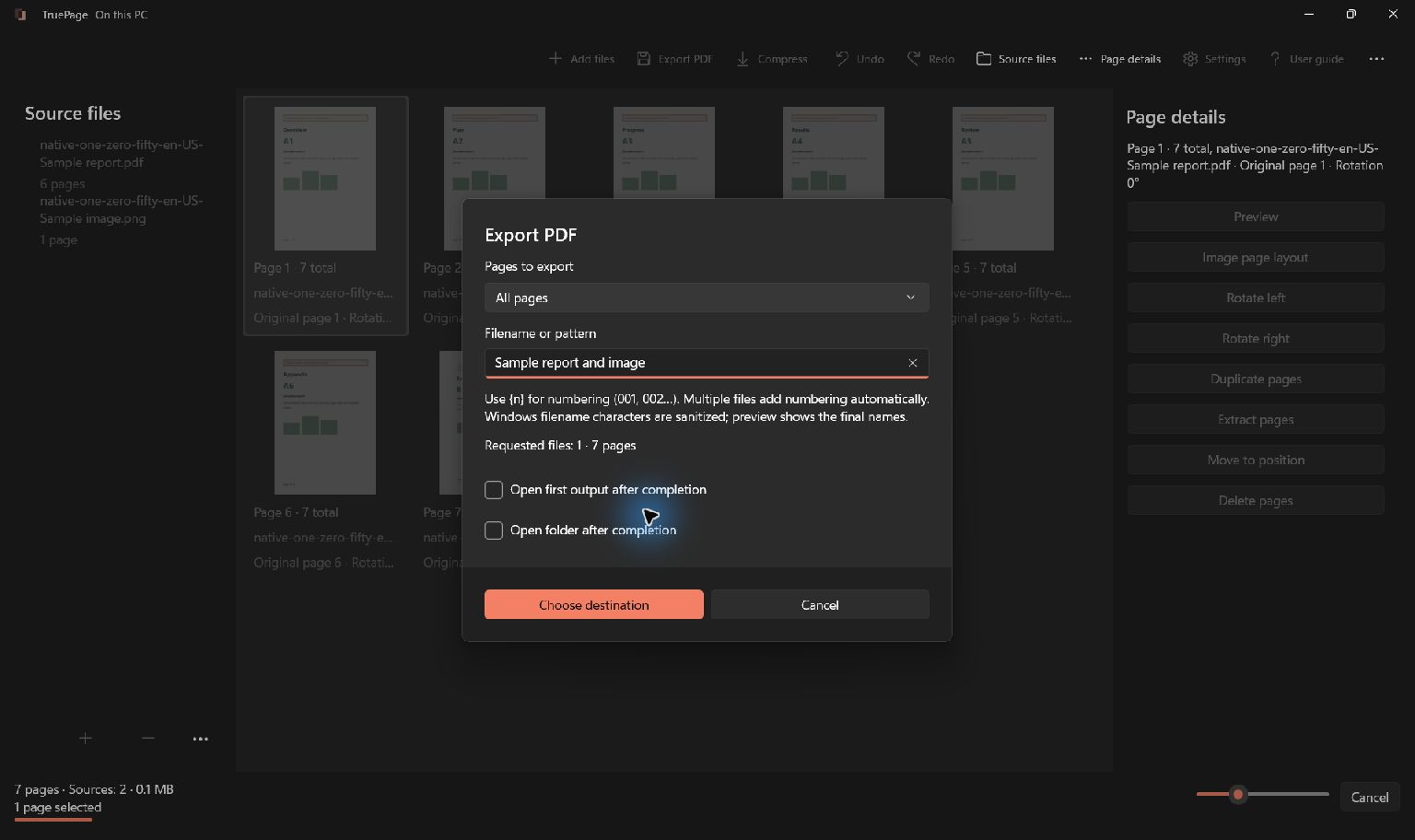
Finish the destination review and wait for the operation to complete. The previewed filename is not itself proof that the new file has been published. If a destination name already exists, review the displayed collision choices rather than assuming the older file will disappear.
The source original remains unchanged. This is useful when you need to compare the corrected document with the input or when a later task requires the original. Keep the files distinguishable so you do not accidentally send the uncorrected source.
Finish the orientation edits before starting the export. The job uses the arrangement at its start; it does not keep following later changes while it writes files. If you notice another sideways page afterward, correct it and export a new checked copy.
Reopen and verify the result
Open the exported PDF and inspect the pages you changed. Check that the orientation is correct, the page count is expected, and adjacent pages remain in the intended order. The result should be verified as a file, not only as a thumbnail inside the editing workspace.
If you are looking at a document that was already open in another viewer, make sure it is the new output rather than an old tab showing the source. Compare the filename and location. A stale viewer tab can make a successful export look as if it did not save the change.
For a document intended for printing, also inspect the print preview. Do not infer printer behavior solely from how a page fits inside an on-screen viewer. For a document intended for upload, check the saved PDF itself before submitting it to the destination.
Correct a mistake without losing the source
Use Ctrl+Z for Undo while editing the workspace. Ctrl+Y or Ctrl+Shift+Z performs Redo. Review the affected pages after reversing an action, especially if you had several pages selected.
If an already exported copy is wrong, correct the arrangement and export a clearly identified replacement copy. Undo changes the workspace; it does not retract a file that was already written. Keep track of which output has received the final orientation check.
Read any operation-specific warning before rewriting a document with features such as signatures. Exporting an edited signed PDF does not preserve its valid signature status. Protected sources can also involve an explicit acknowledgement that an organized output is unprotected; do not assume the source’s protection automatically describes the new file.
For the complete controls, see organizing pages and previewing pages. The reliable workflow is to identify the affected pages, apply the intended rotation, export the correct scope, and verify the saved result.

Your pages. Your space.
Available now for Windows 11