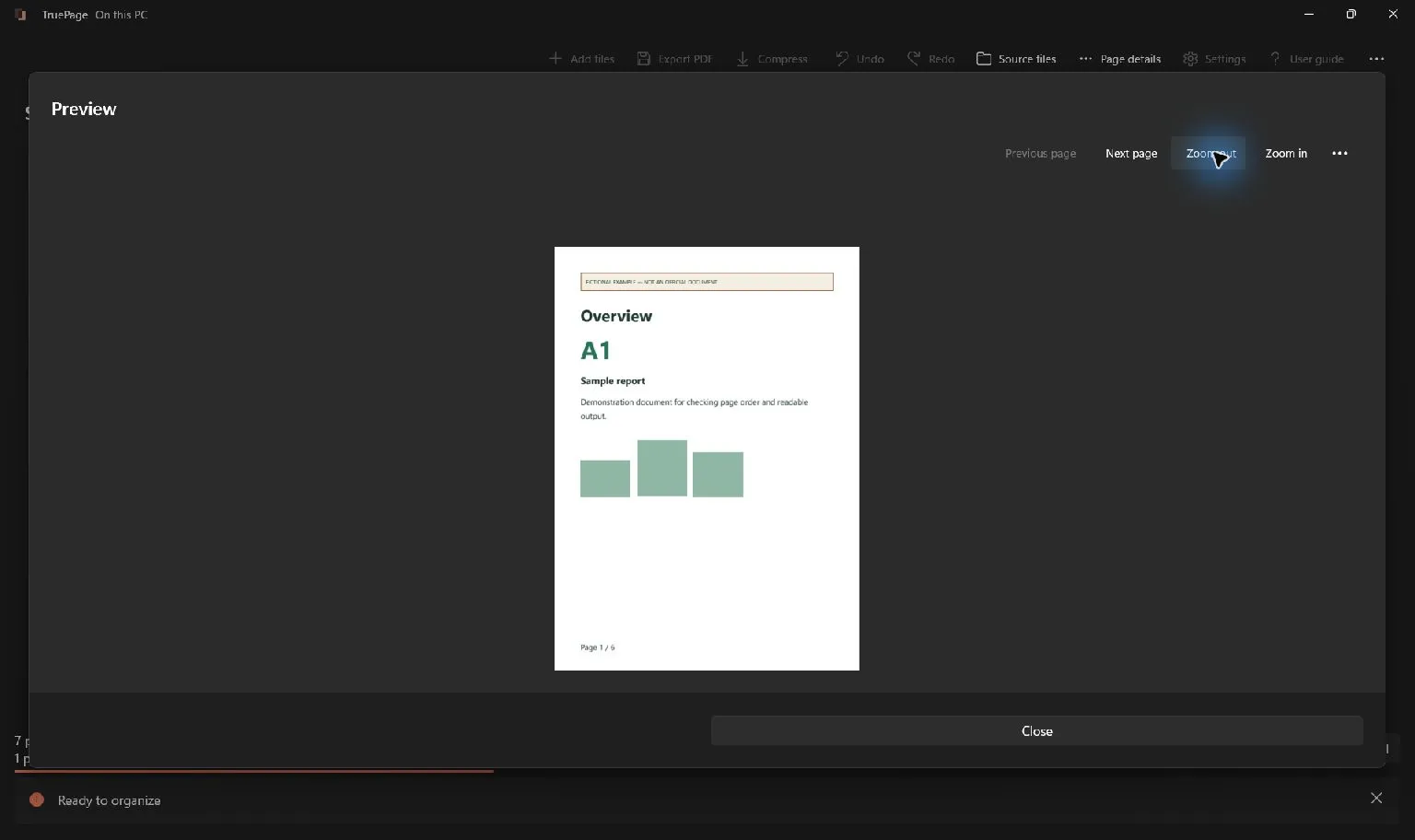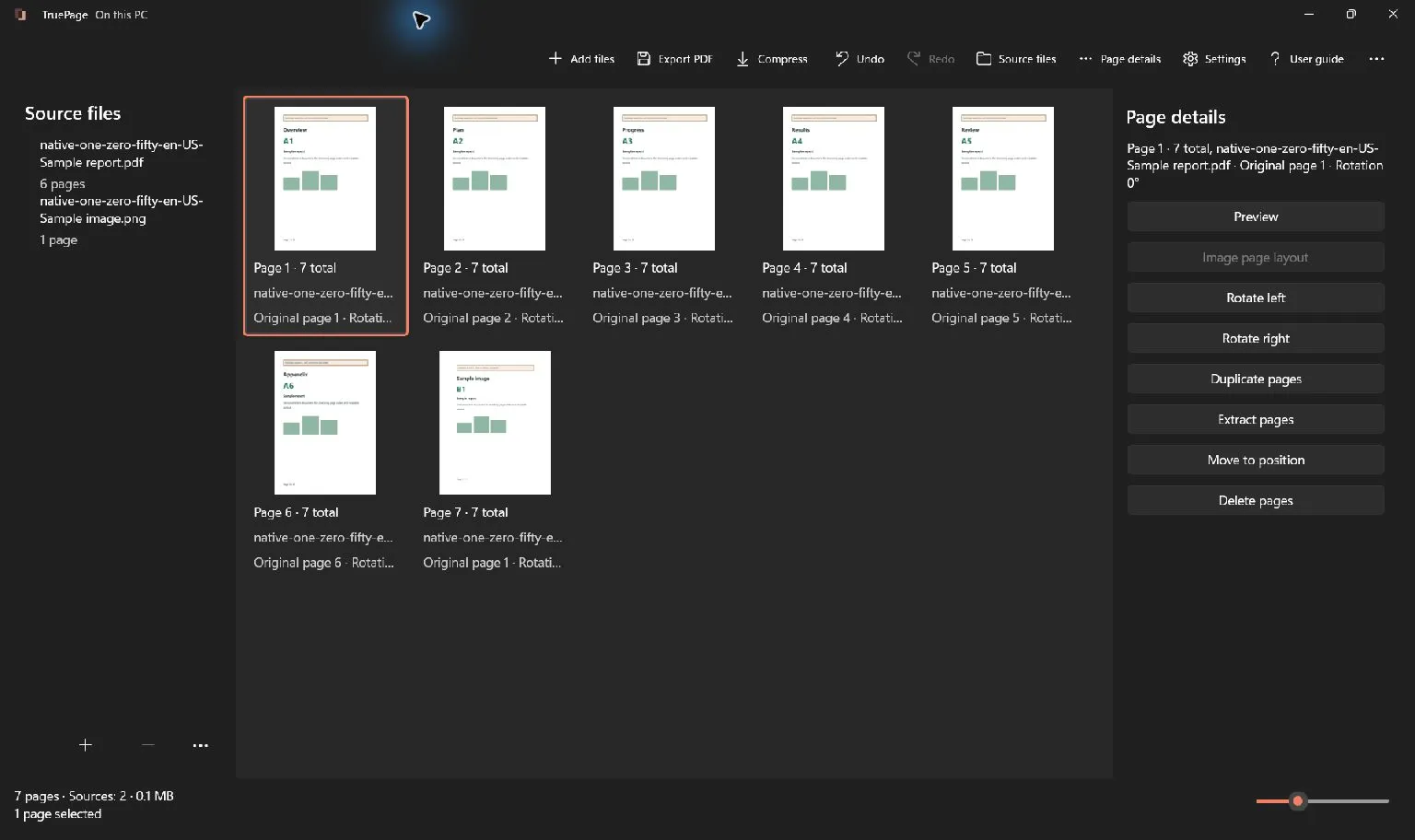
Plan the document before arranging pages
List the intended order before importing: for example, a two-page form, a receipt photo and a supporting letter. Use readable JPG or PNG copies of other image formats. Check that each photo includes the whole document and is upright. Choosing A4 or Letter gives predictable page dimensions, but it cannot restore detail missing from a low-resolution scan.
Start with image pages
Add a JPG or PNG through Add files, or drop it onto the workspace. You can combine images with PDF pages in the same arrangement. Each imported image becomes a page; it does not become editable PDF text or acquire OCR.
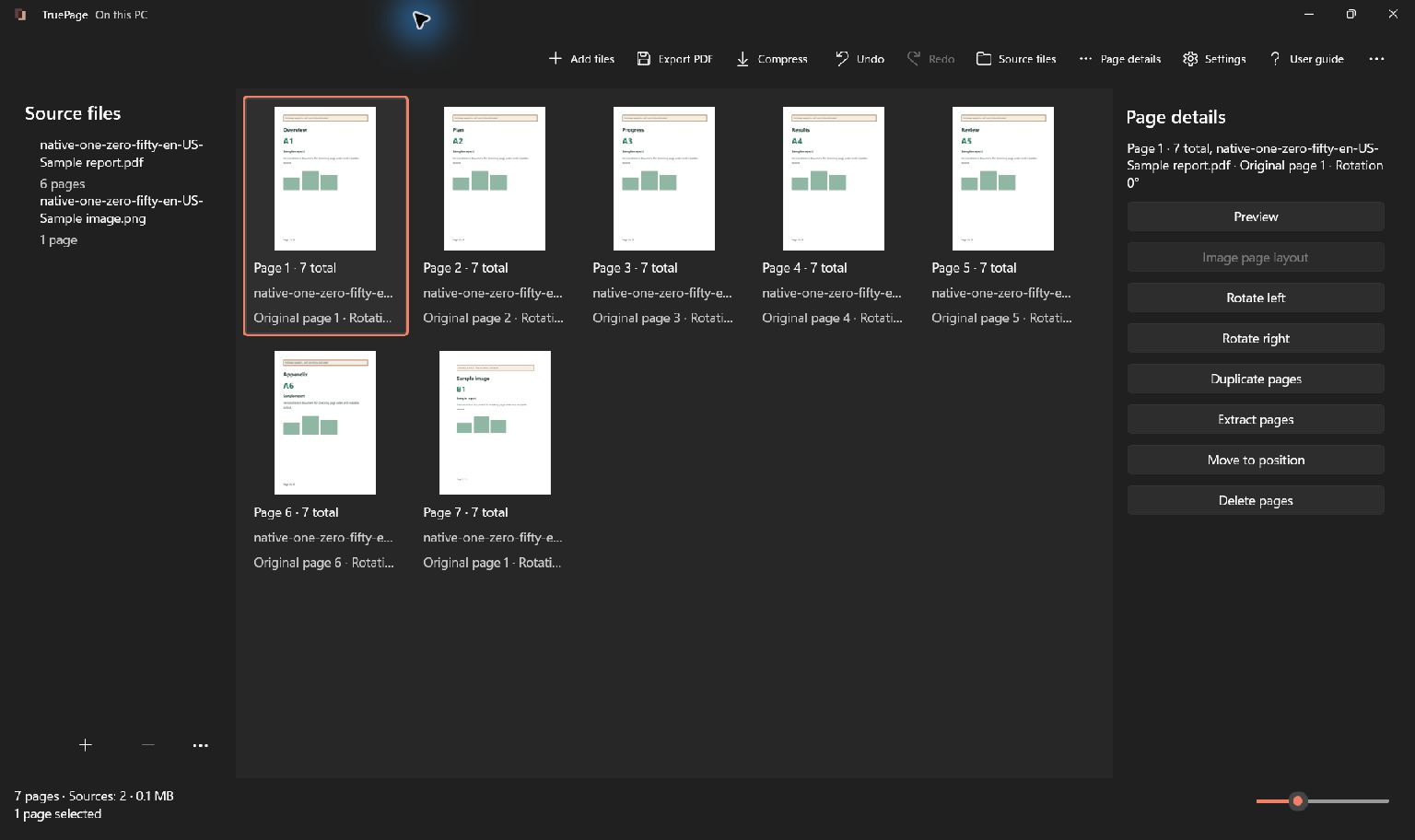
Select the image page or pages, then open Image page layout from the toolbar overflow or Page details. If PDF pages are selected too, the layout applies to the selected image pages only. Check the affected-page count in the dialog.
Choose dimensions and placement
- Set Page size to A4, Letter or Original dimensions. The initial A4/Letter choice follows regional settings.
- For A4 or Letter, choose Portrait or Landscape. Orientation is not available for original dimensions.
- Choose Fit, Fill (crop) or Center without enlargement.
- Set margins to None, Small (6 mm) or Standard (12 mm).
- Inspect the preview and displayed dimensions. When several images are selected, use previous/next controls to inspect each one.
- Select Apply to update the arrangement, or Cancel to leave it unchanged.
Understand the three placement choices
| Placement | What happens | Useful check |
|---|---|---|
| Fit | Keeps the whole image inside the usable page area, retaining its proportions. | Expect empty space when the image and page have different shapes. |
| Fill | Fills the usable area by cropping parts of the image that do not fit. | Check dates, signatures and content near every edge. |
| Center without enlargement | Keeps a smaller image centered without enlarging it; reduces an oversized image to fit. | Expect a small source image to occupy only part of the page. |
The preview includes the chosen margins and crop. It is the place to decide whether a neat edge is worth losing content. For documents and receipts, start with Fit unless you have a specific reason to crop.
Prepare the output
Finish the page order, rotations and image layout before exporting. Export uses the arrangement at the start of the job; it is not a live view that keeps changing while files are written.
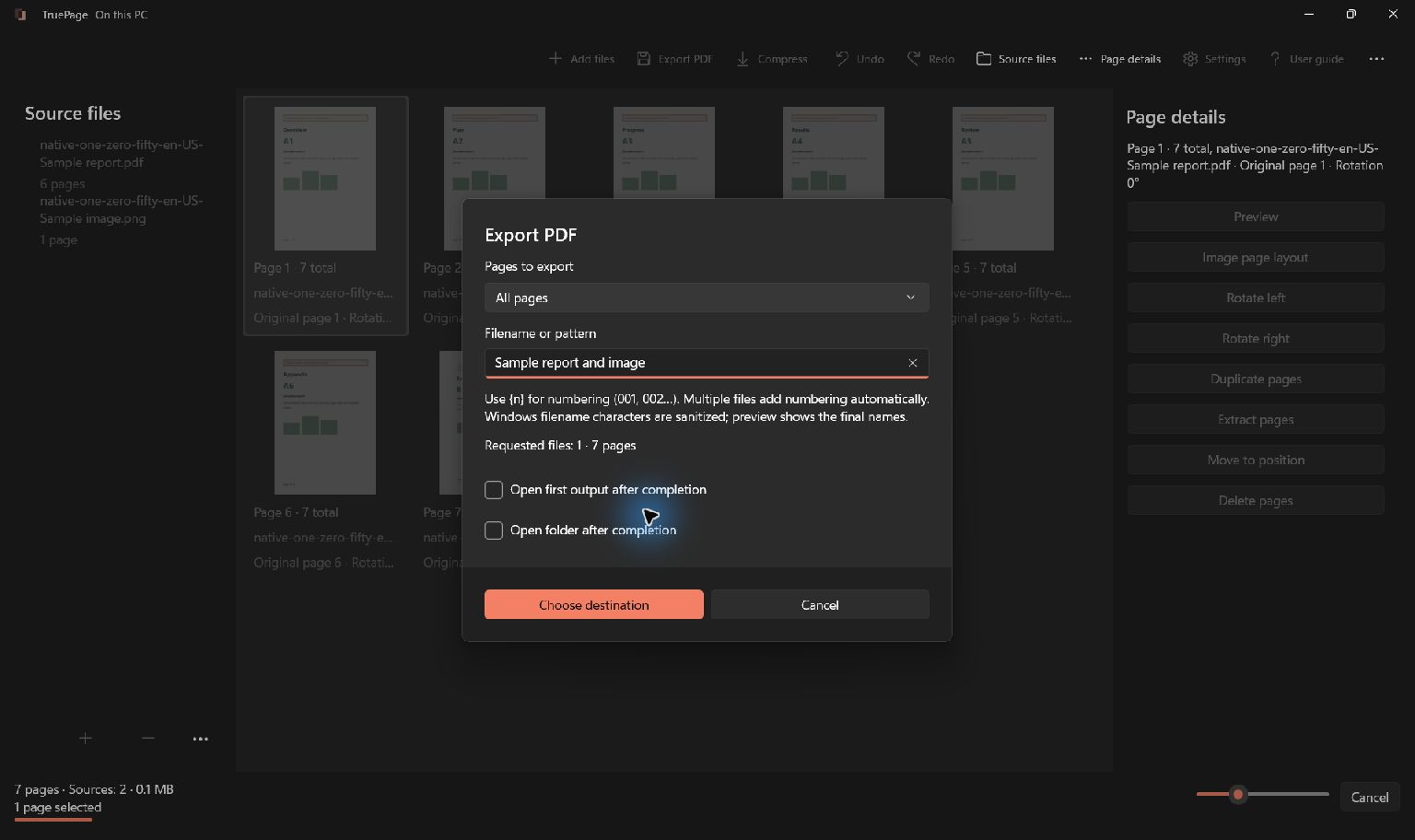
- Select Export PDF or press Ctrl+E.
- In Pages to export, choose All pages for the entire arrangement or Selected pages for the current selection. Other choices support extraction and splitting.
- Enter Filename or pattern. A simple name such as
application-packetis enough for one PDF. - Optionally select Open first output after completion or Open folder after completion.
- Check the requested file and page counts, then select Choose destination.
- Choose the output folder. Review the complete destination list before confirming the job.
Review the copy before sharing
Open the exported PDF and check the sequence, page count, image edges and small text. If it needs compression or a password, use the exported PDF as the source for that separate operation. Compress and Add password work on a whole source PDF, not on unsaved changes to the arrangement. Keep an identifiable original and verify the final copy, including its password, before sending it.
What stays local
Document processing runs in TruePage and its local worker processes. No TruePage account or document upload is required. Installing the app, Store updates, opening the website and other Windows services are separate activities.
Windows, backup tools and cloud-synced folders follow their own policies. Saving an output in a synchronized folder may cause that software to upload it. A local-processing statement is not a promise that the entire PC makes no network requests.
Protected-source exports can create unprotected PDFs, images or ZIP files after explicit acknowledgement. Choose destinations and sharing methods appropriate for those results. The workspace itself is not a permanent project archive: export what you need before closing.
For a safe first attempt, return to getting started.
TruePage does not provide OCR, existing-text editing, redaction or signatures. Rewriting a signed PDF does not preserve its valid signature status. Keep originals and follow operation-specific warnings. See the usage guide for complete procedures and limitations.
For a worked example, see: How to Convert JPG Images to an A4 PDF on Windows.

Your pages. Your space.
Available now for Windows 11