Build the file the recipient actually requested
Follow the employer’s requested document order, add the finished résumé, letter and required evidence, then export and reopen the complete application PDF. Separate upload fields take precedence.
Read the submission instructions before assembling
Check whether the application asks for one combined PDF or separate attachments. If it provides separate fields for a résumé and cover letter, merging them can make the submission less convenient rather than more useful. Follow the requested structure even if you would personally prefer a single packet.
Note the accepted formats, maximum file size, naming convention, and any required ordering. A portal may impose a limit on each attachment rather than the combined total. Do not rely on a limit remembered from a different application or an older version of the same portal.
Identify which certificates are actually requested or relevant. Extra records can distract from the application and disclose information the recipient did not ask for. If you are uncertain about a requirement, resolve it before adding unrelated identity or financial documents to a general application packet.
Keep a copy of the instructions or a short checklist alongside your working files. You will use that checklist again when verifying the final output and when choosing the actual file to upload.
If the instructions change before submission, compare the new requirements with the prepared packet instead of assuming that yesterday’s checked PDF is still the right deliverable.
Prepare the résumé and letter as finished sources
Export the résumé and cover letter from the applications in which you wrote them. Check the PDF versions for layout problems, unexpected blank pages, clipped lines, and missing characters. A document that looks correct in its editor can still export differently.
Read the visible name, role, organization and date in the cover letter. A filename containing the new employer’s name does not prove that every paragraph was updated. Check headers and footers too, particularly if you began with a previous application.
Keep the original editable documents. TruePage arranges page occurrences; it does not rewrite résumé text, correct a spelling mistake, or update a letter’s recipient. Make those changes in the source application, export a revised PDF, and assemble that version.
If a document contains a digital signature or verification feature, retain the authoritative original separately. Combining it into an application packet changes the assembled document. Do not assume a visible signature image makes the combined output a digitally validated copy of the original.
Review certificate scans and photographs
Use clear, complete scans when available. If a requested certificate exists only as a JPG or PNG photo, inspect all four edges, the date, the issuing name, and any relevant identifier before importing it. A cropped seal or missing corner may matter more than the image’s overall appearance.
TruePage can place an image on a PDF page, but that does not improve the source photograph’s focus or automatically correct perspective. Obtain a better scan or photo if the required details are unreadable. Enlarging a small image does not recover characters that were never captured clearly.
Do not add both a certificate’s PDF and a photo of the same certificate unless the instructions require both. Similar-looking records may also cover different dates or qualifications, so compare their content before deciding they are duplicates.
An image remains an image when placed in a PDF. If the receiver requires searchable text or another specific document property, confirm how to meet that requirement separately. Page organization is not an OCR workflow.
Import only the selected application documents
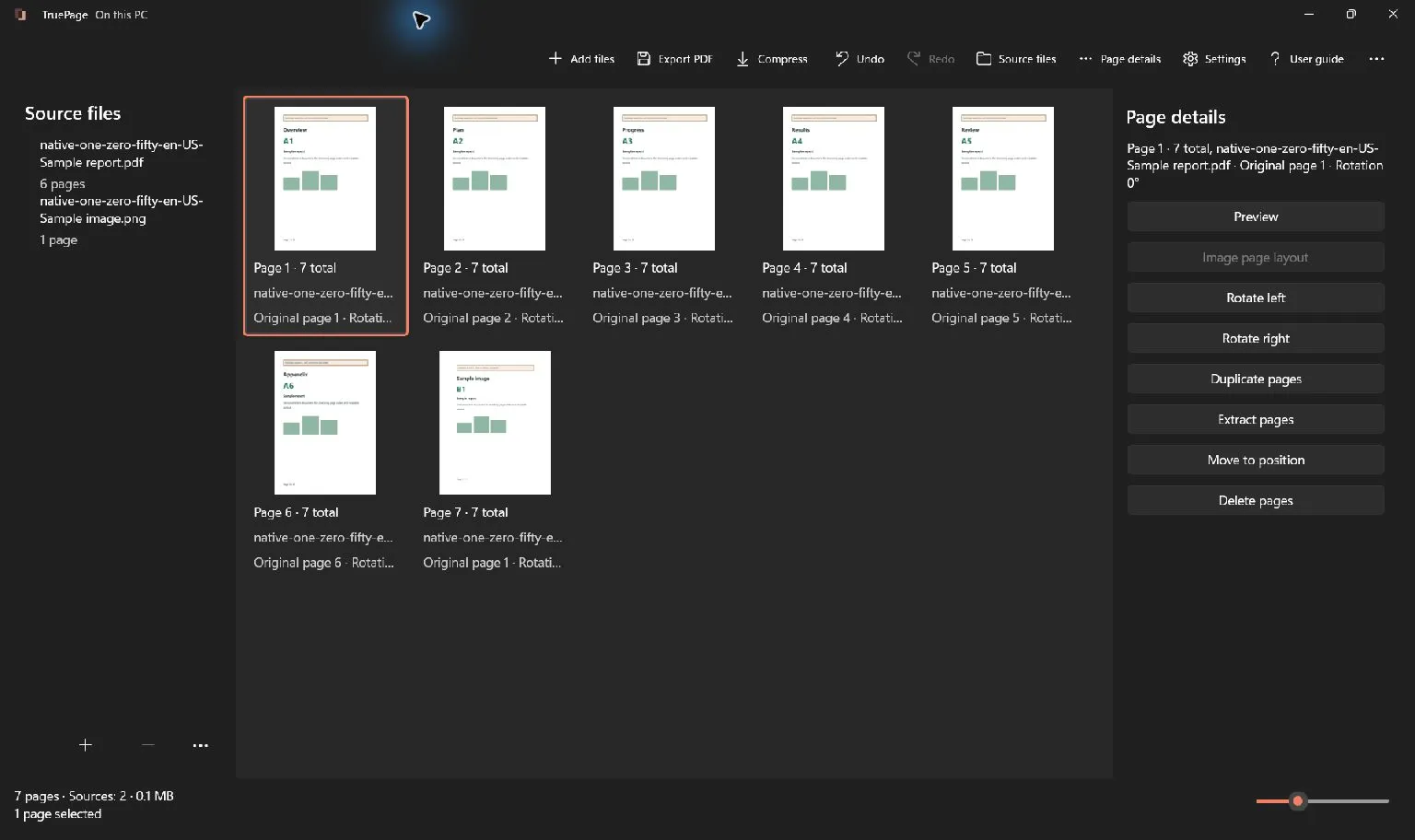
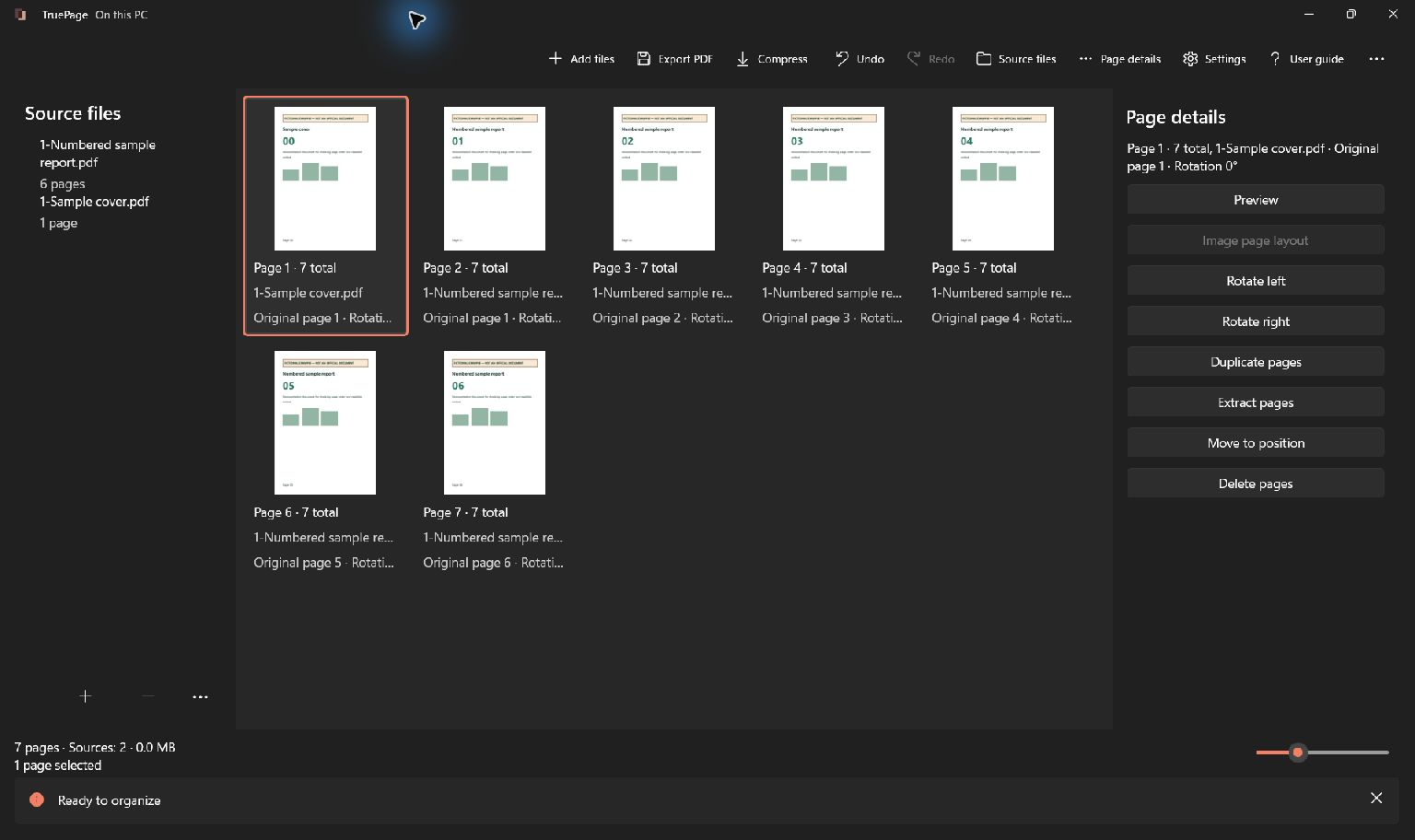
Choose Add files or Ctrl+O and import the prepared sources. Check the page count and open Source files to confirm the expected documents are present. If you import several together, verify their actual positions rather than assuming their picker order is final.
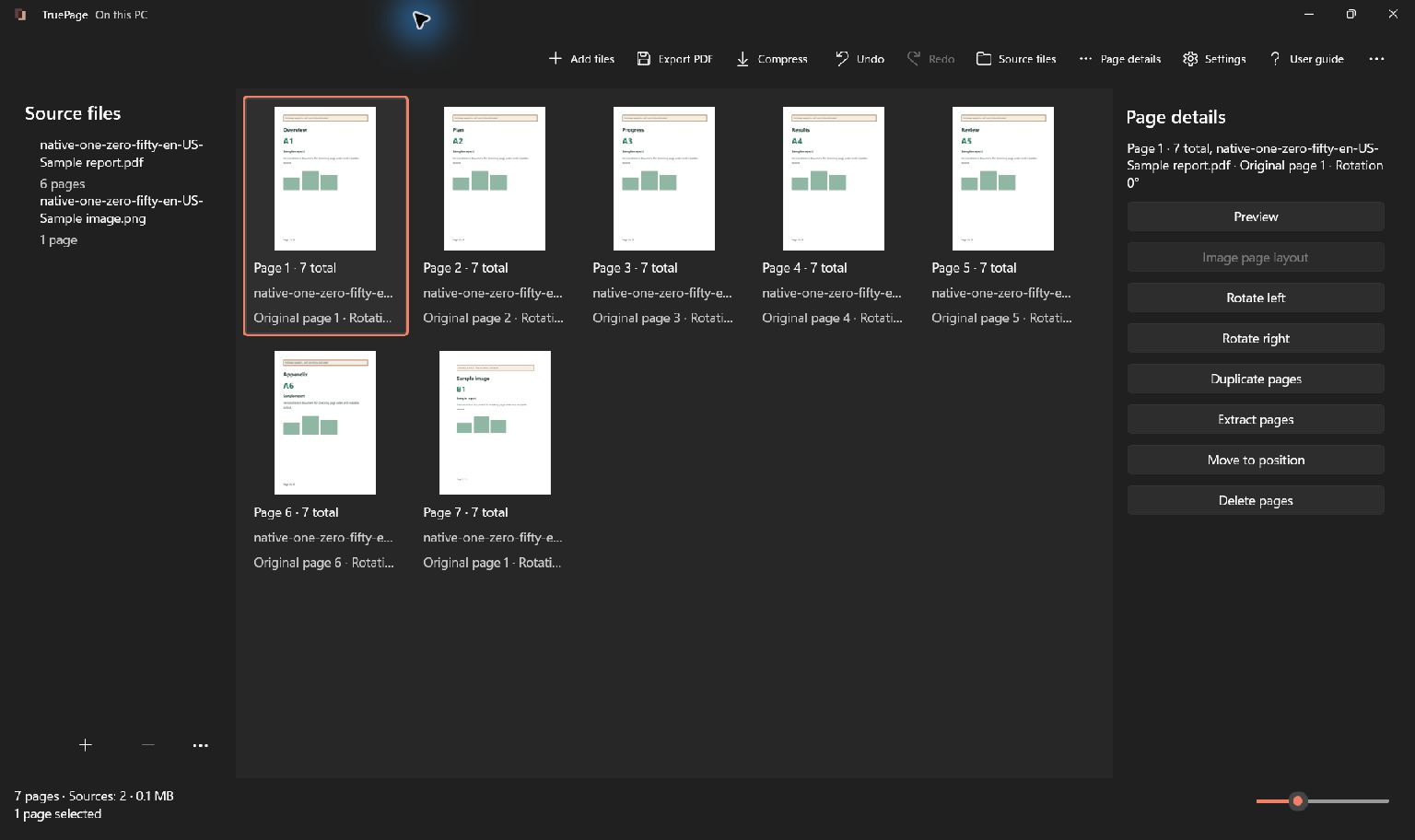
For a concrete example, a one-page cover letter, a two-page résumé, and two one-page certificates should contribute five pages. That total is a useful check, but it does not distinguish the right résumé revision from an older two-page version. Preview the visible contents too.
If an import fails, identify the missing source before retrying. Successfully imported sources may already be present, and adding the entire group again could create duplicates. Keep the working folder and filenames simple enough to identify what still needs to be added.
Leave imported sources in their existing locations while assembling the packet. Moving or replacing one externally can trigger a source-recovery step and complicate a review that would otherwise consist of ordinary reversible page edits.
Arrange the packet in the requested order
Use the recipient’s sequence when one is specified. Otherwise, choose a clear order for the material you were asked to provide. A cover letter followed by a résumé and supporting certificates is one possible arrangement, not a universal rule.
Select a page or a complete document group, then use Move to position, Beginning, or End as appropriate. A source selection in Source files selects its contributed occurrences; inspect those highlights before moving the group.
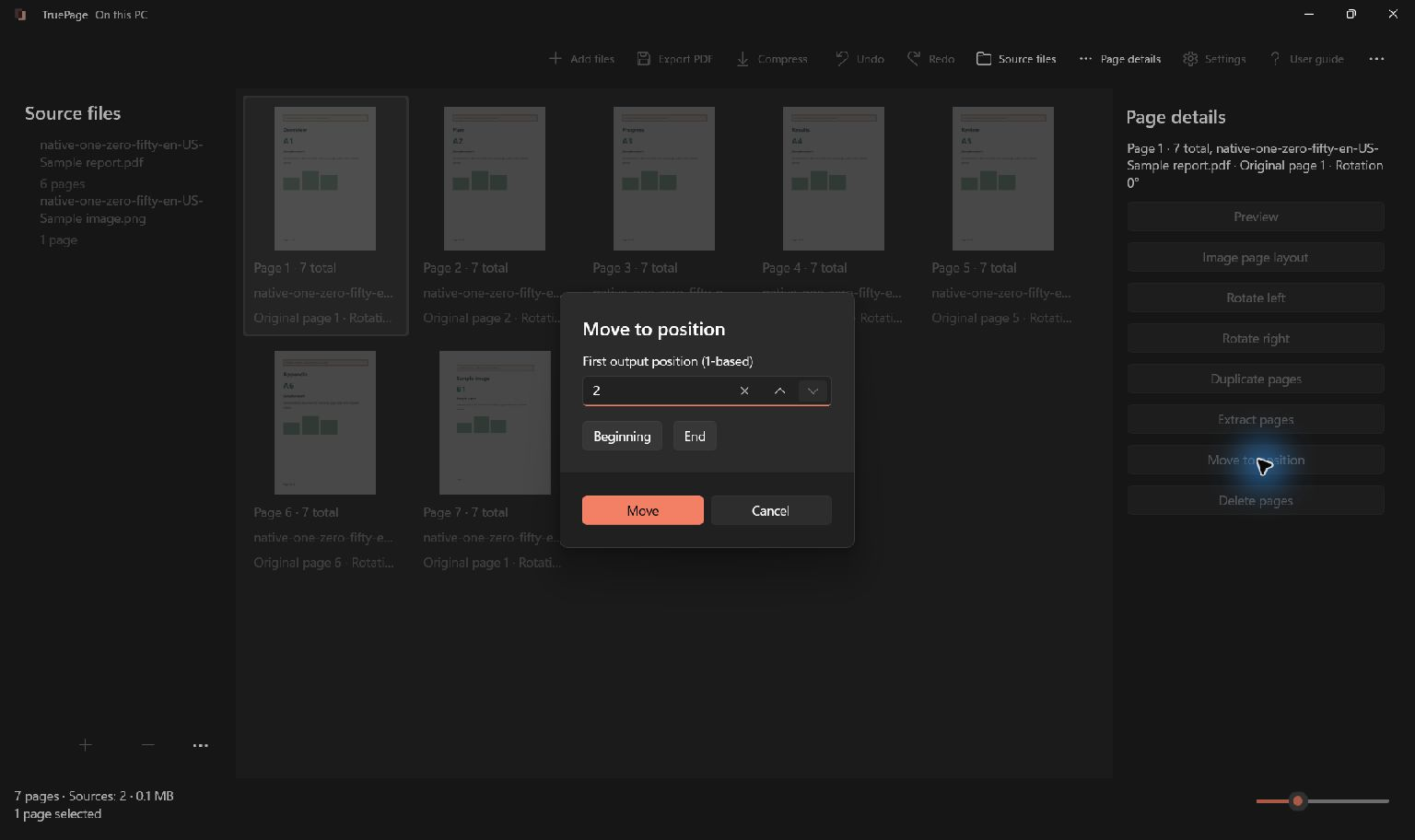
You can also drag pages while watching the insertion indicator. Move earlier and Move later, or Ctrl+Alt+Up and Ctrl+Alt+Down, help with small adjustments. A moved group keeps its internal order, so keep a two-page résumé together unless you have a specific reason to separate it.
After moving, check the first and last page of each document. Make sure the résumé’s second page still follows its first and that the certificates are in the intended sequence. If an action moved the wrong group, use Undo and rebuild the selection.
Check layout across the complete application
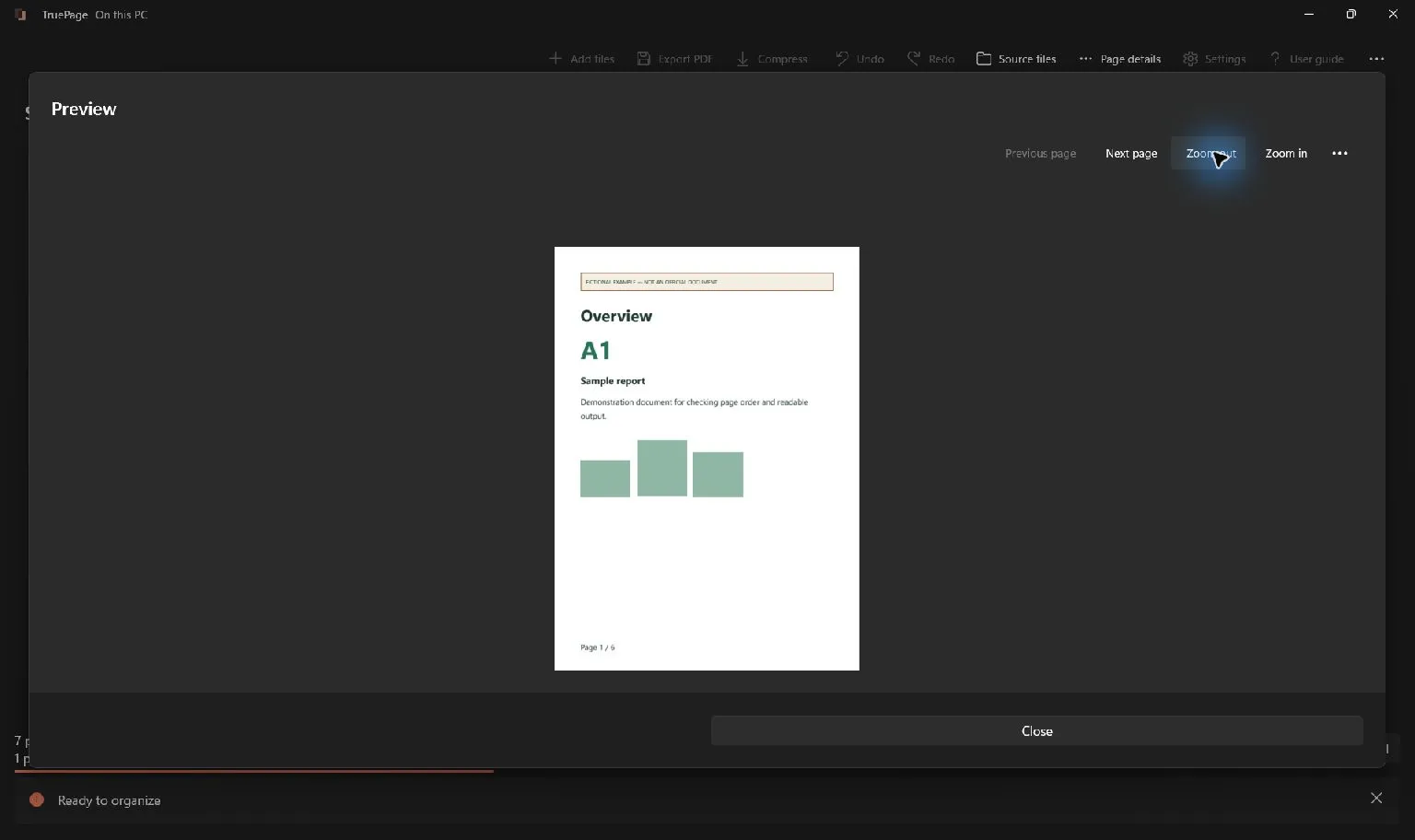
Preview the packet in reading order. Look for sideways scans, a certificate much smaller than the surrounding pages, or an image whose important text is clipped. Mixed portrait and landscape pages can be appropriate, but they should remain comfortably readable.
For imported photos or screenshots, use Image page layout to choose dimensions, orientation, margins and placement. Fit keeps the whole image visible in the available area. Fill (crop) may cut edges, so inspect the preview before choosing it for a document with information near its border.
Image layout does not reformat PDF pages. If the résumé has the wrong margins or a certificate PDF has an unwanted blank page, address the appropriate source or arrangement issue instead of expecting an image setting to change it.
Check any separate cover or index against the final packet. Adding a cover shifts output positions without rewriting printed page numbers. For a short application, an unnecessary extra cover can also add length without helping the reader; include it only when it serves the submission.
Export the complete application PDF
Choose Export PDF and select All pages for the complete packet. The last document you moved may still be selected. Choosing Selected pages in that state would save only part of the application.
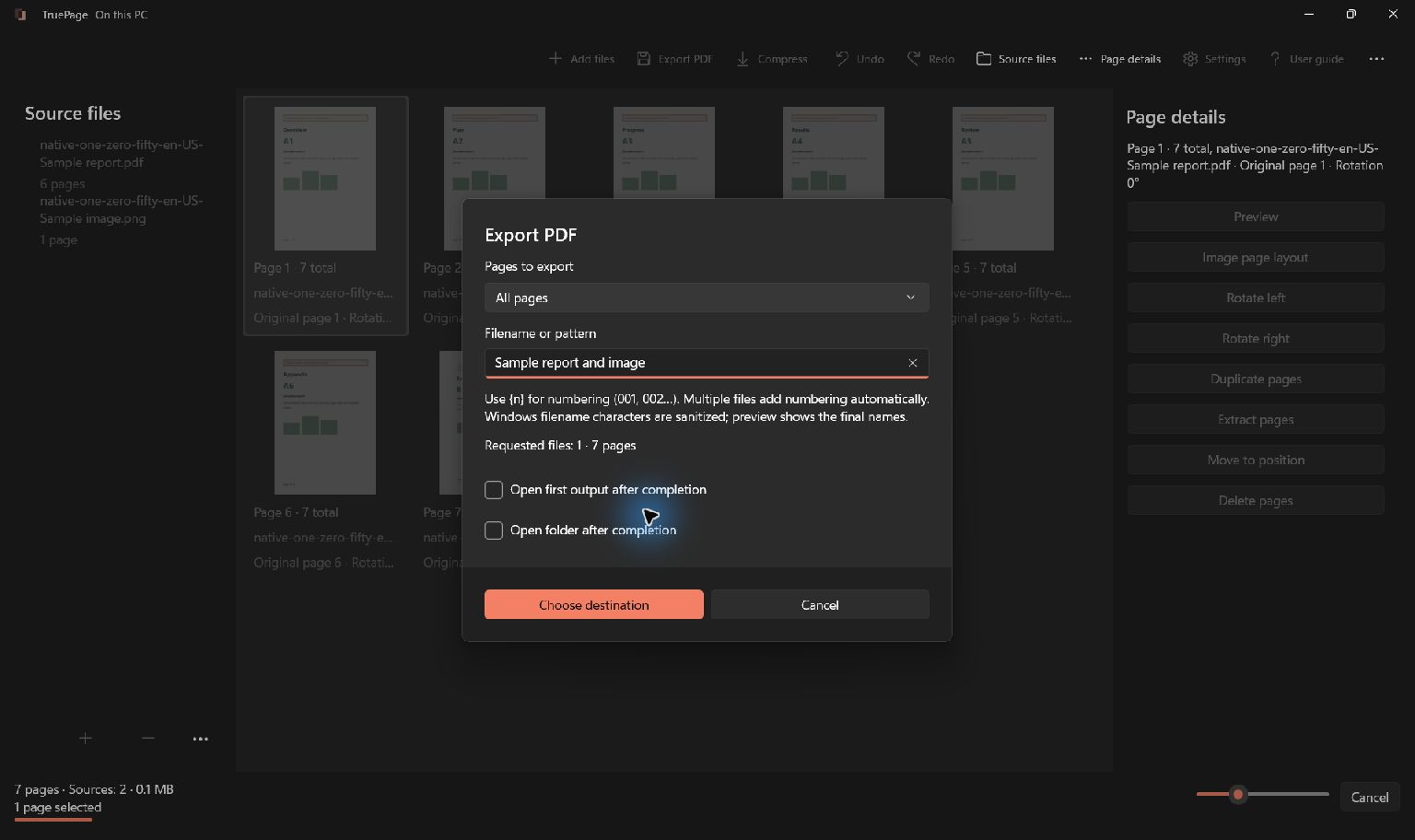
Use the requested filename when one is specified. Otherwise, choose something recognizable that identifies the application without exposing unnecessary information. Save to a location where you can distinguish the final packet from source files and earlier attempts.
Wait for export to complete, then open the exact output. Verify the count, order, names, dates, and readability. Check the first page and the last certificate as carefully as the résumé in the middle. A successful export notification cannot establish that the content was the version you intended.
Meet the size limit without losing necessary detail
Check the saved file’s size against the current submission requirement. If it is too large, first confirm that you have not included duplicate documents or unrequested material. Removing an accidental duplicate can be more useful than reducing every image’s quality.
When compression is needed, use the exported application PDF as the source of the separate compression operation. Compare the output before keeping it, especially small text on certificates, stamps, and photographs of printed documents. A smaller file is not useful if the required evidence becomes unreadable.
There is no guaranteed reduction for every PDF. A text-heavy résumé may already be compact, while a photographic scan can dominate the packet’s size. Read why a PDF may remain large after compression rather than repeatedly applying quality reduction without checking what changed.
Finally, upload or attach the exact file you reviewed. If the portal offers a preview, inspect it and confirm the attachment name. Keep the source documents and the checked submitted copy so you can identify what was sent without relying on a folder full of similarly named drafts.

Your pages. Your space.
Available now for Windows 11